.png?width=75&height=75&name=Untitled%20design%20(22).png)
Discover how to link your Adaptive account, sync jobs, vendors, and cost codes, and push purchase orders between Adaptive and Ressio. This walkthrough details how to set up and use the Adaptive integration to streamline your project workflows.
Benefits:
-
Centralizes project, vendor, and cost code data between platforms
-
Eliminates double entry, saving time and reducing errors
-
Enables direct syncing and order pushing for efficient financial management
Table of Contents
1. How to Connect to Adaptive in Ressio
2. Connecting a Project to Adaptive
5. Creating and Pushing Purchase Orders
How to Connect to Adaptive in Ressio
-
Go to Company Settings->Integrations Tab on the left hand side. At the top will be 'Adaptive'.
-
Click the 'Connect to Adaptive' button.
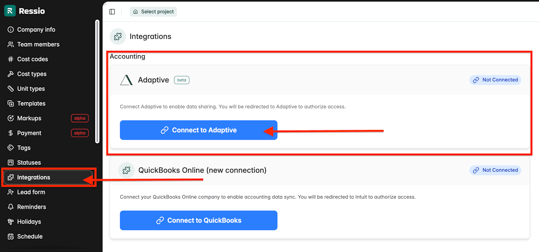
- You will be redirected to Adaptive to sign in and approve access
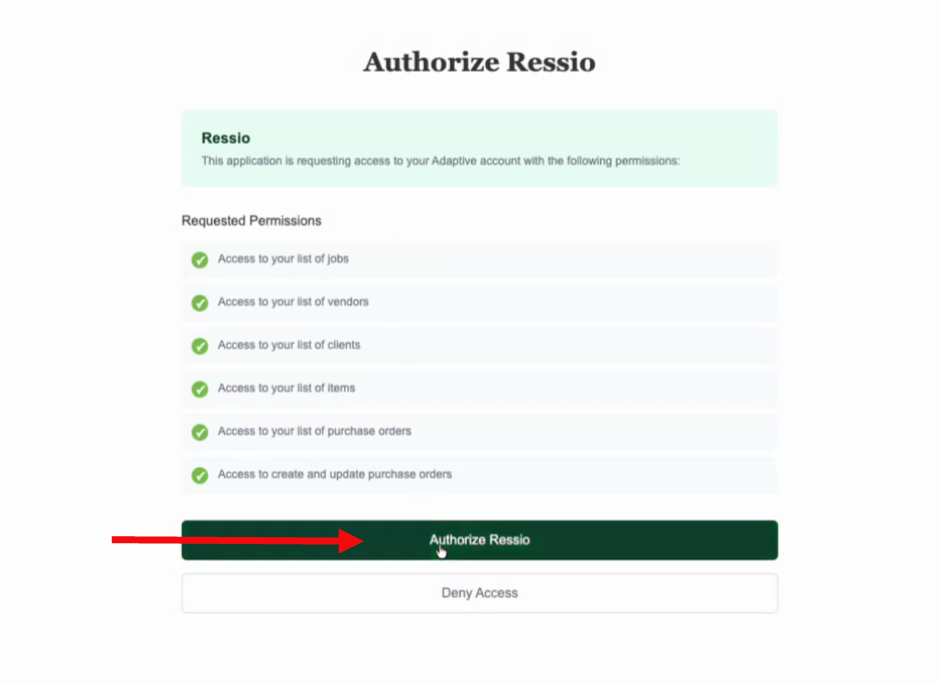
- You will be redirected back and after connecting, Ressio shows your Adaptive account as linked.
Connecting a Project to Adaptive
-
Navigate to your desired Ressio project.
-
Open Project Settings and go to the Financials section.
-
Locate the “Connect to Adaptive” area.
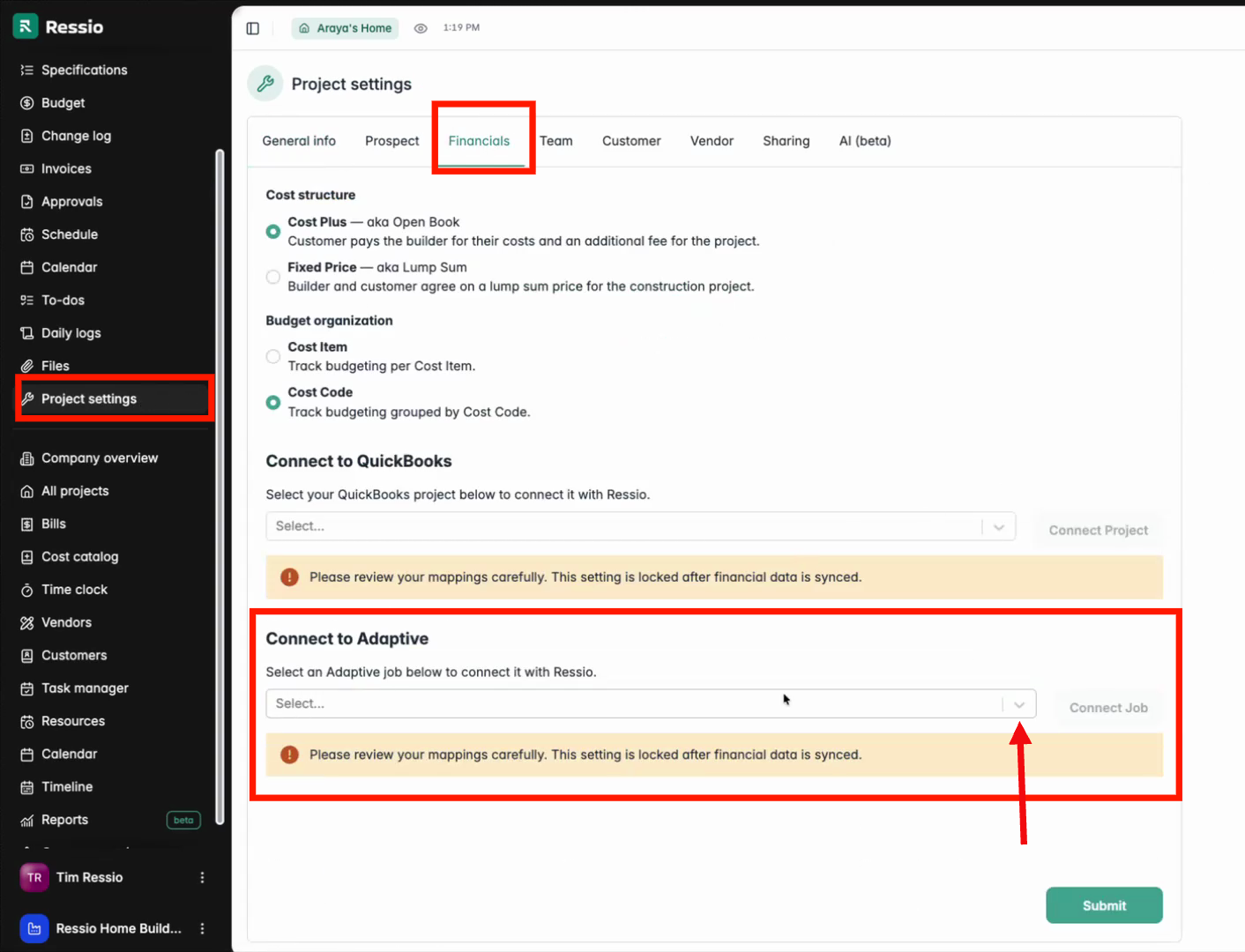
4. Select from your existing Adaptive jobs and connect them to the Ressio project.
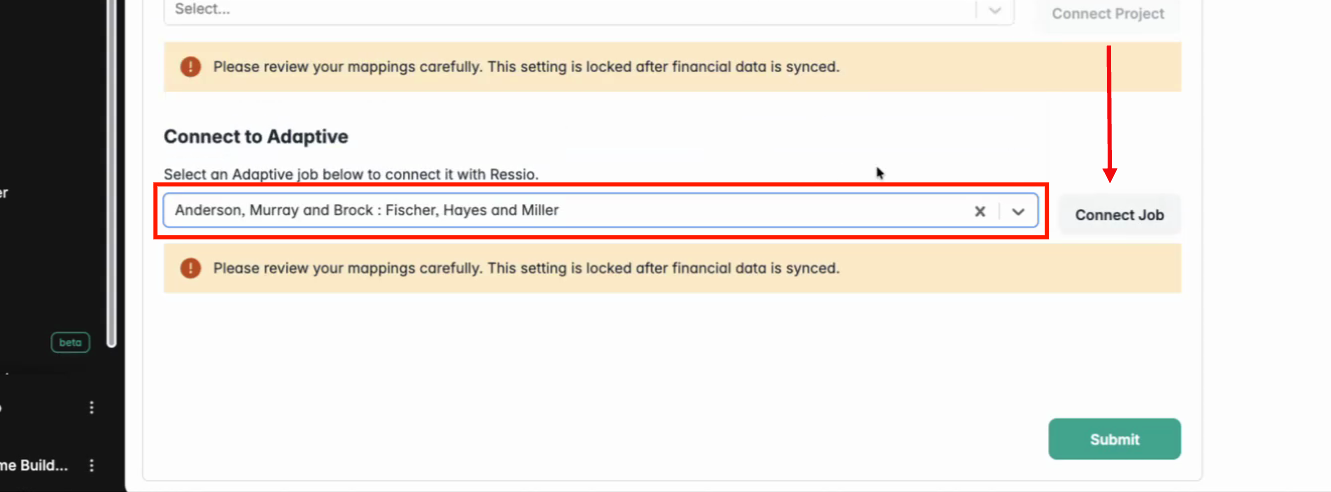
Once your project is connected to Adaptive, Purchase Orders toggles and 'Default Adaptive cost code for line items' appear. For Purchase Orders, you can now:
-
Enable pushing purchase orders to Adaptive
-
Automatically push purchase orders to Adaptive (‼️ Purchase orders will be pushed automatically on release or change.)
'Default Adaptive cost code for line items' allows you to set the default cost code for purchase order line items without an Adaptive cost code mapping specified.
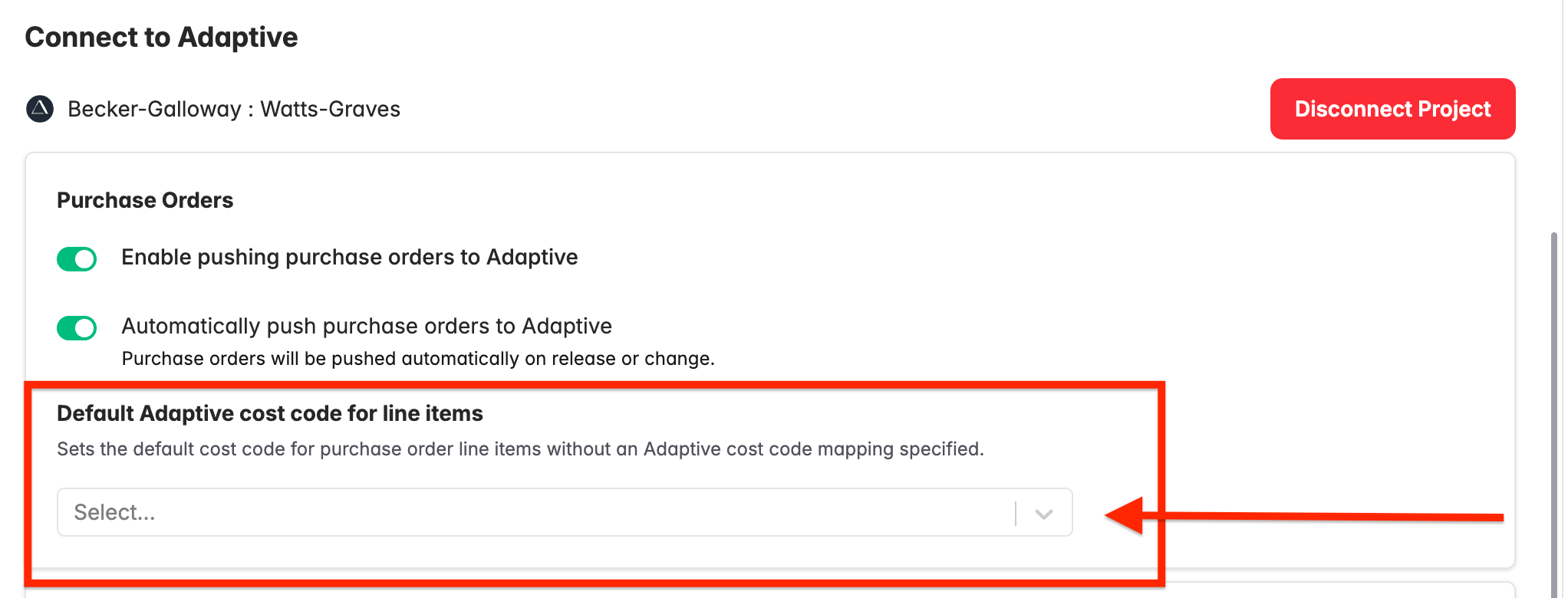
✅ Purchase Orders toggles are ON by default.
[back to top]
Linking Vendors
Navigate to the Vendors tab under Company Overview. Check the Adaptive integration status. “Not connected” indicates the vendor isn’t linked yet.
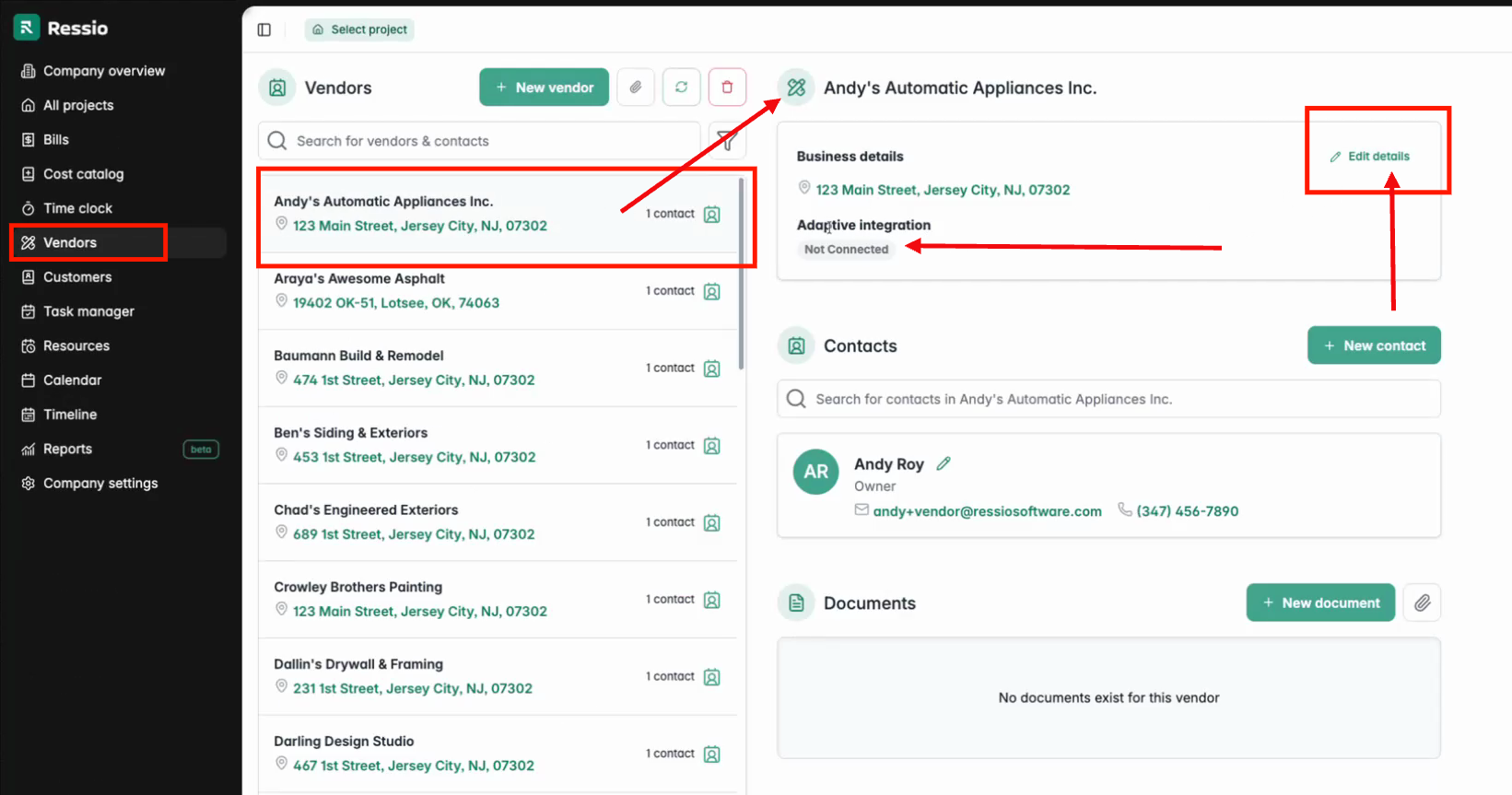
Select Edit Details in the top right hand corner to see available vendors from your Adaptive account.
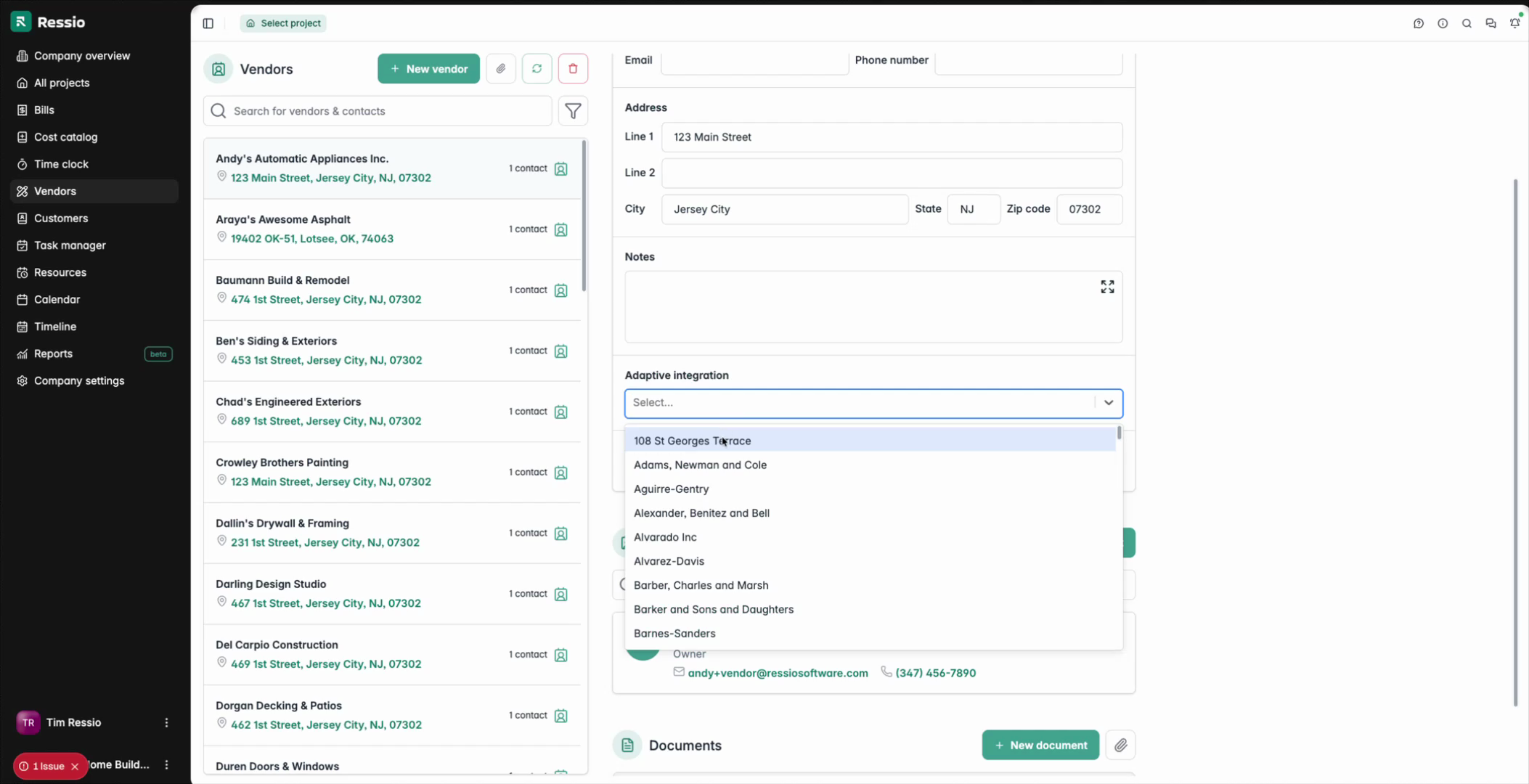
Select and connect the corresponding vendor. Once connected, Ressio displays the status and the project listed underneath "Adaptive Integration" and the Adaptive icon will be next to the Vendor.
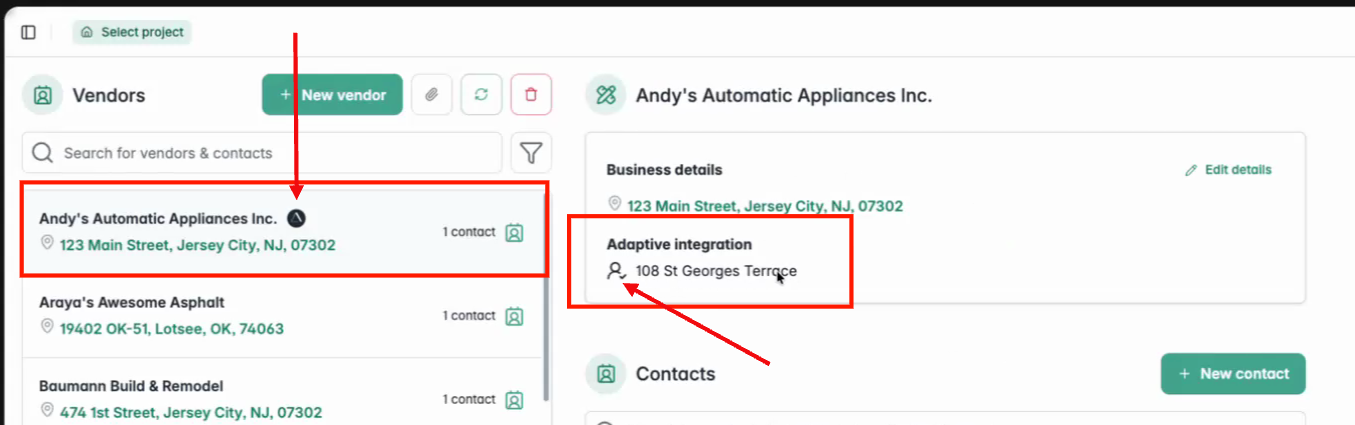
👀 Easily identify connected vendors with the Adaptive icon for smoother operations.
Syncing Cost Codes
In Company Settings, navigate to Cost Codes.
A new “Adaptive Item” column indicates linkage options.
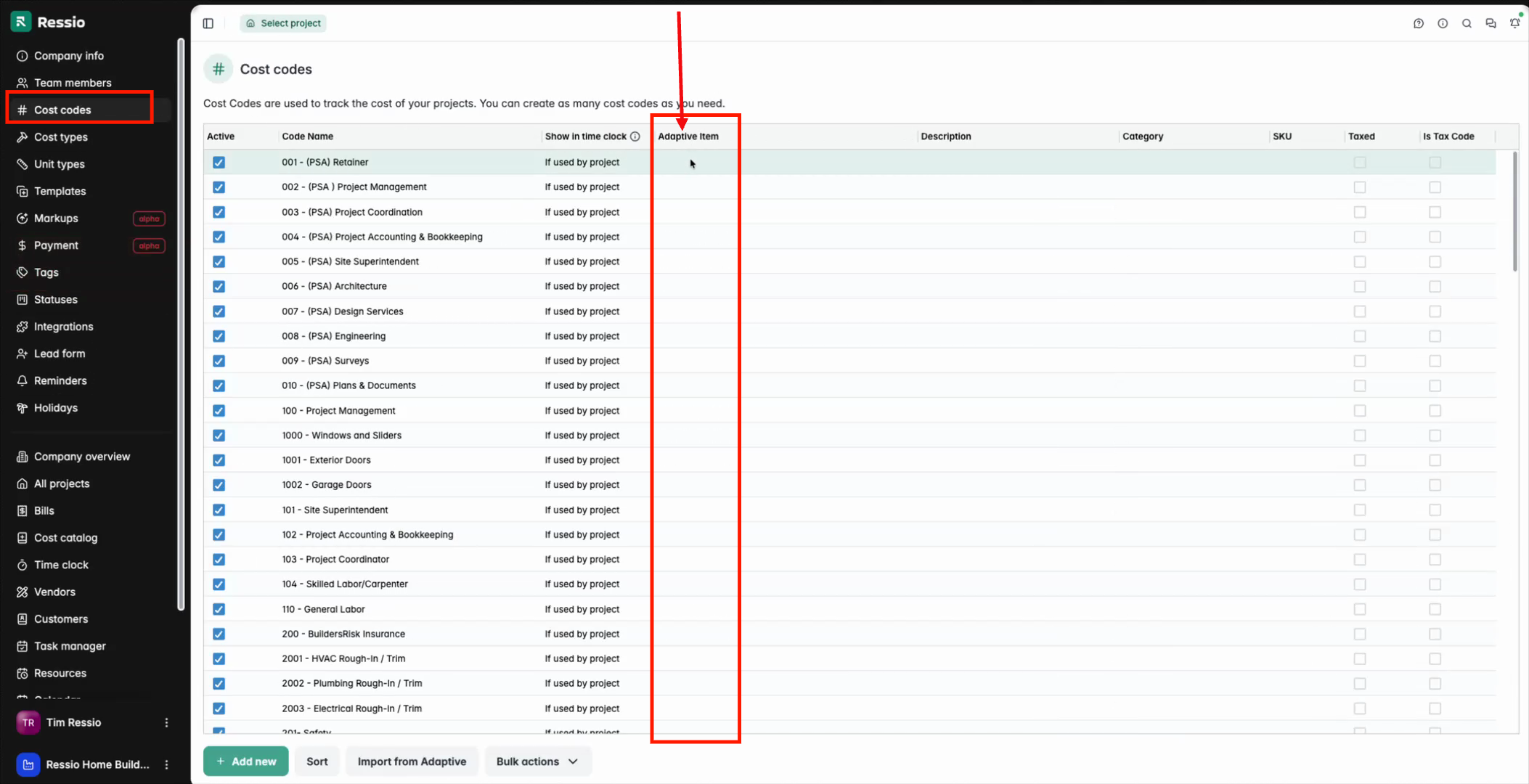
Selecting the column opens a list of existing Adaptive cost codes.
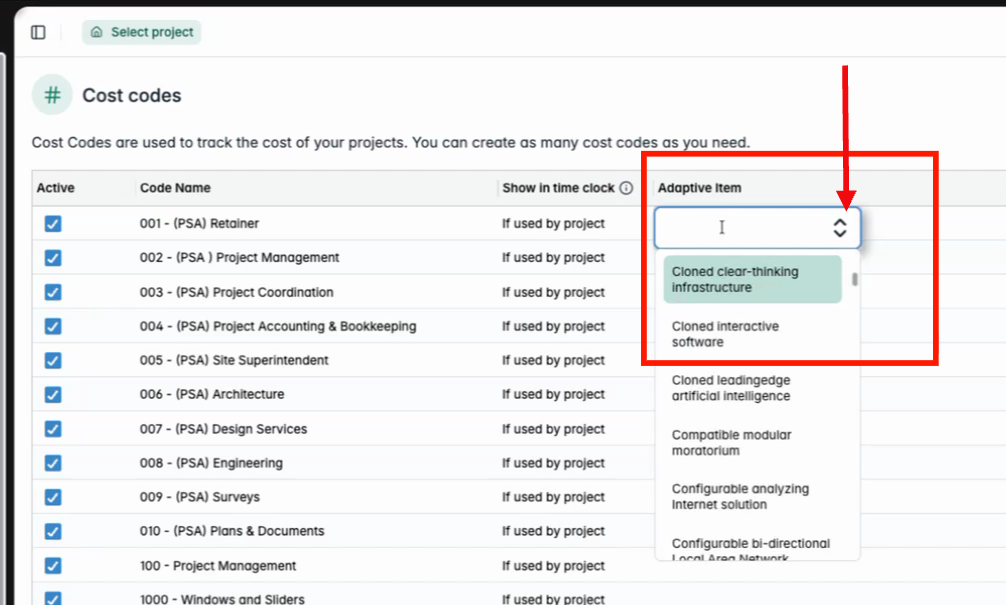
Choose the cost code to sync with Ressio.

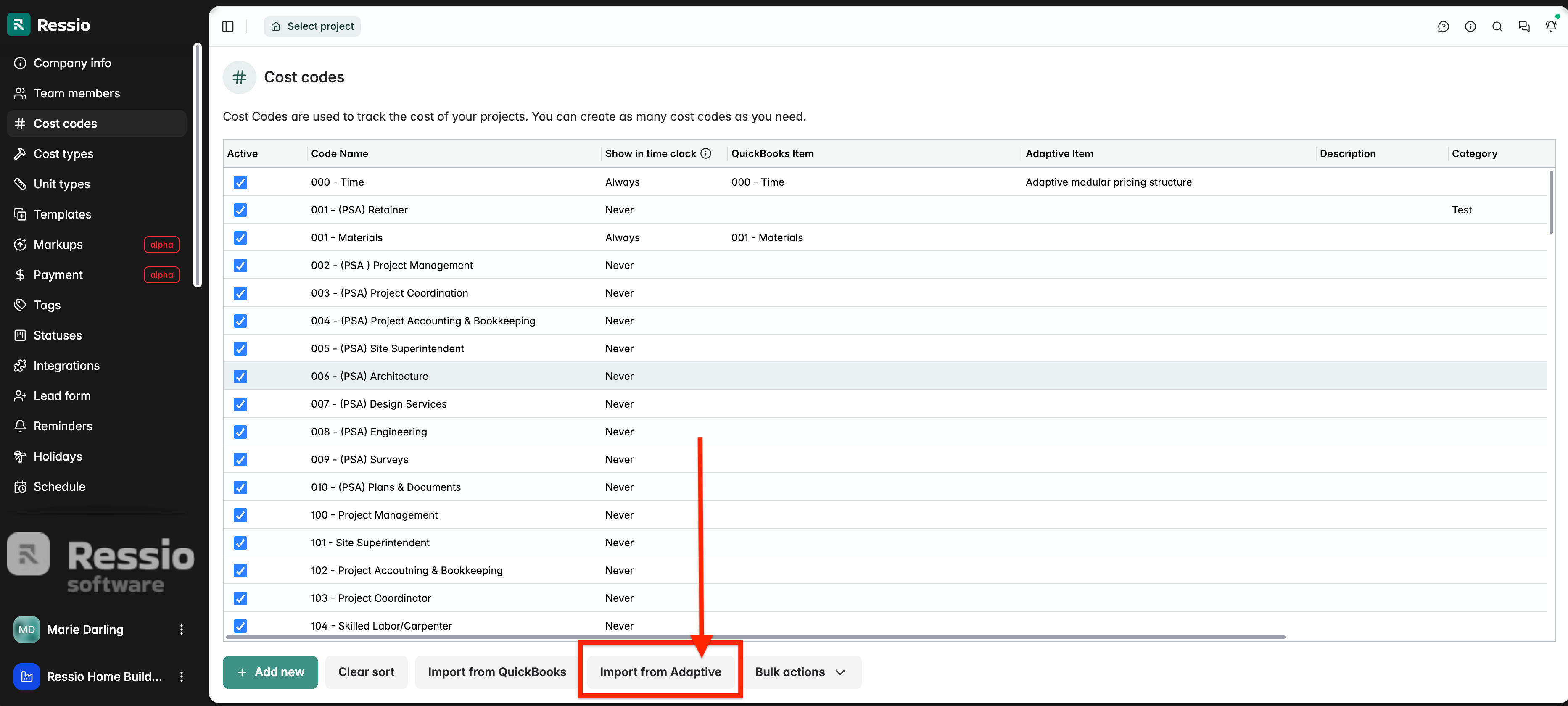
An Import from Adaptive button (shown at the bottom) will pull in all cost codes from Adaptive for easier matching.
Creating and Pushing Purchase Orders
Select your connected project, then go to Estimate to create a new purchase order.
Add a line item and select the synced Adaptive cost code.
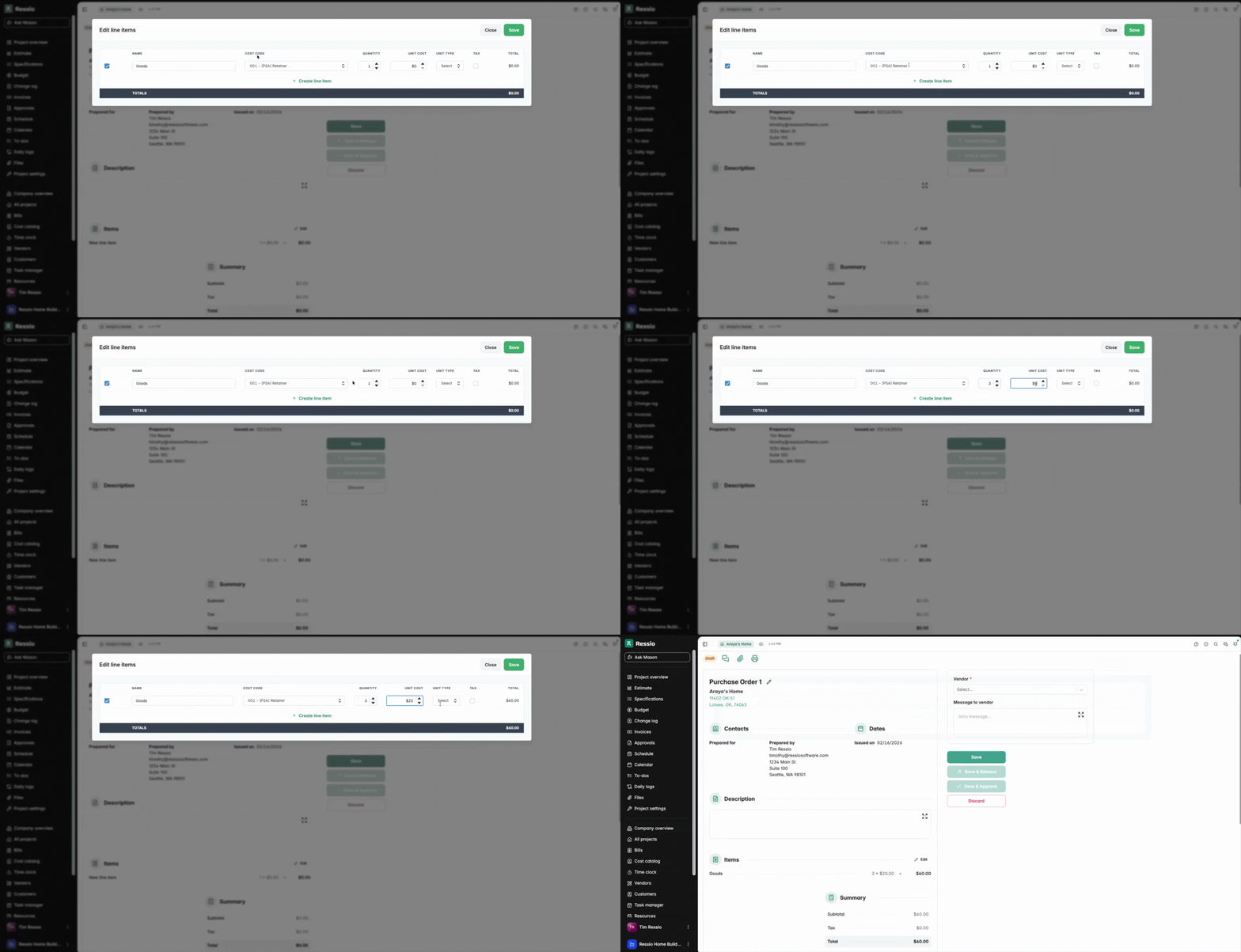
Assign a vendor, identifying connected vendors by the Adaptive icon.
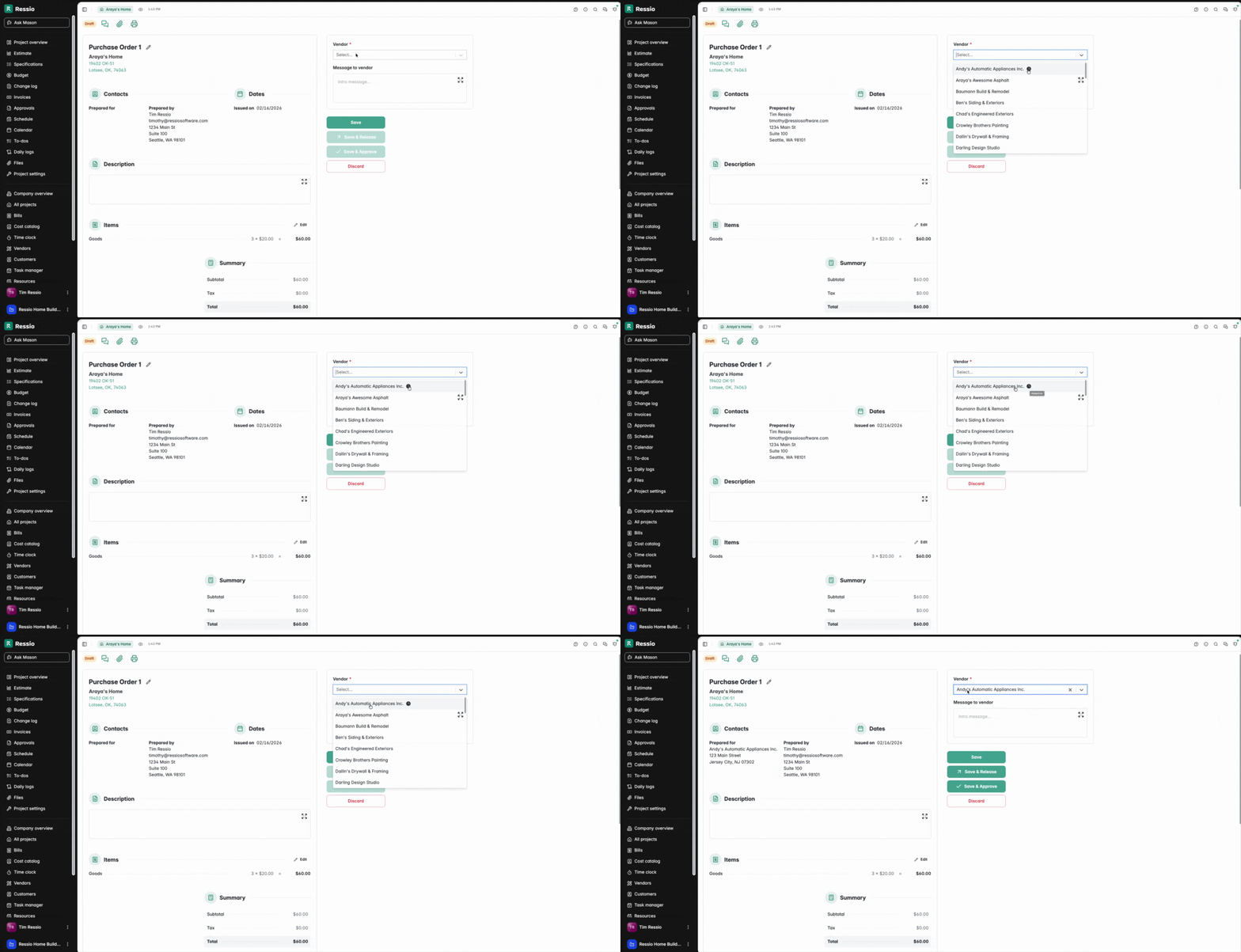
Continue building your purchase order, then release it for processing.
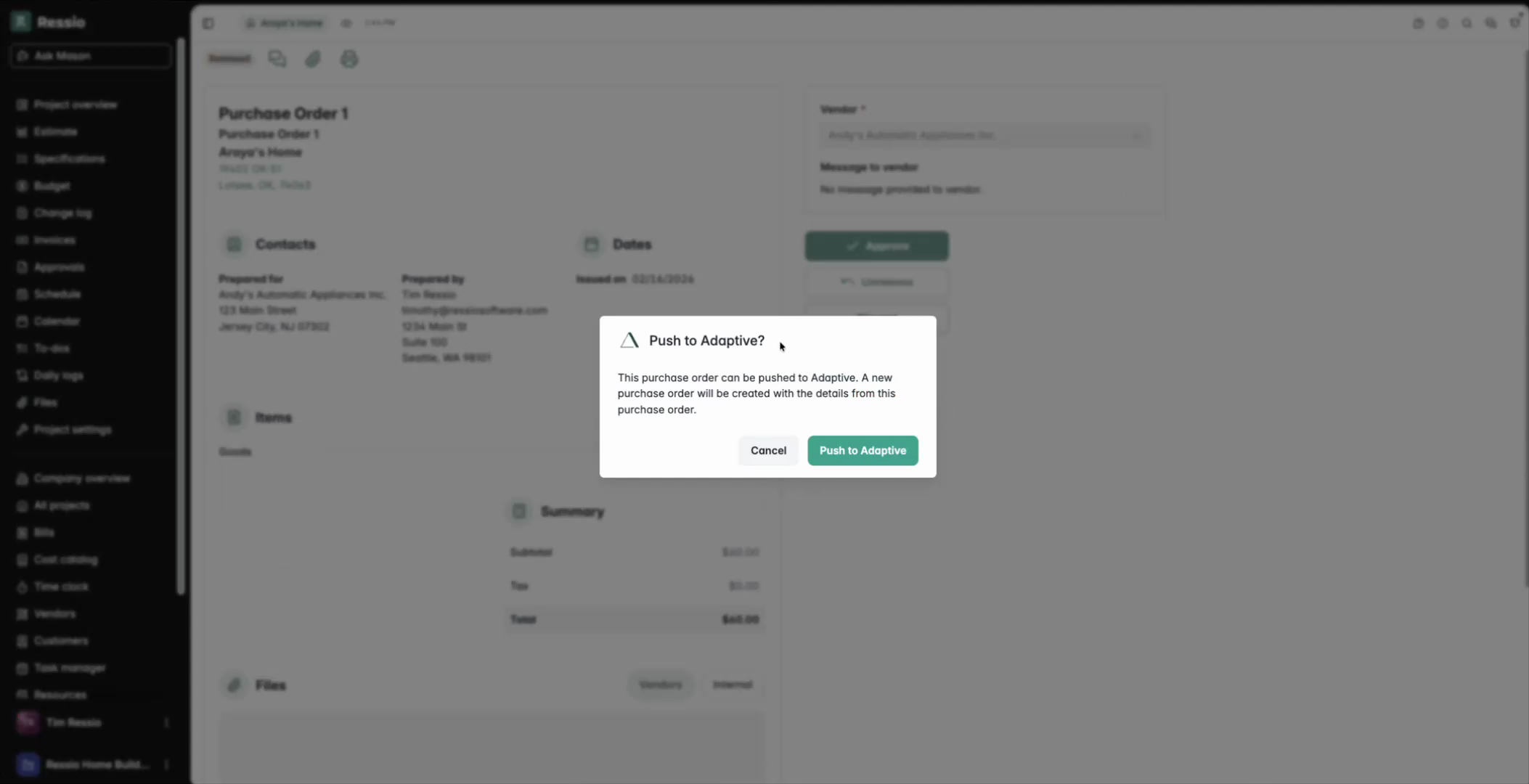
A pop-up confirms that you can push the purchase order to Adaptive.
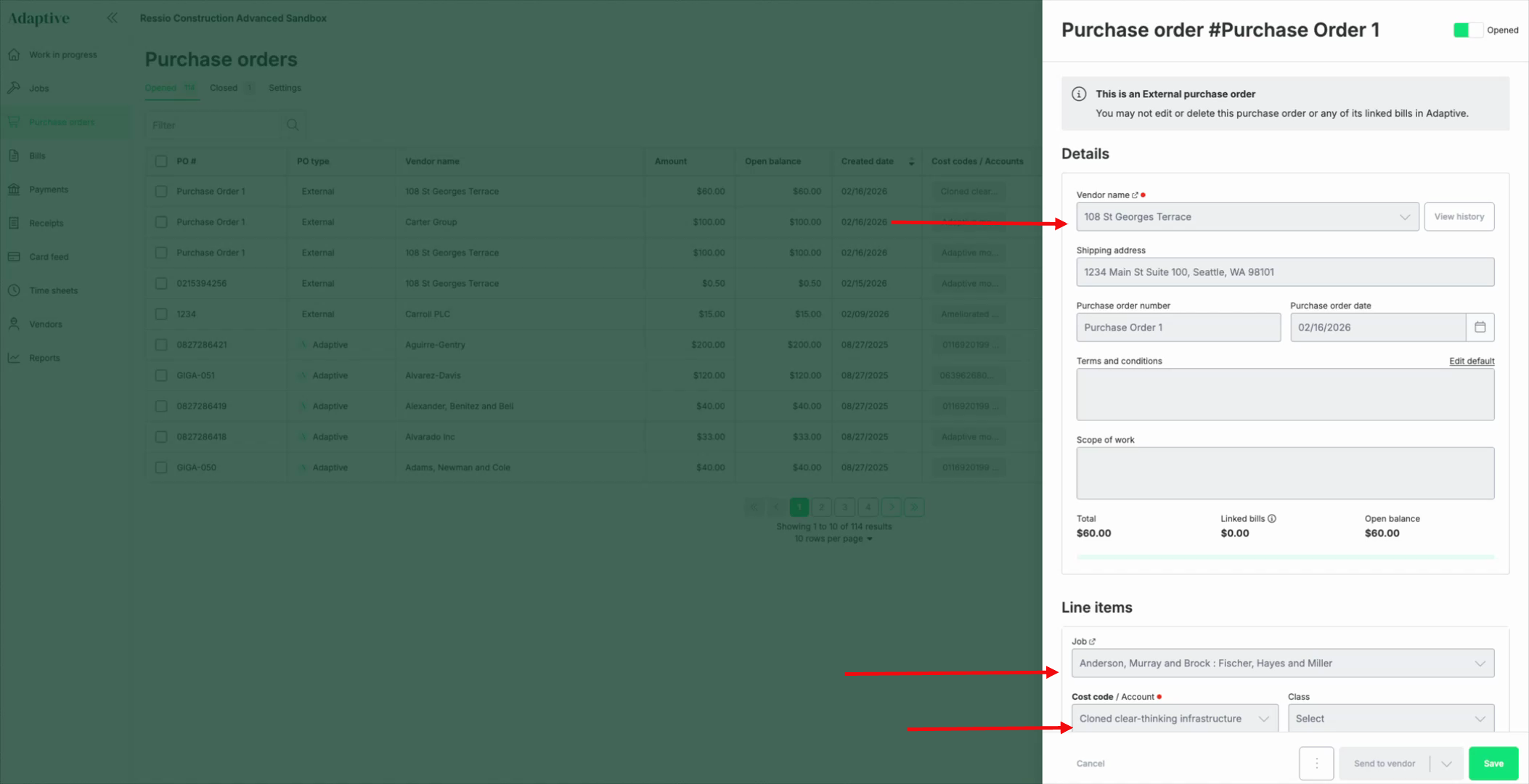
Switch to Adaptive to confirm that the new purchase order contains the linked vendor, project, cost code, and details.
If you have any questions or need further assistance, contact our support team at support@ressiosoftware.com. We're here to help!