.png?width=75&height=75&name=Untitled%20design%20(22).png)
Efficiently manage your project documents and vendor communications by assigning specific project specs to multiple vendors—all within Ressio. Follow this guide to streamline specification access without revealing unnecessary project details.
Benefits of Assigning Specifications to Multiple Vendors
-
Maintain control—share only relevant specs with each vendor
-
Improve collaboration with direct messaging and file sharing
-
Avoid clutter—vendors see just what they need
-
Simplify workflow by using project or estimate tabs
Table of Contents
Navigation and Layout
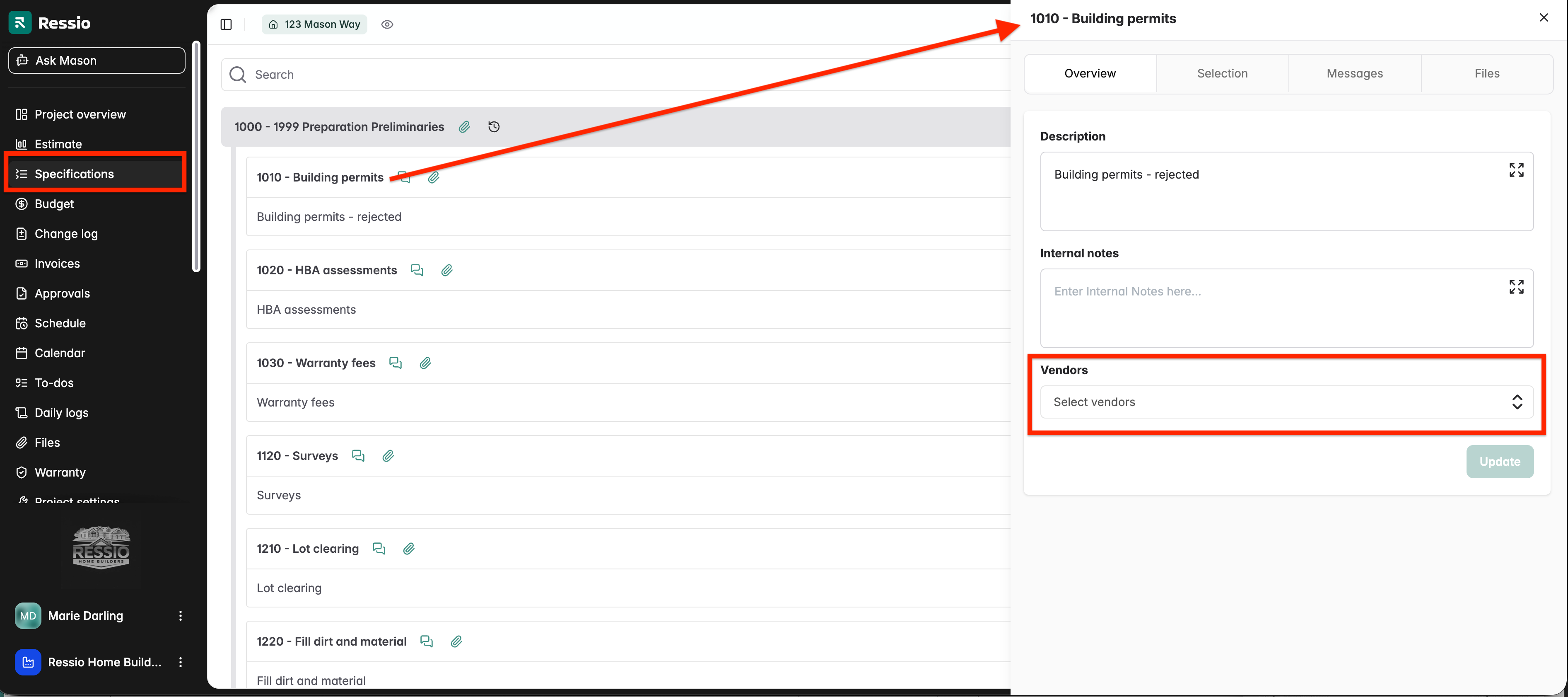
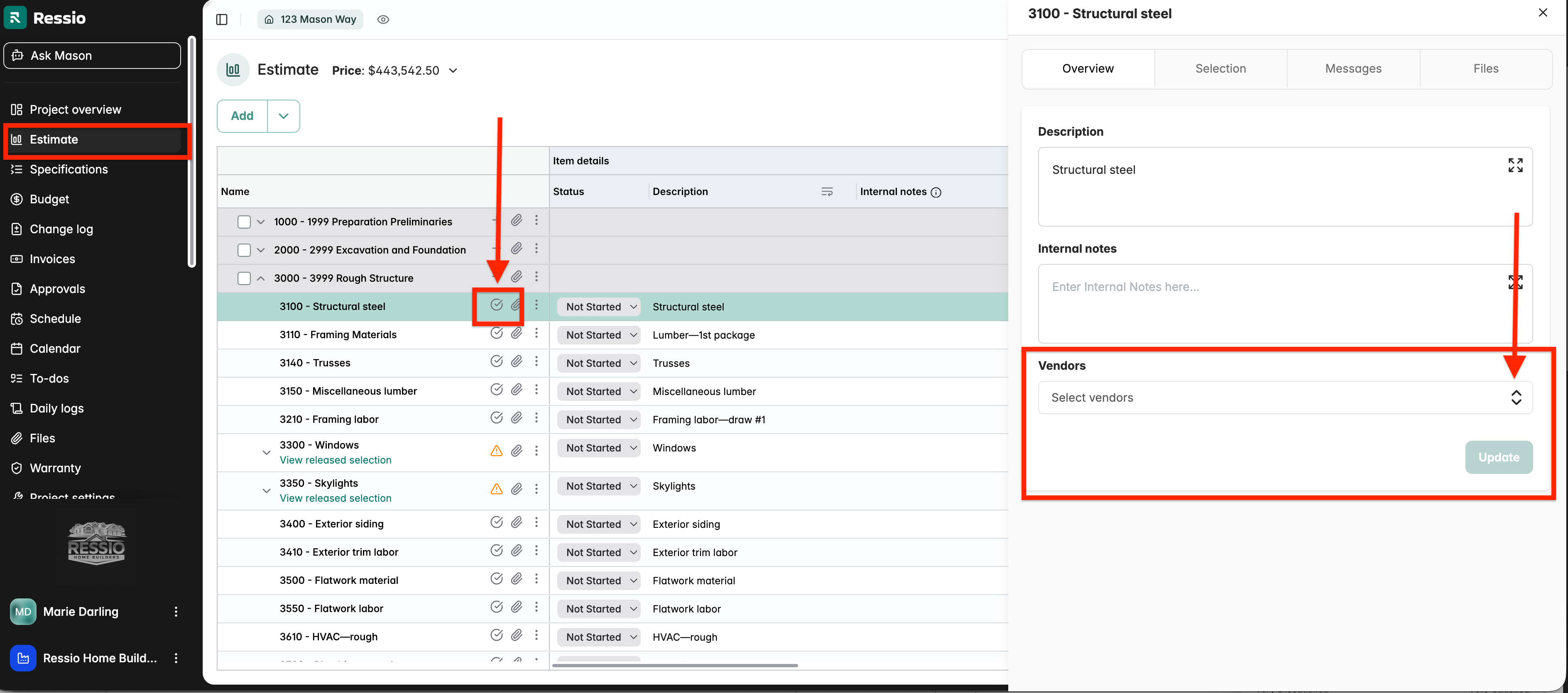
Access the assignment features from either the Specifications or Estimate tab within your project workspace.
How to Assign a Specification to Multiple Vendors
-
Navigate to the Specifications tab or Go to the Estimate tab
-
Open the specification you want to assign
-
Locate the Vendors field
-
Add one or multiple vendors to the specification
-
Hit 'Update' after adding vendors
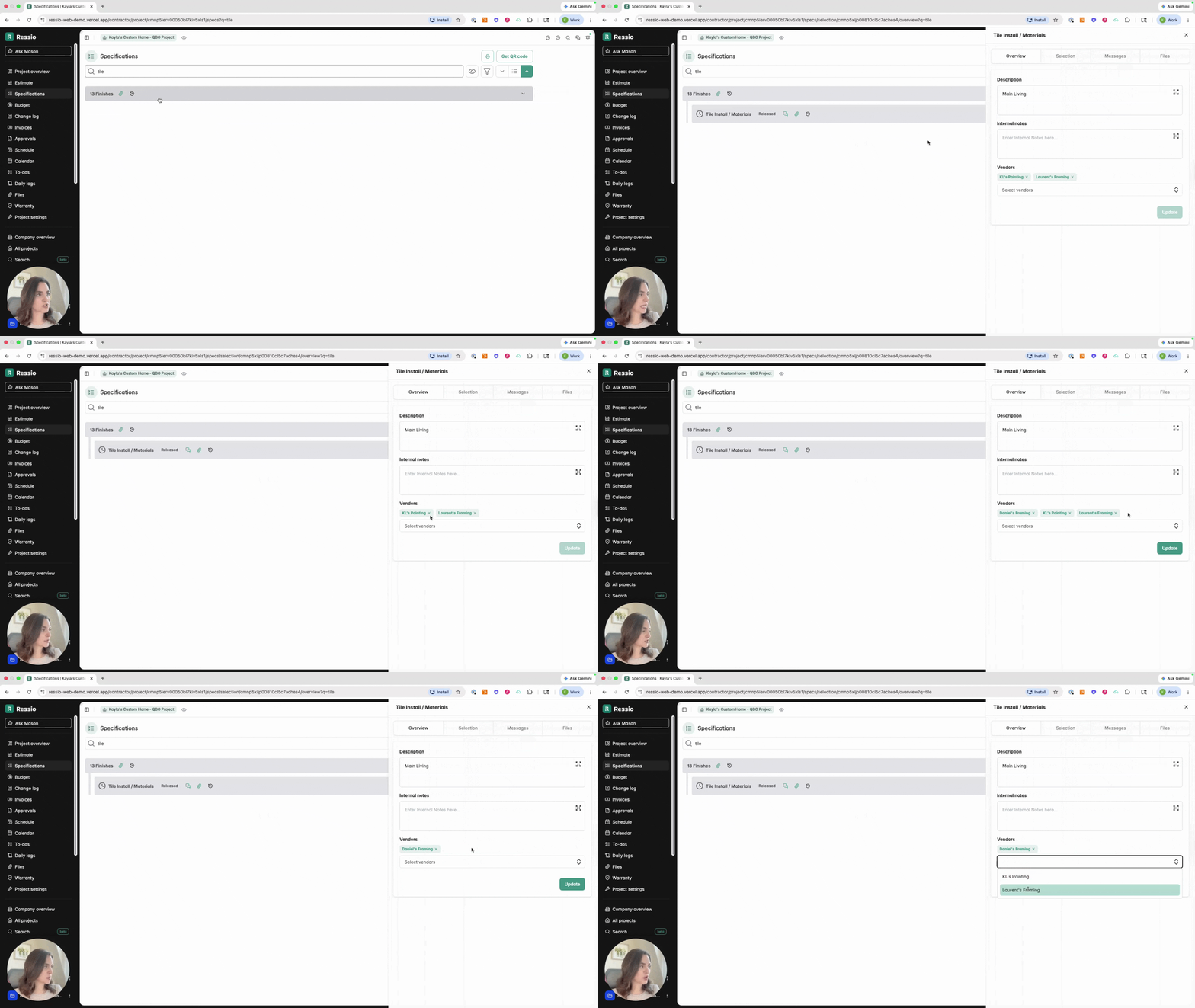
💡 Assigning specs to multiple vendors let you avoid sharing the entire specification list with everyone involved.
Project Settings: Controlling Spec Visibility
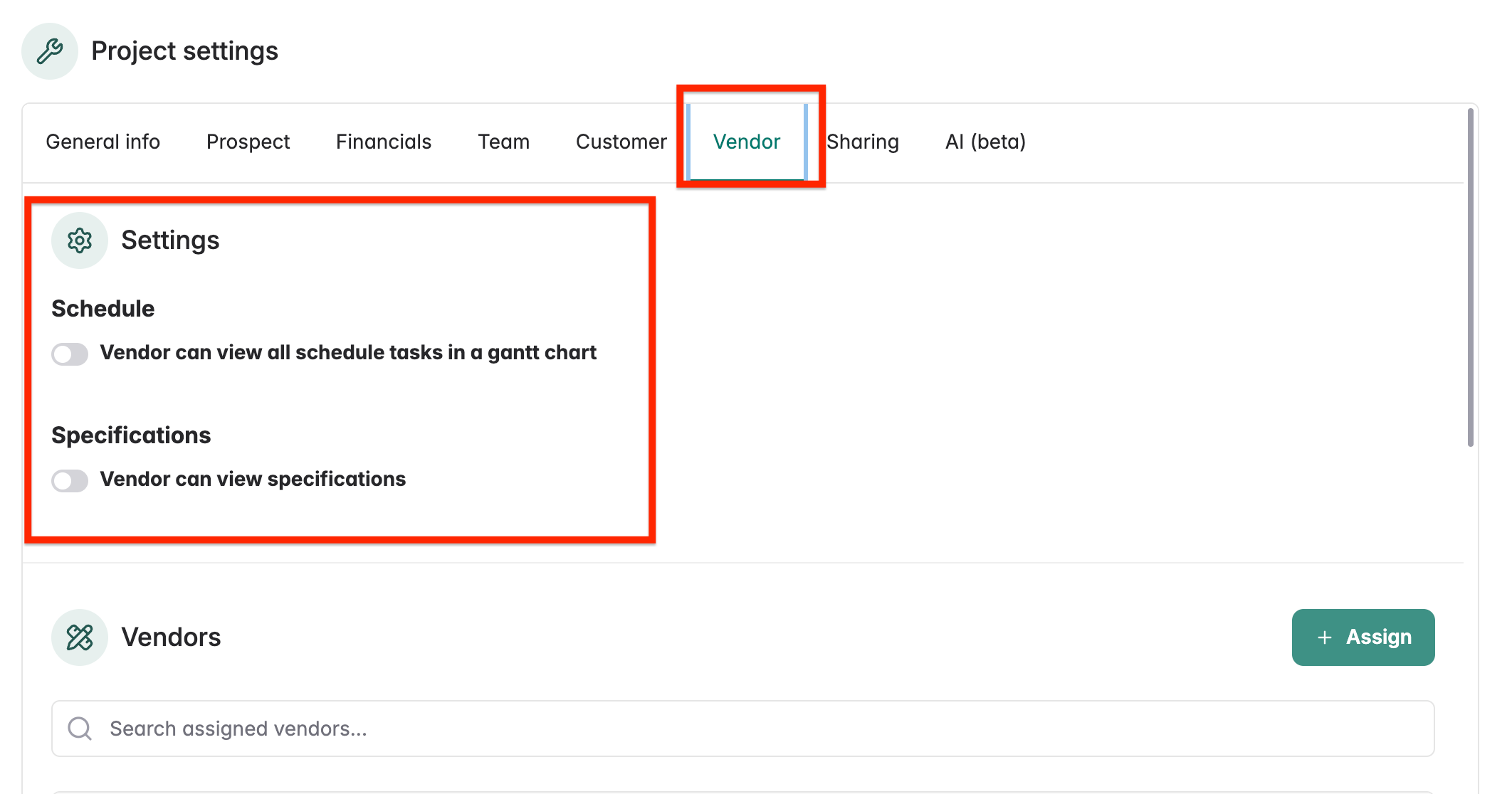
Navigate to the Project Settings, then Vendor Tab and toggle on or off to configure how specifications are displayed to vendors. This is also where you can assign Vendors to the whole project. Choose whether to show only assigned specs or all specs to the selected vendors and subcontractors.
Vendor Experience: Messaging and Access
With vendors assigned, start conversations and share files directly within the thread. Send messages that trigger a notification containing a magic link to each vendor for immediate access.
Vendor Experience
When a vendor is assigned to a specification:
-
They receive an email with a magic link
-
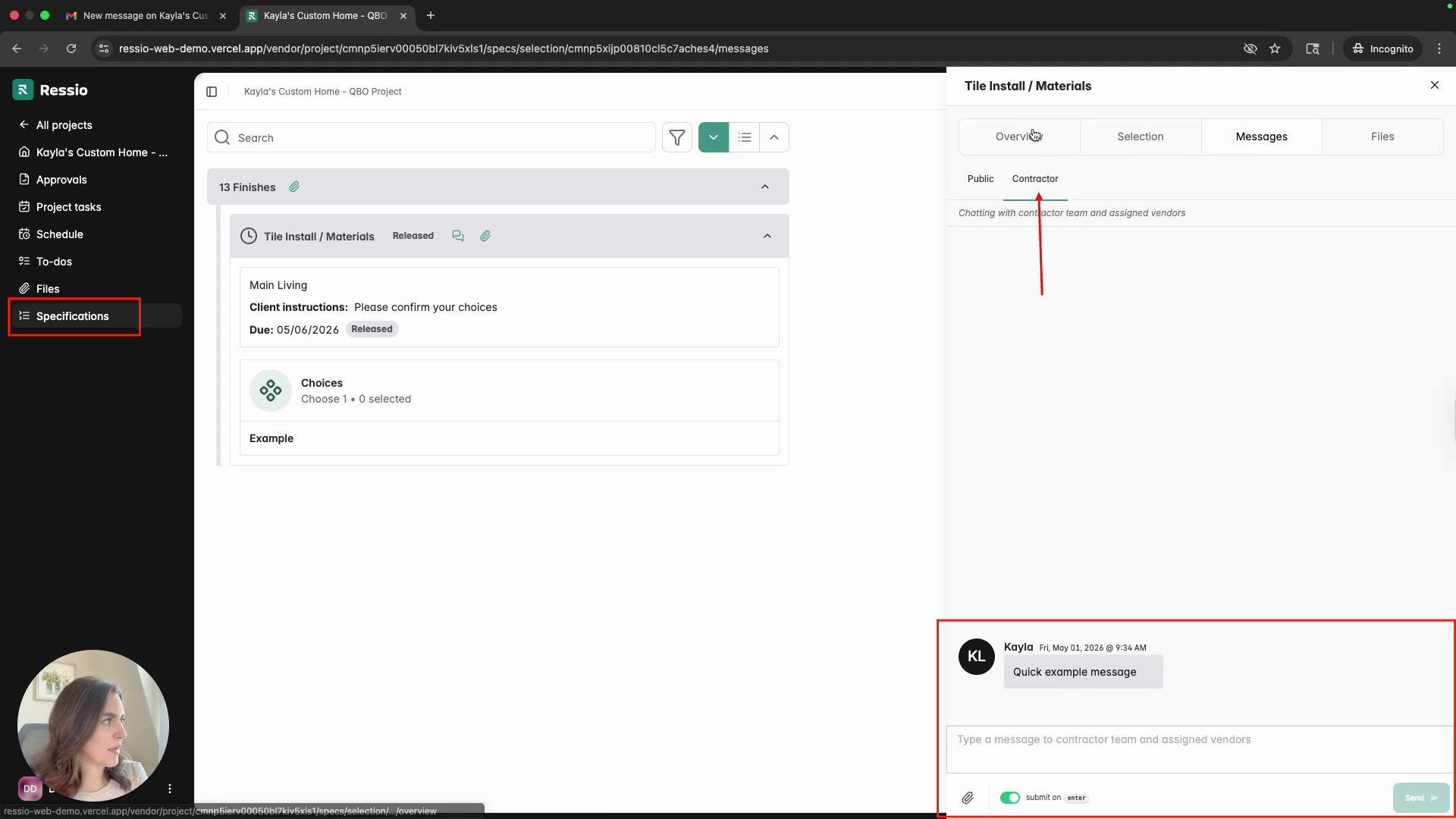
They can view only the specs assigned to them
-
They can:
-
Review specification details
-
Access shared files
-
Send and receive messages on the spec
-
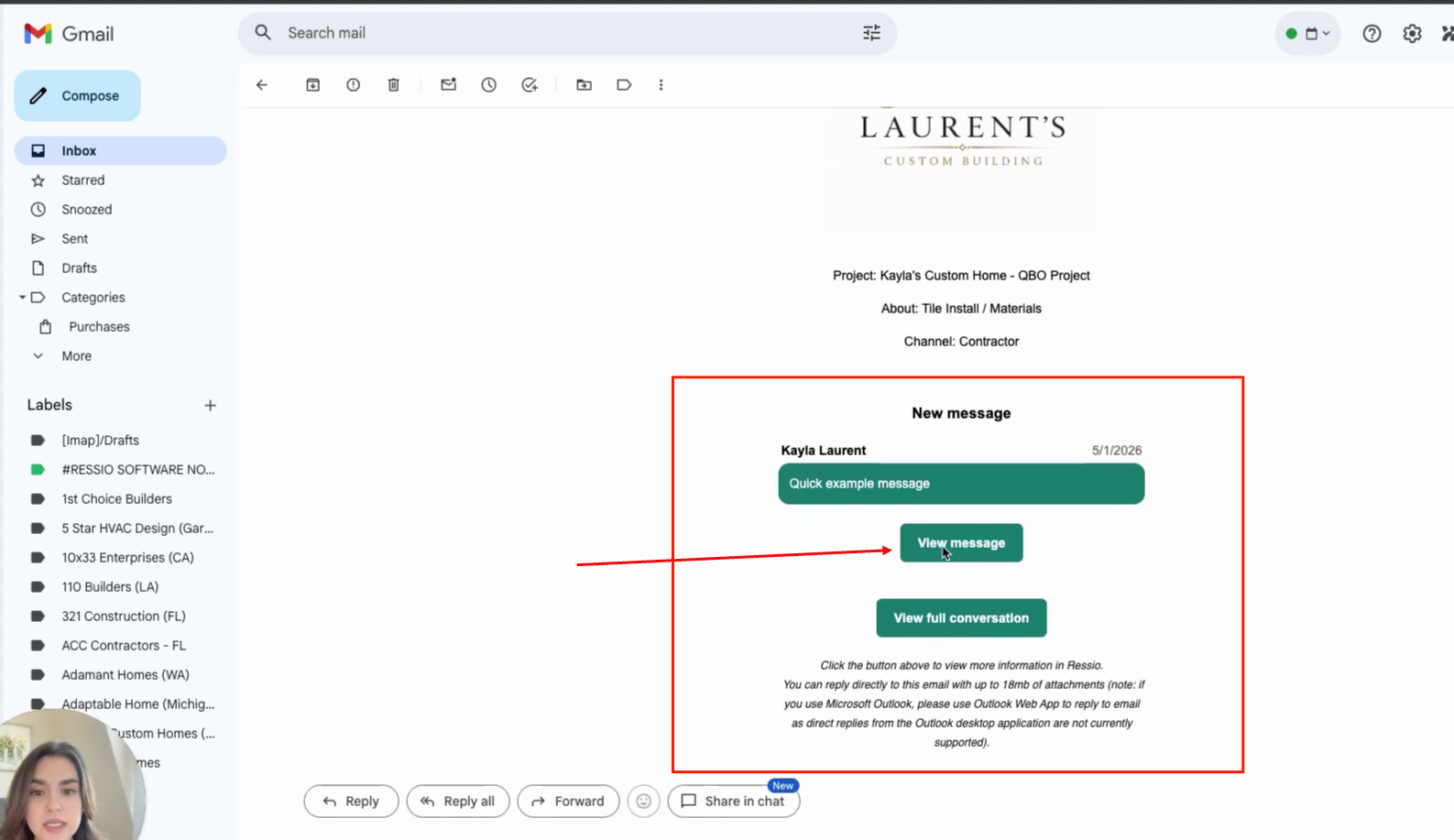
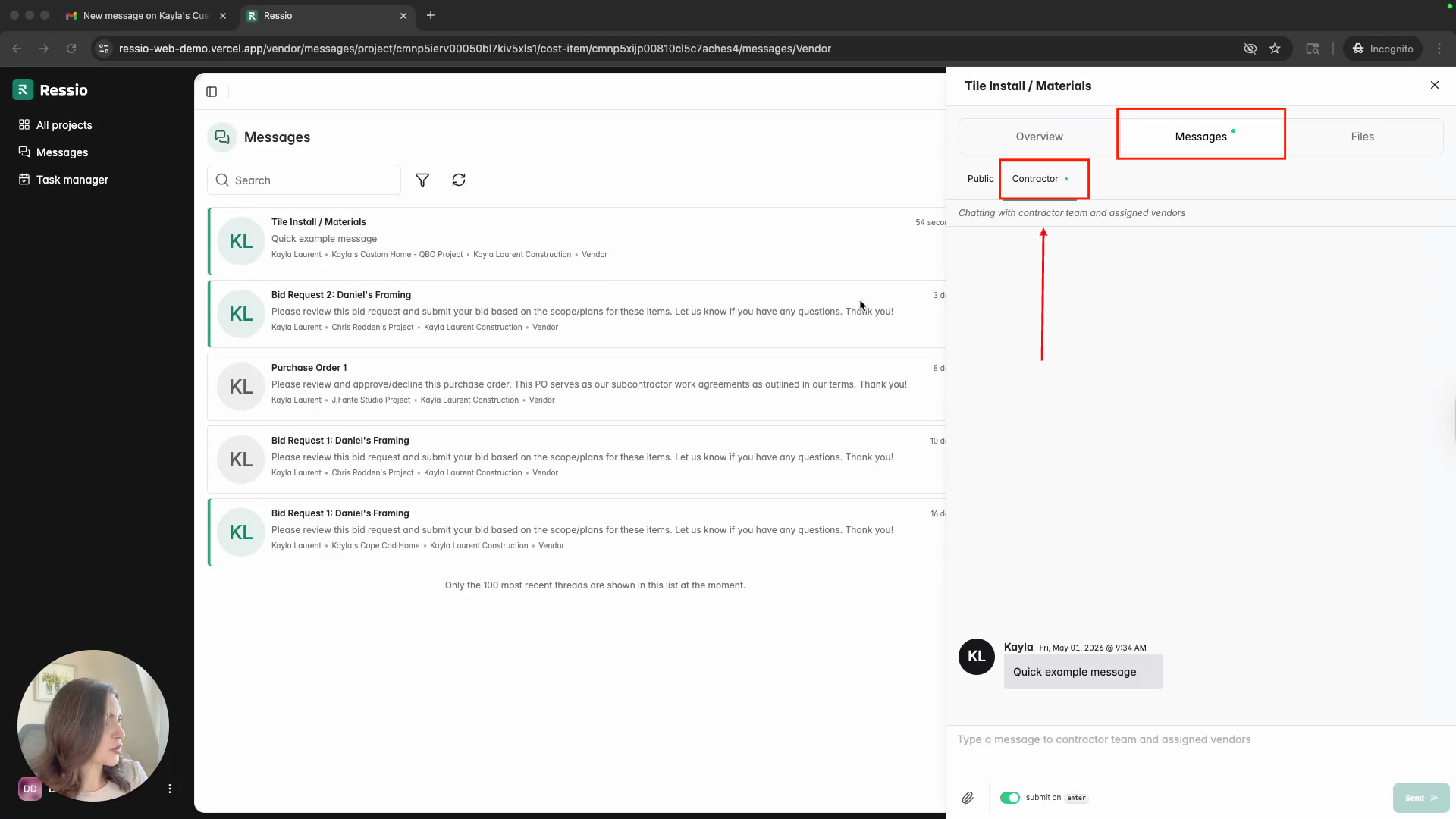
Viewing Assigned Specs as a Vendor
When logged in as a vendor, access the assigned project and view only the specifications you've been assigned.
View details and communicate with the project team as needed.
If you have any questions or need further assistance, contact our support team at support@ressiosoftware.com. We're here to help!