.png?width=75&height=75&name=Untitled%20design%20(22).png)
The audit log (also called the activity timeline) shows a running history of changes made to an estimate. Access a comprehensive activity log in Ressio to review all activity by your team on an estimate or specification. This guide shows how to find, read, and filter changes to maintain oversight during your build process.
Benefits of the Activity Log
-
Gain transparency into every change on estimates and specs
-
Easily identify who made updates and when
-
Filter by team member or date for detailed tracking
-
Improve oversight during pre-construction and construction
Table of Contents
-
Filter and Review Activity
The Audit log (activity) shows a running history of changes made to an estimate.
Use the Audit log to:
-
Confirm what changed and when
-
See which user made a change
-
Review before and after values for an edit
Navigation and Layout
From the estimate
-
Open the project.
-
Go to the estimate.
-
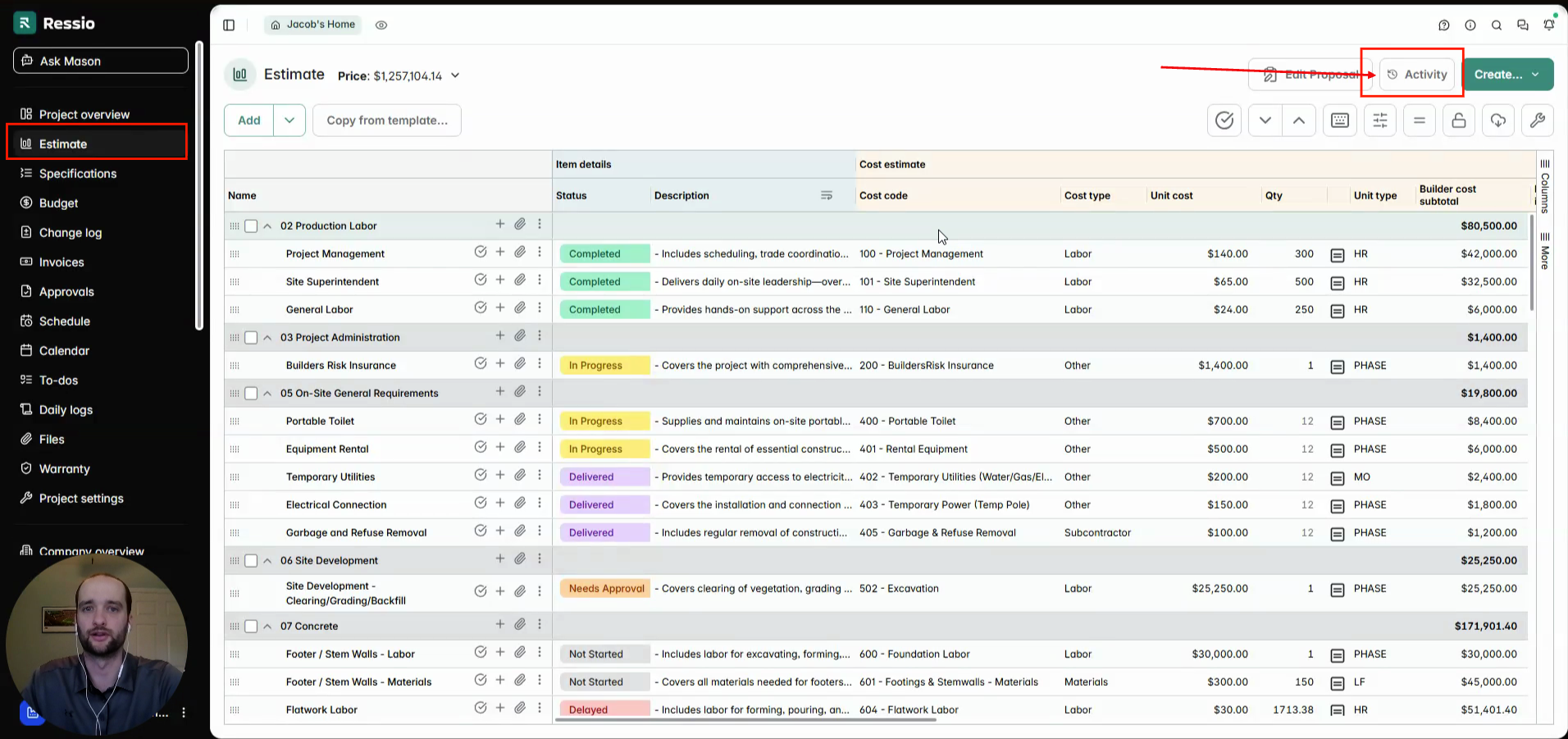
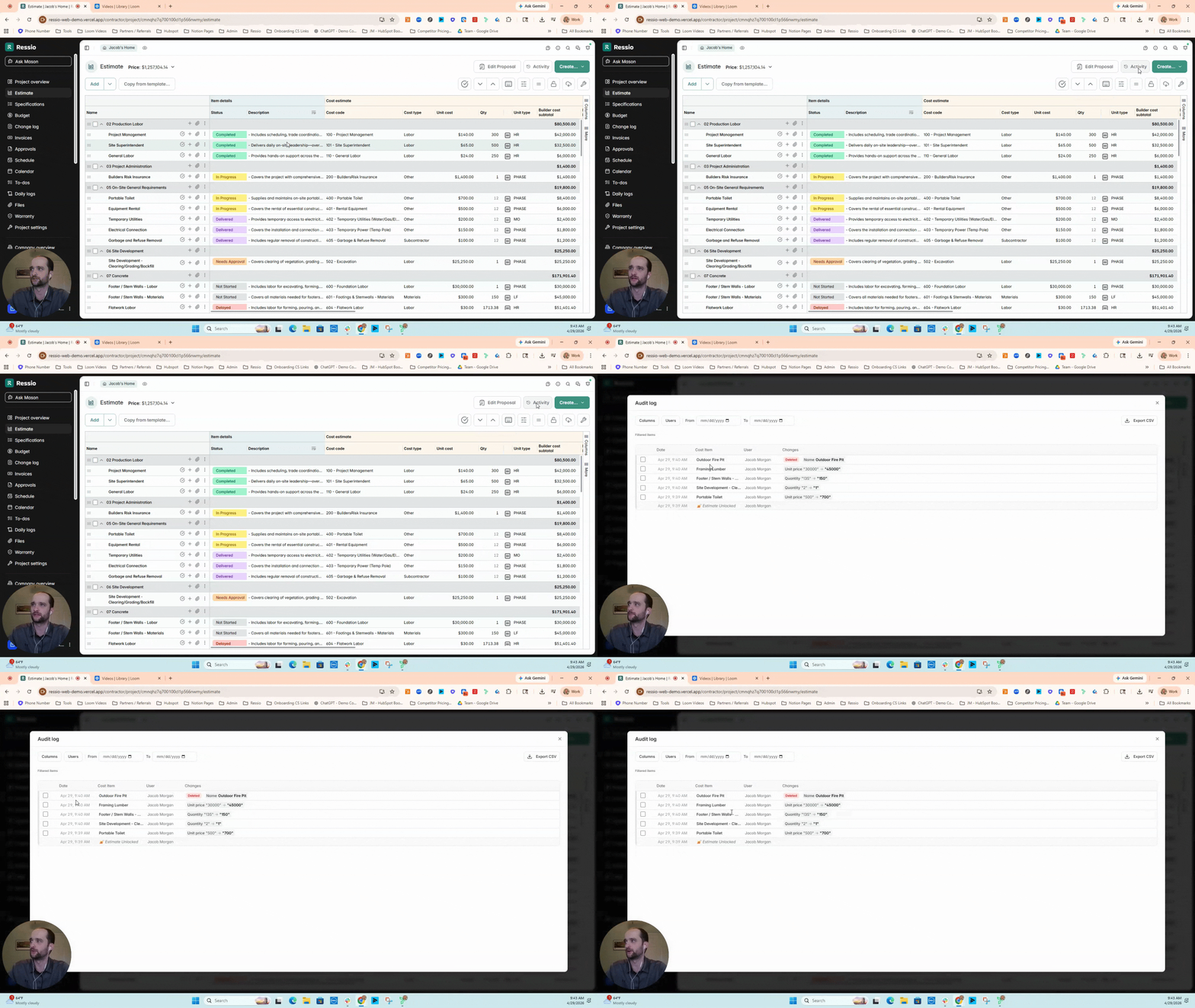
Select Activity button at the top right of the page next to the "Edit Proposal".
-
Review detailed changes including updates to unit price, quantity, and deletions.
💡If you are testing and do not see a recent change appear right away, refreshing the page will force the activity window to reload. 💡
From Specifications
-
Open the project.
-
Go to 📋 Specifications.
-
Open the specification you want to review.
-
Select the time clock icon located next to the paper click to view activity the related audit log entries.

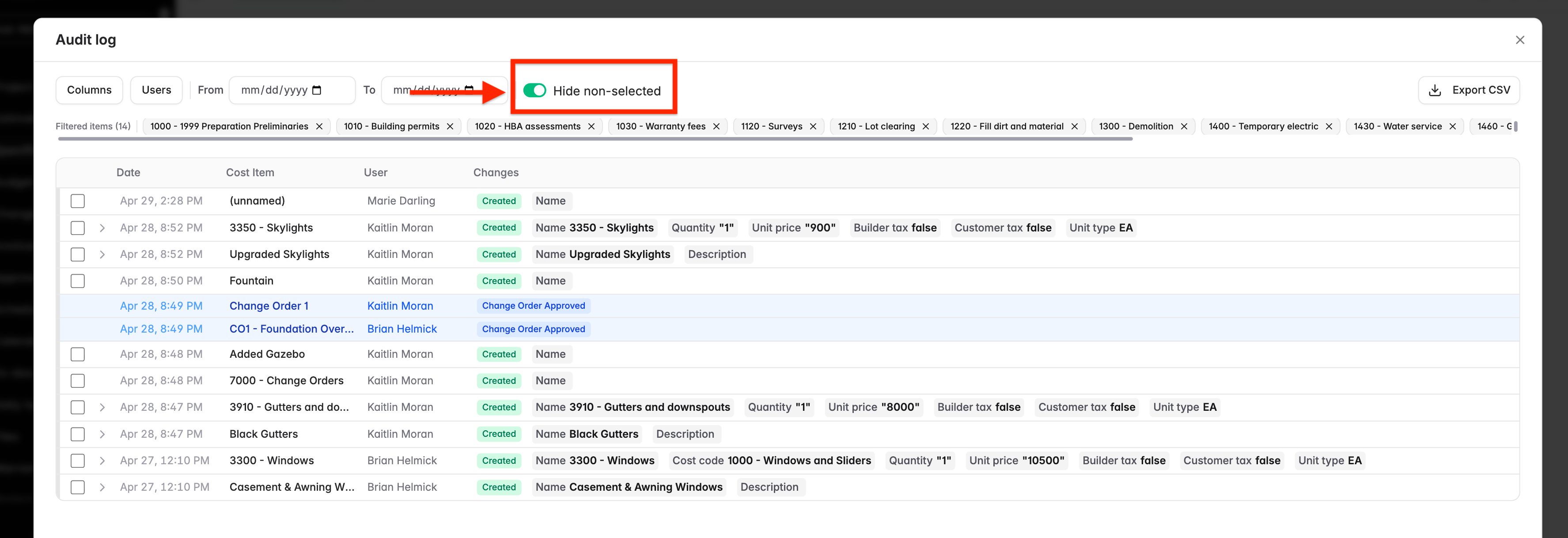
When the Audit Log opens up, you will be able to filter just like in Estimate but there will be a toggle where you can either hid or un-hide non-selected items.
Filter and review activity
The activity list displays events (ie. edits, updates, and changes) in chronological order.
Filter by user or time
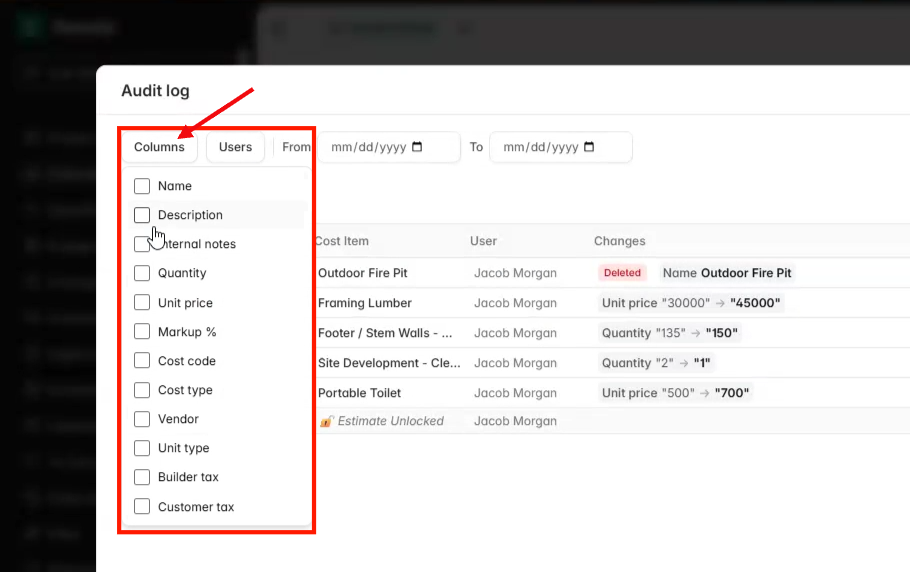
Use the filters at the top of the activity window to narrow what you are seeing, for example:
-
user
-
time range
-
column
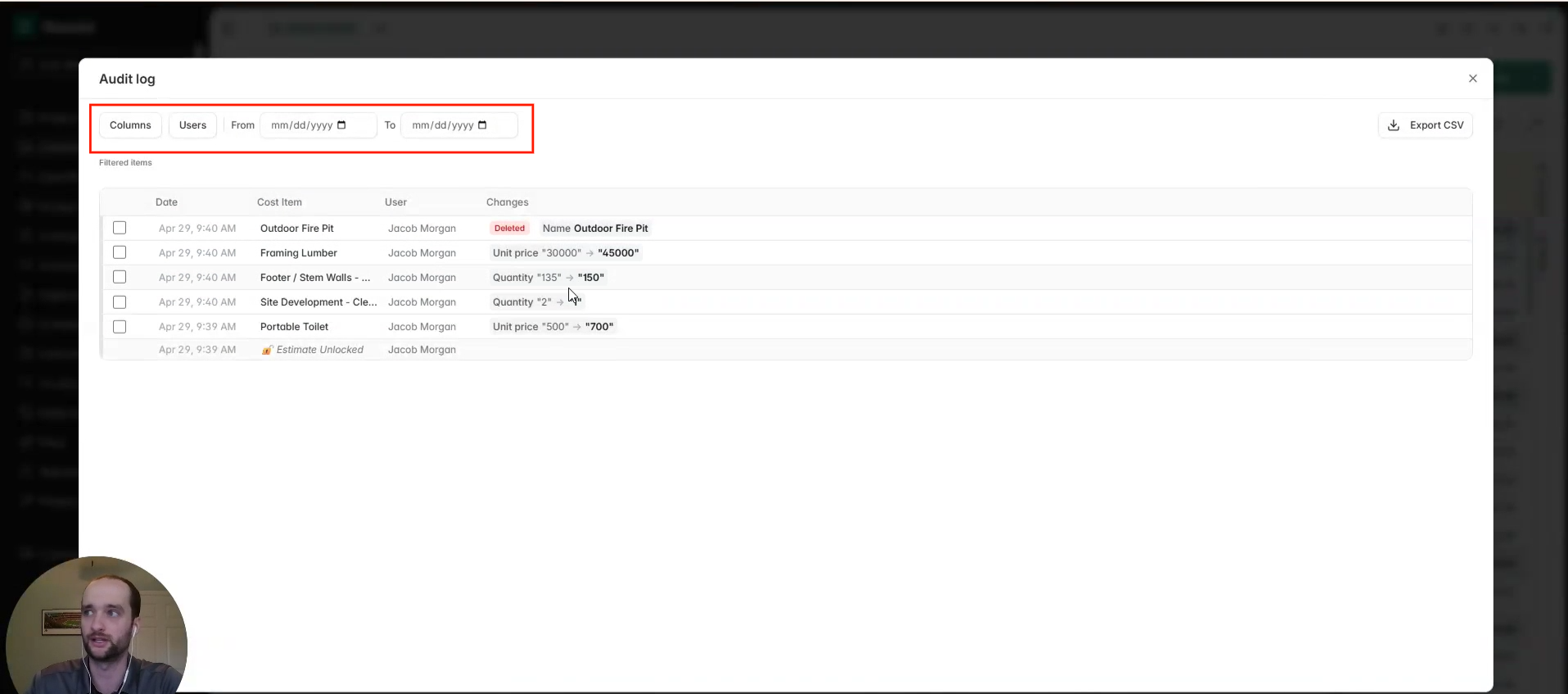
If can also choose what columns to see where changes are made.
Expand an event to see what changed
-
Select an event row.
-
Review the expanded details to see what changed.
If there is more history available, select Load more to view additional events.
Export the audit log (CSV)
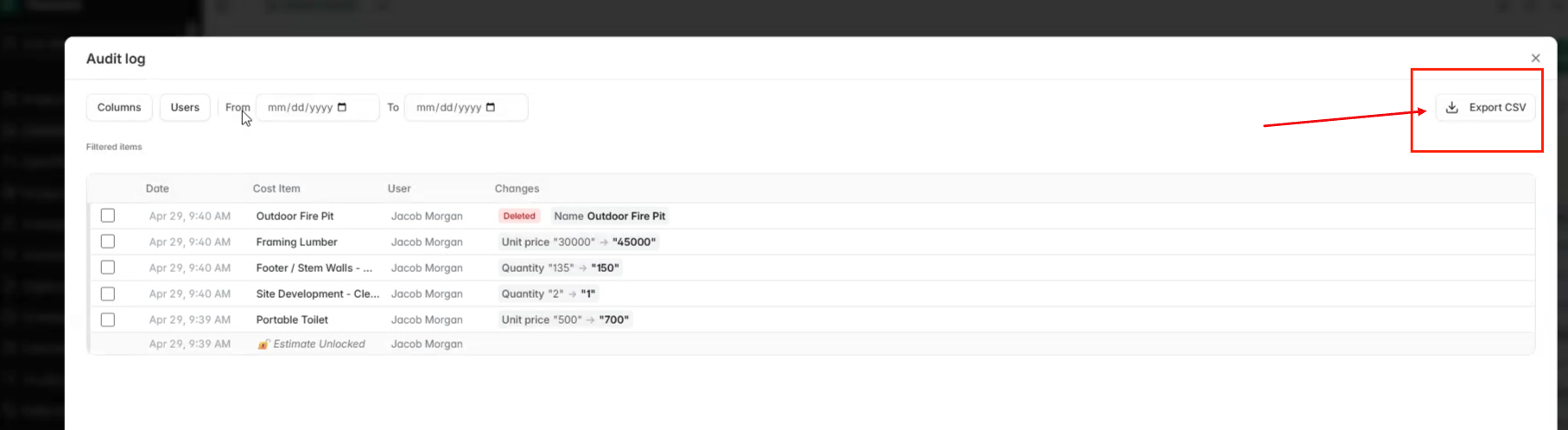
If you need a copy of the activity history outside of Ressio, you can export it as a CSV.
-
Open Activity.
-
Select Export to CSV.
FAQ
Does the audit log include historical changes from before this feature was released?
No. The audit log only records changes going forward from when the feature was released.
Why am I not seeing a change I just made?
The activity timeline may not refresh immediately to avoid unnecessary load. Refresh the page to reload the activity window.
If you have any questions or need further assistance, contact our support team at support@ressiosoftware.com. We're here to helpOpen the project.