.png?width=75&height=75&name=Untitled%20design%20(22).png)
Overview
The Automations Library is where you can browse and run automations in Ressio using Mason.
Automations help you do common work faster, either by reading information (like generating a list or summary) or writing changes (like creating or updating items).
Table of Contents
- Before you start (need to know)
- Navigating the Automations Library
- How to run an automation (step-by-step)
- Common examples
- Tips for success
Before you start (need to know)
Read vs. Write matters
- Read automations pull information and return it to you.
- Write automations can create and update data.
You stay in control
- Many write automations will ask for confirmation before they make changes
Access may be limited at launch
- For most builders, automations are read-only to edit at first (you can run them, but you may not be able to modify how they’re built yet).
⚠️ Write automations can change real project data. Read each prompt carefully and only confirm when you’re comfortable with the impact (especially when deletions are involved).
Navigation
- Go to your Company Overview
- Click on the Automations tab in the left-hand navigation panel
.png?width=489&height=477&name=download%20(50).png)
What you'll see in the Automations Library
In the library, you'll typically be able to:
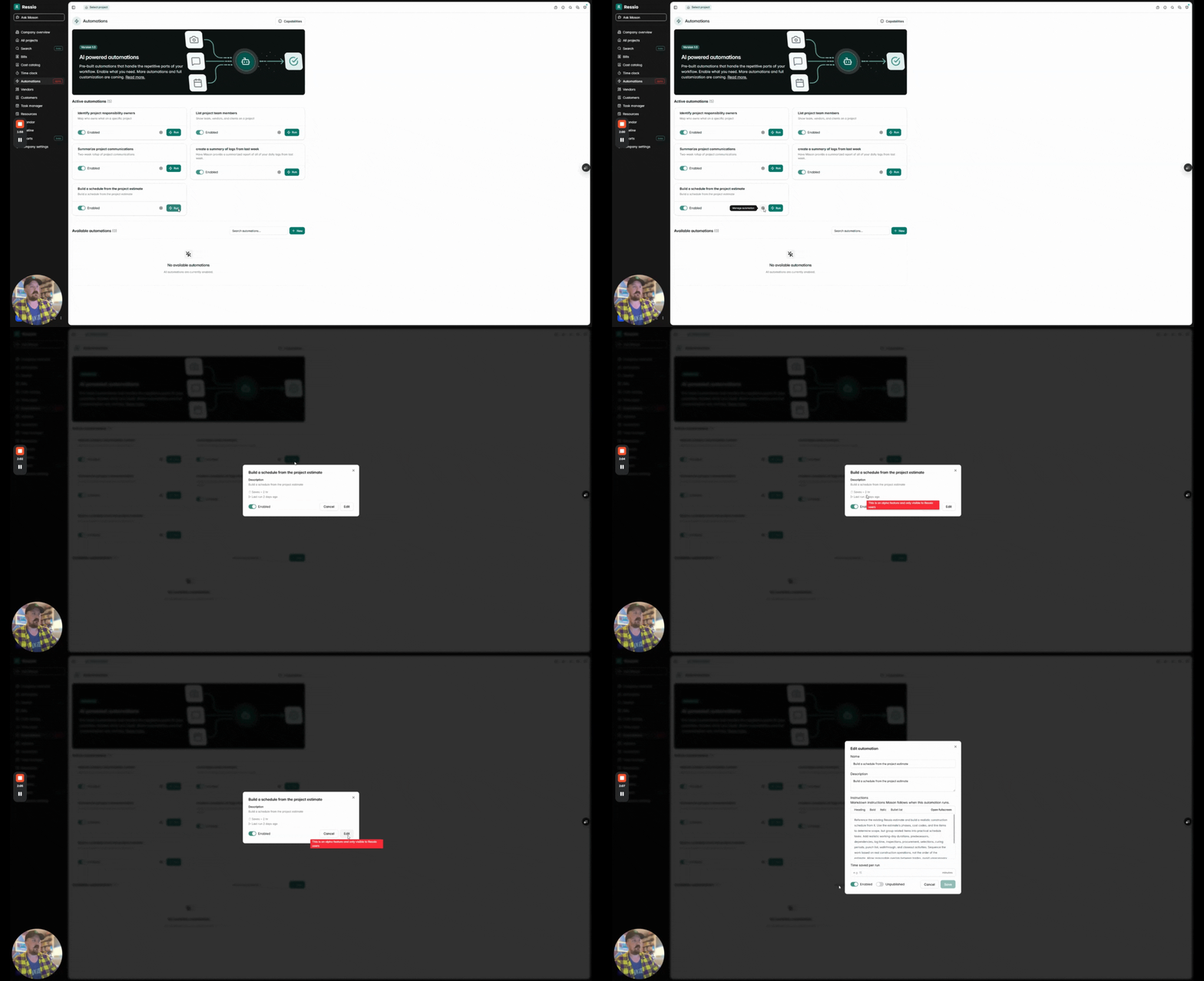
- Browse Ressio-curated automations
- Enable/disable automations (so they do or don’t appear in pickers/menus)
- Run a sample (test run)
- Select Manage automations (to view details like estimated time savings)
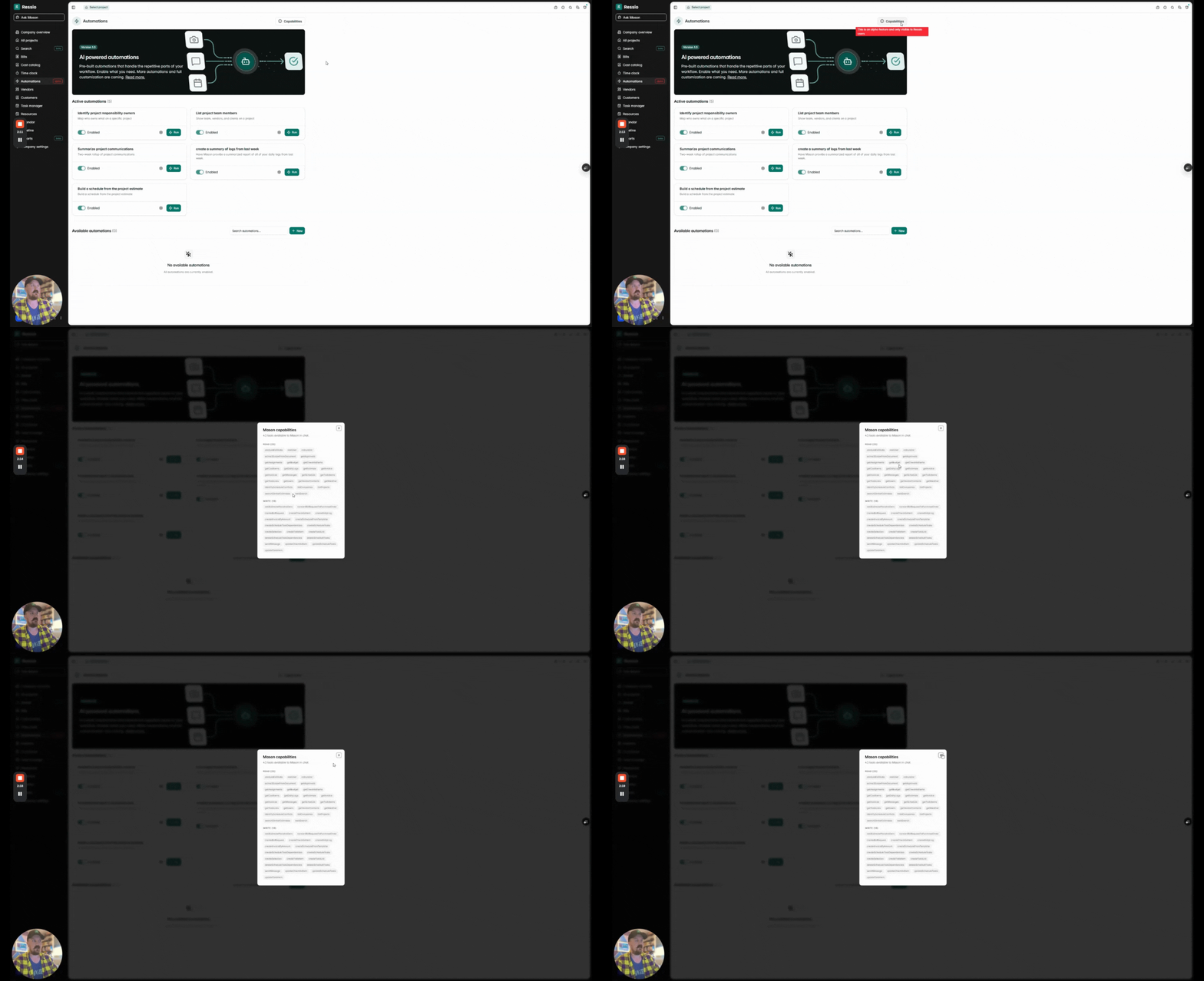
- Review your available Read and Write capabilities
.png?width=504&height=412&name=download%20(51).png)
How to run an automation (step-by-step)
You can run automations anywhere you can access Mason.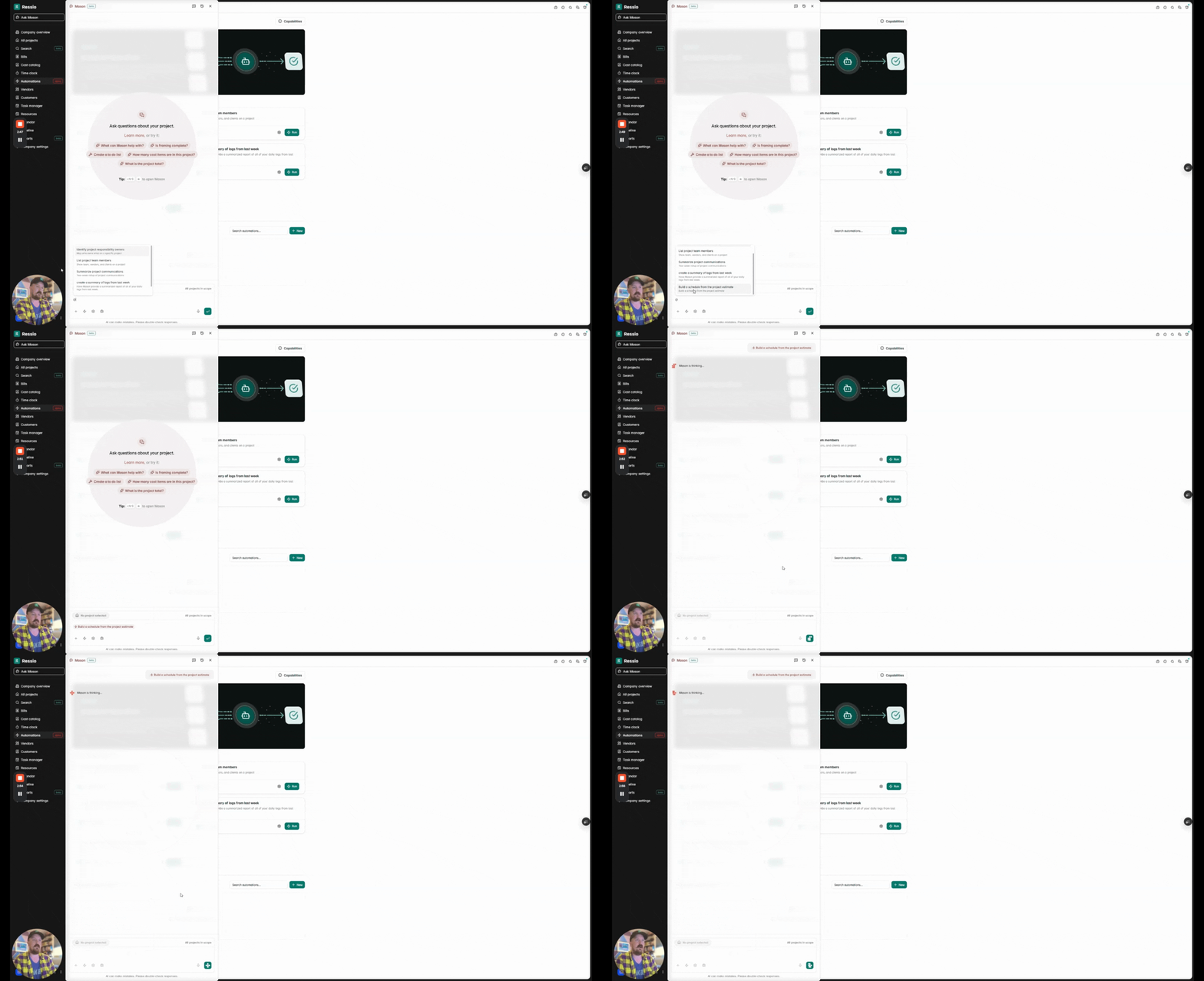
Option A - Run from a Mason chat by @ mentioning
- Open a Mason chat by clicking the "Ask Mason" in the top right hand corner (desktop) of you page or top right hand corner (mobile)
- In the chat box type @ and select the automation you want to run from the list.
- Follow the prompts (answer questions and confirm actions as needed).
Option B - Run from the automation by clicking the ⚡icon.png?width=670&height=364&name=download%20(52).png)
- Open Mason
- Click the ⚡icon below the text box.
- Browse or search for the automation you want.
- Click the automation to run it.
- Follow the prompts.
What happens when an automation runs
As the automation runs, Mason may:
- Ask follow-up questions (example: Which project do you want to use?)
- Show progress while it works (including tool call activity)
- Provide a Stop button to cancel if something isn’t right
- Ask you to confirm before taking write actions (especially deletions or replacements)
This is a person-in-the-loop workflow: Mason does the work, and you approve key steps.
Common Examples
Example 1 - Build a schedule from a project estimate (Write)
This automation can create a full project schedule based on an existing estimate.
Typical flow:
- Start the automation (for example, Build schedule from the project estimate).
- When prompted, select the project you want to build the schedule from.
- If a schedule already exists, Mason may ask if it can delete and rebuild schedule tasks.
- Review the proposed changes (phases, tasks, durations, dependencies).
- Confirm to proceed.
- After it finishes, open the project’s Schedule to review the newly created phases/tasks.
Example 2 — List project team members (Read)
This automation returns a quick view of who is involved in a project.
Typical output may include:
- Internal team members (and roles)
- Vendors on the project
- Contact info (email/phone)
Tips for Success
- If Mason asks you to choose a project, pick the project by name when prompted.
- If the automation output looks off, click Stop and rerun it with clearer inputs.
- For write automations, slow down at confirmation steps—especially if you see words like delete, replace, or rebuild.
🔄 We will continue to update automations and improve Mason. Stay tuned and reach out to Customer Success Coach/Manager if you have questions.
Need help?
If you still have unanswered questions or need further assistance, please contact our support team at support@ressiosoftware.com.