.png?width=75&height=75&name=Untitled%20design%20(22).png)
Table of Contents
2. Clear Ressio Data in Chrome (Desktop)
What's a Browser Cache and Why is this important?
A browser cache is a temporary storage location on your device where web browsers save copies of website files, such as images and scripts, to load pages faster on future visits.
Over time, cached data can become outdated or corrupted, leading to display issues or unexpected behavior on websites. Clearing the cache helps ensure you're seeing the most up-to-date content. It also frees up storage space and can improve browser performance. Regular cache clearing enhances security and resolves common browsing issues.
Clear Ressio Data in Chrome (Desktop)
If Ressio isn’t loading correctly, buttons aren’t responding, or something looks off after an update, you may need to clear your site-specific data.
These steps clear cache, cookies, and permissions for Ressio only — without affecting other websites.
Step-by-Step: Clear Ressio Data in Chrome
-
Open Chrome on your desktop.
-
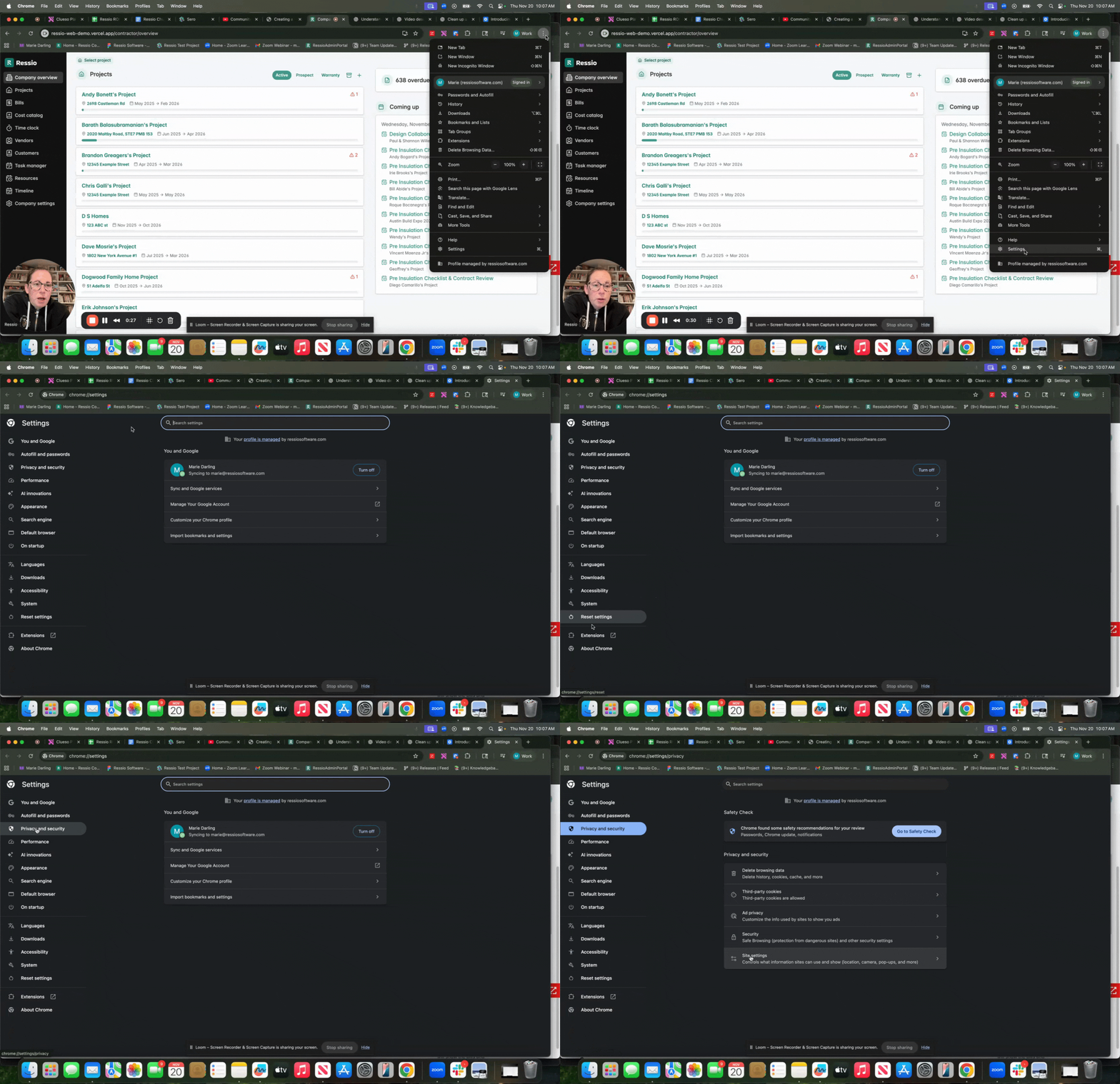
Click the three dots (⋮) in the top-right corner of your browser and click Settings.
-
From the left menu, select Privacy and security.
-
Click Site settings.
6. In the search bar, type ressio.app.
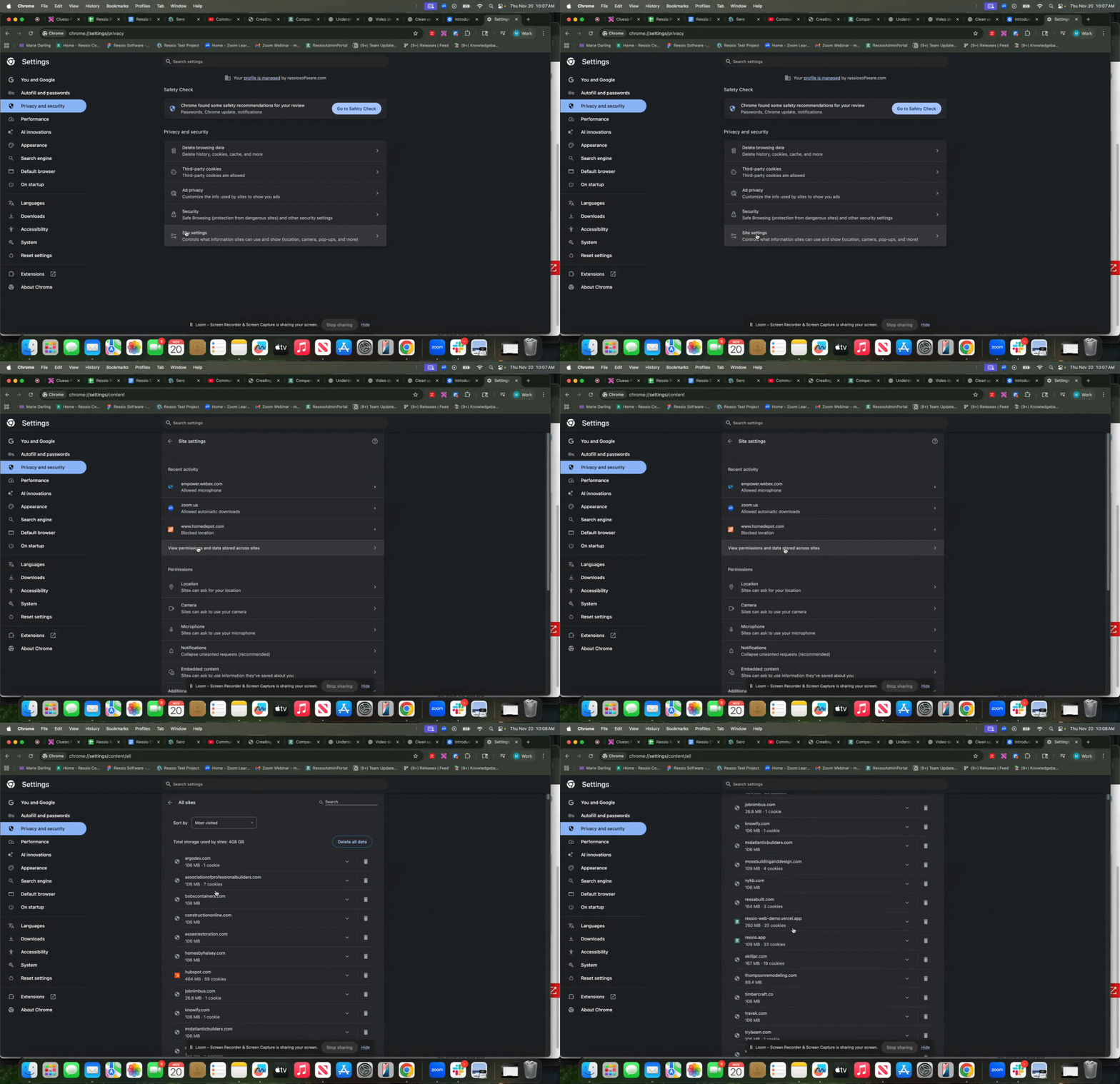
-
This clears cache, cookies, and permissions for Ressio only.
-
It does not affect your logins or data on other websites.
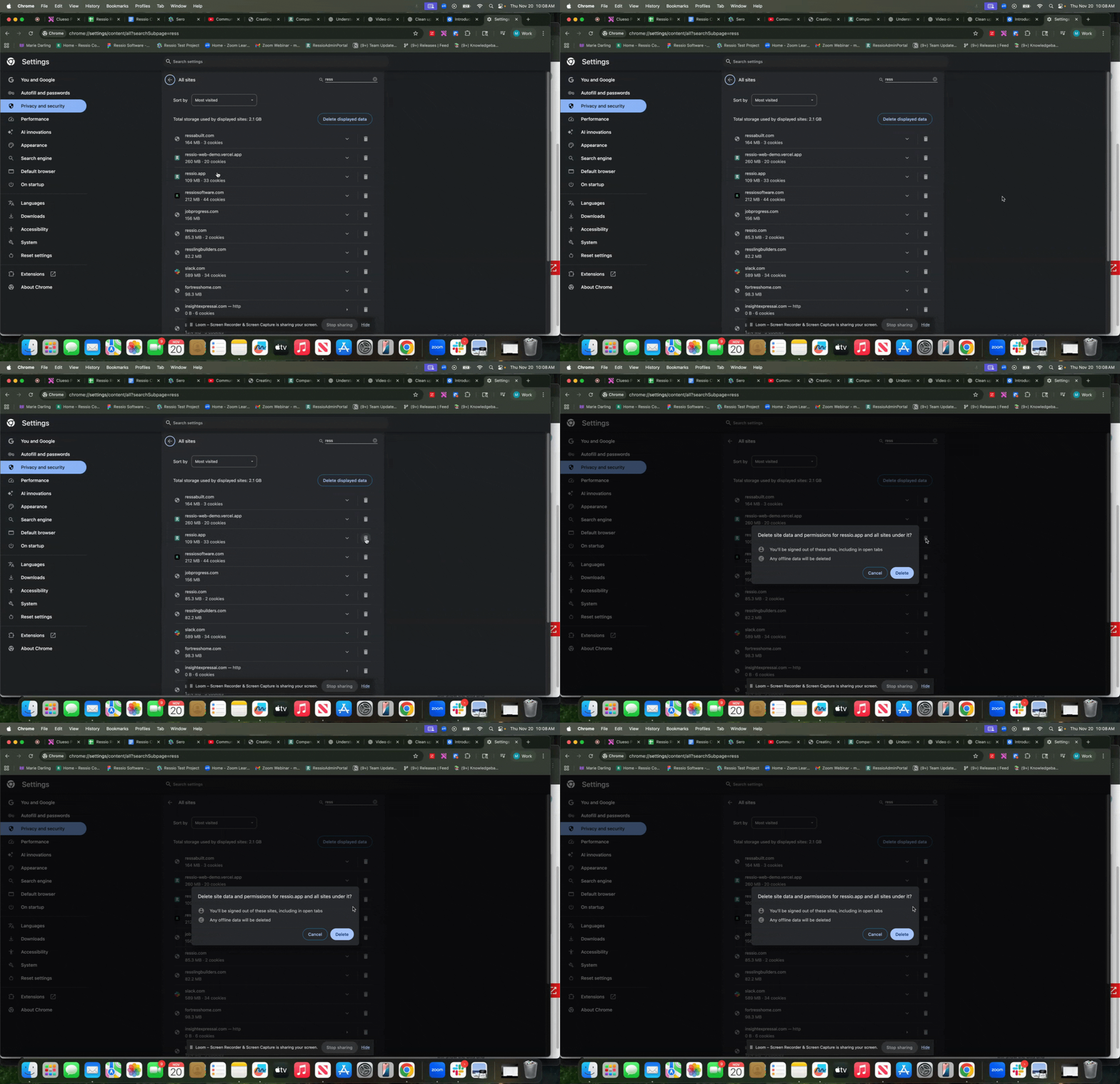
8. Close the Settings tab.
9. Return to your Ressio tab and reload the page (or press Ctrl + R / ⌘ + R).
10. Log back in to Ressio.
Ressio will reload fresh, pulling the newest data and updates. If you were logged in previously, you may be prompted to sign back in once.
🎗️ If you continue to have issues, please contact support please.
Microsoft Edge
Managing and clearing your cache and cookies depends on the device and browser you use. To clear your browser cache and cookies in Edge:
- Open Edge.
- Click the three dots (...) in the top-right corner of your browser.
- Go to Settings and Privacy.
- Click Clear Browsing Data.
- Select Ctrl+Shift+Del. You can also type "edge://settings/clearbrowserdata" in your address bar to access this function.
Clear your browsing history, cookies, and cached images and files in minutes. You’ll be able to select the dates you want to clear, so you can keep some of your browsing history intact if you’d like.
For Safari (macOS)
Steps to Clear Safari Cache:
- Open Safari.
- In the top menu bar, click Safari > Settings (or Preferences).
- Go to the Advanced tab and enable Show Develop menu in menu bar.
- Once enabled, click Develop in the menu bar.
- Select Empty Caches.
Alternatively, press Option + Command + E to empty caches instantly.
For Firefox
Firefox also requires going into settings or using shortcut keys to clear the cache.
Steps to Clear Firefox Cache:
- Open Firefox.
- Click the menu icon (☰) in the top-right corner and choose Settings.
- Navigate to Privacy & Security.
- Scroll to the Cookies and Site Data section.
- Click Clear Data, check Cached Web Content, and then click Clear.
Alternatively, press Ctrl + Shift + Delete (Windows) or Command + Shift + Delete (Mac) to open the Clear History window and select Cache.
💡 Always remember that clearing cache will remove stored content like login sessions for the specific site. Make sure to save any work before proceeding. Clearing your cache from the menus of ANY browser settings/history will also log you out of current sessions. (Specifically the methods shown for Firefox and Safari). You will need to log back in to Ressio.
If you have any questions or need further assistance, contact our support team at support@ressiosoftware.com. We're here to help!