.png?width=75&height=75&name=Untitled%20design%20(22).png)
Quickly see all your project events, deadlines, and tasks across your company with the Ressio Company Calendar. Discover how to filter views and connect these events to your external calendar apps such as Google Calendar, Apple Calendar, or Outlook.
Benefits of the Company Calendar & Calendar Subscription:
-
Instantly view project deadlines and tasks across all projects
-
Quickly filter to see only your tasks or by project
-
Sync with third-party calendars for seamless scheduling
-
Edit tasks without switching projects
-
Simplify resource management company-wide
Table of Contents
Company Calendar Overview
The Company Calendar brings all project-level events into a single, company-wide view.
This includes:
-
Scheduled tasks
-
Invoice deadlines
-
Change order deadlines
-
Other calendar events typically found at the project level
🗒️ By default, the Company Calendar only shows tasks assigned to you. This is intentional, as viewing everything across many projects at once can quickly become overwhelming. This behavior mirrors the Task Manager, which also defaults to showing only your assigned items.
[back-to-top]
Filtering and Viewing Options
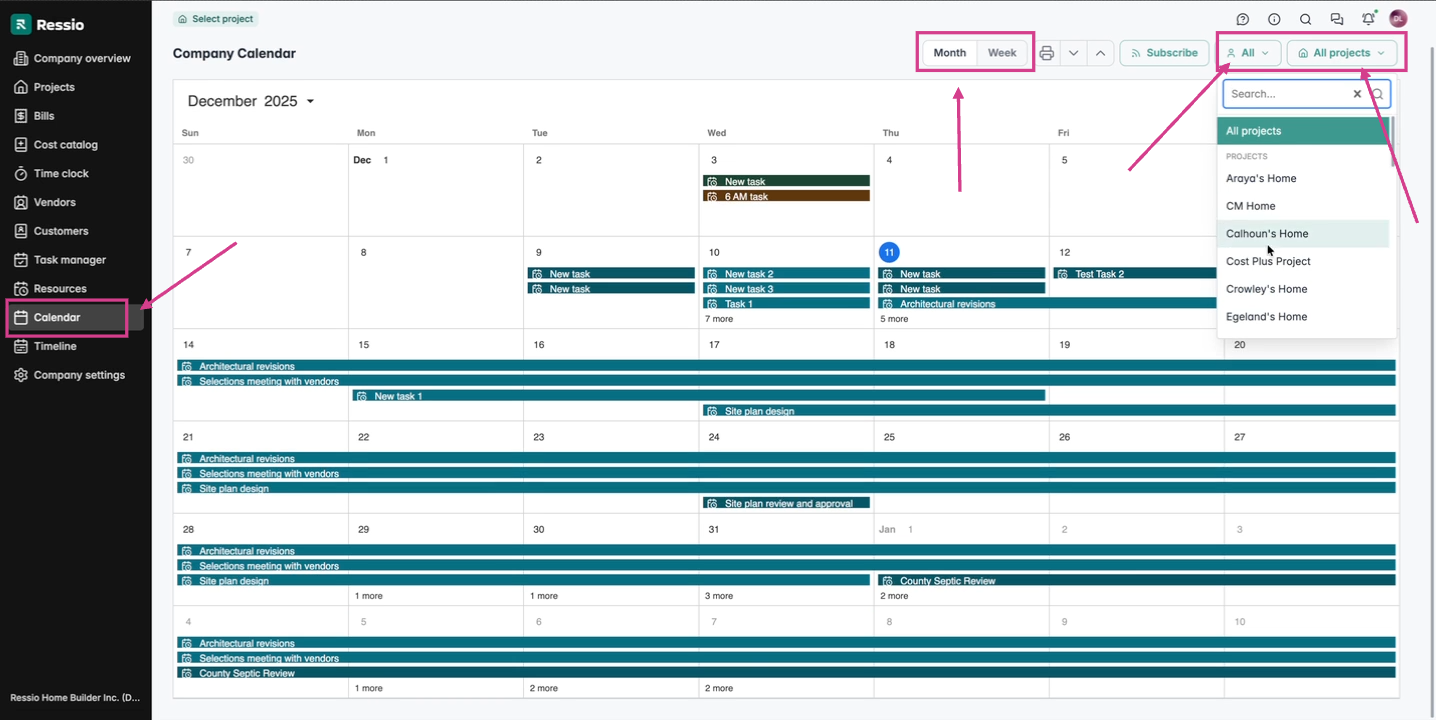
From the Company Calendar, you can easily customize what you see:
- Toggle between views:
- Week view
- Month view
- Filter tasks:
- View only tasks assigned to you
- Switch to view all tasks across all projects
- Filter by specific projects or groups of projects
Editing Tasks from the Company Calendar
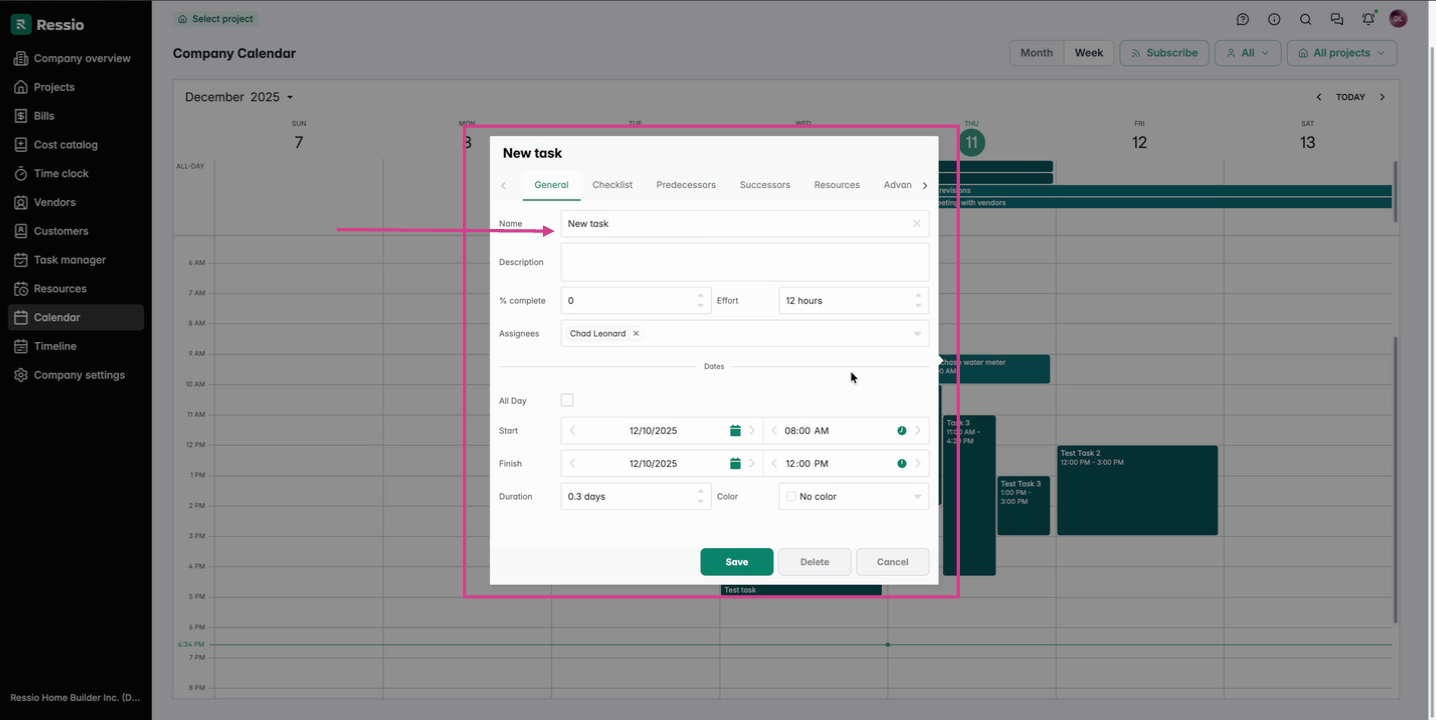
You can click into any task directly from the Company Calendar to:
- View task details
- Edit the task
- Make the same updates you would normally make from within a project
This allows you to quickly adjust schedules and assignments without navigating between individual projects.
🗓️ By default, your company calendar weekends are not enabled. To schedule tasks on weekends, you will need to enable weekends. Please reach out to your customer success coach or email support@ressiosoftware.com. When weekends are enabled it will be reflected in all projects.
Calendar Subscriptions Overview
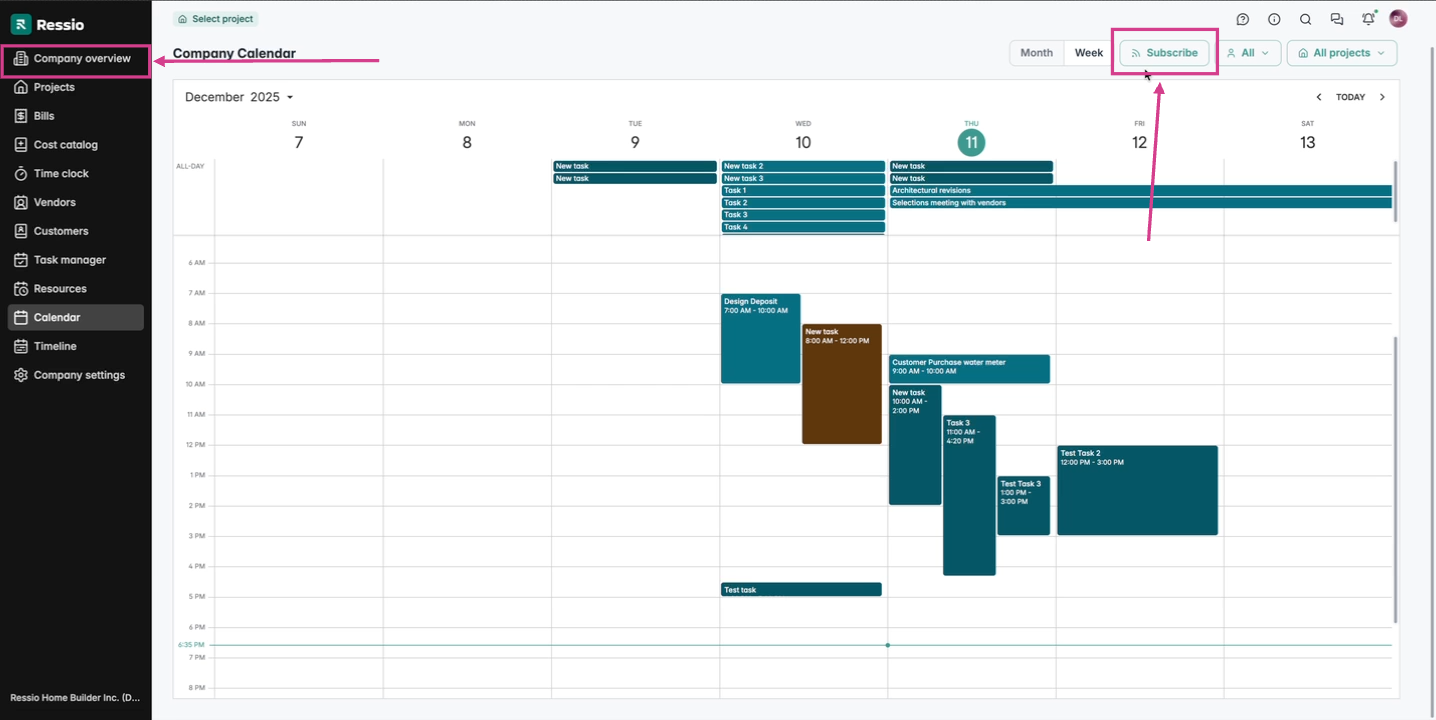
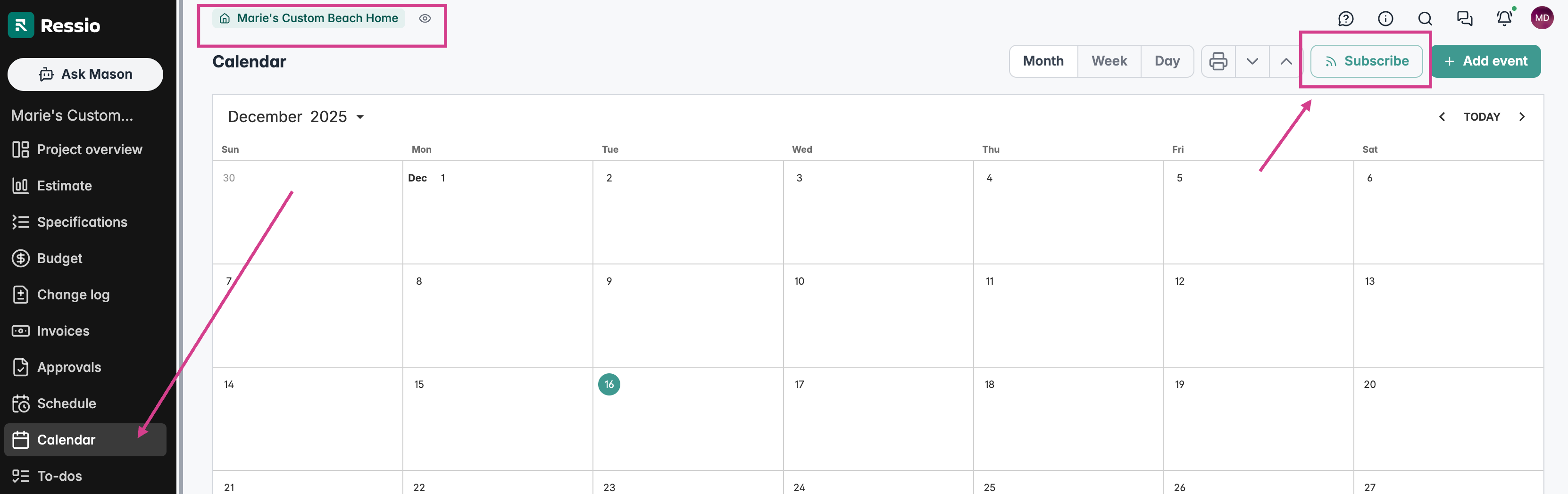
Your Company Calendar can be linked to an external using the Calendar 'Subscribe' button.
This feature generates a subscription URL that sends calendar events from Ressio to third-party calendar tools, including:
- Google Calendar
- Apple Calendar
- Outlook
- Most other calendar services that support URL subscriptions
Calendar Subscriptions work at both the:
-
Company-level calendar and Project-level calendar
Company Calendar
Project Calendar
How Calendar Subscriptions Work
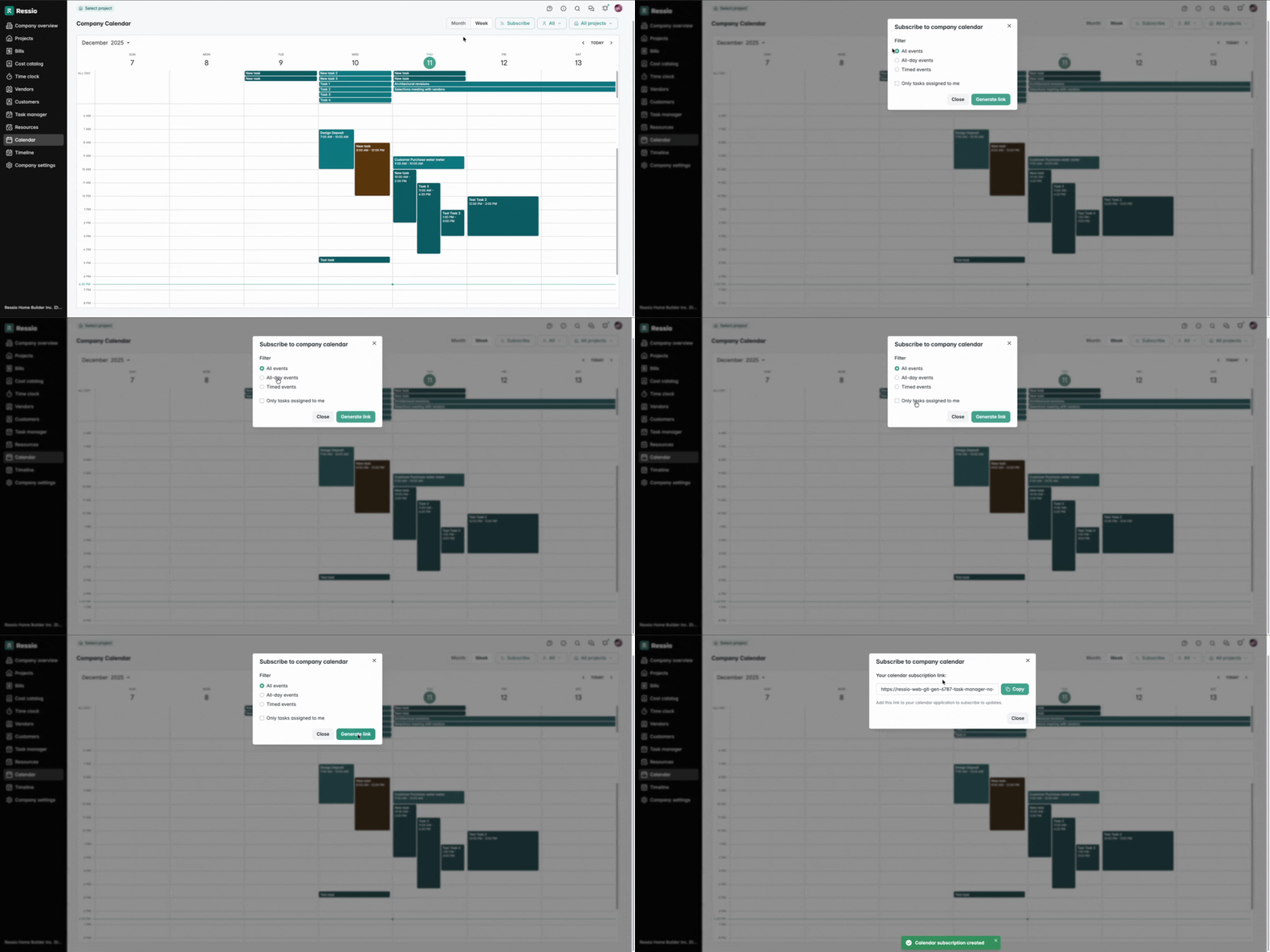
- Open the Company Calendar or a Project Calendar
- Click Subscribe
- Choose what to include:
-
-
All events
-
All-day events only
-
Timed events only
-
Only tasks assigned to you (recommended for most users)
-
-
Click Generate Link and copy the URL
-
Paste the URL into your external calendar’s subscription or “Add calendar by URL” setting
Once subscribed, your external calendar will automatically pull in events from Ressio.
-
Open your Google Calendar
-
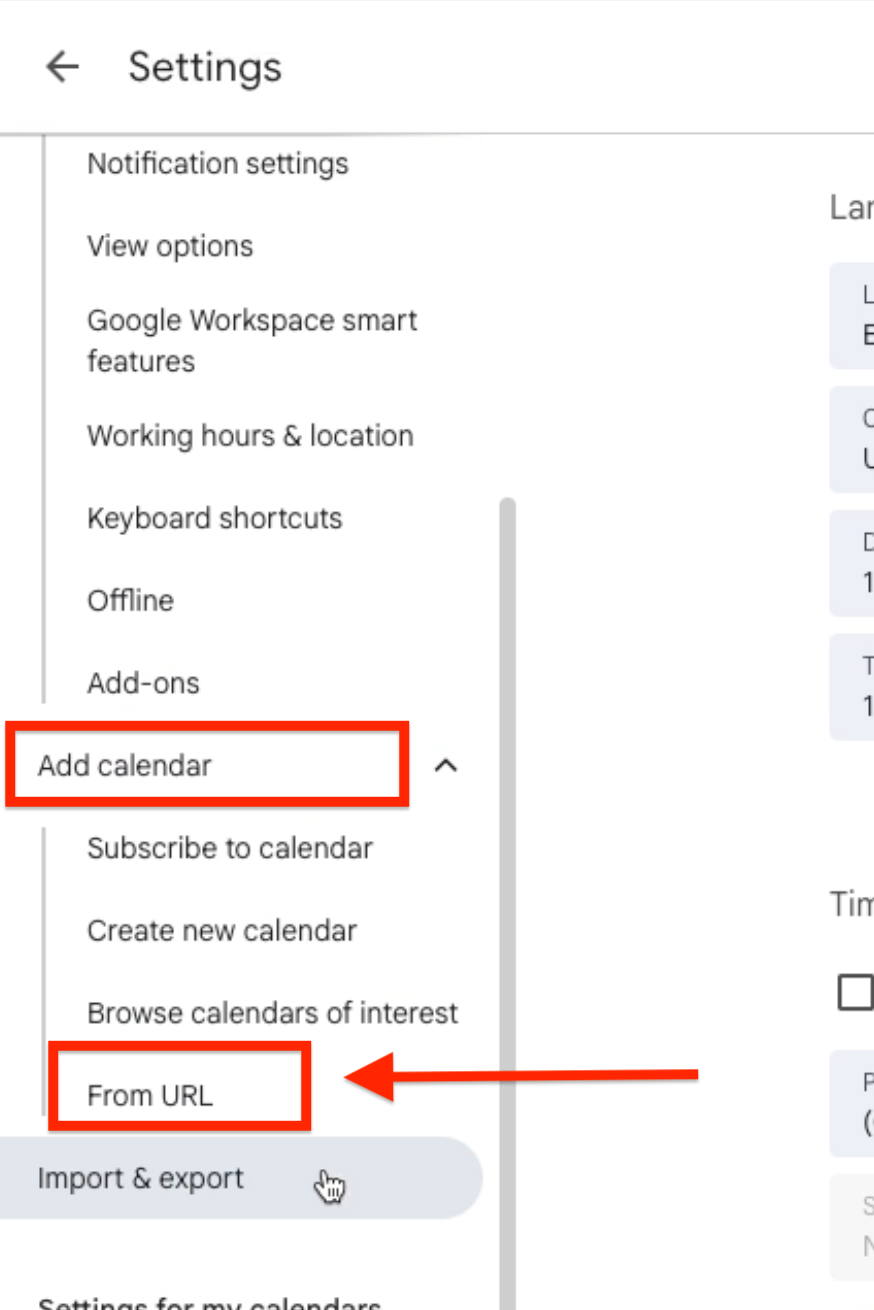
Go to Settings by clicking on the gear ⚙️ in the top right hand corner.

3. Under Settings, go to 'Add Calendar' and then scroll down to 'From URL'.
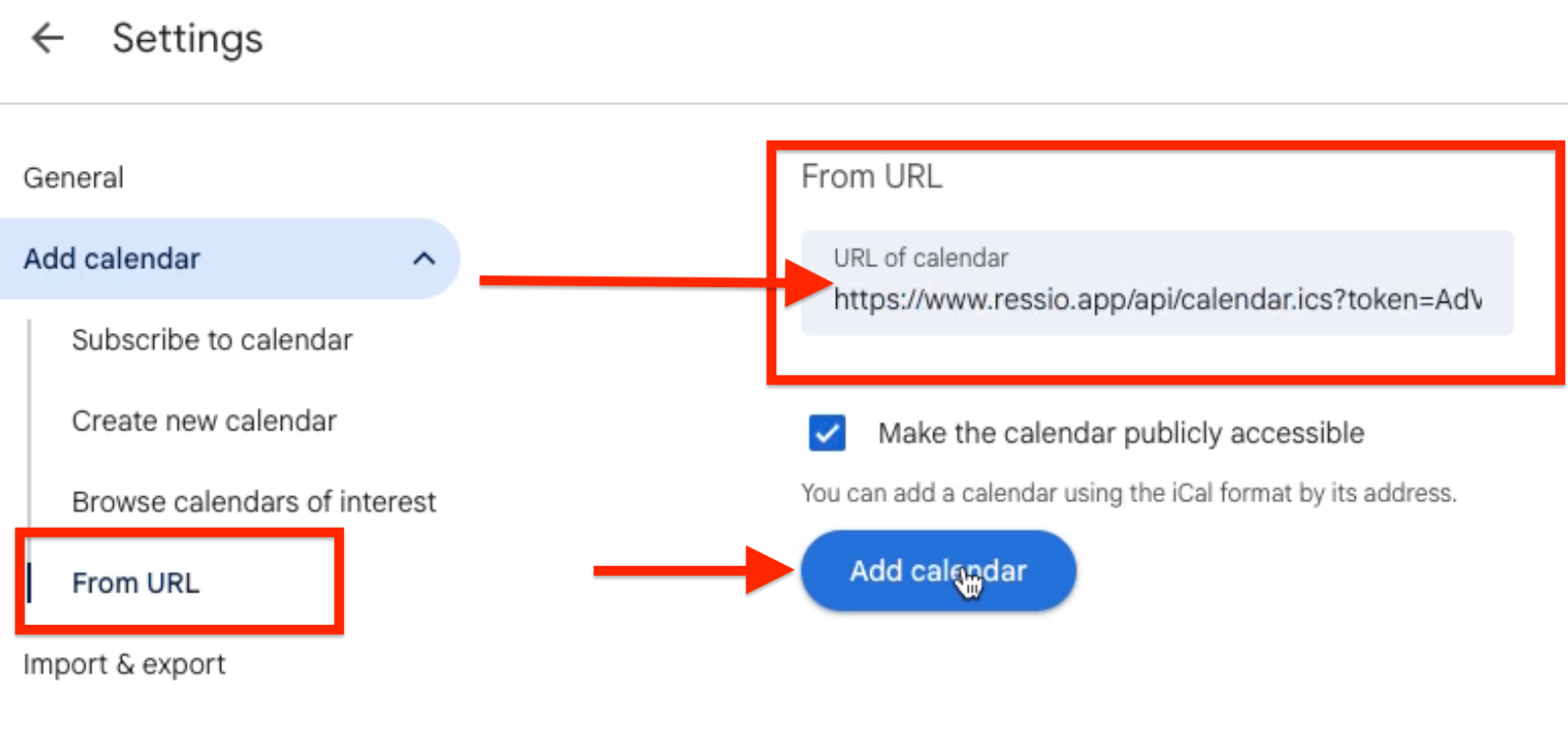
4. Past the link from your Ressio Calendar, choose wether you want to make it publicly accessible and hit 'Add calendar'.
-
Open your Apple Calendar and head to the top right hand corner and click on 'File' and scroll down to 'New Calendar Subscription'.
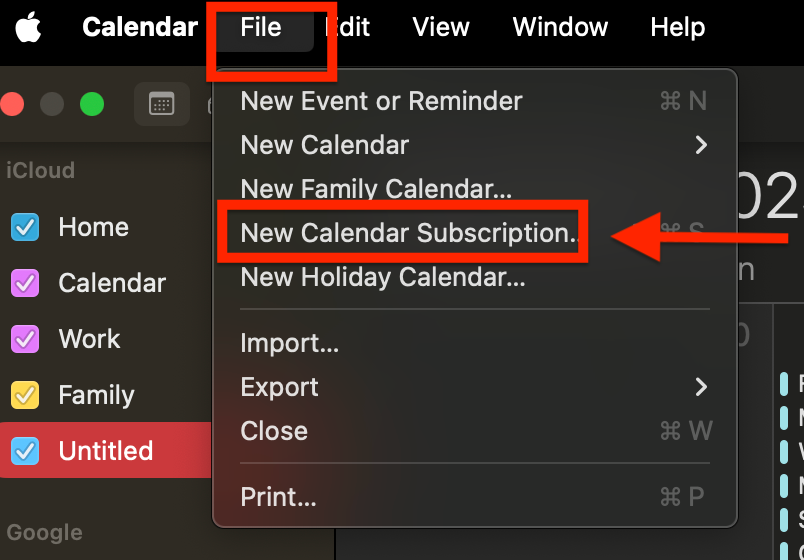
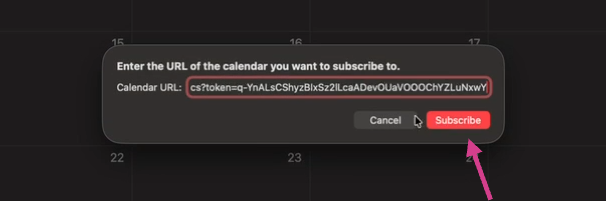
2. Past link from Ressio Calendar and hit 'Subscribe'.
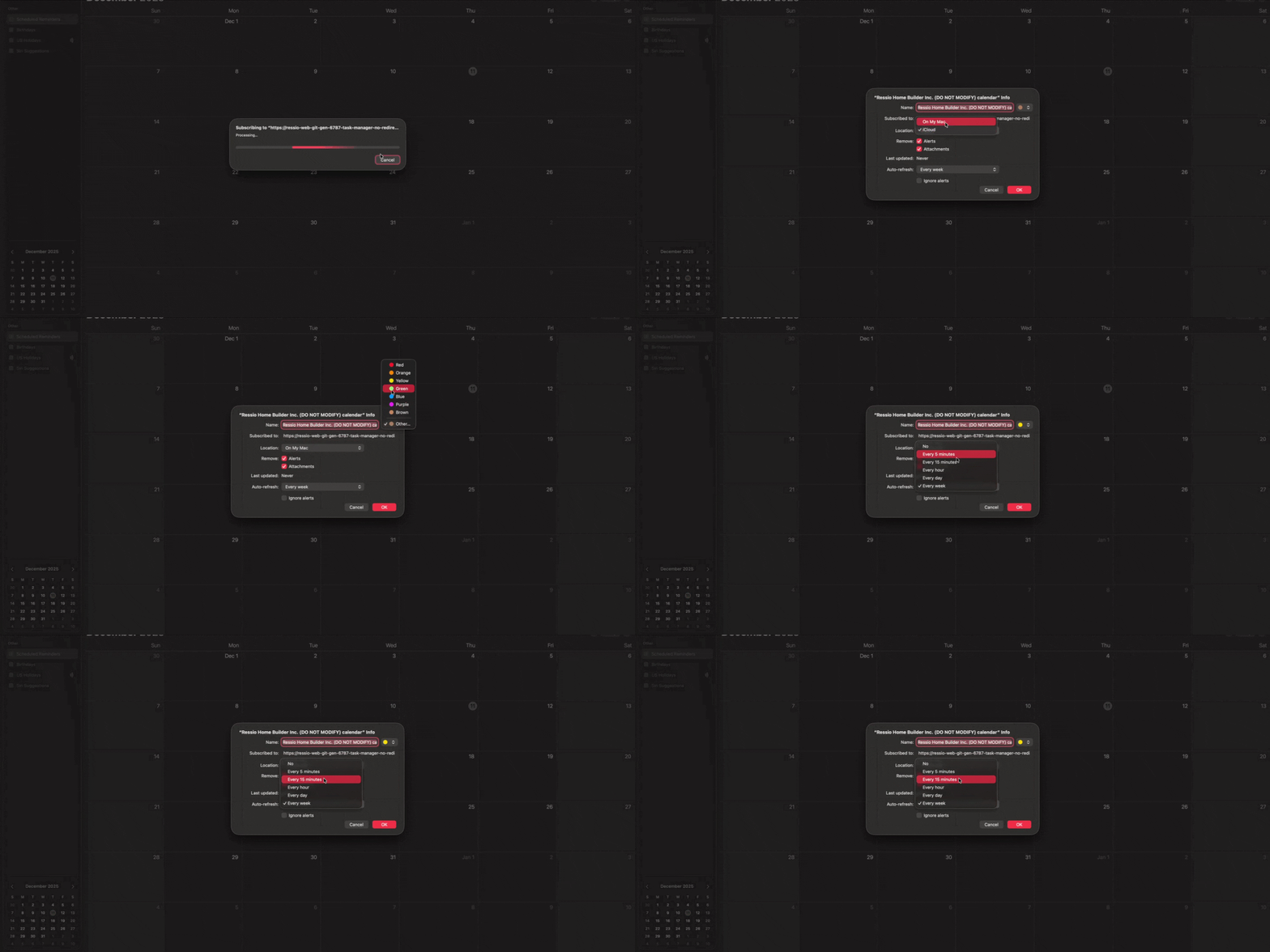
3. A window will pop up allowing you to choose the color, name, location, and how often you want Apple to refresh your calendar. Then hit 'OK' to finish the sync.
-
Open your Outlook calendar, and on the Home tab, select Add Calendar > From Internet.
-
Paste the URL from your internet calendar and select OK.
-
Outlook asks if you would like to add this calendar and subscribe to updates. Select Yes.
[back-to-top]
What You’ll See in Your External Calendar
Subscribed calendars will display:
- Company-level or project-level tasks (depending on where you subscribed)
- Event durations (all-day or timed)
- Project name
- Assigned users (if applicable)
- Task descriptions (if included)
- A direct link back to Ressio (read-only) for quick access
⚠️ Refresh timing depends on the calendar provider. Some allow you to set refresh intervals, while others update a few times per day automatically.
If you have any questions or need further assistance, contact our support team at support@ressiosoftware.com. We're here to help!