---
title: Company Overview Guide
description: The Company Overview guide gives you a high-level snapshot of all your projects in one place. From tracking project stages to spotting overdue approvals, this dashboard helps you stay organized and proactive.
---
[Skip to content](https://help.ressiosoftware.com/company-overview-guide#main-content)
English
Show submenu for translations
[Contact us](https://help.ressiosoftware.com/kb-tickets/new?hsLang=en)
.png?width=75&height=75&name=Untitled%20design%20(22).png)
Open main navigation
Close main navigation
- English
Show submenu for translations
- [Contact us](https://help.ressiosoftware.com/kb-tickets/new)
- [Go to ressiosoftware.com](https://www.ressiosoftware.com/)
[Go to ressiosoftware.com](https://www.ressiosoftware.com/)
Hello. How can we help?
- There are no suggestions because the search field is empty.
1. [Ressio Knowledge Base](https://help.ressiosoftware.com/?hsLang=en)
2. [Feature guides](https://help.ressiosoftware.com/feature-guides?hsLang=en)
3. [Settings](https://help.ressiosoftware.com/feature-guides?hsLang=en#settings)
# Company Overview Guide
## The Company Overview guide gives you a high-level snapshot of all your projects in one place. From tracking project stages to spotting overdue approvals, this dashboard helps you stay organized and proactive.
### Company Overview in Ressio
**Discover how to efficiently manage all your projects using the Company Overview feature in Ressio.**
See how to review project stages, monitor approval items, and keep track of upcoming tasks in one central location. This guide shows the workflow, tools, and navigation to get the most out of the Company Overview.
**Why It’s Useful**
The **Company Overview** provides:
- A single place to **monitor project progress **
- Organize by **project stage**
- Immediate visibility into **overdue approvals**
- A heads-up on **what’s coming next**
This makes it easier to prioritize work and keep projects on track.
---
#### Table of Contents
1. [Navigation and Layout](https://help.ressiosoftware.com/company-overview-guide#navigation-and-layout)
2. [Project List](https://help.ressiosoftware.com/company-overview-guide#project-list)
1. [Project Process](https://help.ressiosoftware.com/company-overview-guide#project-progress)
3. [Overdue Approvals](https://help.ressiosoftware.com/company-overview-guide#overdue-approvals)
4. [Coming Up Section](https://help.ressiosoftware.com/company-overview-guide#coming-up-section)
[\[back-to-top\]](https://help.ressiosoftware.com/company-overview-guide#back-to-top)
---
#### Navigation and Layout
On the left hand panel, on the top you will find the '**Company overview**' tab. On the landing page, it displays all projects, organized by their current stages for immediate access and status review ( #1).
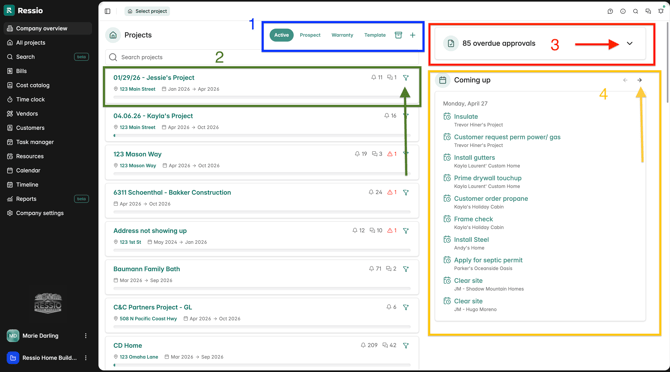
**Projects** ( #2) are listed in the middle, **overdue approvals** ( #3) on the top right and underneath the overdue approvals is what events are **coming up** ( #4) on all projects.
As seen on every page, you will also see in the far top right, where you can find support, the help center, the finer, messages and recent activity.
---
#### **Project List**
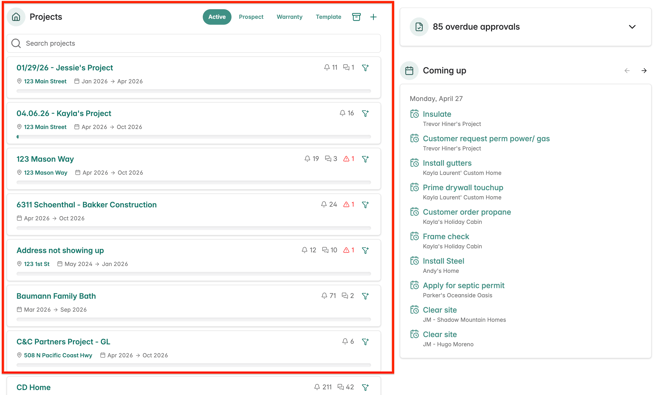
Located in the middle of your screen are all company projects.
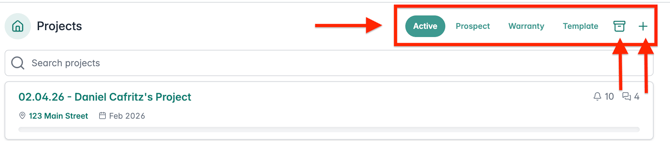
- Broken down by current stage of either **Active**, **Prospect**, **Warranty** or **Template.**
- The ***file box*** is where you can archive projects
- By clicking on the **+** sign you can add a project from this page.
Browse the project list and select any project for detailed tasks and information.
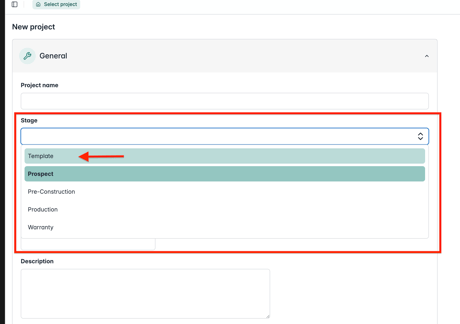
💡You can make any of your projects a **Template** when you change the stage. All templates will "live" in template section and will be appear at the top of the list when searching for projects or inserting a template for your estimate.
From this page, you can create a new project, applying the stage or click into each project from here and change the stage at anytime.
[\[back to top\]](https://help.ressiosoftware.com/company-overview-guide#back-to-top)
---
**Project Progress**
Each project will display the project title, address (if added), and dates of the projects. Underneath will be a status bar will reflects scheduled tasks completed.
On the right hand side of the project tile, you will see alerts.
- The 🔔 icon show unread activity
- **Message** icon will show any unread messages
- Clicking on each icon will bring you to that corresponding page
- The **filter** icon will allow you to choose that project and see what is coming up on the that specific project. You can choose more than one project at a time.
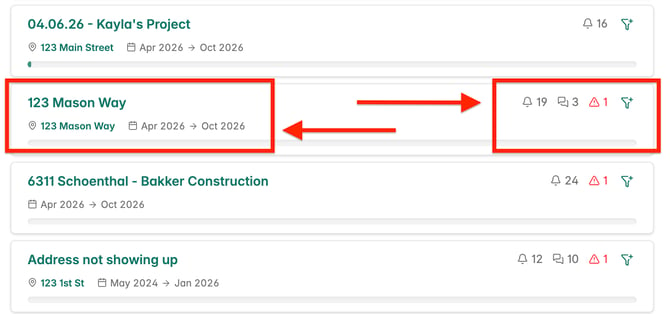
🚨 **Red icon** lets you know there are some overdue approval items. Clicking on the red icon will bring you to the project's **approvals tab**.
[\[back to top\]](https://help.ressiosoftware.com/company-overview-guide#back-to-top)
---
**Filtering by Project**
You can filter down by project or projects by selecting the filter widget on the project to narrow the "**Coming Up"** and "**Approvals**" list to that project on the right hand side.
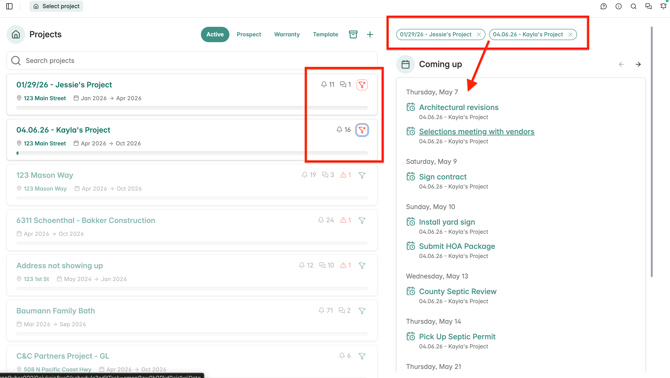
When you select a project(s), they will be listed at the top on the right hand side. The project selected will also be green and the projects not selected will be greyed-out.
---
#### Overdue Approvals
- **Red icons** highlight **overdue approval items** on a project.
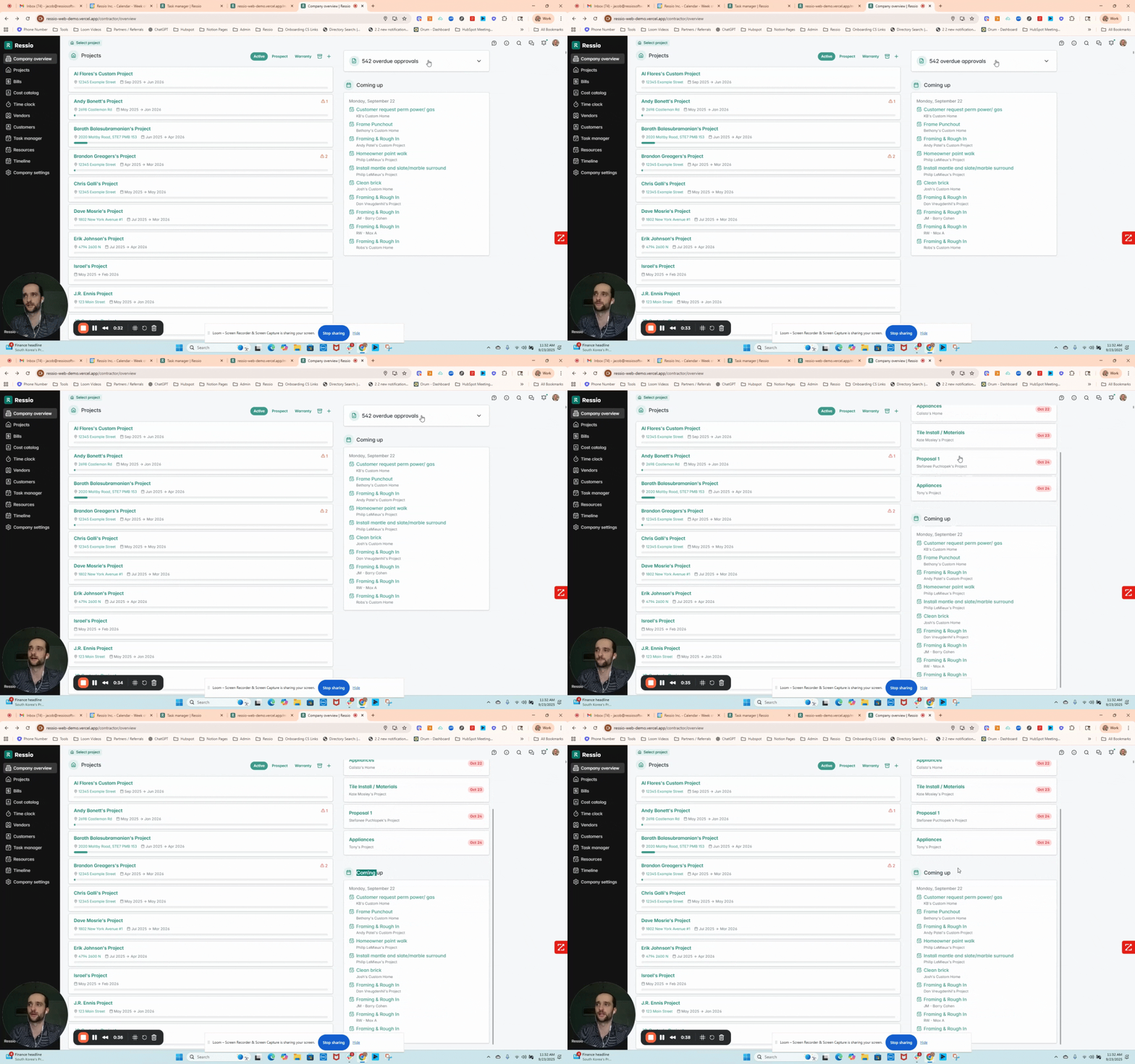
- In addition to project-specific approvals, you can view **all overdue approval items across jobs**.
- You can click on the arrow to expand and see all items, their type and the due date.
- Types of overdue items can include:
- Bid Requests
- Selections
- Proposals
💡Clicking directly on a proposal, selection or bid request will bring you directly to that page so you can address the overdue item.
[\[back to top\]](https://help.ressiosoftware.com/company-overview-guide#back-to-top)
---
#### Coming Up Section
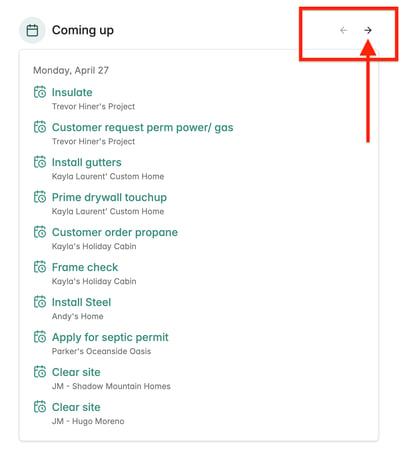
The '**Coming Up'** section shows all upcoming schedule tasks across all projects.
- Each task is labeled with a title in green with the project name (in light gray text) so you can quickly identify where it belongs.
- All tasks are listed by date.
- When you click on a task or event, you will be brought to that specific project and page.
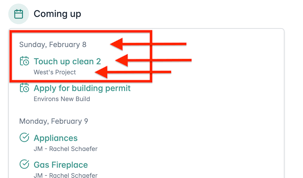
There will be 10 items showing at one time in this list but if there are more, just use the arrow at the top to scroll to the next page.
🎓 To see and learn more on company settings, go to [Navigating Company Settings](https://help.ressiosoftware.com/navigating-company-settings-in-ressio?hsLang=en).
[\[back to top\]](https://help.ressiosoftware.com/company-overview-guide#back-to-top)
---
If you have any questions or need further assistance, contact our support team at **support@ressiosoftware.com**. We're here to help!
- [Getting started](https://help.ressiosoftware.com/getting-started?hsLang=en)
- [Feature guides](https://help.ressiosoftware.com/feature-guides?hsLang=en#main-content)
- [Schedule](https://help.ressiosoftware.com/feature-guides?hsLang=en#schedule)
- [Estimate](https://help.ressiosoftware.com/feature-guides?hsLang=en#estimate)
- [Specs](https://help.ressiosoftware.com/feature-guides?hsLang=en#specs)
- [Budget](https://help.ressiosoftware.com/feature-guides?hsLang=en#budget)
- [Invoices](https://help.ressiosoftware.com/feature-guides?hsLang=en#invoices)
- [Approvals](https://help.ressiosoftware.com/feature-guides?hsLang=en#approvals)
- [Time Clock](https://help.ressiosoftware.com/feature-guides?hsLang=en#time-clock)
- [Calendar](https://help.ressiosoftware.com/feature-guides?hsLang=en#calendar)
- [Daily Log](https://help.ressiosoftware.com/feature-guides?hsLang=en#daily-log)
- [Change Orders](https://help.ressiosoftware.com/feature-guides?hsLang=en#change-orders)
- [Messaging & Notifications](https://help.ressiosoftware.com/feature-guides?hsLang=en#messaging-notifications)
- [Client Portal](https://help.ressiosoftware.com/feature-guides?hsLang=en#client-portal)
- [Settings](https://help.ressiosoftware.com/feature-guides?hsLang=en#settings)
- [Projects](https://help.ressiosoftware.com/feature-guides?hsLang=en#projects)
- [Selections](https://help.ressiosoftware.com/feature-guides?hsLang=en#selections)
- [Prospect management](https://help.ressiosoftware.com/feature-guides?hsLang=en#prospect-management)
- [Vendor Management](https://help.ressiosoftware.com/feature-guides?hsLang=en#vendor-management)
- [Cost Catalog](https://help.ressiosoftware.com/feature-guides?hsLang=en#cost-catalog)
- [To-dos](https://help.ressiosoftware.com/feature-guides?hsLang=en#to-dos)
- [Bid Management](https://help.ressiosoftware.com/feature-guides?hsLang=en#bid-management)
- [Plan hub](https://help.ressiosoftware.com/feature-guides?hsLang=en#plan-hub)
- [General](https://help.ressiosoftware.com/feature-guides?hsLang=en#general)
- [Proposals](https://help.ressiosoftware.com/feature-guides?hsLang=en#proposals)
- [Files](https://help.ressiosoftware.com/feature-guides?hsLang=en#files)
- [Ressio Payment Processing](https://help.ressiosoftware.com/feature-guides?hsLang=en#ressio-payment-processing)
- [Financial Tools & Services](https://help.ressiosoftware.com/feature-guides?hsLang=en#financial-tools-services)
- [Mason](https://help.ressiosoftware.com/feature-guides?hsLang=en#mason)
- [Reports](https://help.ressiosoftware.com/feature-guides?hsLang=en#reports)
- [Warranty](https://help.ressiosoftware.com/feature-guides?hsLang=en#warranty)
- [Automations](https://help.ressiosoftware.com/feature-guides?hsLang=en#automations)
- [FAQs](https://help.ressiosoftware.com/faqs?hsLang=en#main-content)
- [Vendors](https://help.ressiosoftware.com/faqs?hsLang=en#vendors)
- [Estimate](https://help.ressiosoftware.com/faqs?hsLang=en#estimate)
- [QuickBooks Online](https://help.ressiosoftware.com/faqs?hsLang=en#quickbooks-online)
- [Customers](https://help.ressiosoftware.com/faqs?hsLang=en#customers)
- [Files](https://help.ressiosoftware.com/faqs?hsLang=en#files)
- [Invoices](https://help.ressiosoftware.com/faqs?hsLang=en#invoices)
- [My account](https://help.ressiosoftware.com/faqs?hsLang=en#my-account)
- [Insurance](https://help.ressiosoftware.com/faqs?hsLang=en#insurance)
- [Time Clock](https://help.ressiosoftware.com/faqs?hsLang=en#time-clock)
- [Selections](https://help.ressiosoftware.com/faqs?hsLang=en#selections)
- [Templates](https://help.ressiosoftware.com/faqs?hsLang=en#templates)
- [Mason AI](https://help.ressiosoftware.com/faqs?hsLang=en#mason-ai)
- [Troubleshooting](https://help.ressiosoftware.com/troubleshooting?hsLang=en)
- [Integrations](https://help.ressiosoftware.com/integrations?hsLang=en#main-content)
- [QuickBooks Online](https://help.ressiosoftware.com/integrations?hsLang=en#quickbooks-online)
- [File Integrations](https://help.ressiosoftware.com/integrations?hsLang=en#file-integrations)
- [Sero](https://help.ressiosoftware.com/integrations?hsLang=en#sero)
- [Adaptive](https://help.ressiosoftware.com/integrations?hsLang=en#adaptive)
- [AI](https://help.ressiosoftware.com/integrations?hsLang=en#ai)
- [Account](https://help.ressiosoftware.com/account?hsLang=en)
[](http://ressiosoftware.com)
[www.ressiosoftware.com](http://www.ressiosoftware.com)
Copyright © 2026, Ressio Software