.png?width=75&height=75&name=Untitled%20design%20(22).png)
- Read data from Ressio (like projects, start dates, IDs, schedules, budgets, estimates)
- Optionally take actions in Ressio (write actions), depending on what permissions/actions are enabled
This setup uses an MCP server connection created through ChatGPT’s Apps settings.
Table of Contents
- Before you start
- Step 1: Open ChatGPT Settings
- Step 2: Go to Apps (and enable Developer Mode if needed)
- Step 3: Create a new app for Ressio
- Step 4: Enter the MCP server URL (must be exact)
- Step 5: Authorize ChatGPT to access Ressio
- Step 6: Confirm the connection is successful
- Step 7: Review available actions (Read & Write)
- Troubleshooting
Before you start
- A ChatGPT account you can log into.
- A Ressio account you can log into.
- Access to ChatGPT Settings.
- Developer Mode enabled in ChatGPT (required to create the app if "Create app" isn't visible).
Step 1: Open ChatGPT Settings
-
In ChatGPT, go to the bottom-left corner.
-
Click your name (or profile menu).
-
Click Settings.
What you should see: A settings panel with multiple sections/options. .png?width=670&height=377&name=download%20(37).png)
Step 2: Go to Apps (and enable Developer Mode if needed)
- In Settings, click Apps.
.png?width=368&height=286&name=download%20(39).png)
If you do NOT see "Create app"
- Go into Advanced settings.
- Turn on Developer mode.
- Return to Settings -> Apps.
.png?width=386&height=292&name=download%20(40).png)
Why this matters:
Ressio may appear in the App Library in the future, but in the current process you create the connection via Developer mode using a specific URL.
Step 3: Create a new app for Ressio
- In Settings -> Apps, click Create app.
- Set the app name (example: Ressio).
- Add an optional description example:
-
"Ressio Prod - Connect to Ressio account"
-
.png?width=358&height=346&name=download%20(41).png)
.png?width=401&height=320&name=download%20(43).png)
Step 4: Enter the MCP server URL (must be exact)
When prompted for the server URL, use the exact link shown in your process:
https://www.ressio.app/mcp
Important notes:
-
The HTTPS part is critical.
-
If you enter a variation of the URL, ChatGPT may tell you it’s incorrect and the connection will fail.
-
This URL should also be included in your Help Center article for copy/paste.
-
After entering the URL, click:
-
I understand and want to continue
-
- Click Create.
Step 5: Authorize ChatGPT to access Ressio
-
You'll be prompted to sign in / authorize (example shown: Ressio Prod).
- Click Allow.
.png?width=499&height=370&name=download%20(42).png)
What to look for (verification step):
-
You should see the Ressio logo near the top of the authorization page, confirming it's the correct Ressio server.
✅ The authorization pager may open quickly or in a separate view. You may be asked to enter Ressio credentials, or you may not, either is normal.
Step 6: Confirm the connection is successful
After authorization, you should be returned to ChatGPT.
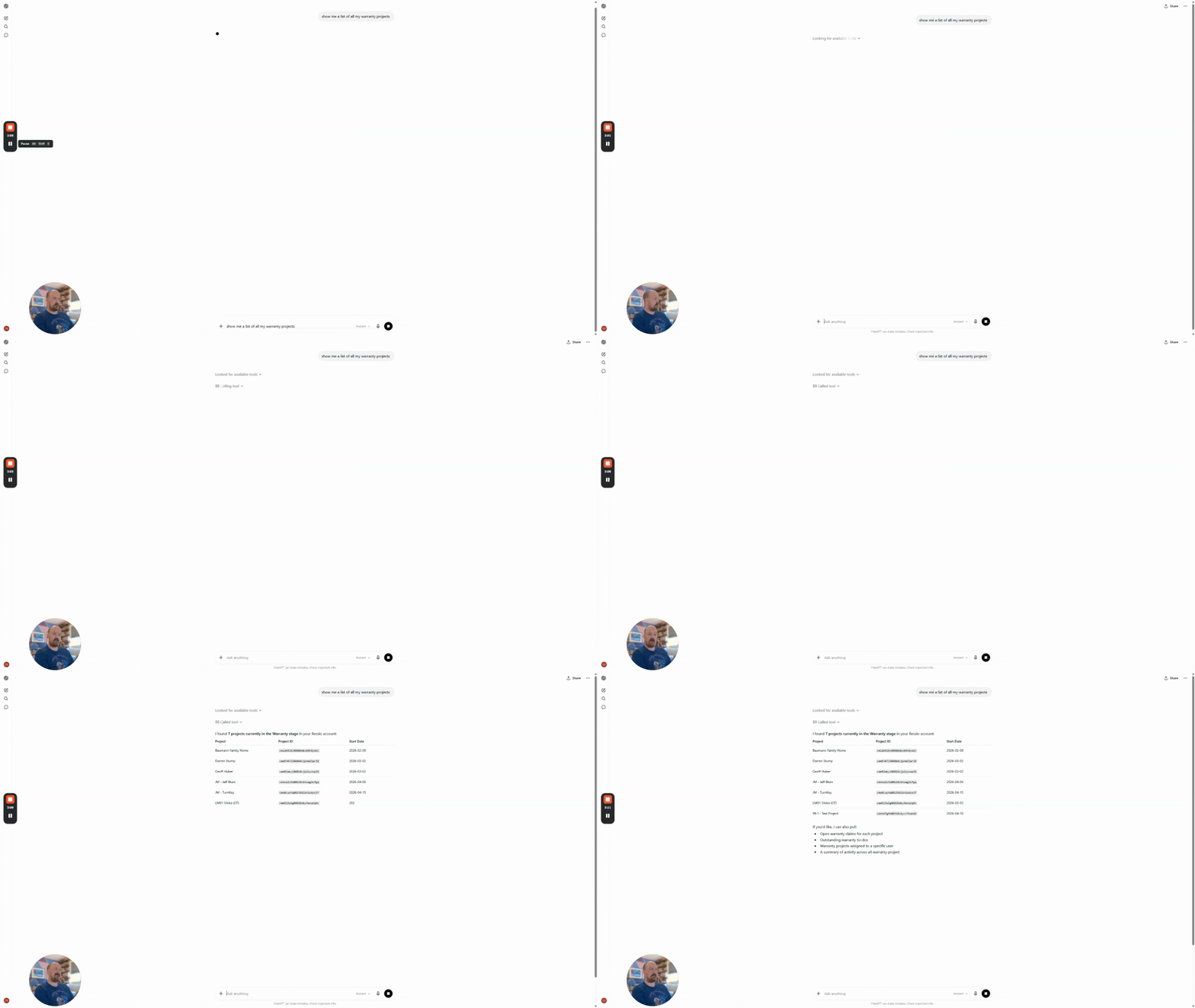
Example test prompt:
- "Show me a list of my warranty projects".
Why “warranty projects” is a good test:
It typically returns a clear, structured list. In the walkthrough, it returned 7 projects with fields like:
- Warranty stage
- Start date
- Project ID
- Project name
If the list matches what you expect in Ressio, the connection is working.
Step 7: Review available actions (Read & Write)
If you want to see what ChatGPT can do through the Ressio app:
- Go back to Settings -> Apps.
- Find your app (example: Ressio Prod)
.png?width=398&height=330&name=download%20(44).png)
- Click into it
- Look for areas like:
-
Ask permissions
- App actions
-
What you'll see (after it refreshes):
- A list of read actions (pulling data from Ressio)
- A list of write actions (taking actions in Ressio)
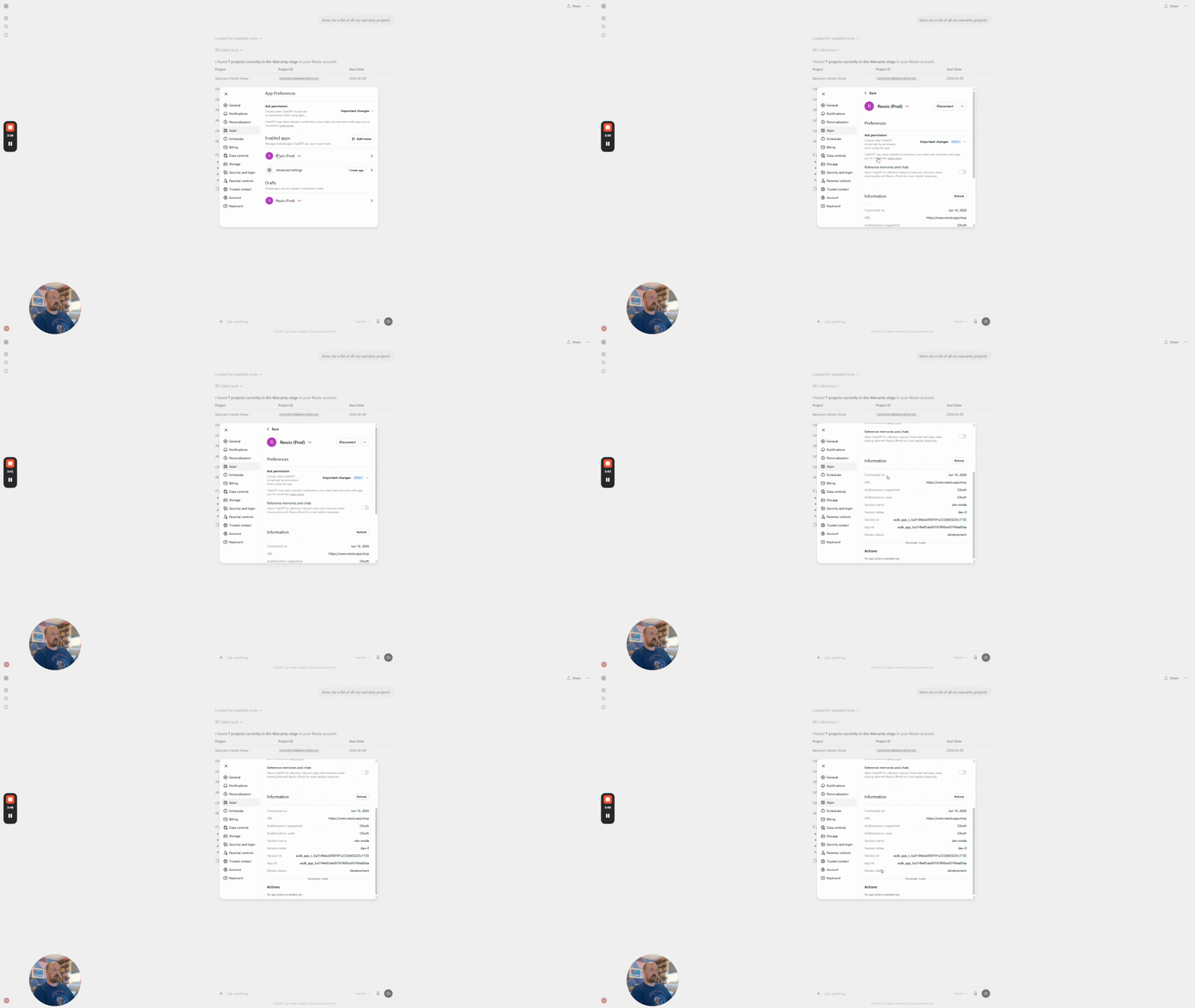
⌛ It may take a moment to refresh before all actions appear.
Troubleshooting
"Create app" isn't showing
- Go to Advanced settings
- Enable Developer mode
- Returen to Settings -> Apps
URL isn't accepted / connection fails
- Confirm you used the exact URL:
https://www.ressio.app/mcp/
- Confirm you included https:// (NOT http://)
Actions aren't showing yet
- Wait a moment and reopen the app details, actions can take time to refresh.
🎓 To learn more about MCP, read What is an MCP Connector?
🎓 To learn how to connect Claude to Ressio, read Connect Ressio to ChatGPT (MCP Connector).
Need help?
If you get stuck or the connection doesn’t complete, contact the Ressio support team.
* AI-generated content may contain errors. Always review outputs before using them in your project.