.png?width=75&height=75&name=Untitled%20design%20(22).png)
- Read Ressio data (example: projects, budgets, estimates, schedules)
-
Optionally write to Ressio (example: create to-dos or daily logs), depending on the permissions you enable
-
This connection is managed through Claude’s Connectors settings using the Ressio MCP server connector.
Table of Contents
-
Admin Setup (Required): Add Ressio as an Organization Connector
-
Step 2: Go to Connectors -> Customize
-
Before You Start
-
A Claude account you can log into.
-
A Ressio account you can log into.
-
The ability to access Settings → Connectors in Claude (builders/admins typically have this).
🚨 Important: This setup requires two parts:
- An admin/builder must add Ressio to the Organizations's connectors (one-time setup)
- Then each individual user must connect/authorize Ressio in their own Claude settings.
You'll also need the Ressio MCP server URL:
-
https://www.ressio.app/mcp
https://Admin Setup (Required): Add Ressio as an Organization Connector
-
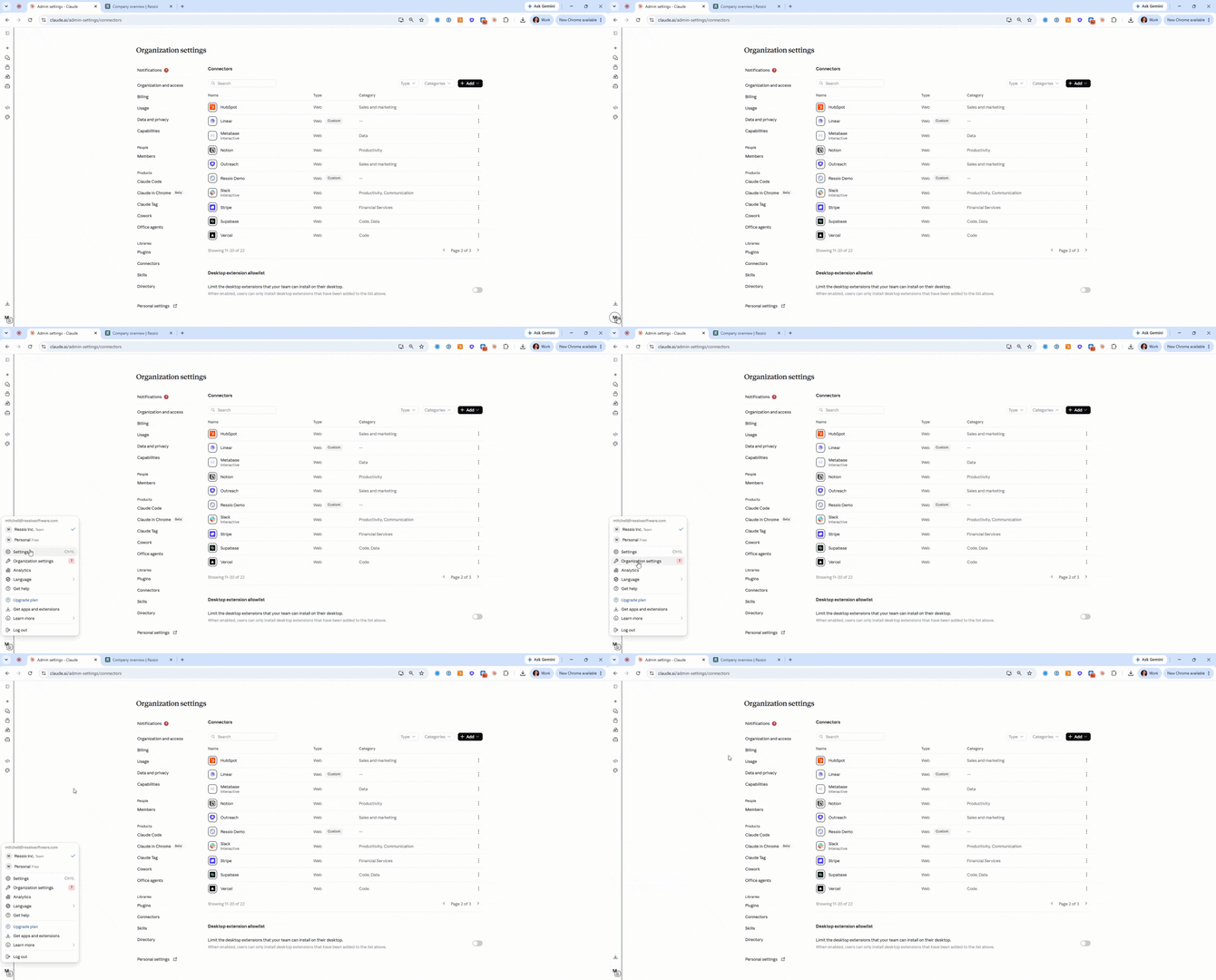
In Claude, click your profile (bottom-left).
-
Open Organization Settings.
-
Click Connectors.
-
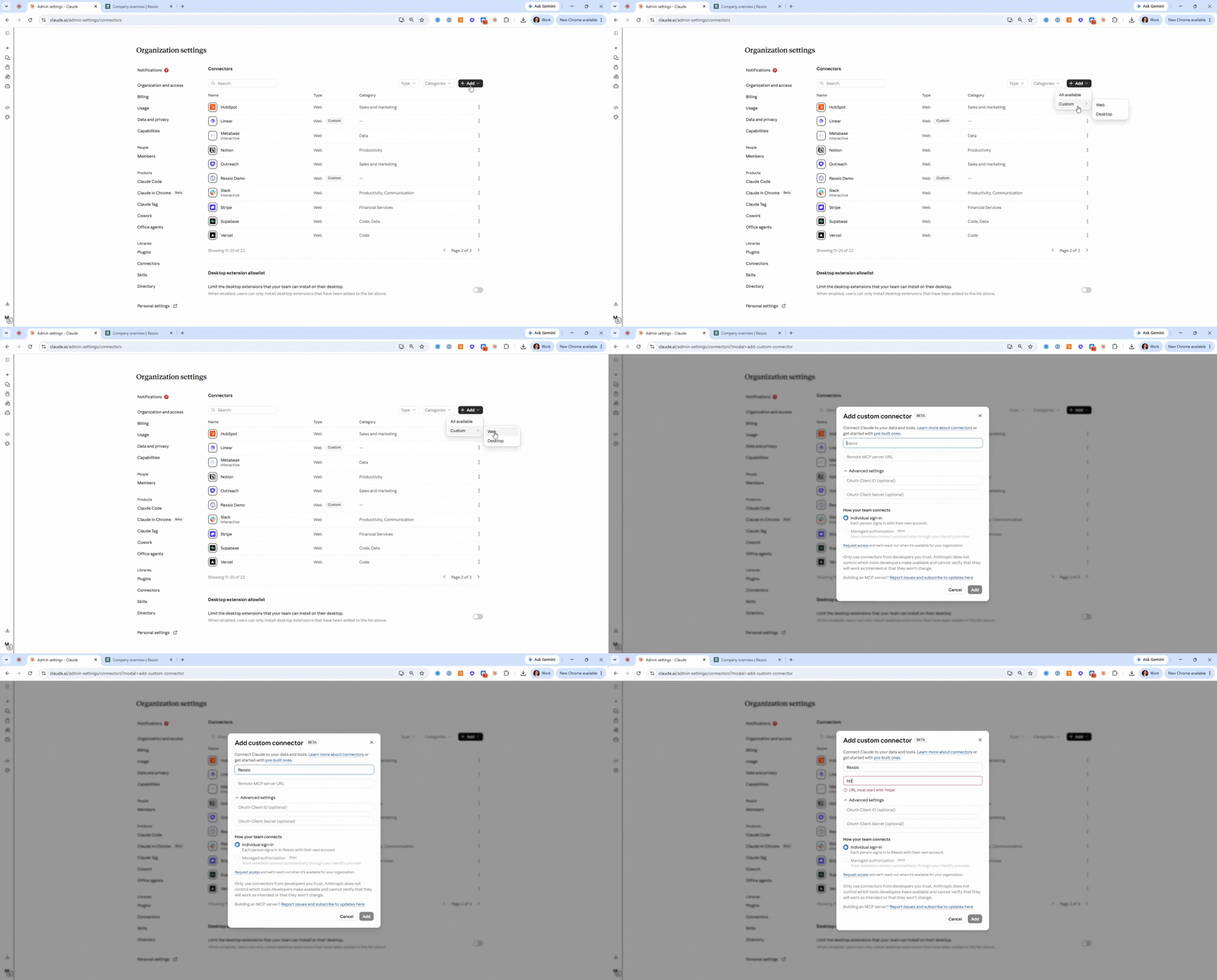
Click Add (top right).
-
Choose Custom -> Web.
-
Enter this server URL exactly:
https://www.ressio.app/mcp -
Click Add.
- What you should see: Ressio now appears in the organization's connector list.
.png?width=457&height=456&name=download%20(47).png)
Step 1: Open Claude Settings
-
Log into Claude.
-
Look at the bottom-left corner of the Claude app.
-
Click Settings.
What you should see: A settings menu with multiple options (including “Connectors”)..png?width=670&height=364&name=download%20(28).png)
Step 2: Go to Connectors -> Customize
-
In the Settings, click Connectors.
-
Click Customize.
.png?width=436&height=299&name=download%20(29).png)
What you should see: A page where you can view existing connectors and manage connector setup. .png?width=670&height=364&name=download%20(34).png)
Step 3: Connect Ressio (under "Not Connect")
After your org admin completes Admin Setup, each user must connect Ressio for their own account.
-
On the customize page, scroll down to Not connected.
-
Find Ressio (it may show a "custom" tag).
-
Click Connect.
What you should see: Claude opens a Ressio authorization flow. .png?width=670&height=360&name=download%20(48).png)
Step 4: Authorize Claude to access Ressio
-
When the authorization screen opens, confirm you’re granting access to Ressio.
- You may be asked to sign in to Ressio again. (This is normal.)
- Click Allow.
.png?width=510&height=337&name=download%20(49).png)
⚠️ Important note: If you have multiple Ressio accounts/companies, make sure you’re logged into the correct one before clicking Allow.
Step 5: Review and set tool permissions (Read vs Write)
After connecting, Claude will show a list of tools and permissions available for the Ressio connector. This is where you control exactly what Claude is allowed to do.
You’ll typically have permission options like:
-
Always allow (Claude can run this without asking)
-
Ask for permission / Needs approval (Claude asks you before running it)
-
Disable / Block (Claude cannot use this tool)
.png?width=670&height=364&name=download%20(35).png)
.png?width=670&height=158&name=download%20(36).png)
Read permissions let Claude access and retrieve information from Ressio, such as:
- Project information (example: warranty projects)
-
Budget information
-
Estimates
-
Schedule task assignments
Understand “Write” permissions
Write permissions let Claude take actions inside Ressio from Claude, such as:
-
Creating to-dos
-
Creating daily logs
-
Other write actions as they’re added over time
Why this matters (especially for teams)
Tool permissions are helpful if:
-
You want to prevent Claude from accessing certain functions
-
You want to share the connector experience with your team but limit what they can do
-
You want write actions to require approval every time
💡 Tip (recommended default):
If you’re unsure what to enable, set write tools to Ask for permission rather than Always allow.
Step 6: Confirm the connection is working (Quick test)
Once you’re connected and permissions are set, run a simple test query in Claude.
-
In Claude, go back to Chats (left navigation).
-
Start a new chat.
-
Ask a question you can quickly verify in Ressio. Example:
-
“Show all my warranty projects in Ressio.”
-
Why this example works:
In the walkthrough, “Warranty Projects” was used because it returned a small, easy-to-verify list (7 projects).
What success looks like:
Claude returns a list of items from Ressio that matches what you see in the Ressio app.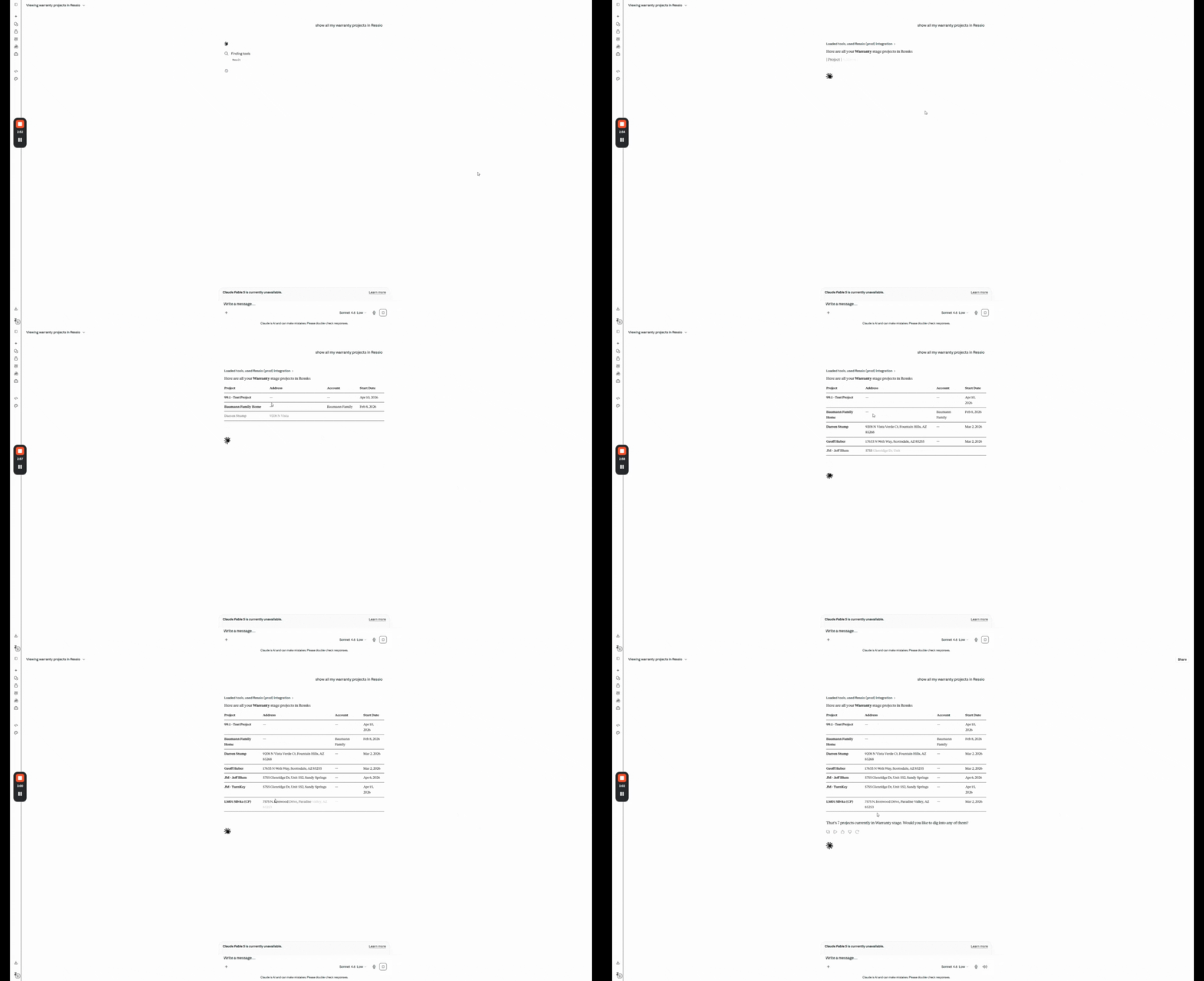
-
Pull info from Ressio (budgets, estimates, schedules, tasks, etc.)
-
Create items in Ressio (to-dos, daily logs, etc.) if write tools are enabled
Troubleshooting
"I don't see Connectors in Claude"
- Your Claude plan and/or role may not support Connectors.
- Ask your Claude workspace admin/builder to confirm Connectors are enabled for your organization and that you have access.
"Ressio doesn't show up under Not Connected"
-
Confirm an admin/builder completed Admin Setup step (Organization Settings -> Connectors -> Add Custom Web connector0.
- Then return to Settings -> Connectors -> Customize and refresh.
“It’s asking me to log into Ressio again”
This is expected sometimes. Log in and continue the authorization flow.
“The connector shows connected, but Claude can’t access data”
-
Go to Settings → Connectors → Customize
-
Click the Ressio connector
-
Confirm required read tools aren’t set to Disabled/Blocked
-
Confirm you authorized the correct Ressio account/company
“I’m worried about what my team can do”
Use the tool permissions list to disable or require approval for specific tools—especially write tools.
🎓 To learn more about MCP, read What is an MCP Connector?
🎓 To learn how to connect ChatGPT to Ressio, read Connect Ressio to ChatGPT (MCP Connector).
If you have questions:
- In Claude, you can ask: “How do I connect to an MCP?” and Claude may guide you to connector setup.
-
Or contact the Ressio support team.
*AI-generated content may contain errors. Always review outputs before using them in your project.