.png?width=75&height=75&name=Untitled%20design%20(22).png)
Benefits of Daily logs
Daily logs help document progress and improve communication across your projects.
🏗️ On-Site Progress – Keep the office informed of field activity
📈 Documentation – Create a paper trail to track changes and site conditions
🏢 Internal Meetings – Reference daily logs during team or company check-ins
📱 Client Updates – Share ongoing progress with homeowners
🔨Vendor Coordination - Share the right logs with the vendors on the project, and receive their field updates in return
Table of Contents
- The Daily Log Form
- Visibility Options
- Customizing with Templates
- Creating a Daily Log
- Sharing Daily Logs with Vendors
- What Vendors See
- Vendor Created Daily Logs
- AI-Generated Daily Log Summaries
- Editing or Deleting Daily Logs
The Daily Log Form

The Daily Log includes the following options and fields:
Visibility
Private: Visible to internal team members only.
Public: Shared with both internal team and client.
Date & Weather
Date: Select the date the work occurred
Weather: Auto-generated based on Project details - Address.
Description
Description: Write your update using plain or rich text formatting. Add structure or style as needed.
Files/Photos
Files/Photos: Upload or take photos directly from your mobile device—attachments are embedded in the log entry and displayed on the Overview page.
Visibility Options
Daily Logs have four visibility settings. You can set visibility when you create the log, and change it at any time afterward. Each option includes an in-app description so your team can choose with confidence.
🔒Internal: visible to your team only
🏠Customer: visible to your team and your client
🔨Vendor: visible to your internal team and vendors on the project
🌐Public: visible to your team, your client, and vendors on the project
‼️Vendor visibility applies to every vendor with access to the project, not a selected list.
Customizing with Templates
You can customize the Description field in your daily logs using templates.
-
Go to Company Settings > Templates
-
Create a Daily Log Template to define the fields or prompts you want your team to complete
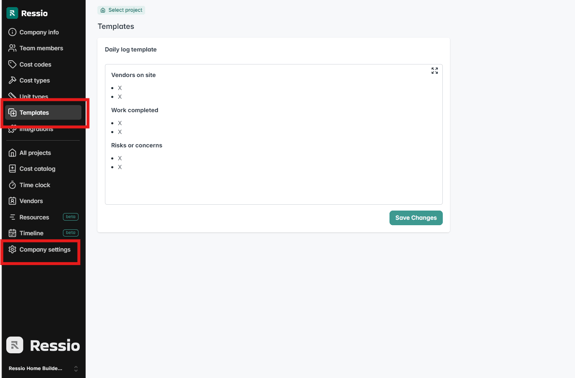
Tip: For example, you can prompt team members to include weather conditions, crew on site, completed work, materials delivered, or next steps.
Creating a Daily Log
Daily logs can be created on both desktop and mobile.
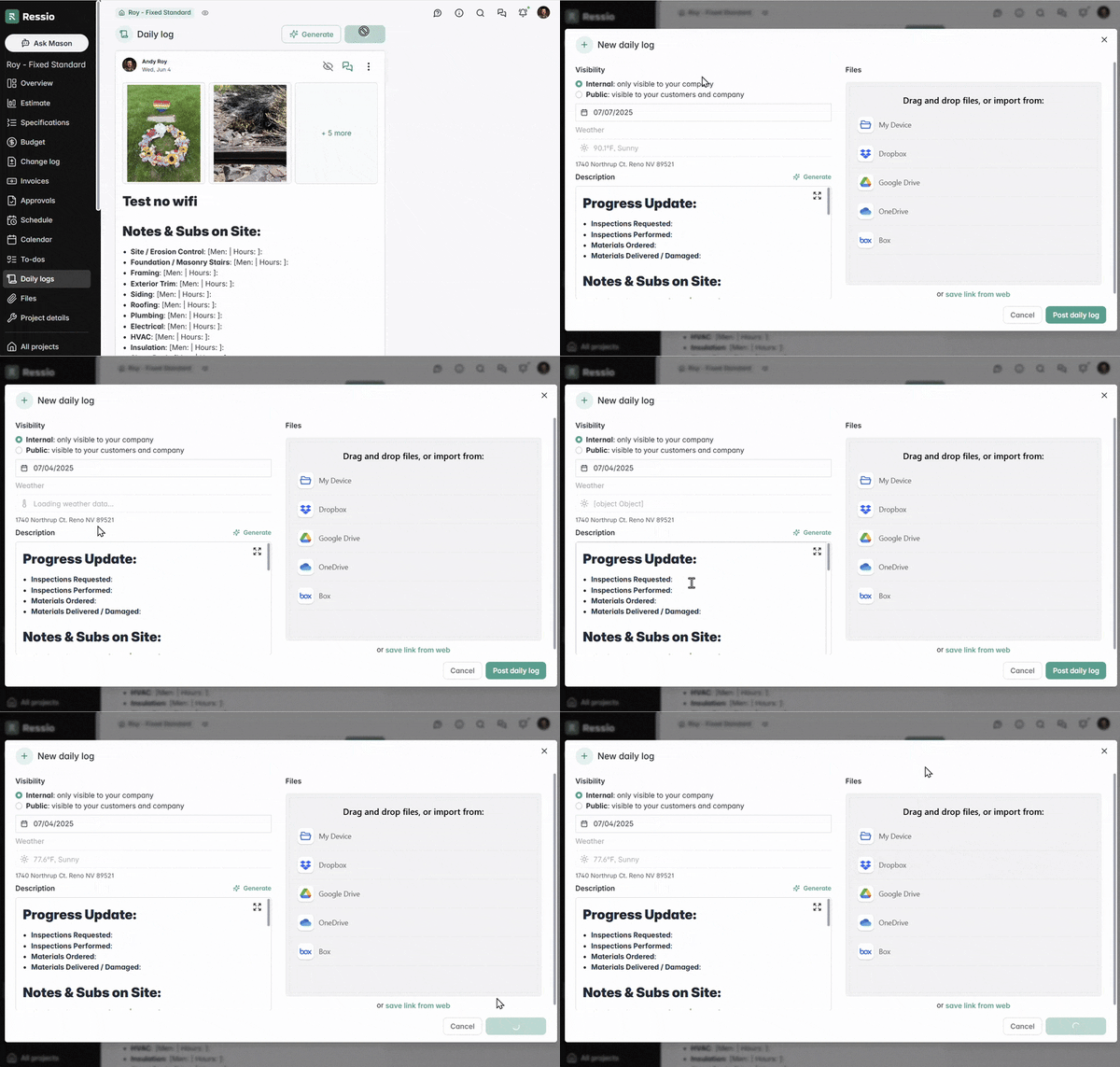
On Desktop
-
Navigate to the Daily Log tab in the left-hand menu
-
Click Add
-
Complete the form
-
Click Post Daily Log
On Mobile
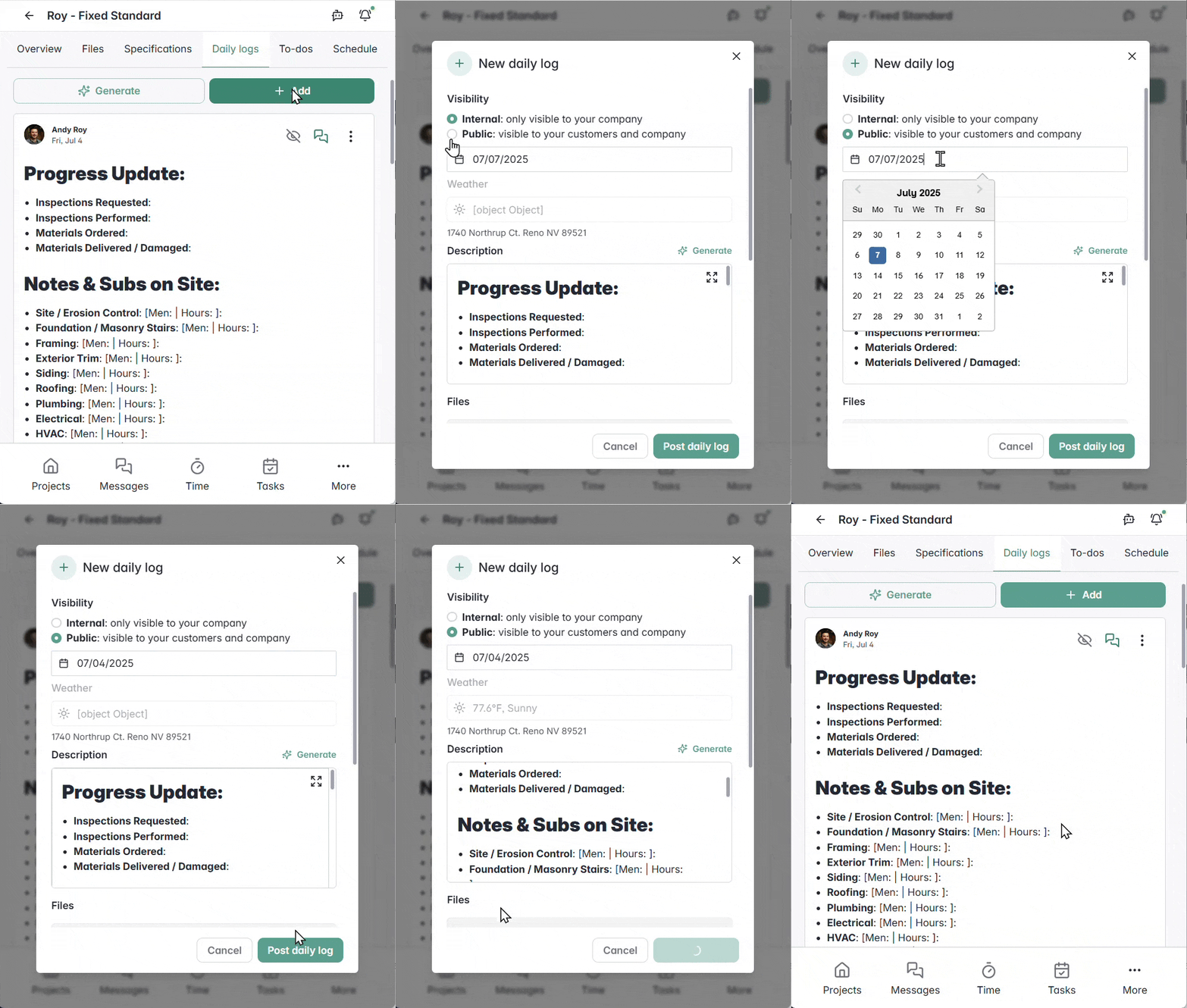
-
Tap the Daily Logs tab in the top menu
-
Tap New Post
-
Fill out the form
-
Tap Post Daily Log
Sharing Daily Logs with Vendors
Set a log's visibility to Vendor or Public to share it with the vendors on the project. You can do this when you post the log, or on an existing log at any time.
Notifications: When a log is shared with vendor-facing visibility, the vendors on the project receive a notification that a log has been shared with them, so job site updates reach the field without a separate email.
Messaging: Vendor-facing logs keep two separate chat threads:
- Internal thread: your team only
- Shared thread: you and anyone who can see the log
‼️Your Internal conversation stays private, no matter who the log is shared with.
Attachments: Files and photos are specific to the log they're posted on. Vendors can only see attachments on logs they have access to.
‼️Changed your mind about sharing a log with a vendor? You can open the log to change visibility back to Internal or Customer at any time.

What Vendors See
Vendors access shared logs from the Vendor Portal by selecting the Daily Logs section on a project, or by seeing the most recently posted log panel on the project overview.
On a shared Daily Log, vendors can:
-
Read the full daily log
-
Message you (they only see their thread with your team)
-
Add attachments
‼️Vendors cannot edit or modify a log you've shared.
Vendor-Created Daily Logs
Vendors can now post their own daily logs to you from the project. This gives you field updates directly from your trades without chasing them down.
How a vendor can post a log:
-
Open the project in Ressio and select New Daily Log
-
Complete the simplified log form (Date, Description, Files/Photos - from desktop or mobile)
- Post the log

‼️Who can see a vendor created log? Vendor-created logs are visible only to your internal team and to employees of the vendor who posted them. Visibility is fixed and cannot be changed.
Vendor created logs are:
-
Not shared with other vendors on the project
-
Not shared with your client
-
Always shared with you - vendors cannot post a log privately or to their own team
What you'll see in the Builder Portal:
-
The vendor-created log appears in the Project Activity feed, flagged as a Vendor log
-
The Daily Log section shows the log along with the name and company of the user who posted it
-
You receive a notification if you already have daily log notifications enabled
You can comment on and print a vendor-log, but the log can not be edited or forwarded.
Tip: Want to pass a vendor's update along to your client, or other vendors? Copy the content into a new Daily Log - or have Mason draft one for you - and choose your desired visibility option before posting.
AI-Generated Daily Log Summaries
Save time by letting AI summarize recent project activity.
Select the "✨Generate" button.
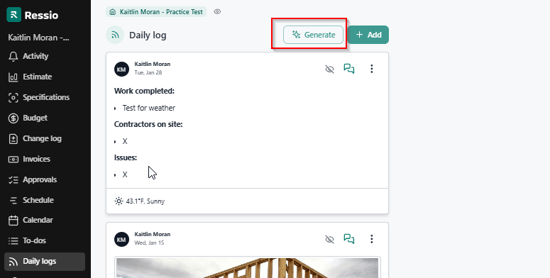
Setting your Filters: Customize what information AI pulls from your project by setting your visibility, date range, and what sections to recap.
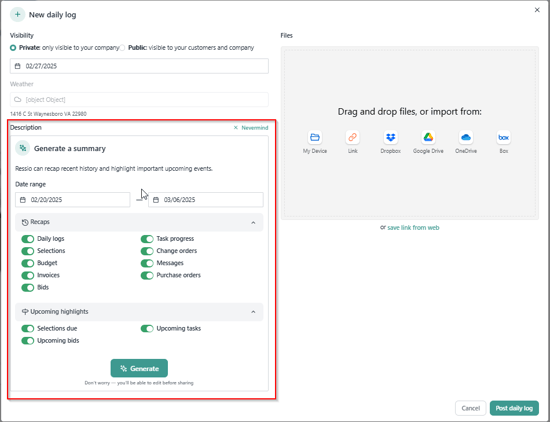
Click ✨Generate, then review and Post Daily Log.
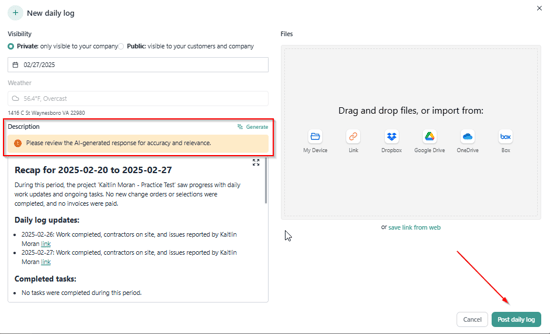
👀 Visibility: The visibility you select determines what the AI can pull from. To include content from Internal logs that you plan to share, generate the summary first, then change the visibility and select Keep Description to retain the internal content.
Editing or Deleting Daily Logs
You can edit or delete any log at any time:
-
Navigate to the Daily Log page
-
Locate the entry you’d like to change
-
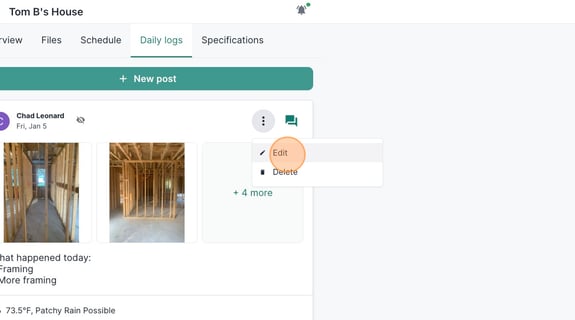
Click the More icon (⋮)
-
Select Edit or Delete
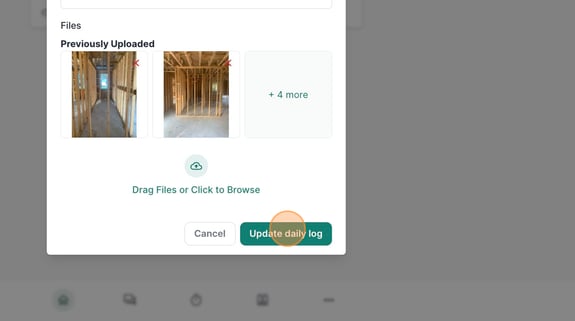
To save updates, click Update Daily Log.
‼️Logs posted by a vendor cannot be edited by your team.
If you have any questions or need additional support, please contact us at support@ressiosoftware.com — we’re happy to help!