.png?width=75&height=75&name=Untitled%20design%20(22).png)
Getting builders insurance in place shouldn’t slow down your project. With this option in Ressio, contractors can request and manage Builders Risk coverage directly from Project Settings without jumping between tools.
Easily quote, review, sign, and activate Builders Risk Insurance right from your project dashboard to stay protected during construction.
Why this matters
-
Save time: Key project and account details are prefilled to reduce repetitive data entry.
-
Keep work moving: Request coverage from within the same project workspace your team already uses.
-
Stay organized: Policy details stay tied to the project so your records are easy to find later.
Table of Contents
- How to Request a Quote
- Review & Purchase Coverage
- Access Your Policy in Ressio
- What is Covered and NOT Covered
- How to File a Claim with Vertical Insure (Vicoverage)
- Vertical Insure Helpful Links
- Frequently Asked Questions
How to Request a Quote
-
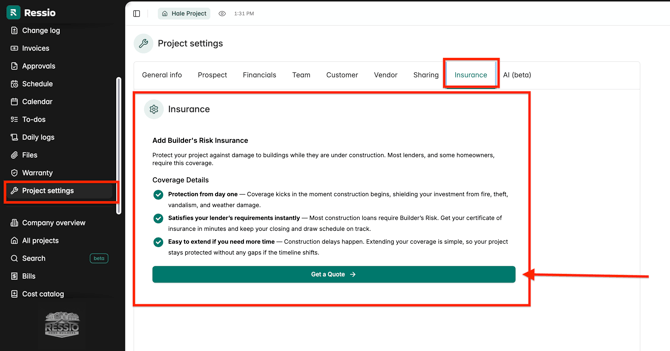
Open your project and go to Project Settings → Insurance.
-
Click Get a Quote.
-
The form will be prefilled with available project details. Complete any missing information, including:
- Project location (county)
- Project category and type (e.g., frame or masonry)
- Policy start and end dates
- Construction cost to be insured
- Builder experience and loss history
- Insured type (Contractor or Home Builder)
4. After each section, you will have to hit Next.
5. Click Get Quote to view available coverage.png?width=327&height=399&name=download%20(23).png)
Review & Purchase Coverage
-
Review the quote provided
-
Click to accept coverage
.png?width=367&height=275&name=download%20(24).png)
-
Read through the policy documents
-
Sign the required documents
-
Enter payment details
.png?width=392&height=225&name=download%20(25).png)
-
Complete the purchase by clicking Purchase Coverage
- When you insurance policy has been completed, it will say "Active" in the top right hand corner of your Vertical Insure card.
.png?width=498&height=252&name=download%20(26).png)
- Once you have purchased the claim, you will see the claim under the Insurance tab and you will receive an email.
Access Your Policy in Ressio
Once coverage is purchased:
- Return to Project Settings → Insurance
- View your active policy directly within the project
You’ll have access to key details such as:
- Policy information and documents
- Coverage details
- Status of your policy
✉️ You should also get an email once the purchases in covered with the policy information.
What is Covered and NOT Covered
⚠️ Builders Risk insurance protects a building project during the course of construction by covering direct physical damage to the structure and materials until the project is completed or occupied. It is temporary coverage designed specifically for the construction phase and does not replace General Liability insurance or permanent property insurance.
What's covered:
- Buildings under construction: direct physical loss or damage to structures while they are being built.
- Materials and supplies: materials that will become a permanent part of the project, whether on site, in transit, or in temporary storage.
- Temporary structures and scaffolding: protection for scaffolding, construction forms, and temporary fencing at the jobsite.
- Fire, theft, and vandalism: protection against common causes of jobsite loss.
- Windstorm, hail, and lightning: damage caused by windstorm, hail, or lightning.
- Debris removal: costs to remove debris from covered property following a covered loss, subject to policy limits.
What's NOT covered:
- Flood or earth movement, including earthquakes, landslides, surface water or strom surge, unless specifically endorsed
- Faulty workmanship, design defects, or construction errors
- Wear and tear, rust, corrosion, or deterioration
- Project delays, lost income, soft costs, or cost overruns
How to File a Claim with Vertical Insure (Vicoverage)
- Go to customers.vicoverage.com/login
- Create a Customer Portal account using the same email you used when you purchased coverage.*You will also have received a confirmation email after purchase.
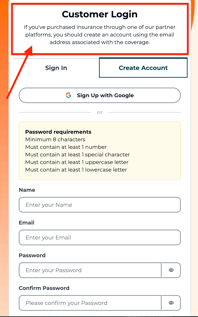
- Log in and find your policy.
- Click "File a Claim".
- Complete the form and upload any requested documents.
- A ViCoverage claims examiner will review your submission and email you with updates.
Vertical Insure Helpful Links:
✅ Customer Portal: customers.vicoverage.com
*View policies, begin the claims process, or contact support.
📁 How to File A Claim: vicoverage.com/resources/how-to-view-your-coverage-or-file-a-claim
📞 Help Center: help.vicoverage.com
✉️ Support Email: support@vicoverage.com
🎓 About ViCoverage: vicoverage.com
Frequently Asked Questions
🎓 Please click HERE to read more about frequently asked questions in relation to Builders Risk Insurance.
If you have questions while requesting coverage, contact our support team and include your project name so we can help quickly.