.png?width=75&height=75&name=Untitled%20design%20(22).png)
See how to use Ressio’s enhanced scheduling system to add time components to tasks, navigate new view options, and experience the updated interface for more precise project planning.
By following this guide, you will efficiently schedule and manage tasks with start and end times, utilize granular calendar views, and view resources allocated by the hour.
Benefits of Hourly Schedules
-
Schedule tasks with accurate start and end times
-
Switch easily between day, week, and month views for flexible planning
-
Compare and review scheduled work at an hourly level for better resource management
-
Modern, streamlined interface for faster editing
Table of Contents
What You Can Do with Hourly Scheduling
With hourly scheduling, you can:
-
Create tasks that start and end at specific times
-
Keep tasks as all-day when timing isn’t important
-
View schedules by the hour in the Gantt chart
-
See timed tasks in calendar and resource views
-
Edit timed tasks consistently across different pages
This gives you more flexibility when planning work that happens within defined time windows.
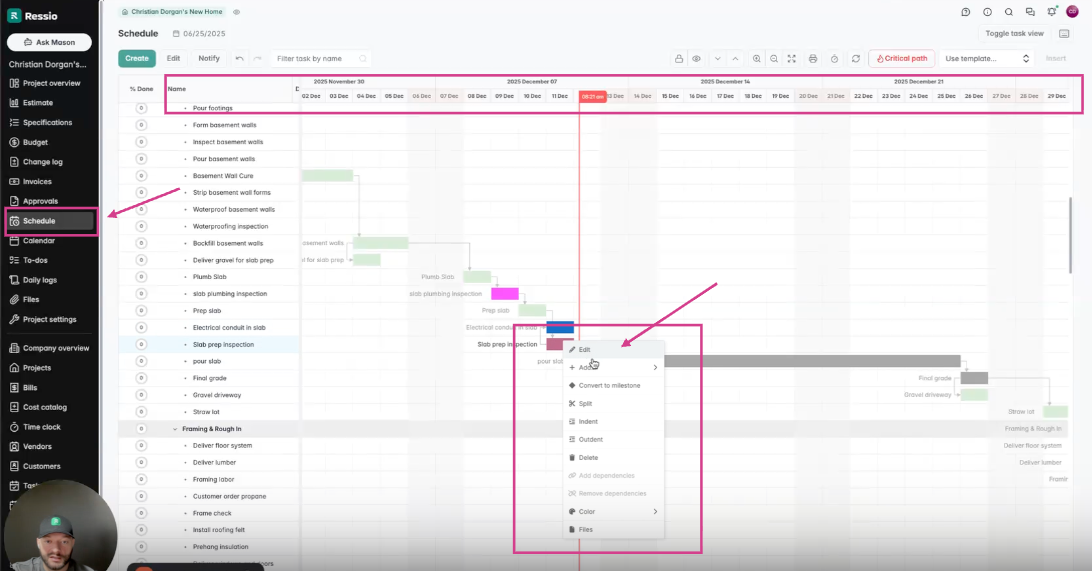
🎓 To learn more about the Schedule tab, read 'Schedule Overview'.
Scheduling Tasks by Time (Gantt View)
Viewing by hour
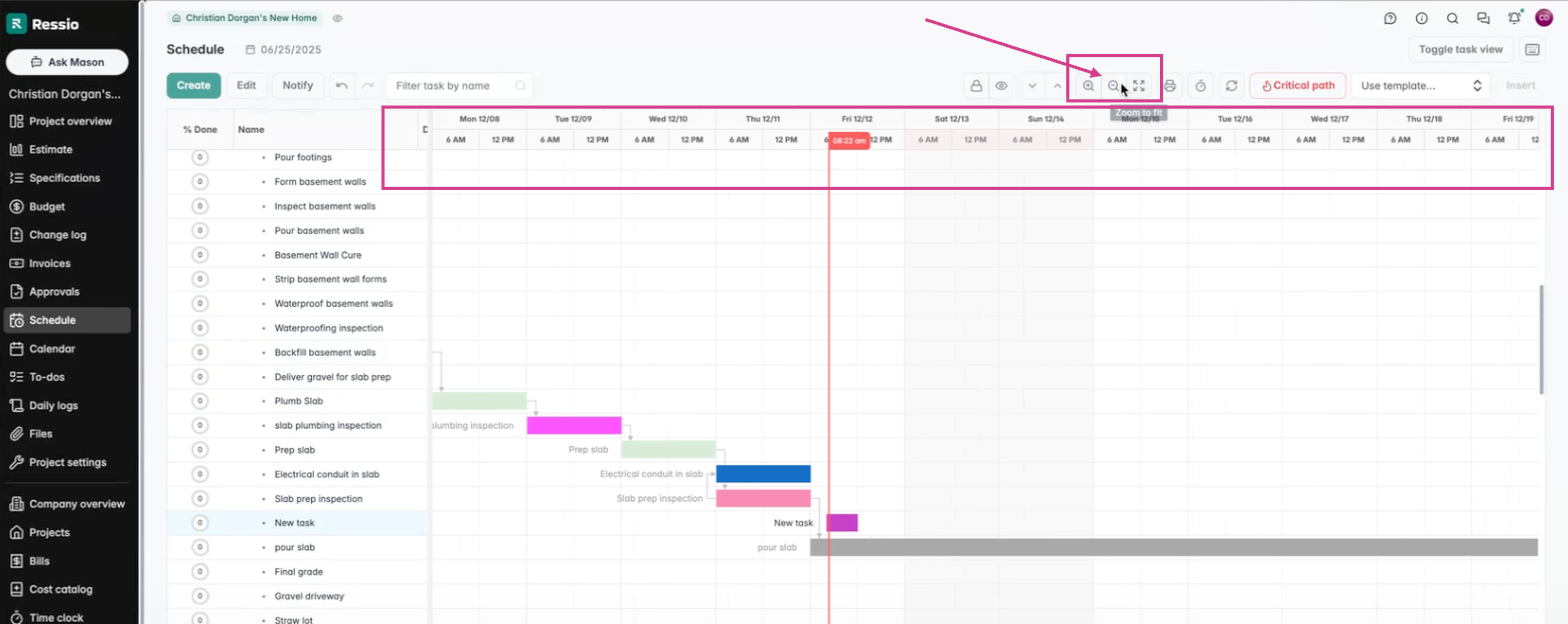
On the Schedule page, clicking on the +🔍 will give you the ability to zoom in:
-
You can zoom further into the Gantt chart to view tasks by the hour
-
This makes it easier to see when work is planned throughout the day
Creating a Timed Task
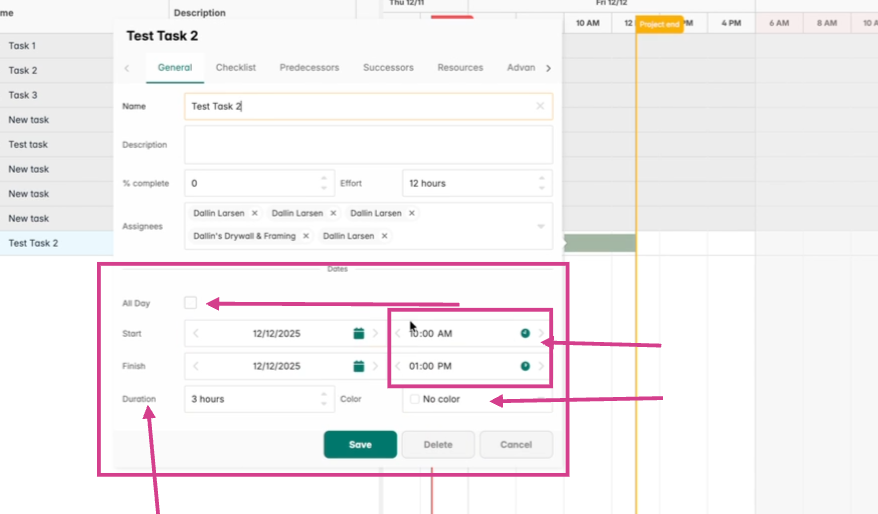
When you create a new task, it is created as an all-day task by default
To make it a timed task:
- Open the task
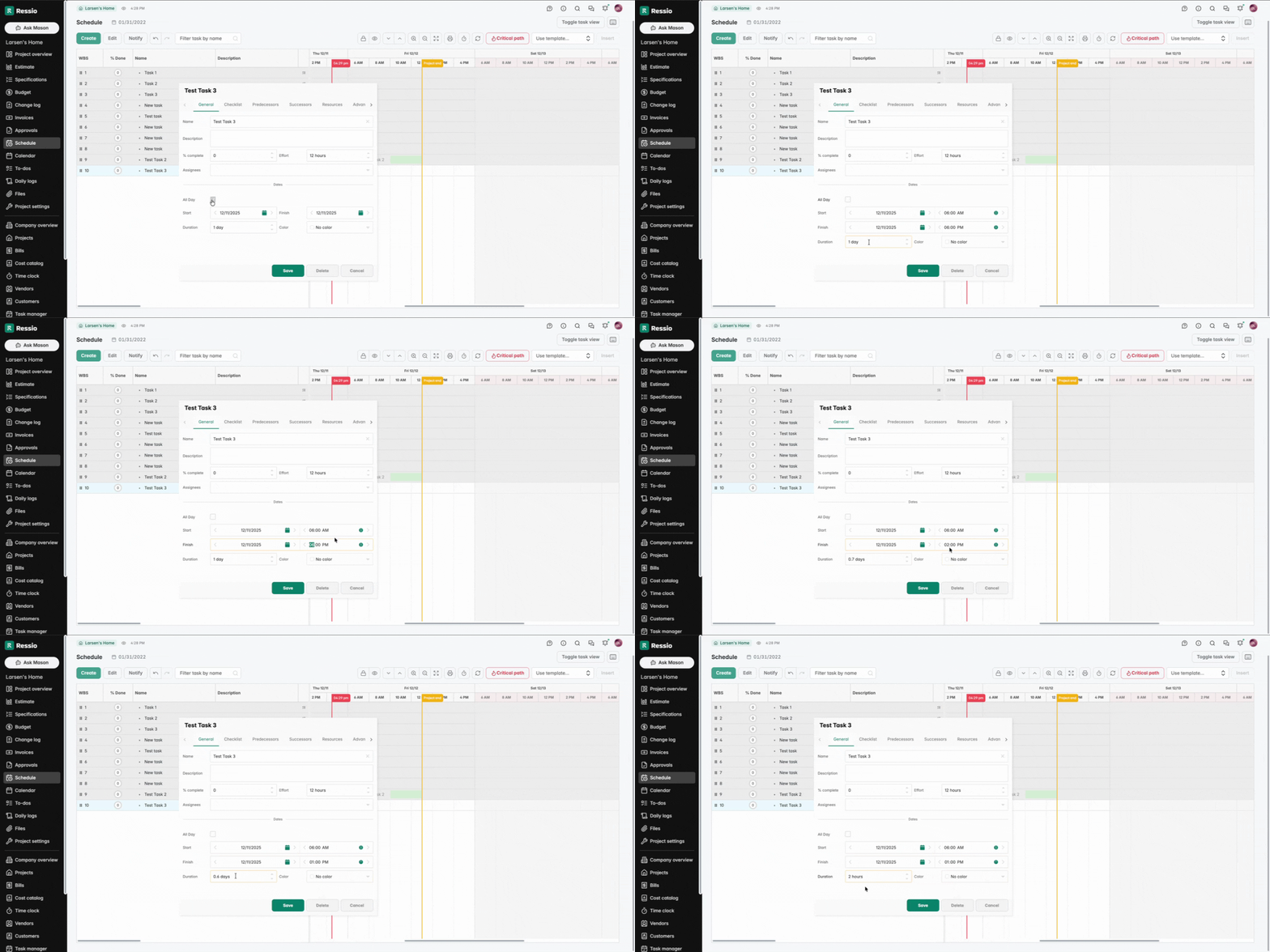
- Uncheck 'All Day'
- Set:
-
- A start time and end time
or - A duration (for example, 2 hours)
- A start time and end time
You can also:
-
Type times directly into the fields
-
Drag the task edges on the Gantt chart to adjust timing
⚠️ All existing scheduling features, including dependencies, continue to work as expected.
⏰ Time Constraints to Know Currently:
-
Tasks can be scheduled between 6:00 a.m. and 6:00 p.m.
This is a current limitation of the scheduling tool and may change based on feedback.
Calendar Views for Timed Tasks
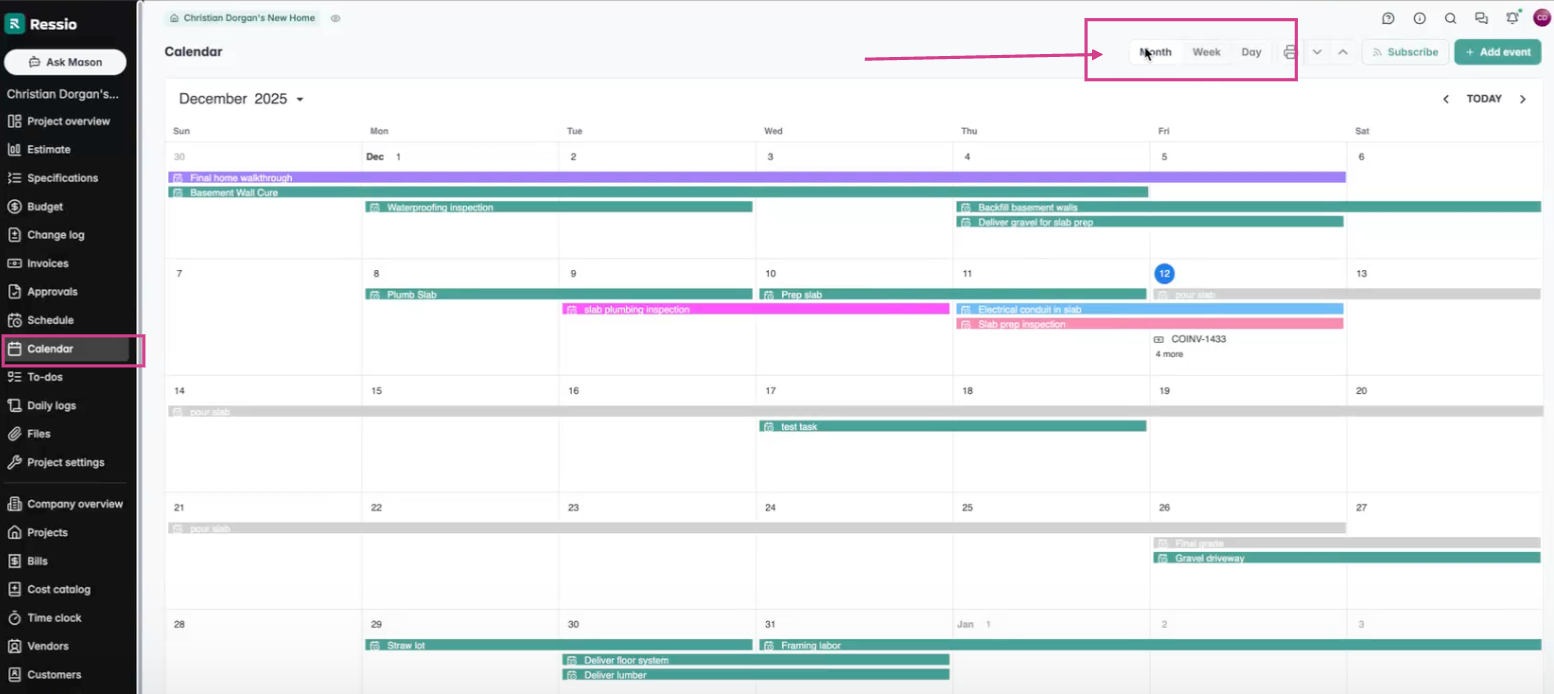
The Calendar page includes multiple views that support timed scheduling:
Month | Week | Day
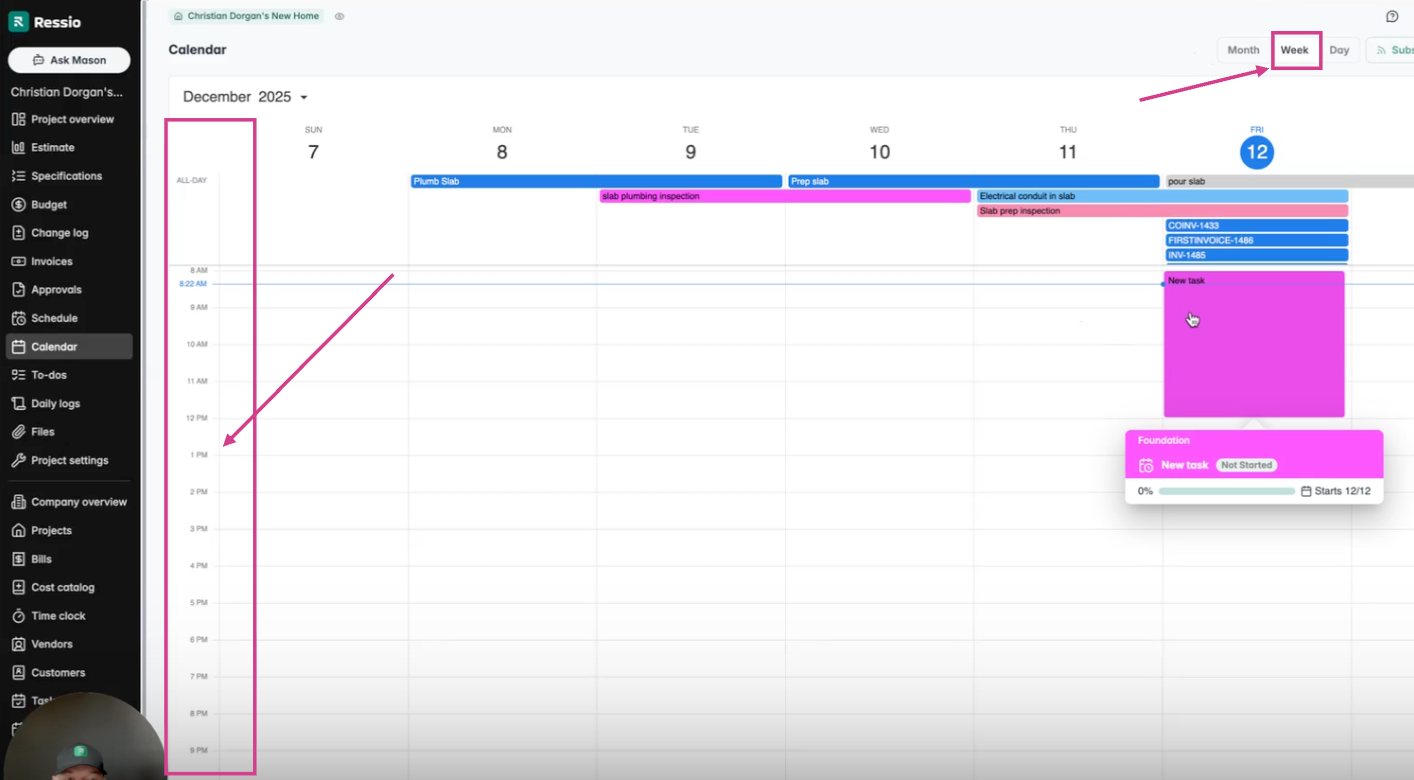
Week View
-
Displays timed tasks within their scheduled hours
Day View
-
Focuses on a single day
-
Especially useful on mobile devices
-
Supported in the mobile version of Ressio
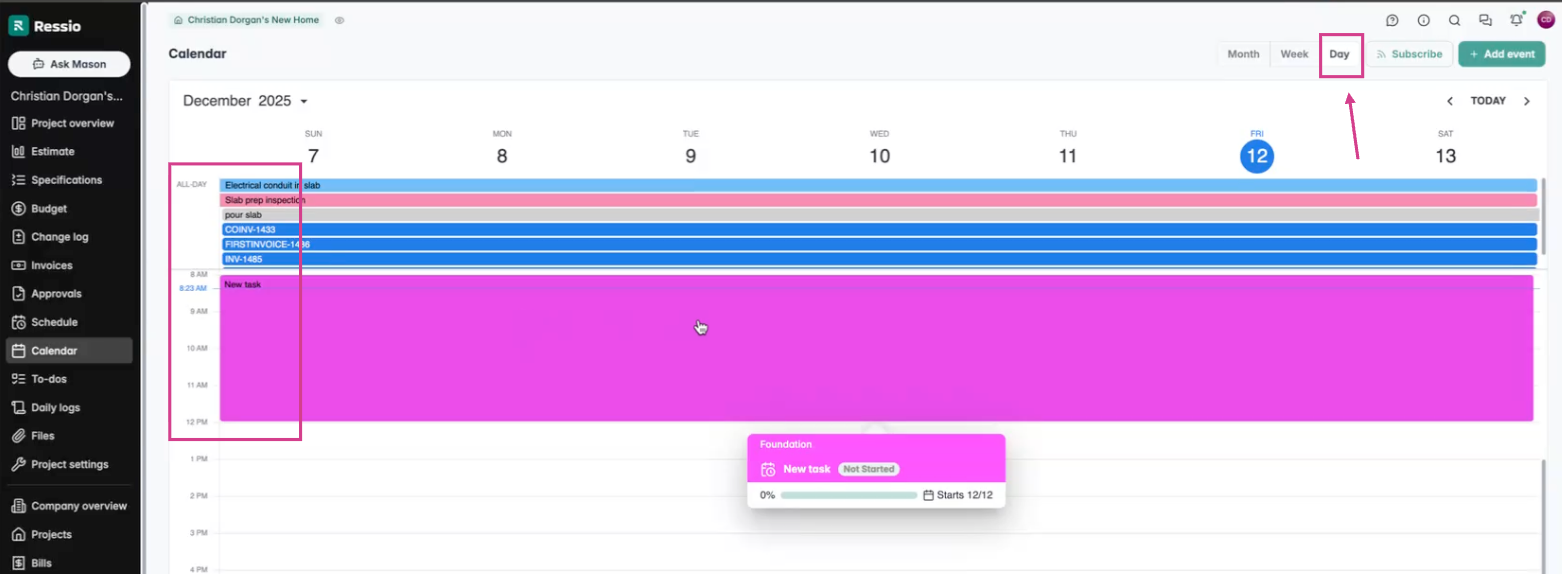
🎗️ When viewing hourly tasks on the Calendar, 'All-day' tasks will move to the top.
🎓To learn more about the Company Calendar and Subscriptions, read and watch
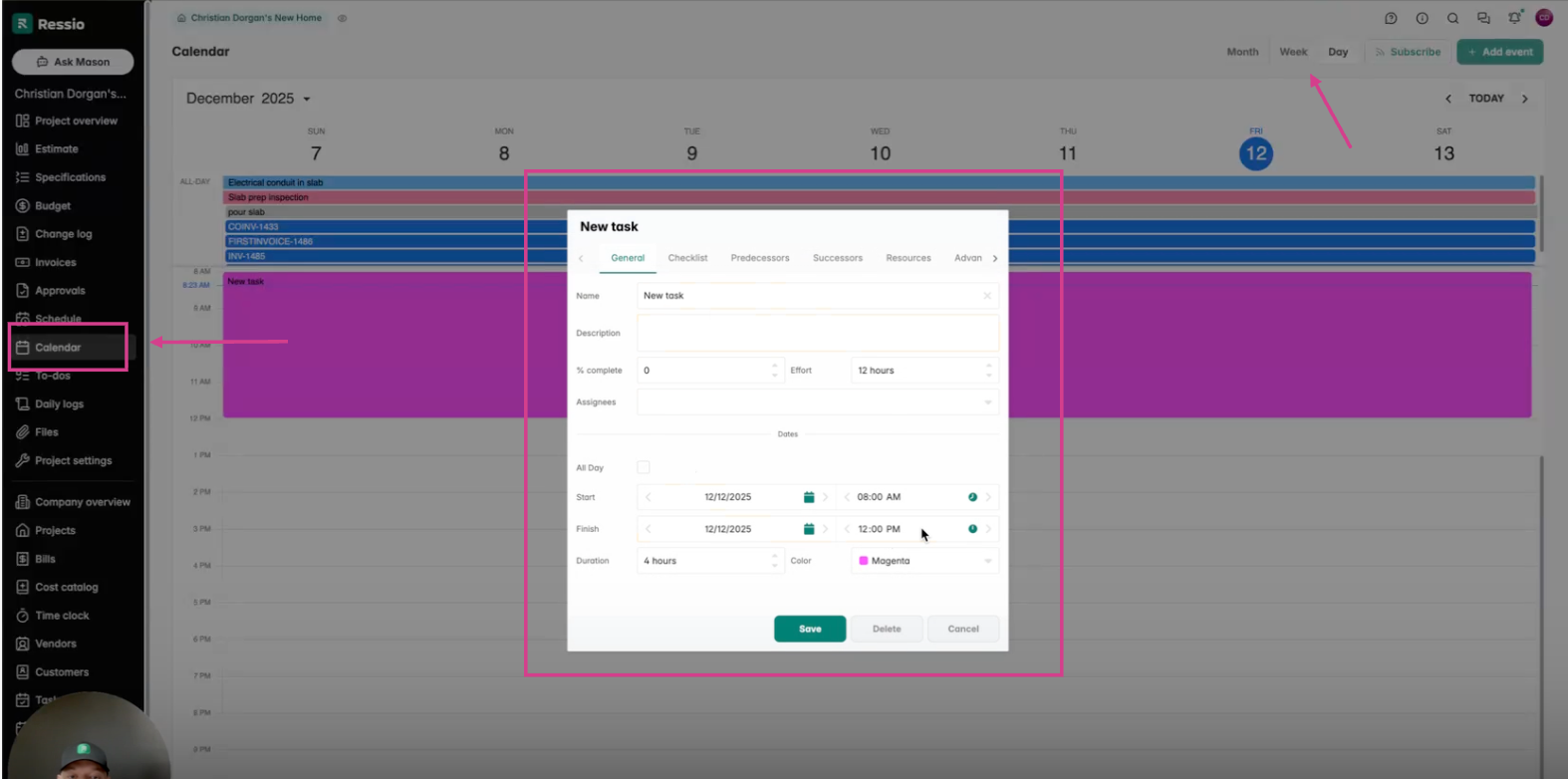
Editing Tasks from the Calendar
-
Clicking a task opens the same task editor used on the Schedule page
-
You can edit tasks or add new ones directly from the calendar
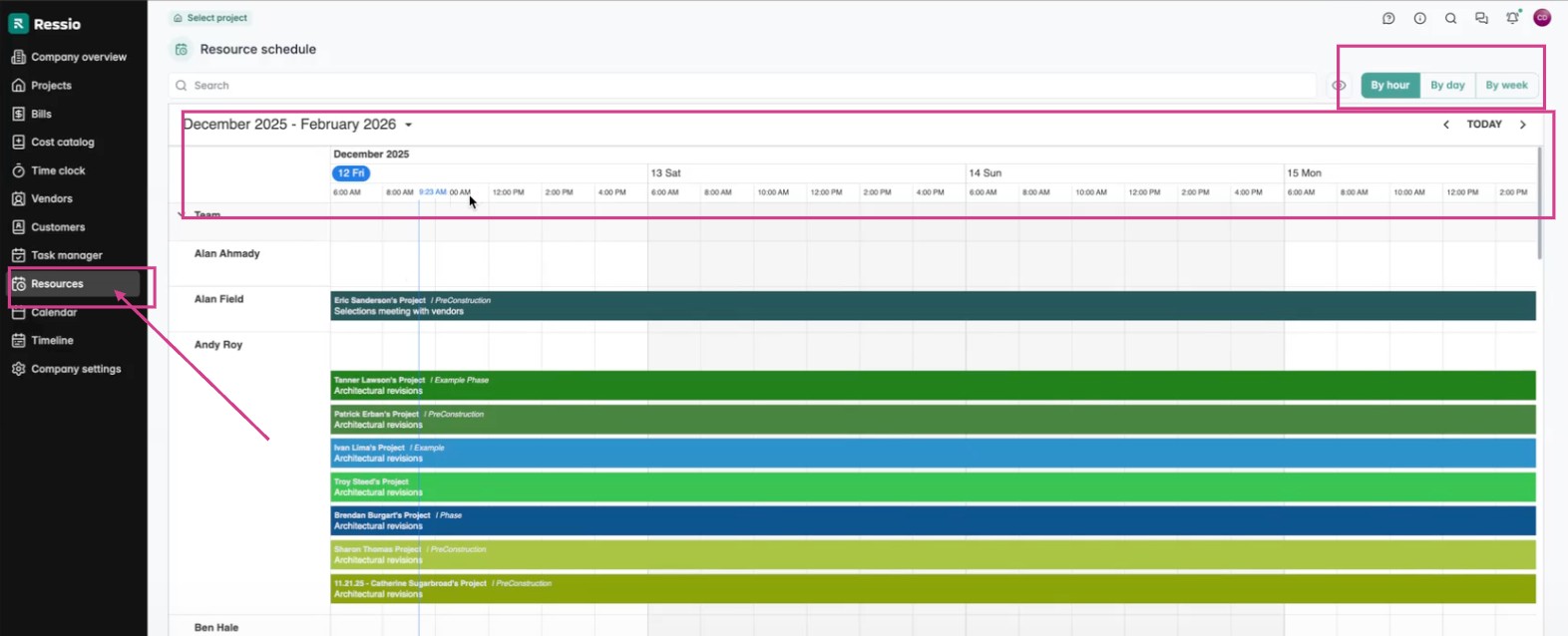
Resource View (By Hour)
On the Resources page, you can:
-
Switch to a by-hour view
-
Compare multiple tasks scheduled at different times on the same day
This helps you understand how work and resources are distributed throughout the day.
If you have any questions or need further assistance, contact our support team at support@ressiosoftware.com. We're here to help!