.png?width=75&height=75&name=Untitled%20design%20(22).png)
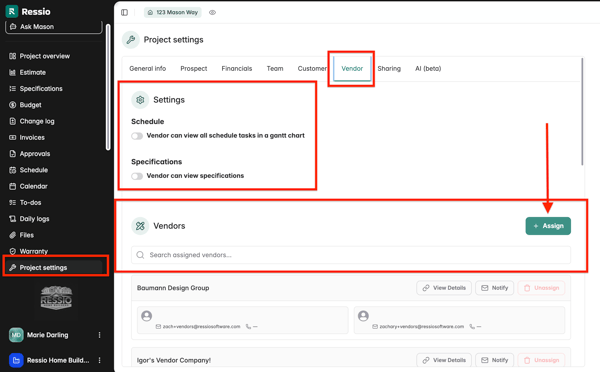
✅ Step 1: Enable Vendor Visibility in Project Settings
-
Go to your Project Settings.
-
Find the Vendor section.
-
Choose one of the following:
-
Schedule – Vendor can view al schedule tasks in a gantt chart
-
Specifications – Vendor can view Specifications
-
-
Save your settings.
✅ Step 2: Add the Vendor to the Project
Under Project Settings ->Vendor Tab below "Settings", you can find the Vendors section and the + Assign.
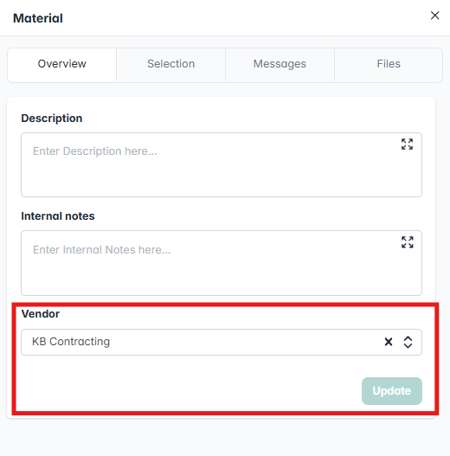
For a vendor to access the project and its specs, they must be added to at least one item on the project. You can do this by:
-
Assigning them to a schedule item,
-
Adding them to a to-do,
-
Adding them as the vendor on an estimate line item, or specification.
-
Adding them as a vendor on a bid request or a purchase order
This action gives the vendor access to the project and unlocks their ability to view specs based on the visibility setting you selected.
📣 Optional: Notify the Vendor
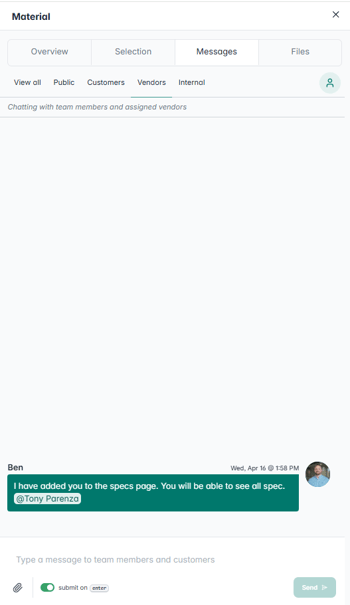
Vendors do not receive a notification when they're added to a specification. To let them know:
-
Open the Specification the vendor is assigned to.
-
Click the Messages tab.
-
Send a message to the vendor letting them know they now have access to view specs.
💡 This message will trigger an email to the vendor with a link that takes them directly into the spec.
.png?width=670&height=387&name=download%20(22).png)