.png?width=75&height=75&name=Untitled%20design%20(22).png)
Discover the updated workflow for approving shifts and managing integrations with QuickBooks Online (QBO) in Ressio. This article will guide you through selecting specific shifts for QBO export, understanding shift breakdowns, and reviewing new notifications for failed pushes.
Benefits of Selective QBO Push:
-
Full control - Choose which shifts sync with QuickBooks Online.
-
Transparency - Instantly review which shifts will transfer.
-
Stay informed - Receive notifications if a push fails.
Table of Contents
Navigation and Layout
Head over to your Time clock in your Company Overview. From this page you can manage shift approvals or use the Approve all feature for batch actions.
There is also a column titled "QBO Status" where you can see status of the push labeled as "Synced", "Not Synced" or "Pending Approved".
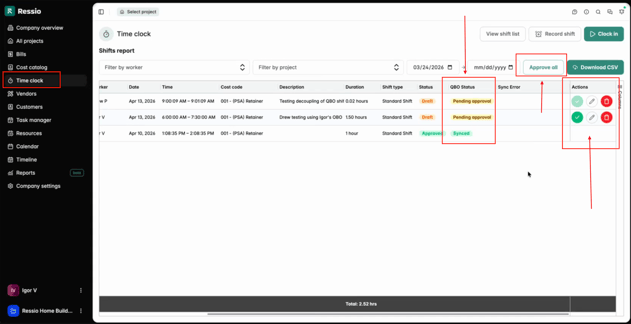
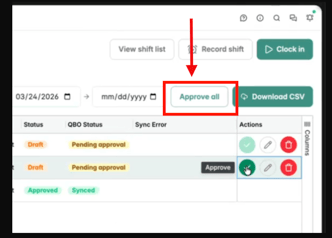
Next to the "Download CSV" is the "Approve all" button.
The 'Actions' column is also where you can individually ✅ approve, ✐ edit or 🗑️ delete shifts.
Approve Shifts
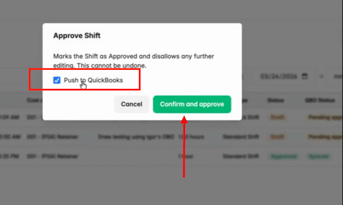
When approving an eligible shift individually, a checkbox appears within the 'Actions' column. This checkbox allows selection of whether the shift should be pushed to QBO. A window will open when you click the checkbox.
Here you can check or uncheck the box to "Push to Quickbooks". Hit "Confirm and approve" when you are ready to approve.
👀 By approving the shift this: Marks the Shifts as Approved and disallows any further editing. This cannot be undone.
[back to top]
Approve All Shifts Button and Reviewing Push Breakdown
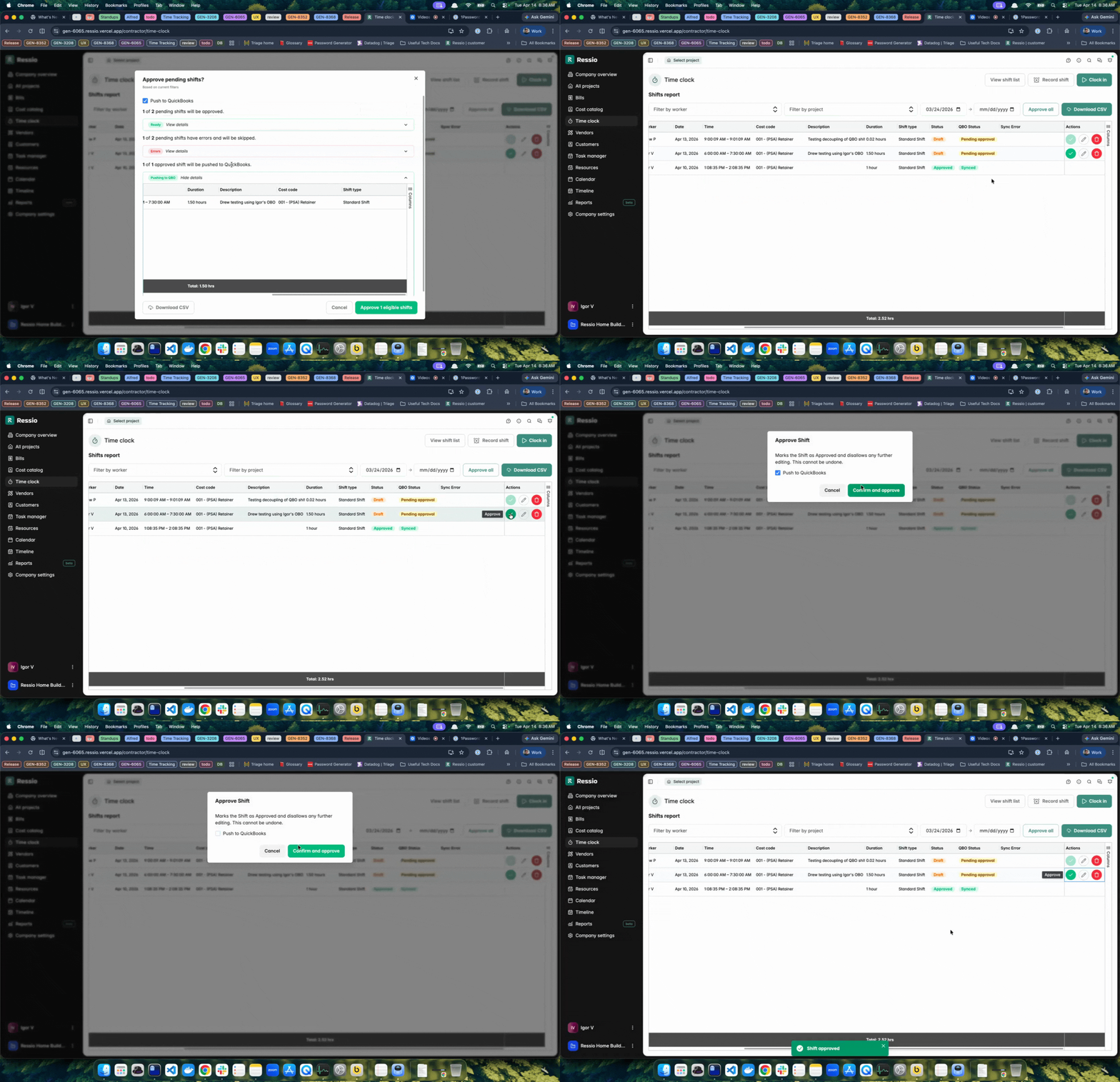
When you want to approve all, you can hit the "Approve All" button. After you click the button a dialog box will appear. When pushing multiple shifts, a breakdown summarizes all the shifts selected for QBO export. This overview appears before finalizing the action, providing transparency and helping catch omissions.
The same "Push to Quickbooks"checkbox is available. When you click the checkbox, this lets you control which shifts are included in the batch push to QuickBooks Online. When you click "View details" it will expand so you can see what you are approving.
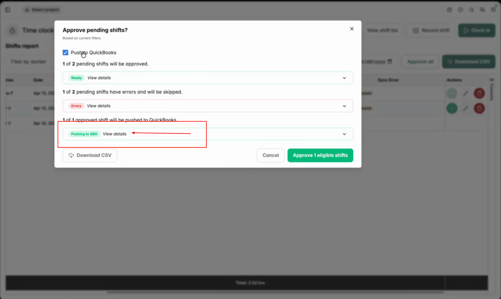
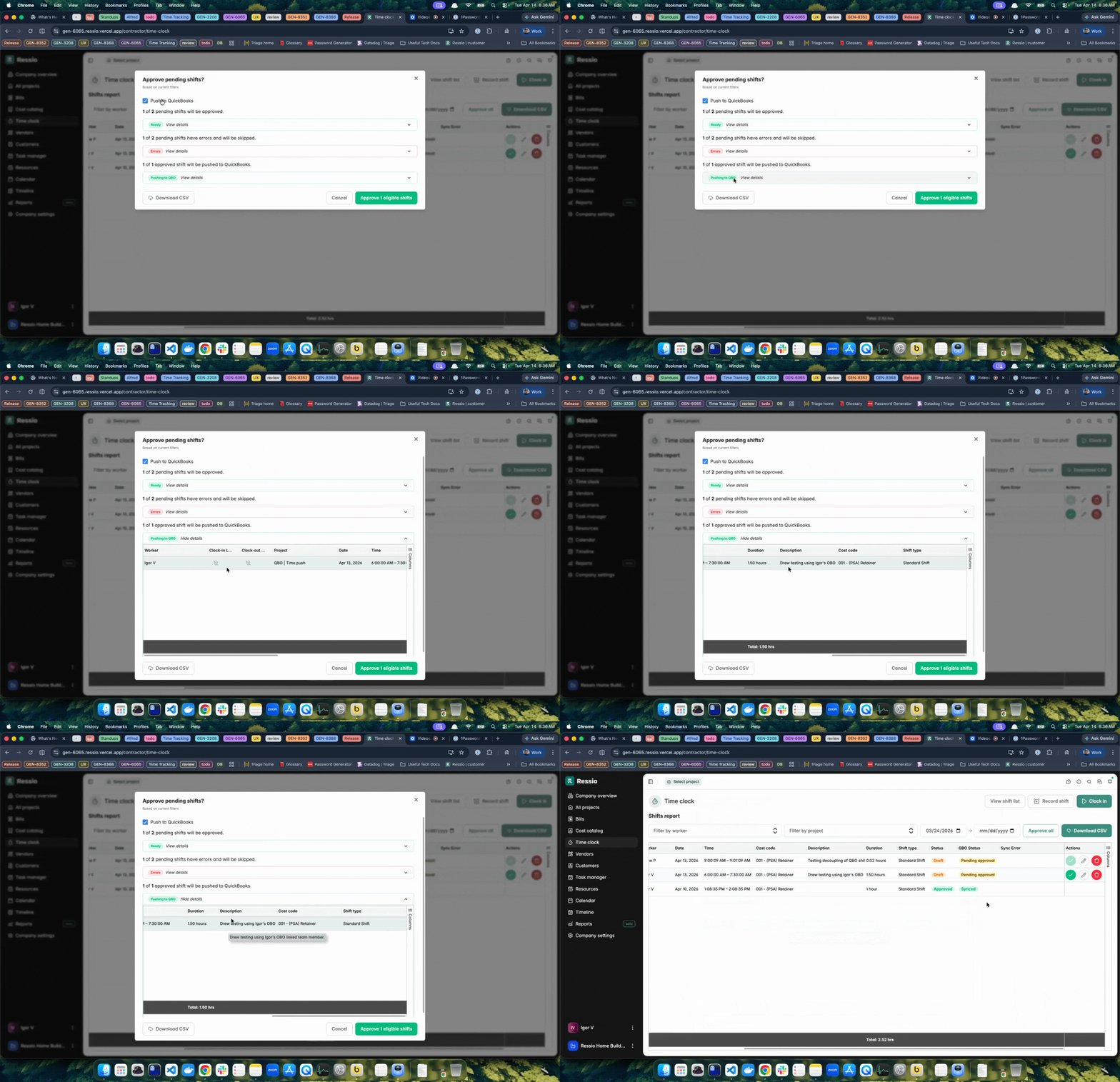
You can also "Download CSV" on the bottom left. Review and then hit "Approve eligible shifts" on the bottom right.
[back to top]
Excluding Approved Shifts from QBO
You have the ability to 'Approve' but exclude a shift pushing to Quickbooks. When you hit the ✅ under 'Actions' you can uncheck "Push to Quickbooks" when the window pops up.
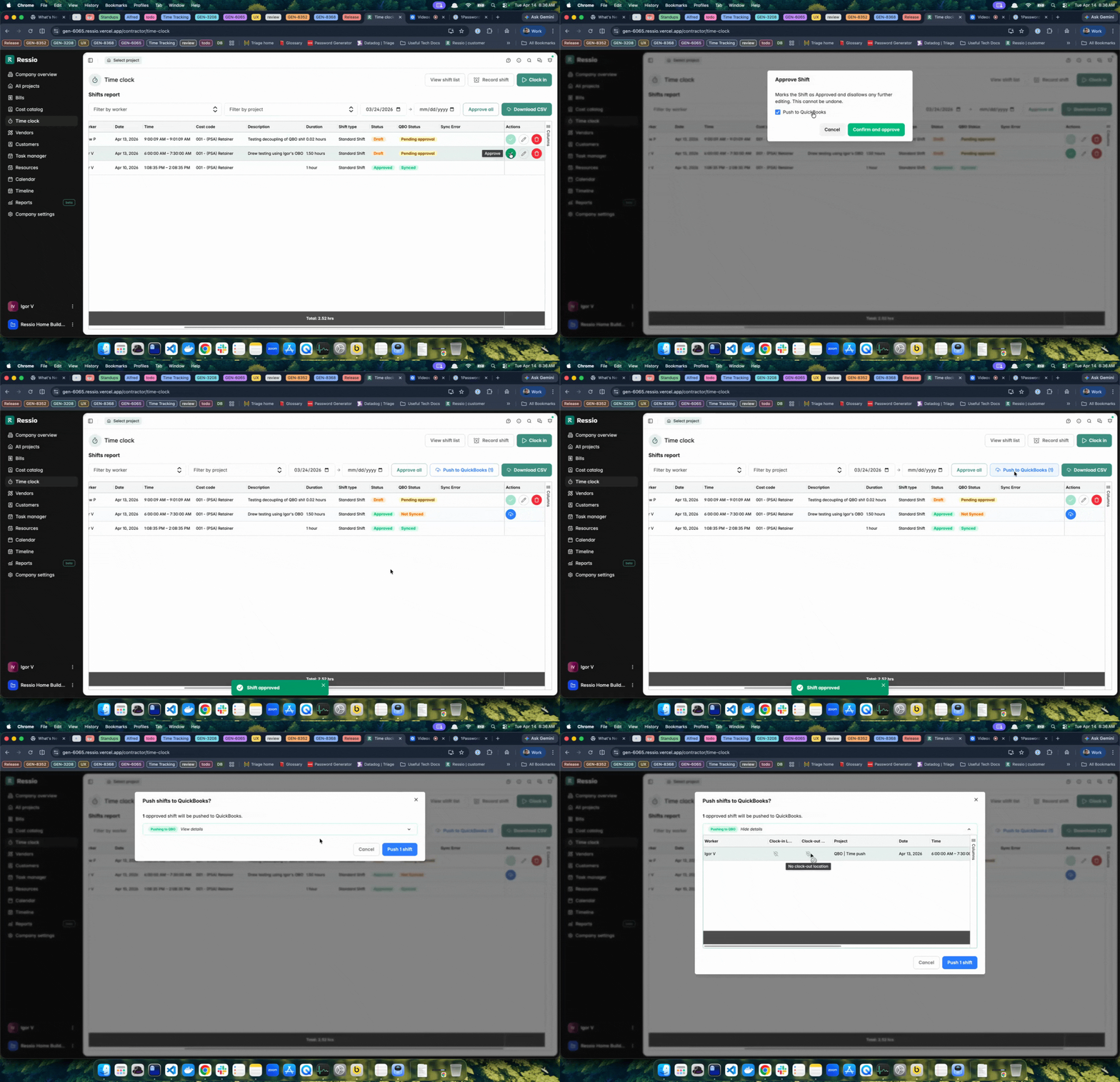
By unchecking the push:
-
"Push to Quickbooks (with a number)" button will appear next to the "Approve all" button.
-
Push symbol will change in the 'Actions' column.
-
The status will change to "Approved"
-
'QBO Status' will change to "Not Synced".
Pushing Approved Shifts Individually and in Bulk
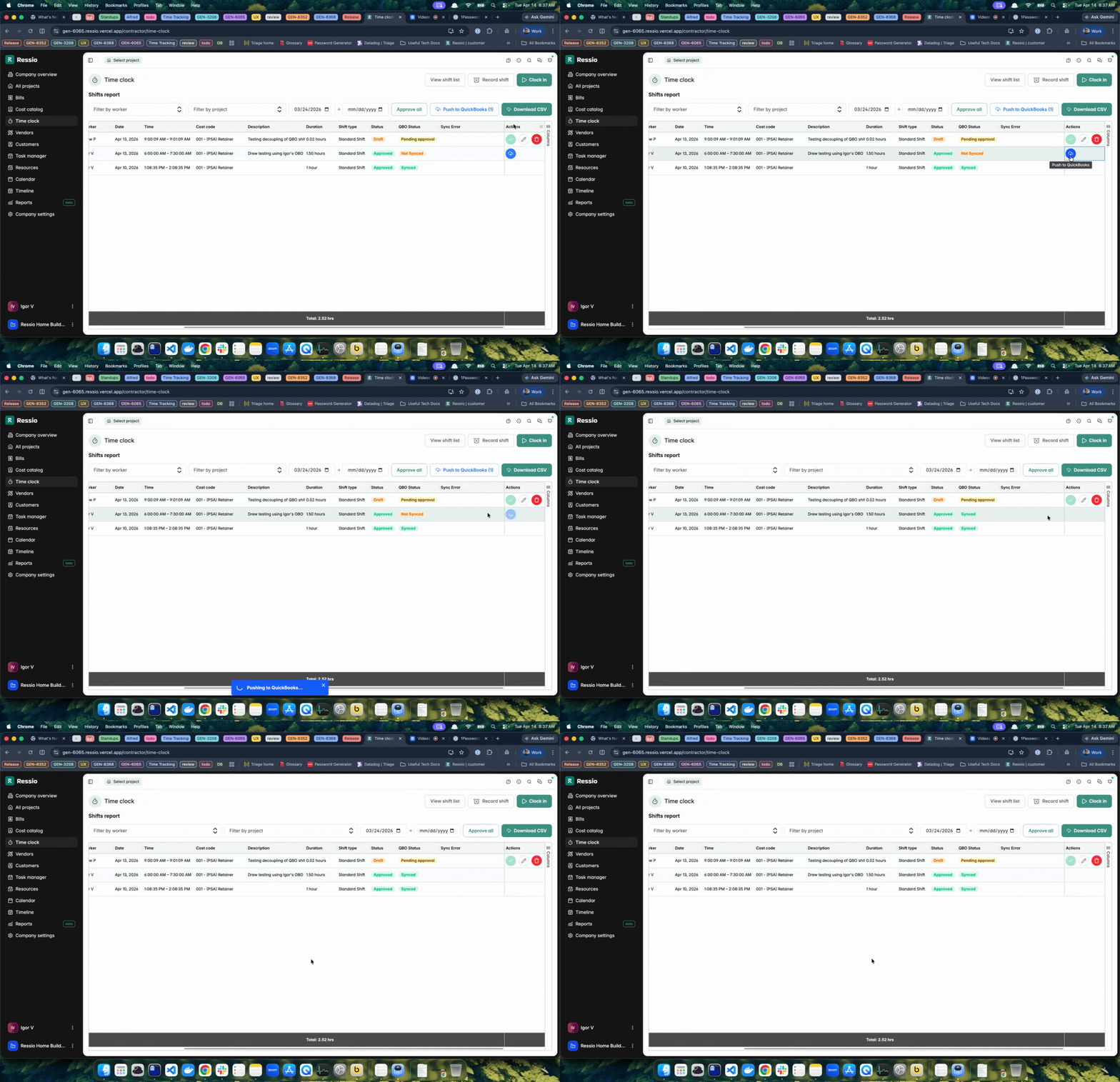
If you decided you would like to push approved shifts to QBO and want to review them, click the "Push to Quickbooks" button. A window will pop open with any shifts that have been approved but still need to be pushed to QBO. Click "View details" to review.
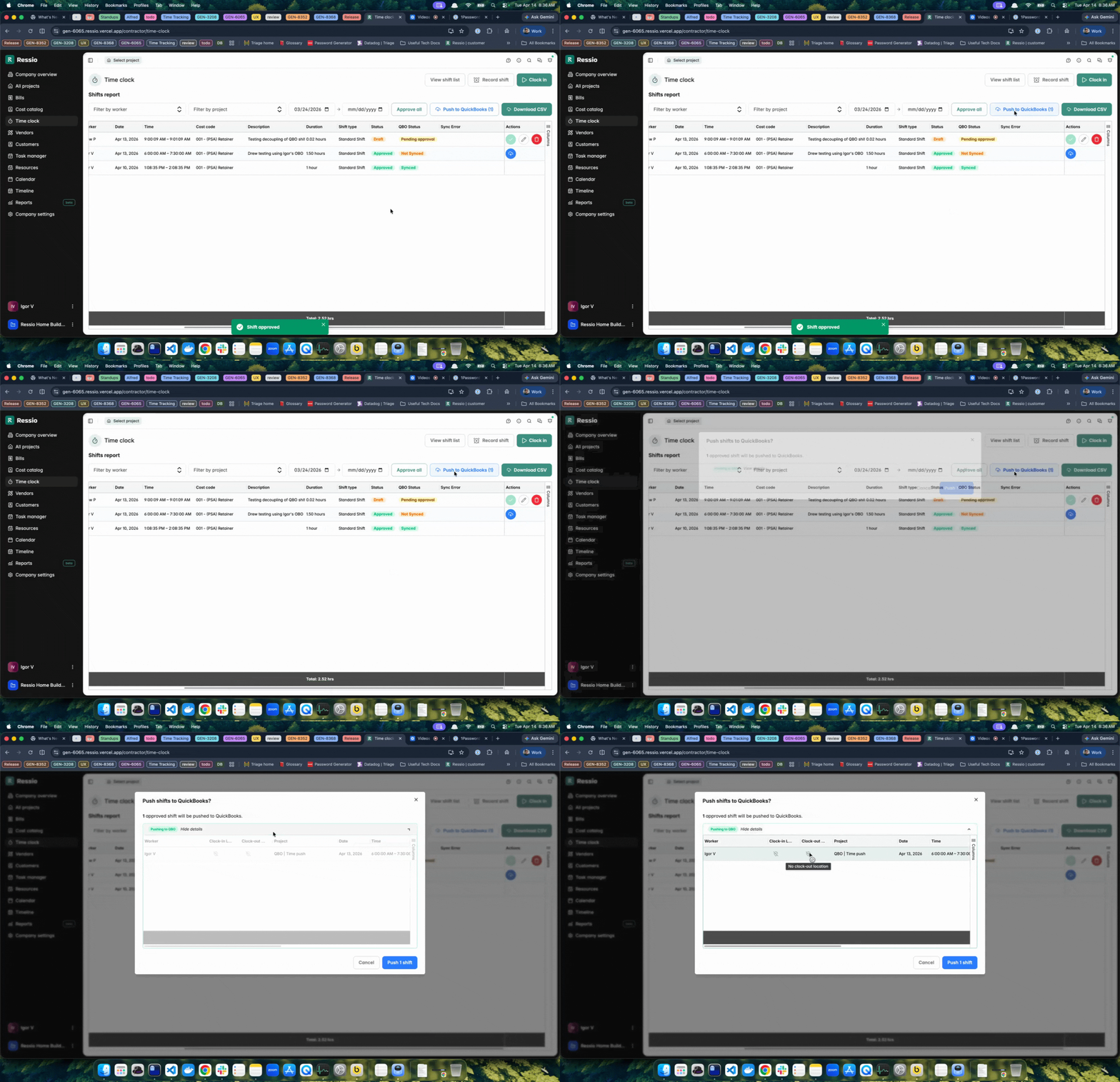
Besides batch actions, shifts may also be pushed individually from the actions menu. This maximizes control for specific approvals. Find the individual push symbol in the shift's 'Action' column for quick processing. Once it is synced the 'QBO Status' will change to "Synced".
📨 Failed QBO Push Notifications
If a shift fails to push to QuickBooks Online, either during individual approval or using the batch "Push to QuickBooks", Ressio now sends an email notification regarding the failure.
This ensures issues are addressed without delay.
Void or Reopen Approved Time Entries
You can now void or reopen approved time entries before they sync to QuickBooks Online, making it easier to correct mistakes without creating accounting cleanup in QBO.
🚨 You can only void or reopen time entries if they have NOT been synced with QBO and they MUST BE APPROVED.
.png?width=670&height=342&name=download%20(19).png)
Once approved, two new actions appear:
-
Void: Cancels the shift, removing its budget impact but retaining a reference in the system.
-
Reopen: Moves the shift back to unapproved status and reverses any project budget impact.
How to Void an Approved Time Entry
- Navigate to the Time Clock page
- Locate the approved time entry you want to update
- Click on the entry to open it
- Select Void
What Happens When You Void a Time Entry
- The time entry remains visible for record-keeping
- The shift is marked as voided
- Any budget impact tied to that entry is removed from the project
If you have any questions or need further assistance, contact our support team at support@ressiosoftware.com. We're here to help!