.png?width=75&height=75&name=Untitled%20design%20(22).png)
Import a name,value CSV into an estimate to create new parameters in bulk, or update existing parameters by name. Use this when you already have measurements in a spreadsheet, takeoff export, or template, and want them in your Ressio estimate without typing each one
This article is for Admins editing project estimates.
💡 This flow only changes parameter values. Any formulas and item quantities that reference those parameters recalculate the next time you Save. That means a template estimate full of formulas, plus a CSV of parameter values, is a supported way to spin up project-specific estimates fast.
Table of Contents
- Before you start
- Prepare your CSV
- Import the CSV
- How matching works
- Validation rules
- Sample CSV template
- FAQ
Before you start
- You need to be an Admin on the Ressio account.
- The project must already have an Estimate. The CSV importer lives inside the parameters editor on a project's Estimate, so you cannot import parameters before the estimate exists.
- This is the CSV importer for Estimate parameters. It is a different flow from the alpha vendor paste-based bulk upload, do not confuse the two.
⚠️ Importing a CSV does not save your changes. The imported rows are loaded into the Edit parameters form, where you can review them, but you must click Save to persist them to the estimate. Closing the modal or navigating away before Save discards the import.
Prepare your CSV
Your file must be a .csv with exactly two required columns, in this order:
| Column | (Required) | Description |
|---|---|---|
name |
(Required) | The parameter label, ie. Living Room, Master Bedroom, Permit Fee |
value |
(Required) | A non-negative number, ie. 120, 55.25 |
A few quick rules to keep the import clean:
- Header row is required. The first row must be
name,value(case-insensitive) - Extra columns past
name,valueare ignored, you can leave existing notes columns in place - Wrap any name that contains a comma in double quotes, ie.
"Second Floor, West" - Blank lines are ignored
.png?width=379&height=331&name=download%20(16).png)
Save and download your prepared spreadsheet as a CSV file.
.png?width=406&height=330&name=download%20(17).png)
Import CSV
- Open the project and go to its Estimate page
- In the upper-right corner of the Estimate, click the equal sign (
=) icon to open the parameters panel, then click Edit parameters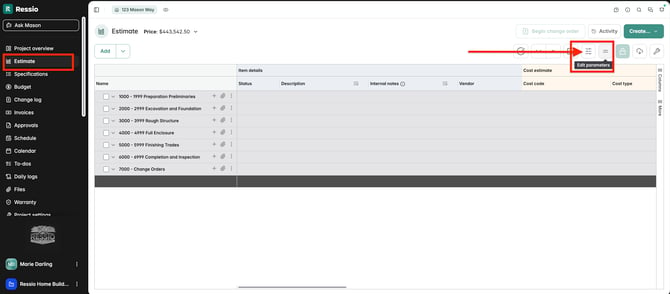
- In the Edit parameters modal, scroll to the bottom and click Import CSV (name, value)
.png?width=506&height=241&name=download%20(18).png)
- Choose your
.csvfile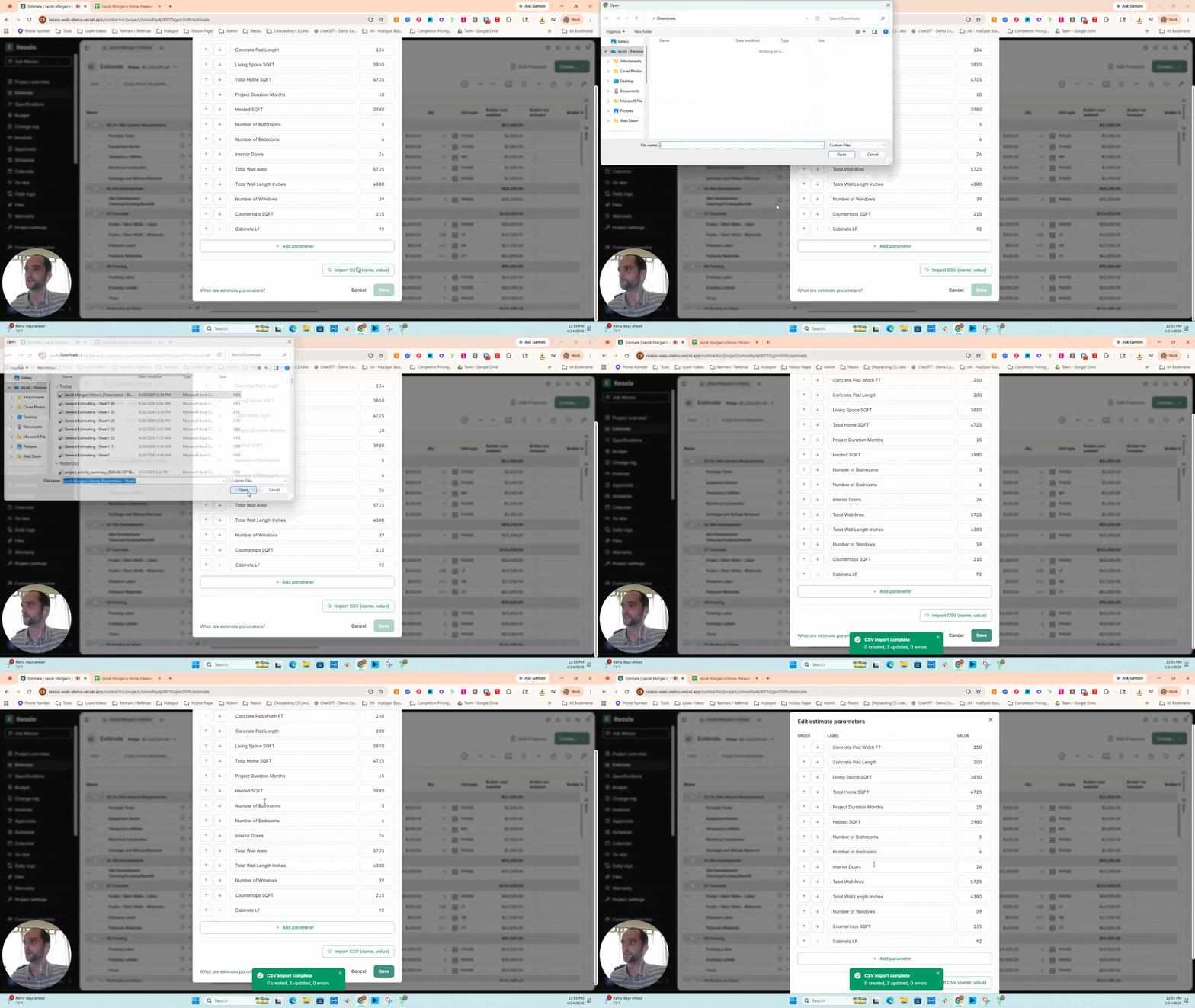
- Review the rows that imported. Any rows that failed validation are skipped, and the modal surfaces line-level warnings so you know which rows to fix in your source file
- Click Save to persist the changes to the estimate
🎗️ Warning — Import is not the same as Save. The importer only fills in the form. Click Save in the Edit parameters modal to write the changes to the estimate.
How Matching Works
The importer uses the name column to decide whether each row updates an existing parameter or creates a new one.
- Existing name match (case-insensitive): if the imported
namematches an existing parameter's label after trimming whitespace, that parameter's value is updated to the imported value. Matching is case-insensitive, ie.living roomin your CSV will update an existing parameter namedLiving Room - New name: if the imported
namedoes not match any existing parameter, a new parameter is appended at the bottom of the list with the value from the CSV - Duplicate names in the CSV: if your CSV has the same
nameon more than one row (case-insensitive), the last row wins. Earlier rows for the same name are dropped before the import is applied - Mixed-case duplicates already in the estimate: if you somehow have two existing parameters whose names differ only by letter case (ie.
Laborandlabor), only the parameter whose label exactly matches the importednameis updated. The other one is left alone
💡 Match the casing of your existing parameter names in the CSV when you want to update specific rows. Same-name updates are case-insensitive for matching, but the existing parameter's casing is preserved.
Validation Rules
Rows that break any of these rules are skipped, and you'll see a line-level warning in the modal. Valid rows from the same file still import.
Name (name column)
- (Required), cannot be blank
- 4 to 50 characters long
- Must start with a letter
- Cannot contain arithmetic operators (
+,-,*,/,(,)) - Cannot match a built-in formula function name (ie.
SUM,PRODUCT,ROUNDUP,ROUNDDOWN,CEILING,FLOOR,SQRT)
Value (value column)
- (Required), cannot be blank
- Must be a number
- Must be 0 or greater
- Up to 4 decimal places
- Scientific notation is not supported, ie.
1e-3is rejected. Use0.001instead
Headers and extra columns
- The header row must start with
name,value(case-insensitive). If the second column is missing or named something else (ie.name,Amount), the whole import is rejected with a header error - Extra columns past
name,valueare ignored, ie. a thirdNotescolumn is fine
Sample CSV Template
.png?width=457&height=400&name=download%20(16).png)
FAQ
Does importing a CSV save the parameters automatically?
No. Import only loads the rows into the Edit parameters form. You have to click Save to write them to the estimate. Closing the modal first throws the import away.
Can I use the CSV importer to delete parameters?
No. The importer only adds new parameters or updates existing ones by name. To remove a parameter, delete it manually in the Edit parameters modal.
Will importing recalculate my estimate items and formulas?
Yes, on Save. Item quantities and formulas that reference the imported parameters recalculate automatically when you Save the parameters. You don't need to re-open each item.
What if a row has the wrong value or an invalid name?
That row is skipped and the modal shows a line-level warning ie. value must be a valid number or name must start with a letter. The other valid rows from the same file still import.
What happens to extra columns in my CSV?
They're ignored. Only the first two columns (name and value) are read. Anything past that, ie. a Notes column, is left untouched.
Can I put a formula in the value column? No. The CSV importer accepts numeric values only (0 or greater, up to 4 decimal places, no scientific notation). If you need a calculated quantity, set up a parameter with a numeric value, then reference that parameter inside a formula on an estimate item.
If you have any questions or need further assistance, contact our support team at support@ressiosoftware.com. We're here to help!