.png?width=75&height=75&name=Untitled%20design%20(22).png)
Mason is Ressio’s AI assistant. With the latest update, you can now use Mason at two levels:
- Company level (across all accessible projects)
- Project level (focused on a specific project)
This article shows you where to find Mason, how to start a new chat, how to set Mason’s project scope, and what “read” vs “write” actions mean.
Table of Contents
- What Changed (company-level vs project-level)
- Where to Find Mason
- Start a new chat and use chat history
- Read actions vs write actions
- Choose which projects Mason can access
- Navigation in Mason
- Chatting with Mason
What Changed (company-level vs project-level)
Company level (all accessible projects)
When you open Mason at the company level, Mason can help you pull information across multiple projects (unless you narrow it).
Use this when you want answers like:
- "Summarize daily logs from last week so I can spot issues."
- "Which cost codes are running over budget across my active projects?"
Project level (one project at a time)
When you open Mason inside a specific project, Mason's focus is naturally narrowed to that project.
Use this when you wants answers or actions tied to one job.
Where to find Mason
Desktop
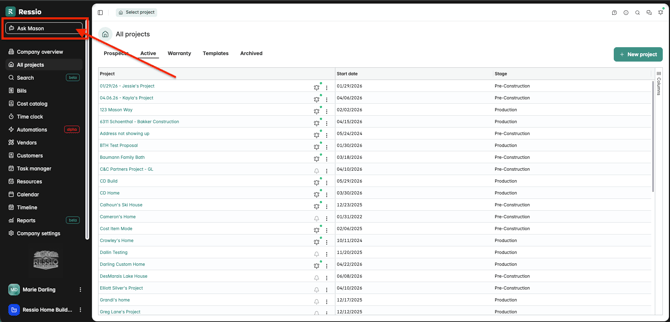
- In the top-left corner of your account you will see a button "Ask Mason"
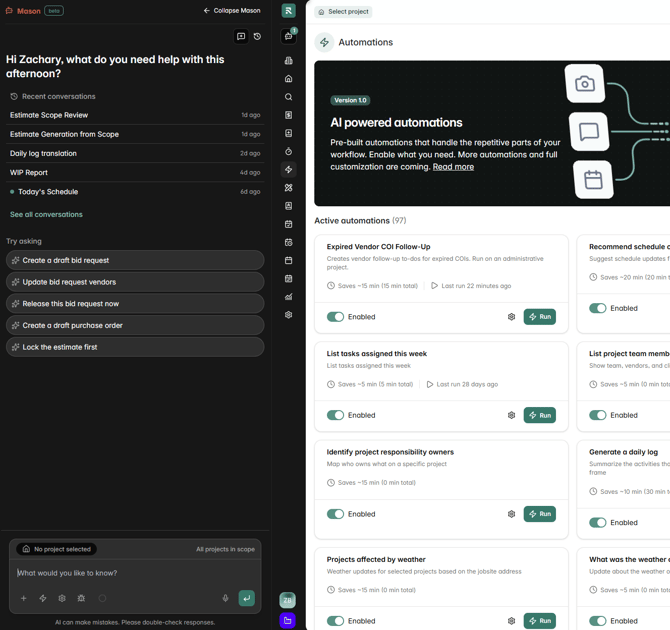
- Click on the "Ask Mason" button and the chat window will open.
Mobile
Mason is also available in the mobile app.
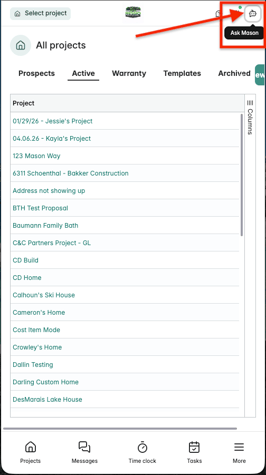
- Open the Ressio mobile app.
- Tap the robot icon 🤖 in the top-right corner.
Keyboard shortcut
- Press
Ctrl + Mto open Mason
Start a new chat and use chat history
Open Mason to access the dashboard. Start fresh by selecting the New Chat icon to start fresh or clear previous inputs.
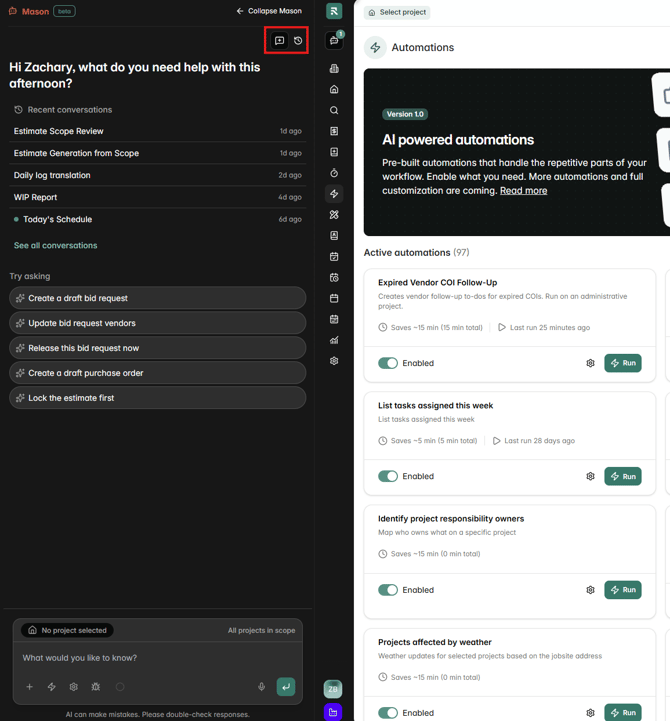
Reopen an older conversation by clicking the clock icon. The chat history panel lets you retrieve and review past conversations for continuity. A drop down will appear and you can choose older conversations. You can also see recent conversations in the main Mason workspace.
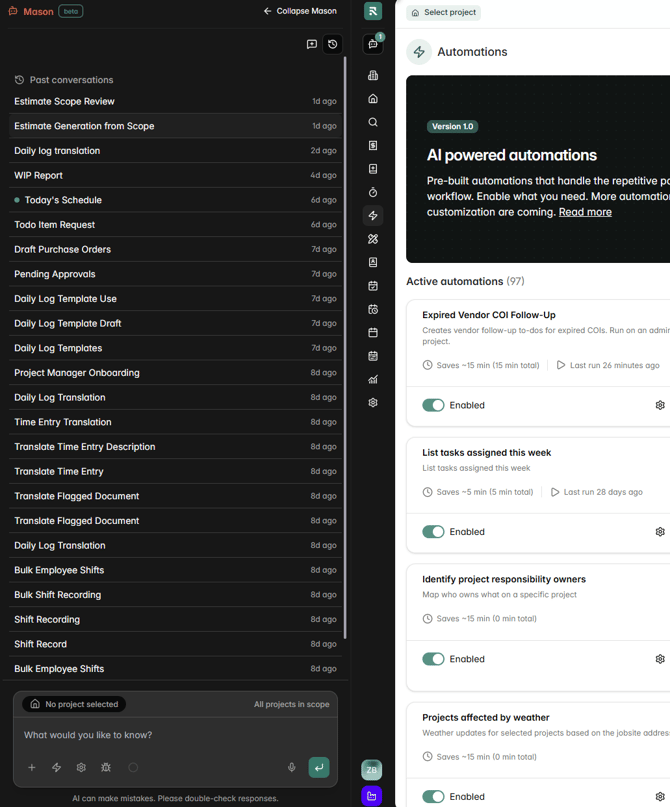
Review previous requests or outputs, such as schedules built from estimates or earlier inquiries.
Read actions vs write actions
Mason can both read and write in Ressio
Read actions (get information):
Read actions help you access and summarize data across your projects.
Examples:
- Summarize daily logs from a time range
- Identify cost codes running over budget
Write actions (take actions in Ressio):
Write actions help you create or update items in Ressio (similar to what you'd do manually).
Examples:
- Create a schedule template (or example schedule) from an estimate
- Turn an approved bid request into a purchase order
✅ You may hear the terms “read” and “write” used frequently. Read pulls information, write performs tasks.
🎓 To learn more about read vs write when using AI and MCP connector, read......
Choose which projects Mason can access
With no project selected, Mason operates across all accessible projects. Fine-tune its focus by selecting one or multiple projects from the project selector. By default, you may have no projects selected, which means Mason is looking at all accessible projects.
To narrow Mason's scope: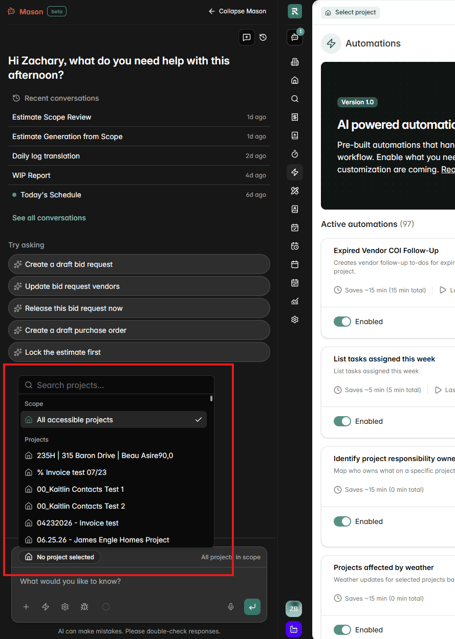
- Open the project selector above where you would type a question.
- Select one or multiple projects.
What you'll see in the selector:
- Prospect, Active, and Warranty projects
What you won't see:
- Template projects
✅ You can also narrow scope in your prompt, for example:
- “Look at all of my active projects.”
- “Look at all of my warranty projects.”
[back-to-top]
Navigation in Mason
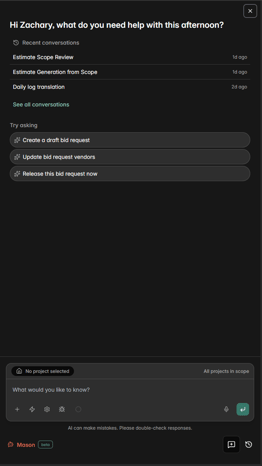
When you open Mason, the dashboard opens up. You will see a suggestions section in the middle of the screen. Click on any of those questions to get started.
At the bottom of the dashboard is where you begin typing with a variety of icons and the talk to text microphone.
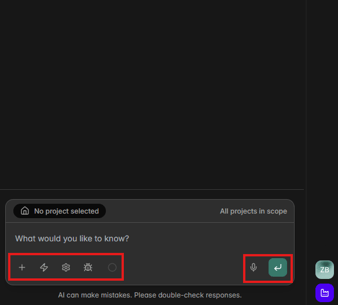
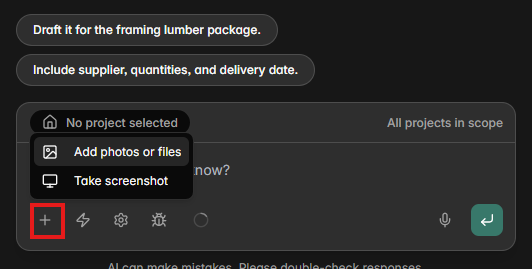
➕Add context - files, photos, and screenshots
At the bottom, below "What you would like to know?" box you will see the ➕ icon. This is where you can select Add context to:
- Upload photos
- Upload files
- Take screenshots
This helps Mason understand what you're referring to, especially when you're asking about a specific document, image, or screenshot.
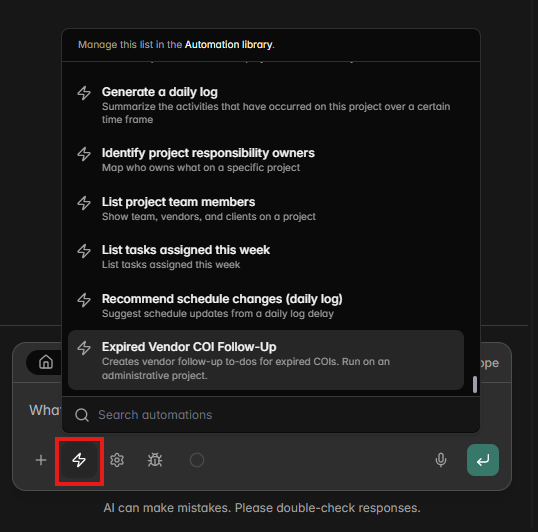
⚡ Automations library and model settings
-
Select the lightning bolt ⚡ icon to open Mason's automations library.
- This includes pre-built actions and queries curated by Ressio.
- Non-Admins will only see the automations they have been given access to
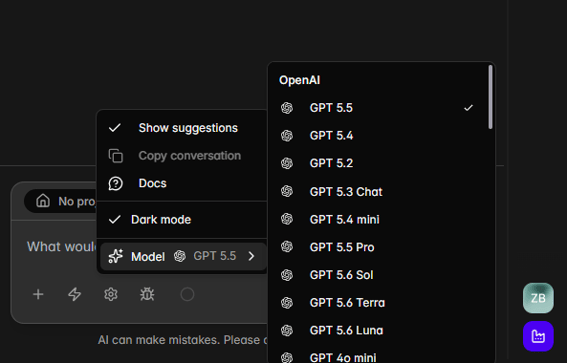
⚙️ Settings
From the settings menu you can:
- Copy the conversation
- Change which large language model Mason uses (defaults to OpenAI)
- Change Mason to dark/light mode
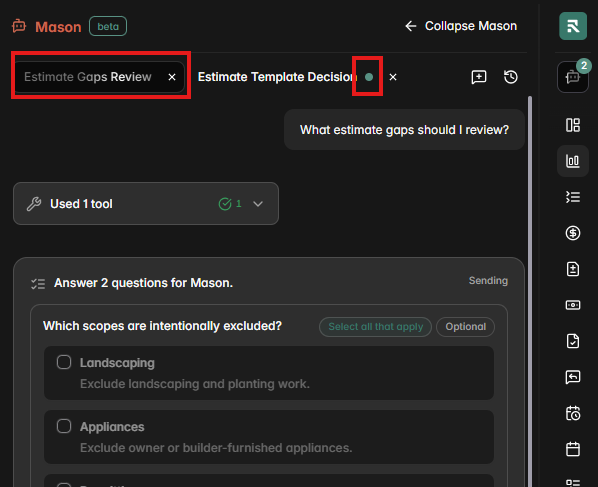
🗨️Chatting with Mason
When chatting with Mason:
- You can have multiple chats going at the same time
- Mason shows a shimmer effect when working
- Shows a green update indication to show when Mason is finished or has a pending question
Need help?
If you have questions about Mason or want to suggest a workflow you’d like Mason to support, contact:
- Your Customer Success Coach/Manager, or
- Ressio Support at support@ressiosoftware.com
*AI-generated content may contain errors. Always review outputs before using them in your project.