![Logo Dock Icon.png]](https://43531900.fs1.hubspotusercontent-na1.net/hub/43531900/hubfs/Logo%20Dock%20Icon.png?height=40&name=Logo%20Dock%20Icon.png)
Mason is your AI-powered project assistant inside Ressio. It helps you quickly access project information, understand project status, and perform common actions using simple questions or voice input.
Mason works at the individual project level, meaning it pulls information from one project at a time based on where you are currently working.
Benefits of Using Mason:
-
Boosts productivity by handling project tasks and queries.
-
Supports hands-free voice input for efficiency on-site and in-office.
-
Instantly summarizes key project information for quick updates.
-
Enables direct feedback to improve your experience.
Table of Contents
-
Using Mason’s Voice and Text Interface
-
What Mason Can Help With
Navigation and Layout
Begin inside an active project on Ressio. Mason is available within each individual project rather than at account level. You can access Mason at any time inside a project.
On your desktop locate the 'Ask Mason' button in the top left corner of your project screen.
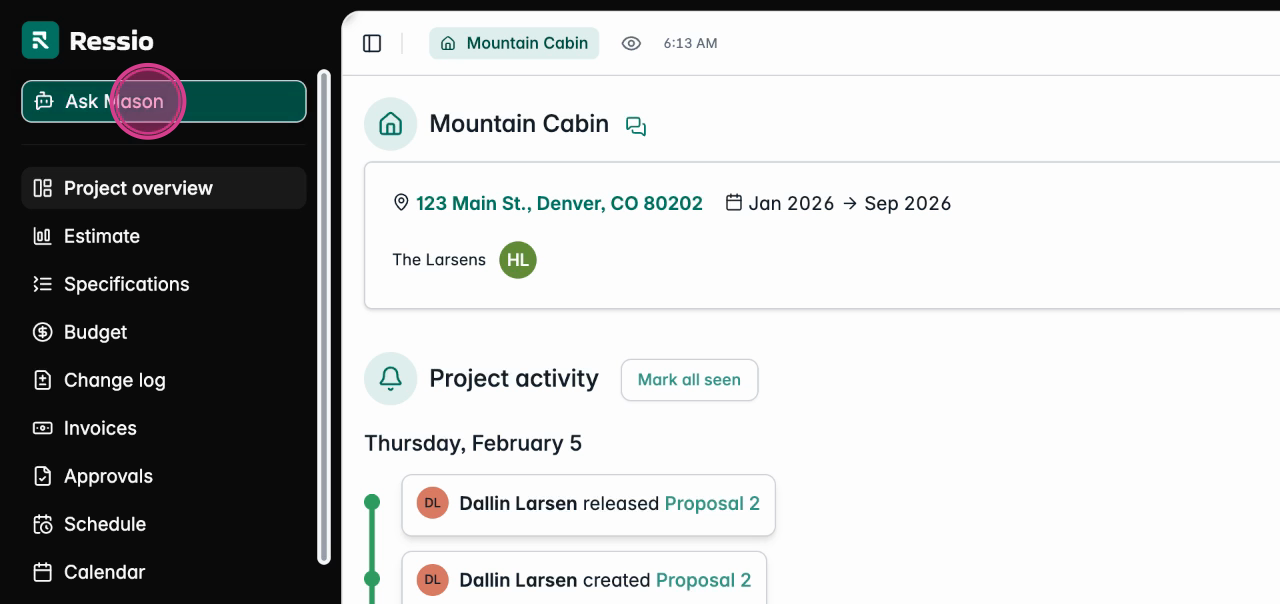
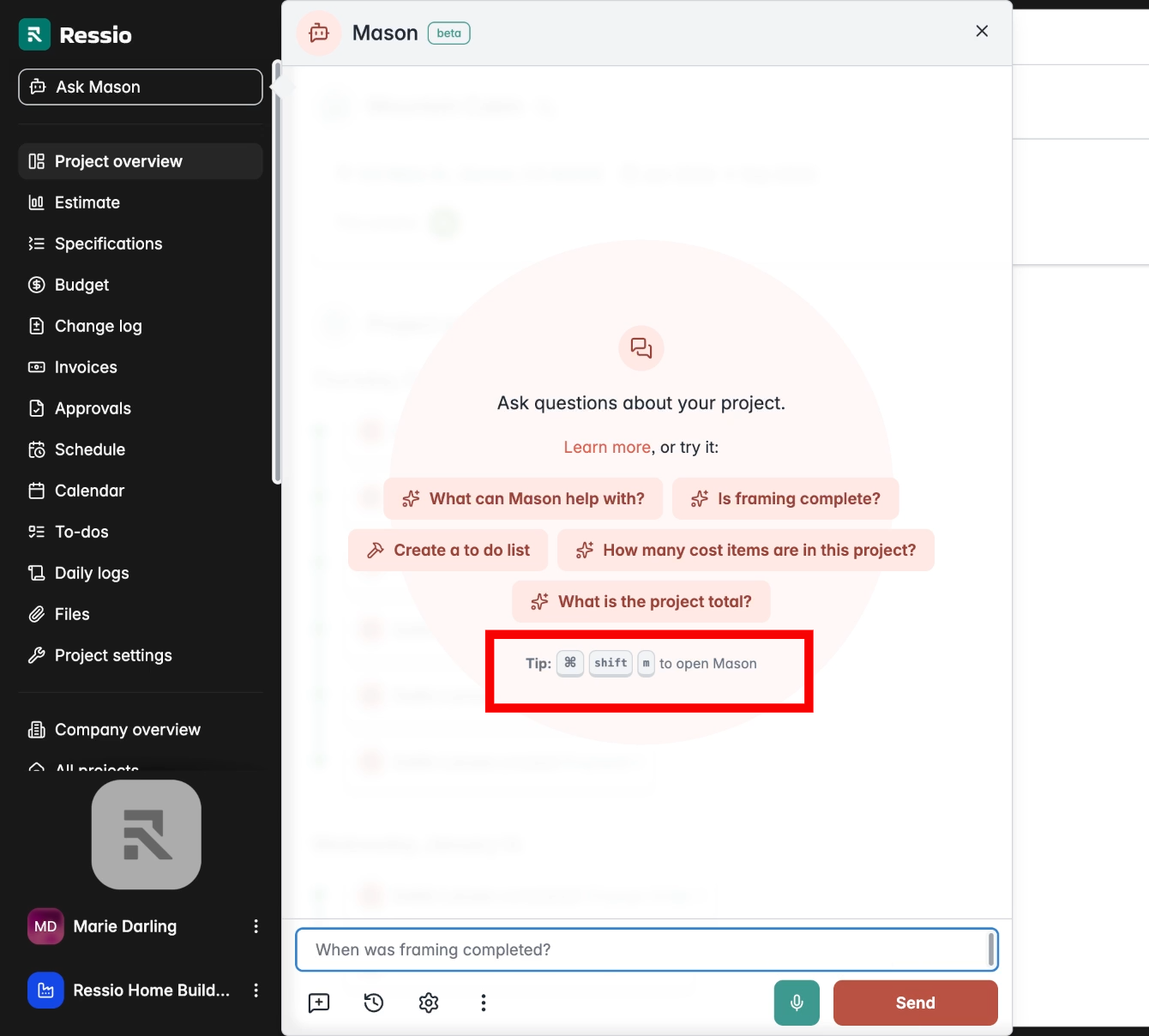
Click the button or keyboard shortcut Command + Shift + M for quick access.
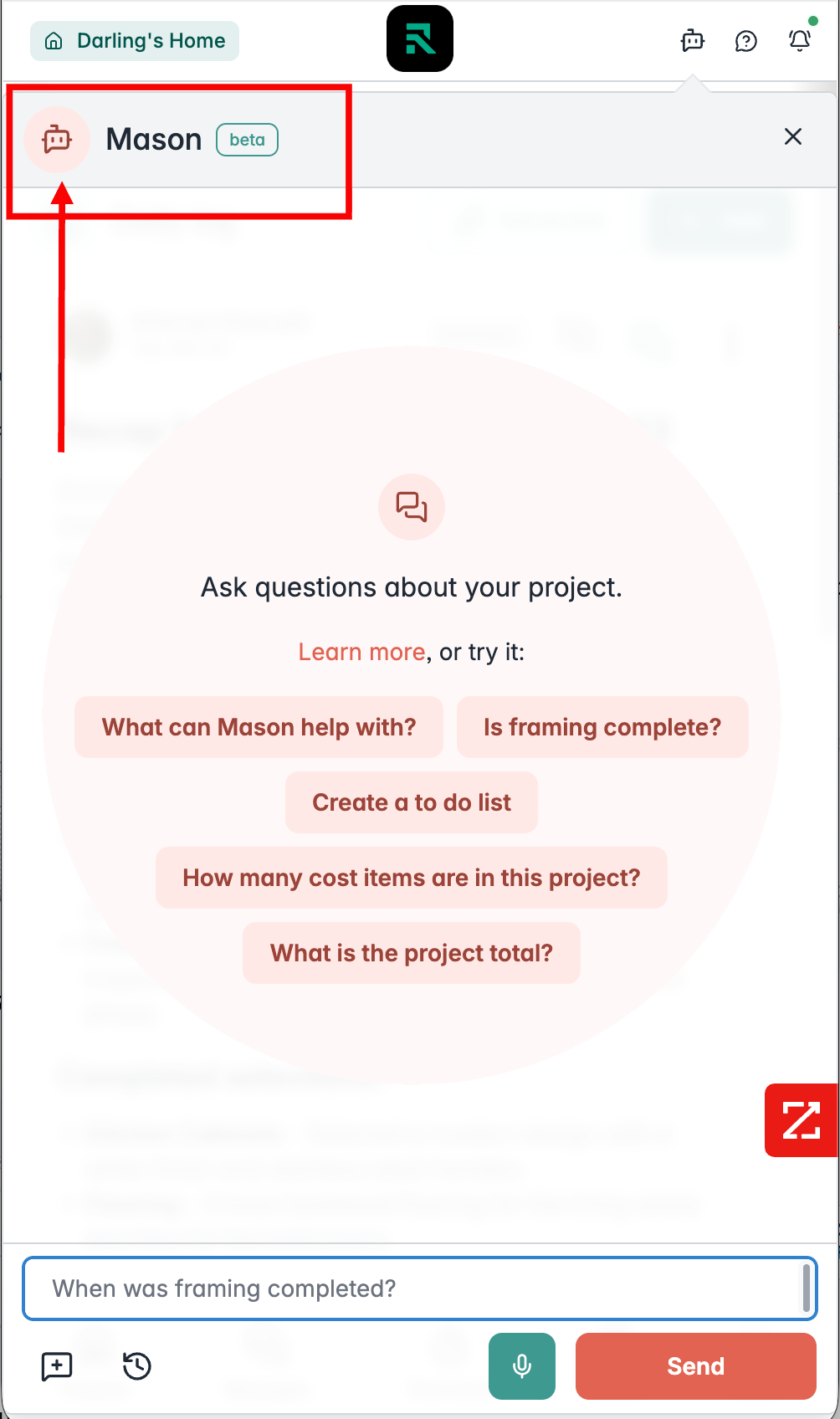
Mason on a Mobile Device
Using Mason’s Voice and Text Interface
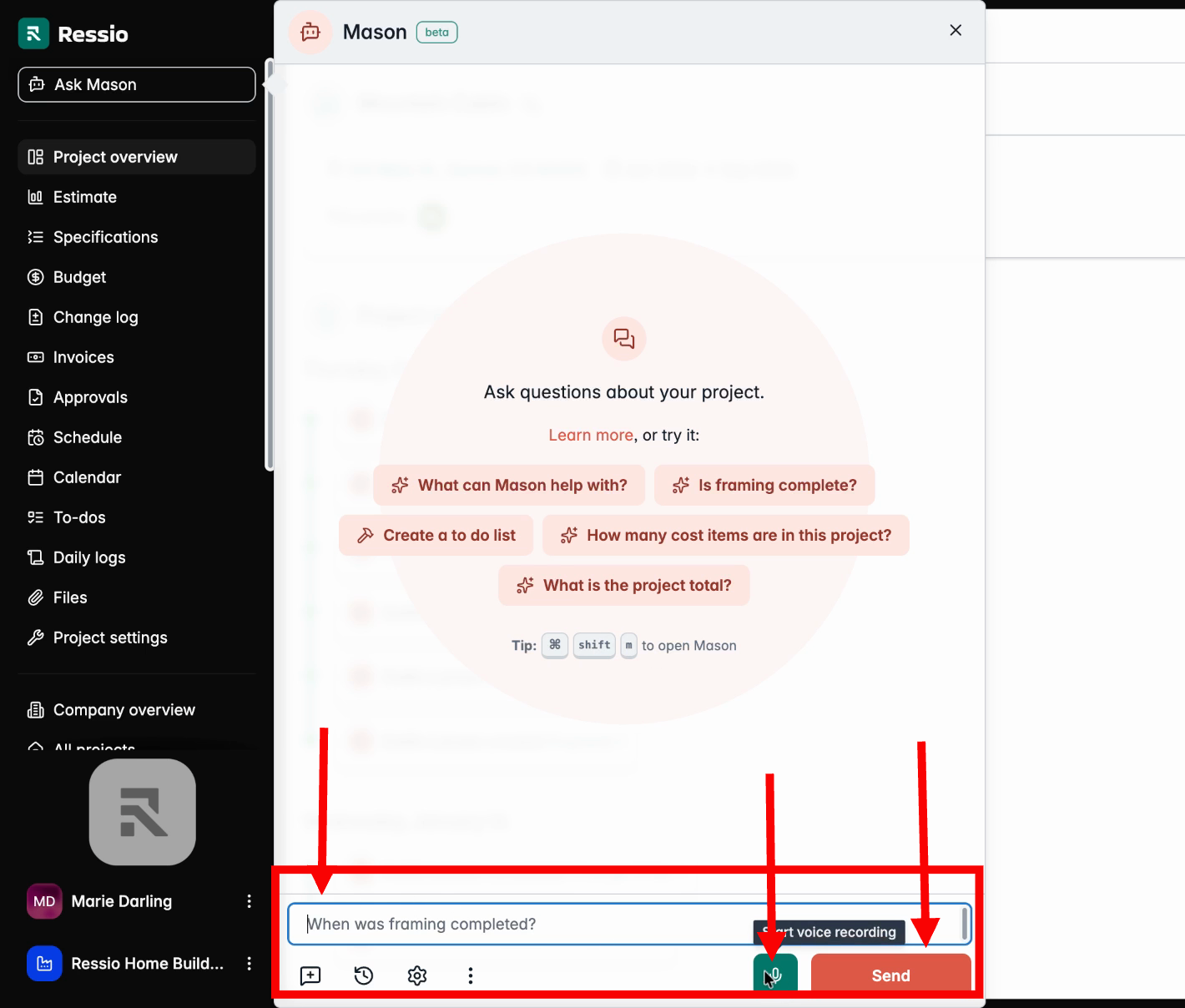
At the input area, type questions or click the microphone button to use your voice commands on your desktop.
-
Tap or click the microphone button to start recording your voice, either from the desktop or in the field.
-
Tap again to stop the recording; or, pressing the Send button stops it as well.
You may also start a new conversation 💬 or review previous questions via the History button.

🗣️ If you hit the start button on the microphone and forget to hit stop, after 10 seconds of silence, it will stop recording.
❗In the field, the microphone feature on a mobile phone is only available on the Project Overview and Daily Logs.
back-to-top
What Mason Can Help With
Ask Mason what it can do for your current project. Mason helps with:
-
Project cost and financials
-
Schedule and field execution
-
Task management and to-dos
-
Communication and people coordination
-
People & Vendors
-
Weather Impacts
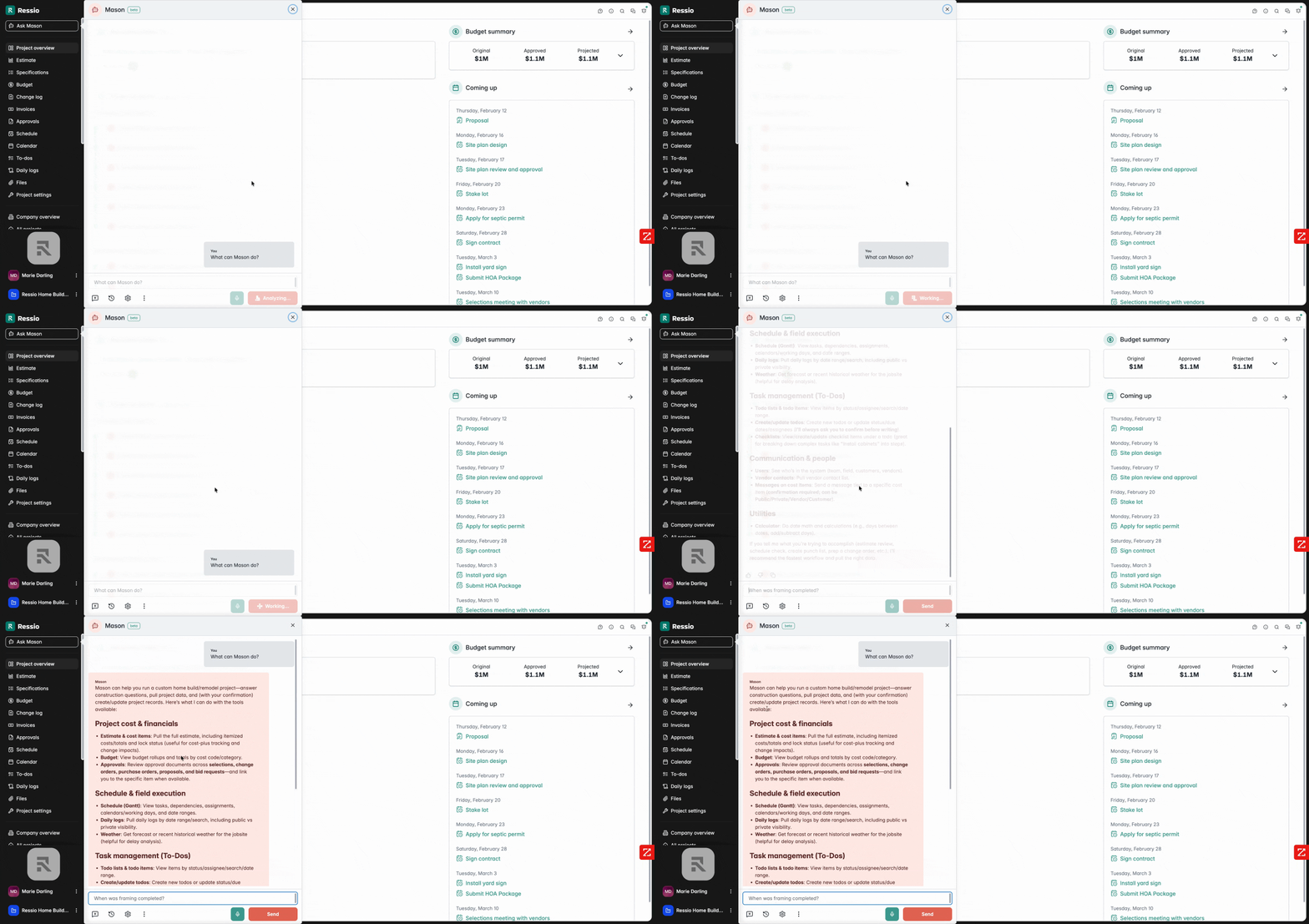
Mason analyzes your question and displays categorized responses for clarity.
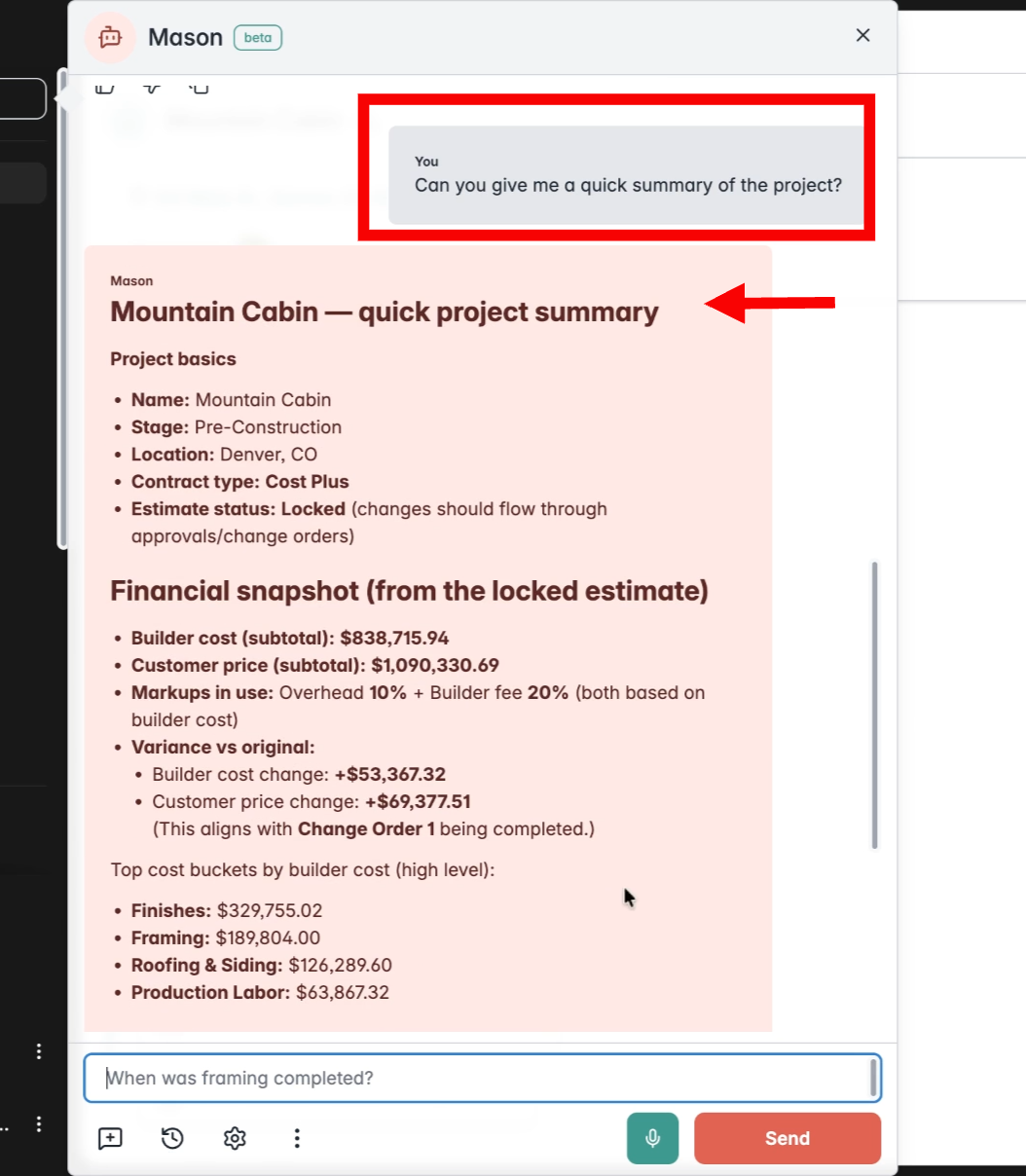
Ask Mason for an overview or summary of your project:
-
Request a quick project summary or recent changes to get up to speed after time away.
-
Summaries include project basics, current stage, location, contract type, financial snapshot, schedule updates, approvals, and recent key activities.
🎓 To get more suggestions on how Mason can be useful, read "Meet Mason, your new AI Project Assistant" and check out our 🎥 Youtube playlist dedicated to Mason.
Providing Feedback on Mason
Your feedback helps improve Mason.
After each response, you can:
👍 Thumbs up
👎 Thumbs down
Use feedback to tell us what is helpful or where Mason can improve.
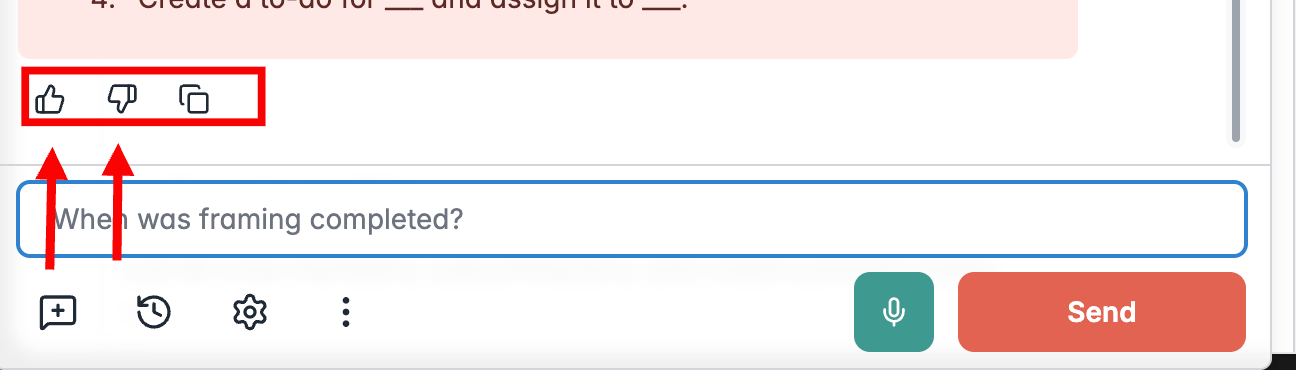
Copy responses to share with team members by email if needed.
back-to-top
Follow-Up Questions
Mason conversations are flexible.
You can refine responses by asking follow-up questions:
-
“Summarize the next three weeks”
-
“Explain recent changes”
-
“Clarify schedule risks”
Mason can interpret minor typos or missing punctuation, so your questions do not need to be perfect.
🎓 If you would like some example prompts and how Mason can help you in specific areas of your workflow, head over to Meet Mason, your new AI Project Assistant.
If you have any questions or need further assistance, contact our support team at support@ressiosoftware.com. We're here to help!