.png?width=75&height=75&name=Untitled%20design%20(22).png)
This article guides you through the process of creating and managing change orders in Ressio. By the end of this tutorial, you will have a foundational overview of change order and be able to modify estimates and track changes efficiently.
🎓 Change orders are commonly used construction when there is a modification in the initially agreed-upon scope between a Homeowner/Client and a Builder/Contractor. A change order document serves as an amendment to the original contract, addressing additional work, substitutions, adjustments, or any other variations to the initial agreement.
Benefits of using Ressio's change order feature allows builders to:
- 🔒 Easily modify estimates after they have been locked
- 📈 Track changes made to the estimate
- 🛰️ Communicate changes effectively to clients
- 📔 Keep a record of all changes made from the start of the job
Table of Contents:
Creating a Change Order
Creating a change order can only happen if you Estimate is LOCKED. Below are the basic instruction, more detailed information after the step-by-step instructions.
- Lock your Estimate — click the lock icon in the top-right of the estimate page
- Edit line items — update price, quantity, name, or description on any line item (or add a new one); each change shows "Pending change" in green
- Click "Begin Change Order" — the button in the upper right becomes clickable when pending changes are open
- Select which changes to include — check or uncheck individual items
- Fill out the change order form — add a due date, description, set visibility toggles, terms & conditions, and your signature
- Save & Release — sends the change order to the client via email for e-signature (use "Save & Approve" only if the client already verbally approved)
- Client approves — they review and sign via the email link or their Ressio app
- Budget and estimate update automatically — all changes are logged in the Change Log
How and why a change order is created
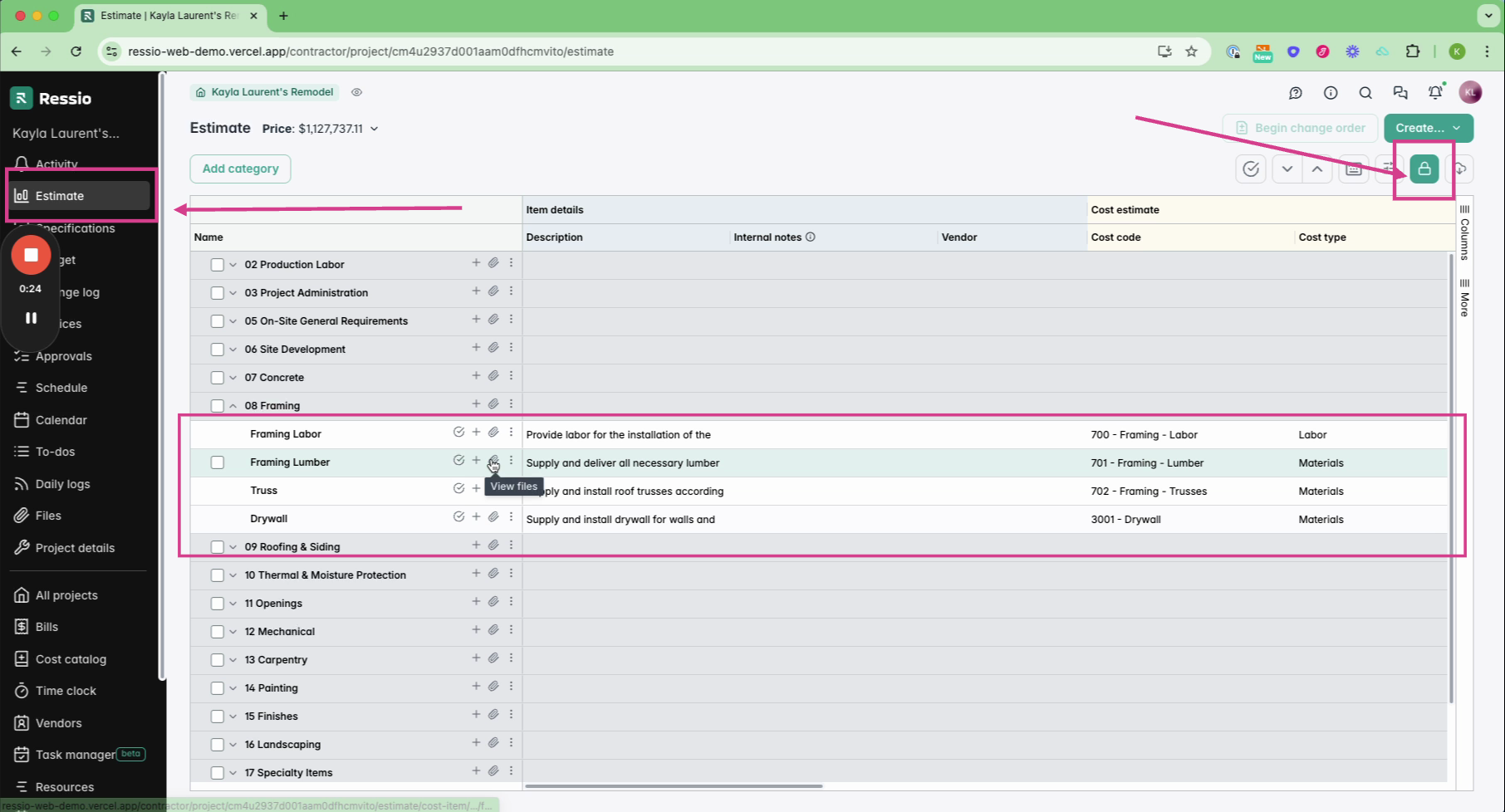
To create a change order, navigate to your 🔒 locked estimate. You can modify an existing item or create a new one from scratch. For instance, if you want to change the cost of framing lumber from 90,000 to 100,000, simply update the amount.
🔒Before you start the process of making a change order, the estimate must be locked to create a change order. To lock an estimate, click on the lock icon located in the top right of the page. If you would like further information about locking estimates, navigate to Locking/Unlocking the Estimate.
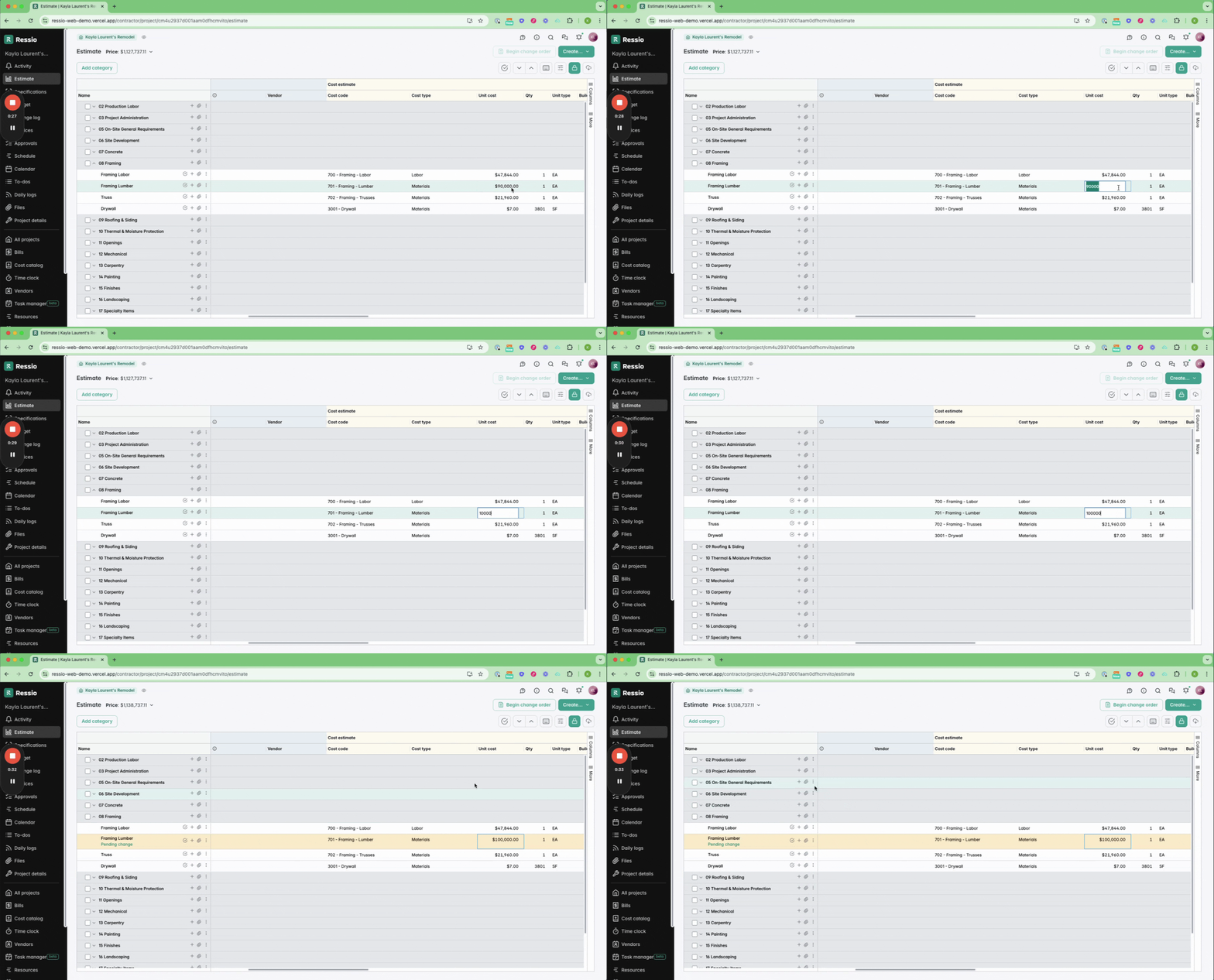
This action triggers a pending change. Adding a new line item also results in a pending change. You can pull data from your cost catalog or enter standard information manually. Once there are pending changes, the 'Begin change order' button in the upper right corner turns green. On the line items, you will see 'Pending change' in green underneath the line item.
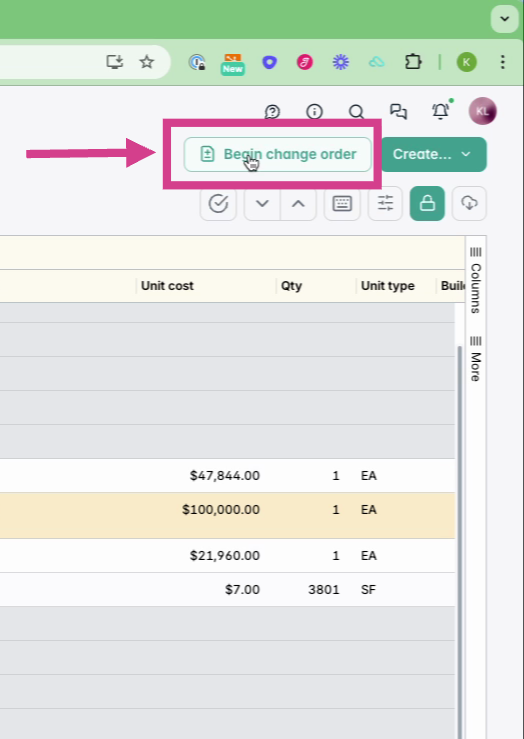
Hit 'Begin change order' with the changes.
💡IMPORTANT: Changing name, description, price or quantity will create a pending change. Changing a cost code, internal note or vendor will not.
Managing the Change Order
After initiating the change order, you can select or deselect the changes you want to include.
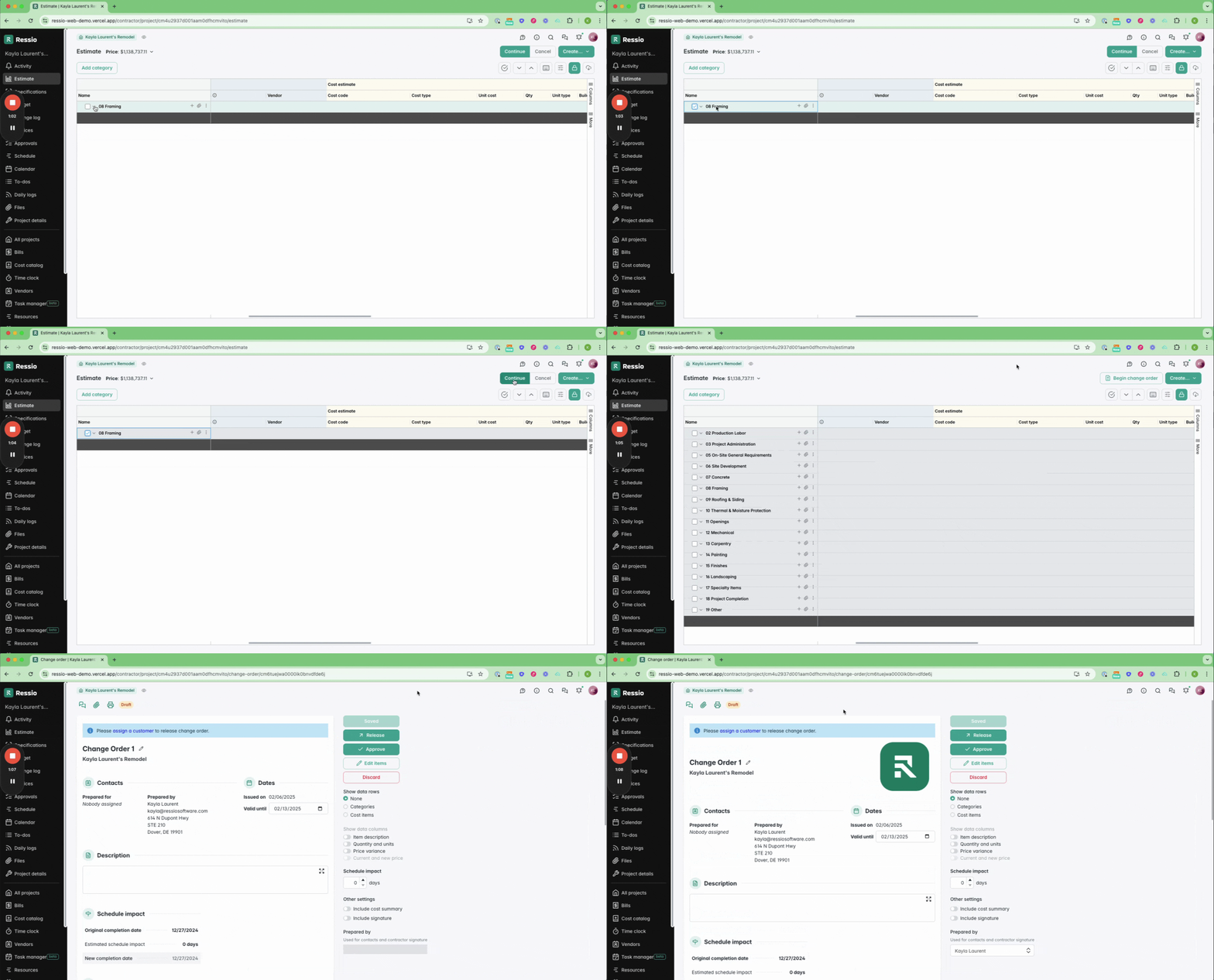
Next, you'll see a change order form populated with your company information and logo. Here, you can add:
-
Due date
-
Description
-
Choose the level of information you want to share using the toggles on the right
-
Terms and conditions (which can be templated for future use)
-
Signatures
- Additional file attachments
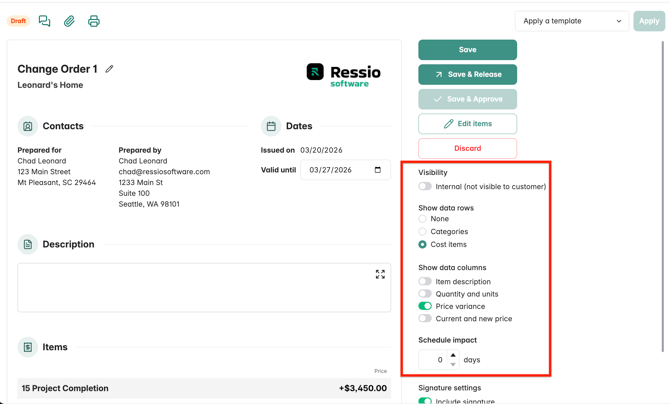
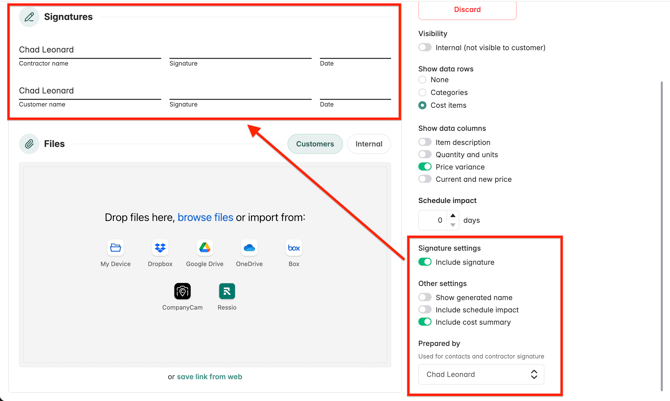
On the left hand side you will see a variety of toggles that you can turn on and off depending on what you want the customer to see. At the top of the toggles, there is the option of keeping the purchase order internal. This makes the PO not visible to the customer.
🎗️ If you choose someone other than yourself as 'Prepared by', both parties must approve the change order, make sure the client approves first. If prepared by approves first they will also sign as the customer.
Releasing the Change Order for Homeowner Approval
Finally, add a summary and signature information. Save and release the change order to the client.
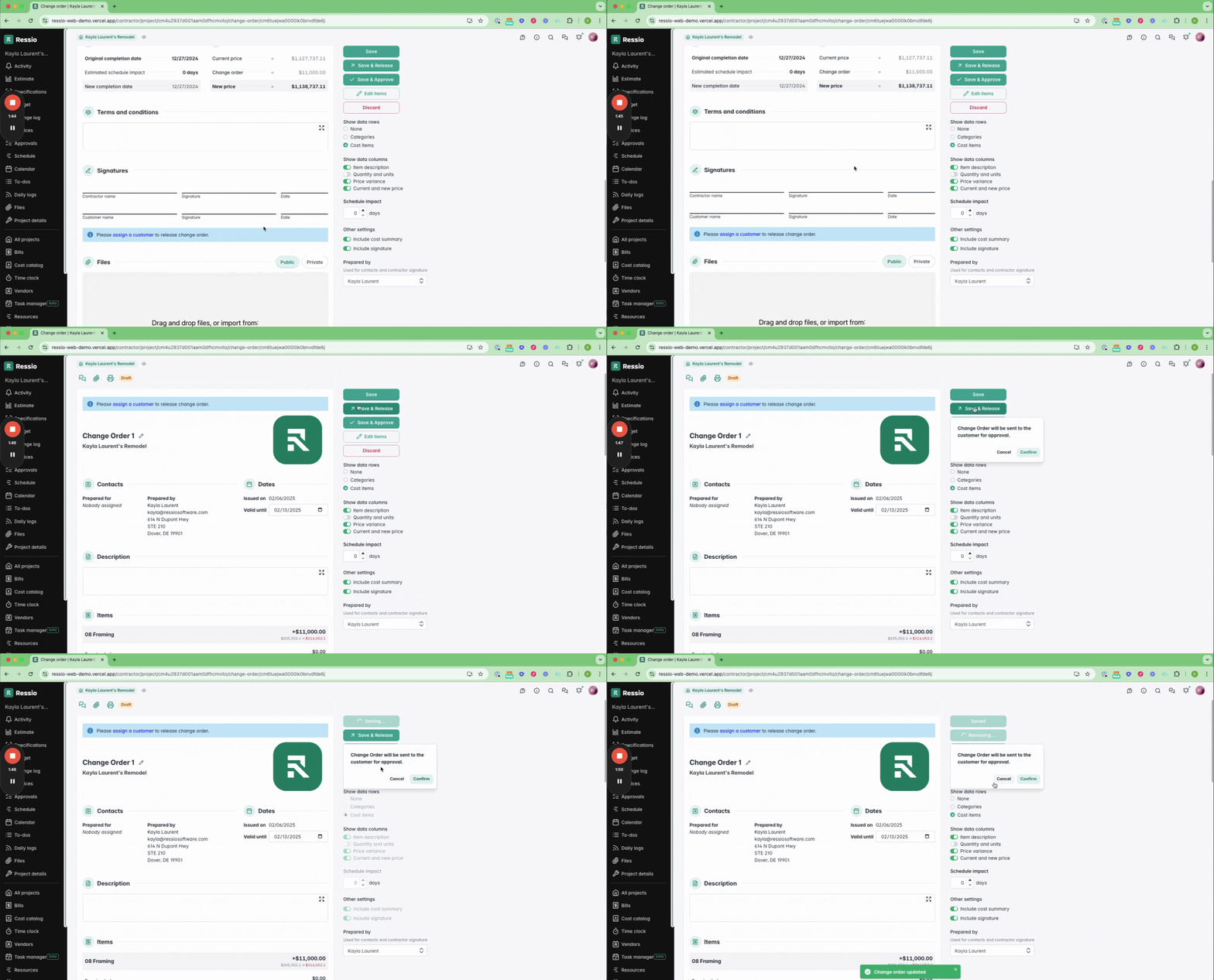
Approve a Change Order (Alternate Option)
If desired, a change order can be approved without sending the change order document for Homeowner approval. Instead of clicking "Save & Release", click "Save & Approve" and enter any notes that go along with this approval.
💡All approvals (whether Homeowner approved, or Builder approved are viewable my Homeowners & Builders. The 'Save & Approve' button should only be used in the event the Homeowner has already provided their approval on the change(s) captured in the change order document
Client Interaction
The client will receive an email notification with a link to the change order. They can access it via the magic link or through their Ressio app.
🎓 To read more about client visibility and the client portal, read Previewing the Client portal.
🎓 To learn more about what homeowner's approving change orders, from their view, read Viewing & Approving a Change Order [A Homeowner's View].
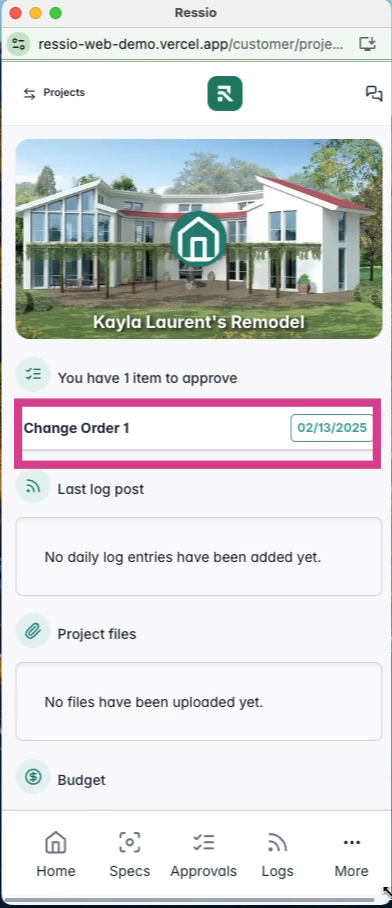
Clients can view the change order document, message you directly, and approve or decline the changes with an E-signature.

Tracking Changes
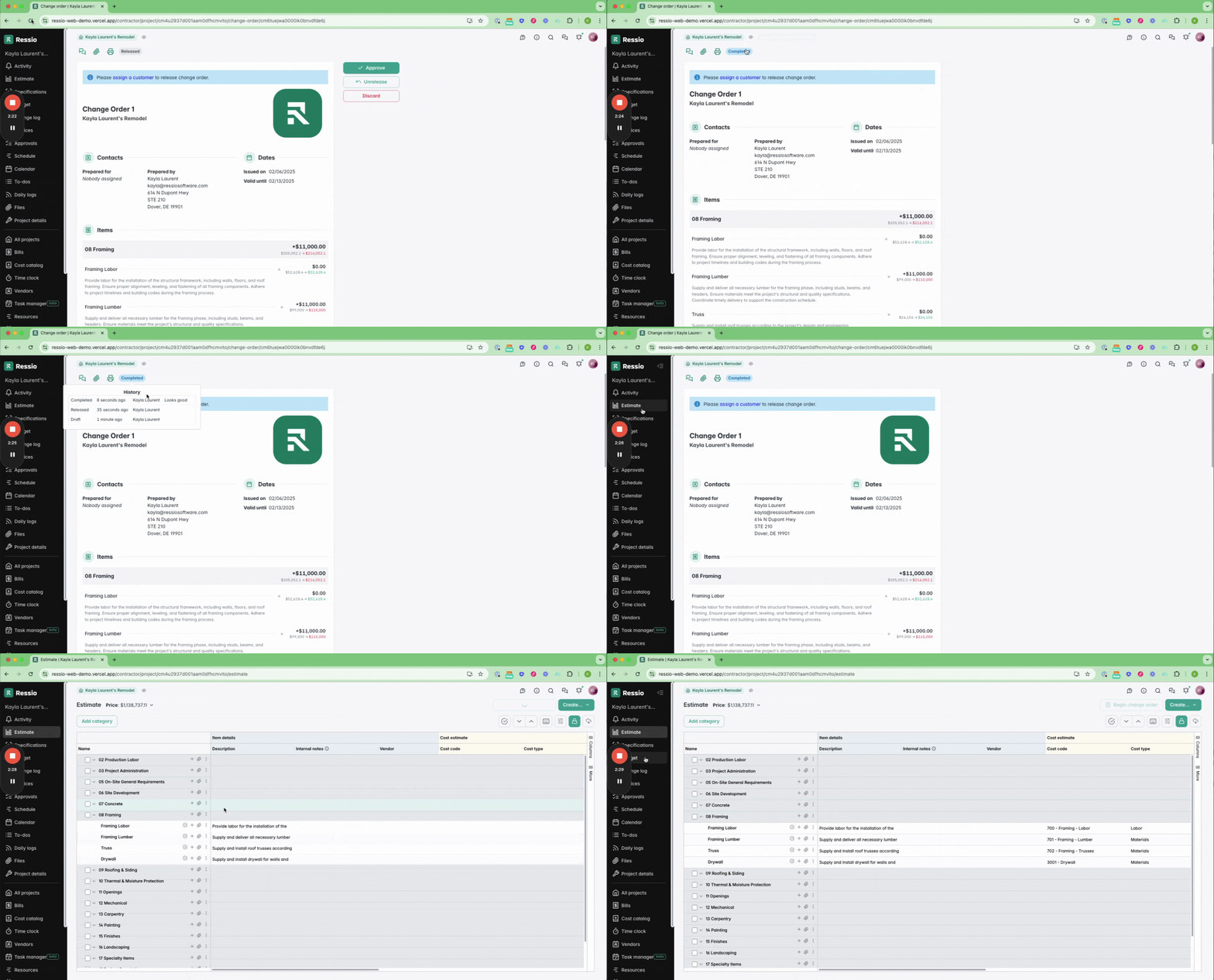
Once the client confirms the changes, you will receive a notification. The portal will also update with the completed status and a history of actions.
⚠️ If change order is DECLINED, you can edit and release, or Discard. Otherwise budget will still show revised cost and estimate will show pending changes.
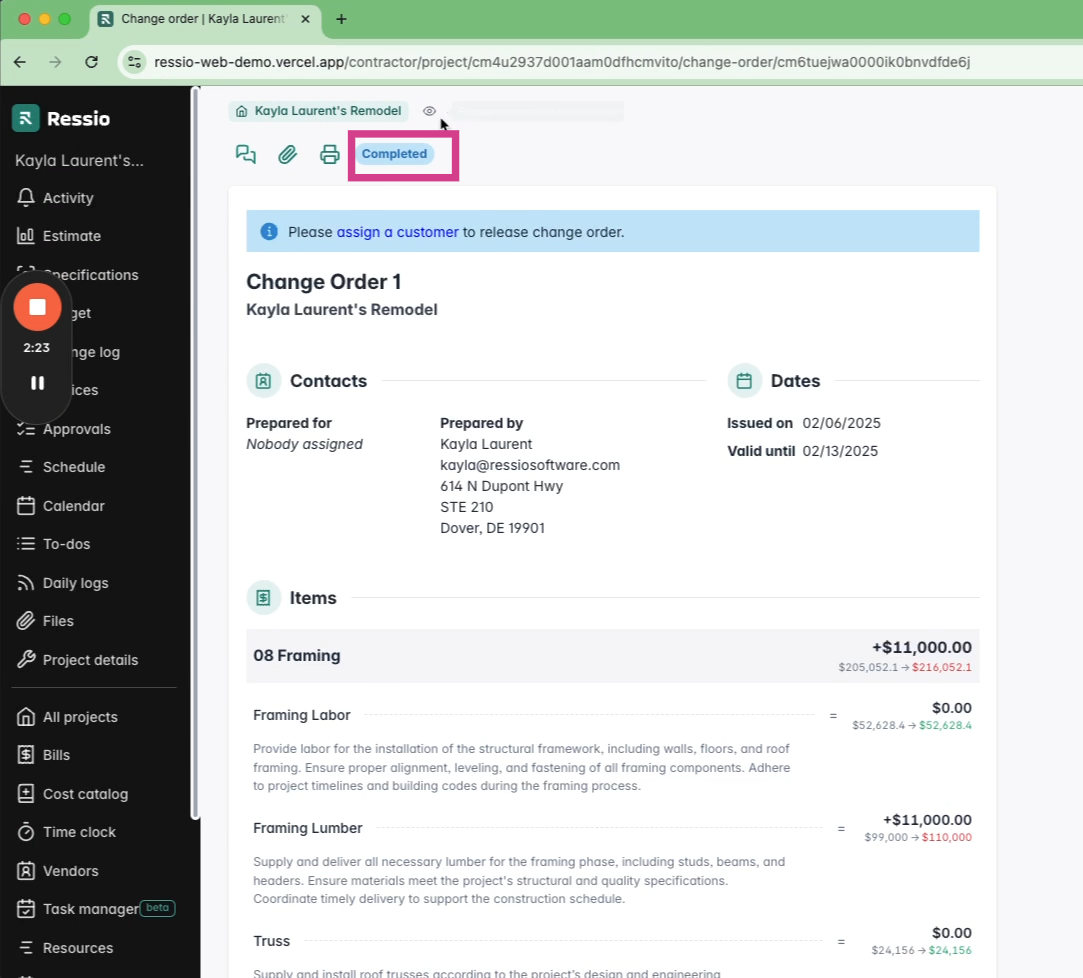
The estimate and project budget will update accordingly.
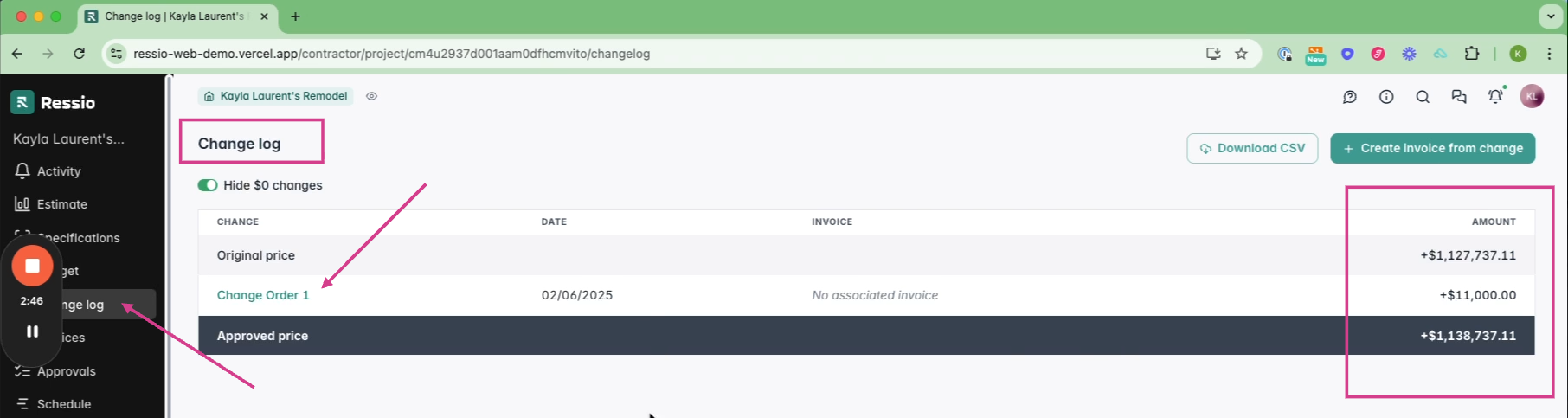
Any changes will also be reflected in the change log on the left, which maintains a record of all changes from the start of the job to the present.
Viewing an Existing Change Order
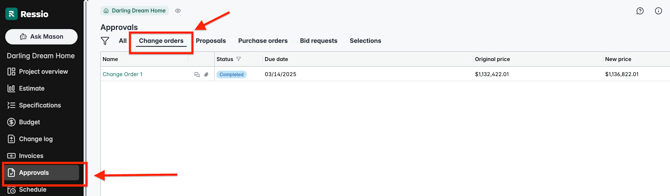
Once your change order is approved, you can view it under the 'Approvals' tab. To view a list of all the change orders, click on the 'Change Orders' tab. You can now see a list of all the change orders and their current status.
If you have any questions or need further assistance, contact our support team at support@ressiosoftware.com. We're here to help