.png?width=75&height=75&name=Untitled%20design%20(22).png)
Templates feature allows you to standardize your documents across projects, saving time and ensuring consistency.
In addition to Proposals and Daily Logs, you can now create templates for:
-
Invoices
-
Change Orders
-
Purchase Orders
-
Bid Requests
Why use Templates in Ressio?
-
Standardize documents across projects for faster setup.
-
Ensure compliance by predefining terms, instructions, and settings.
-
Easily update or swap templates to keep content current.
-
Simplify workflow for invoicing, proposals, and more.
Table of Contents
3. Creating and Editing Templates
4. Applying Templates to Documents
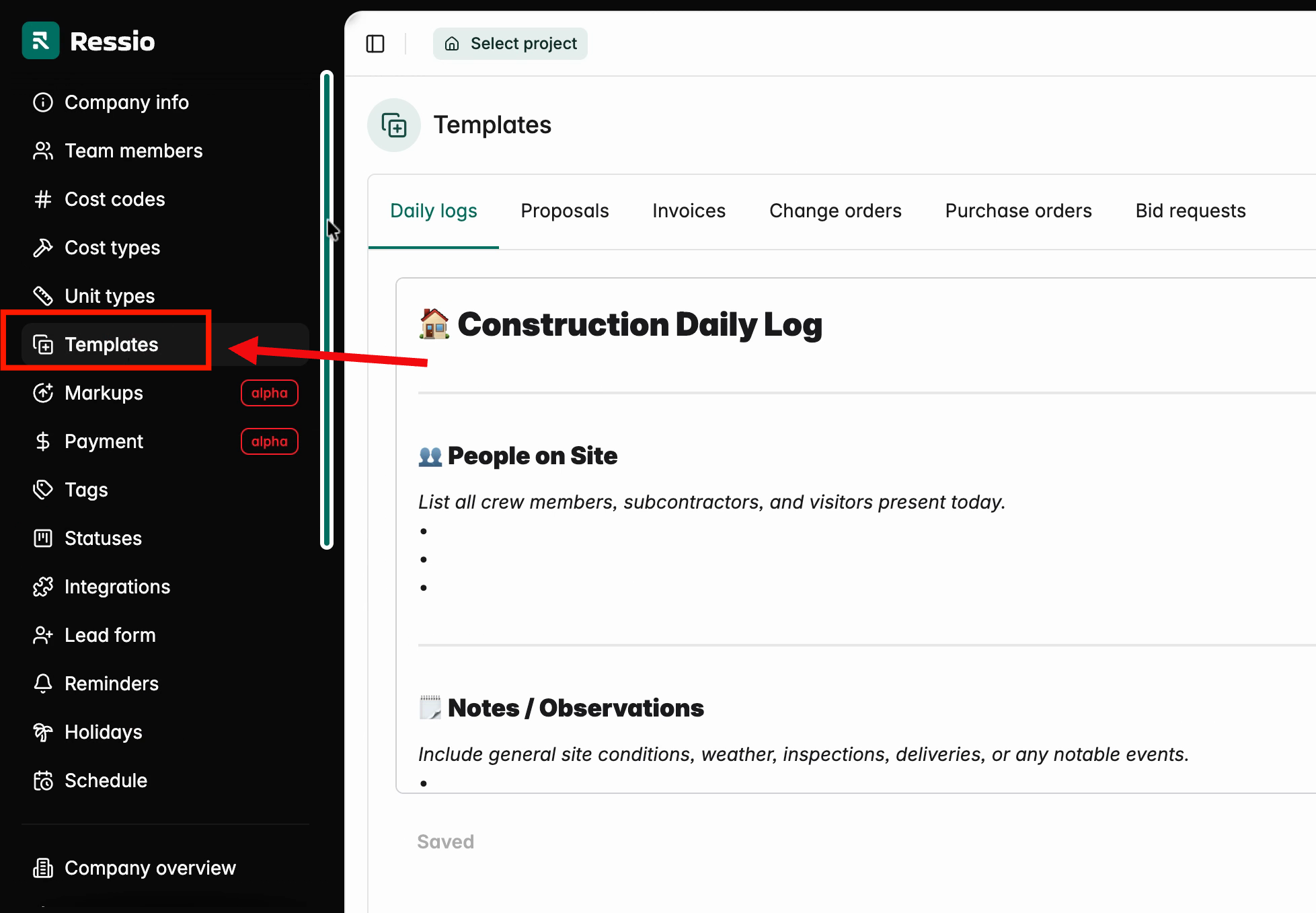
Navigation and Layout
-
Navigate to Company Overview
-
Select Company Settings
-
Click on Templates
Template Types
The Templates tab now includes several document types:
-
*Daily Logs
-
Proposals
-
Invoices
-
Change Orders
-
Purchase Orders
-
Bid Requests
Each supports multiple templates for different needs.
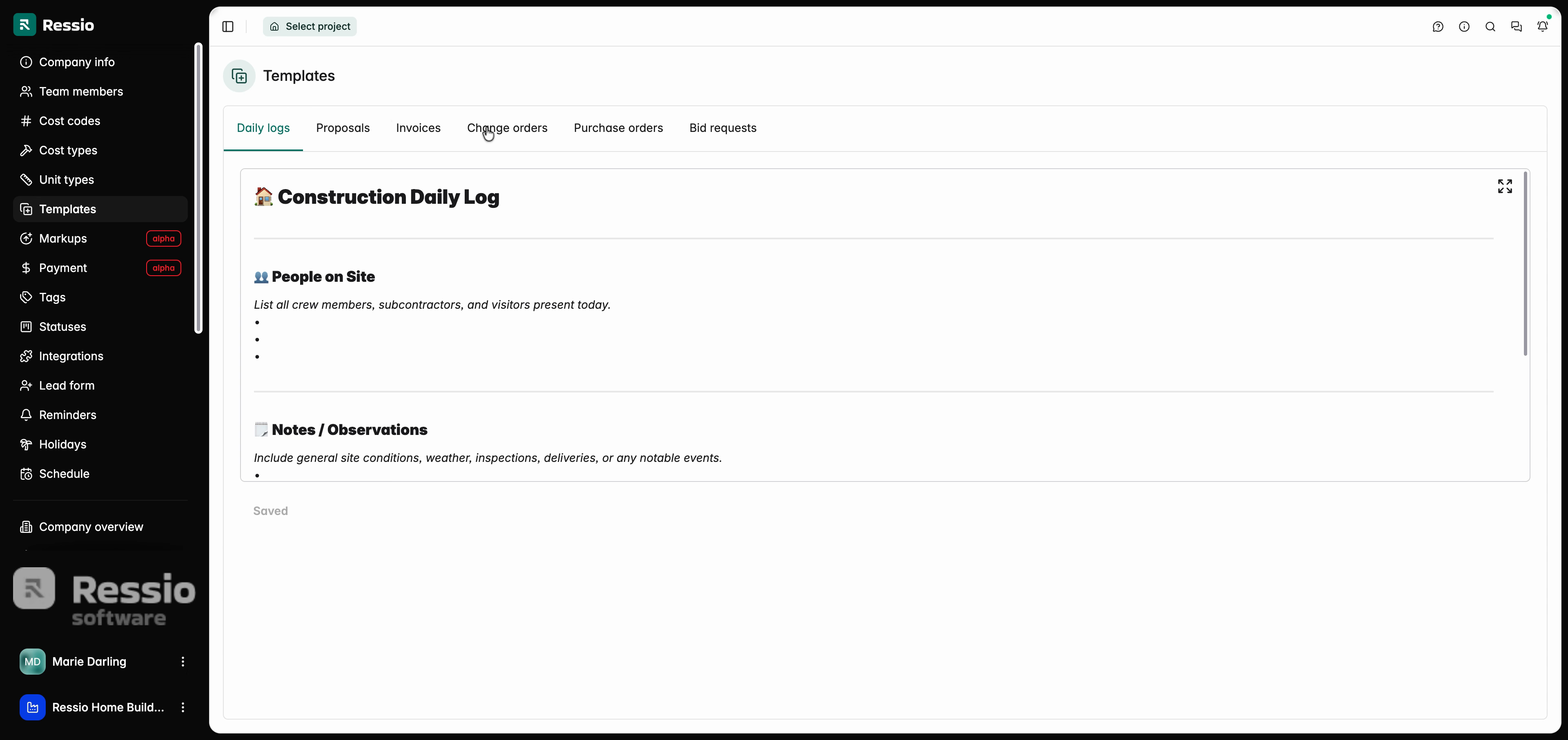
✏️ *For Daily Logs, you can only have ONE template.
Creating and Editing Templates
Creating a Template
You can create templates for any supported document type:
-
Proposals
-
Invoices
-
Change Orders
-
Purchase Orders
-
Bid Requests
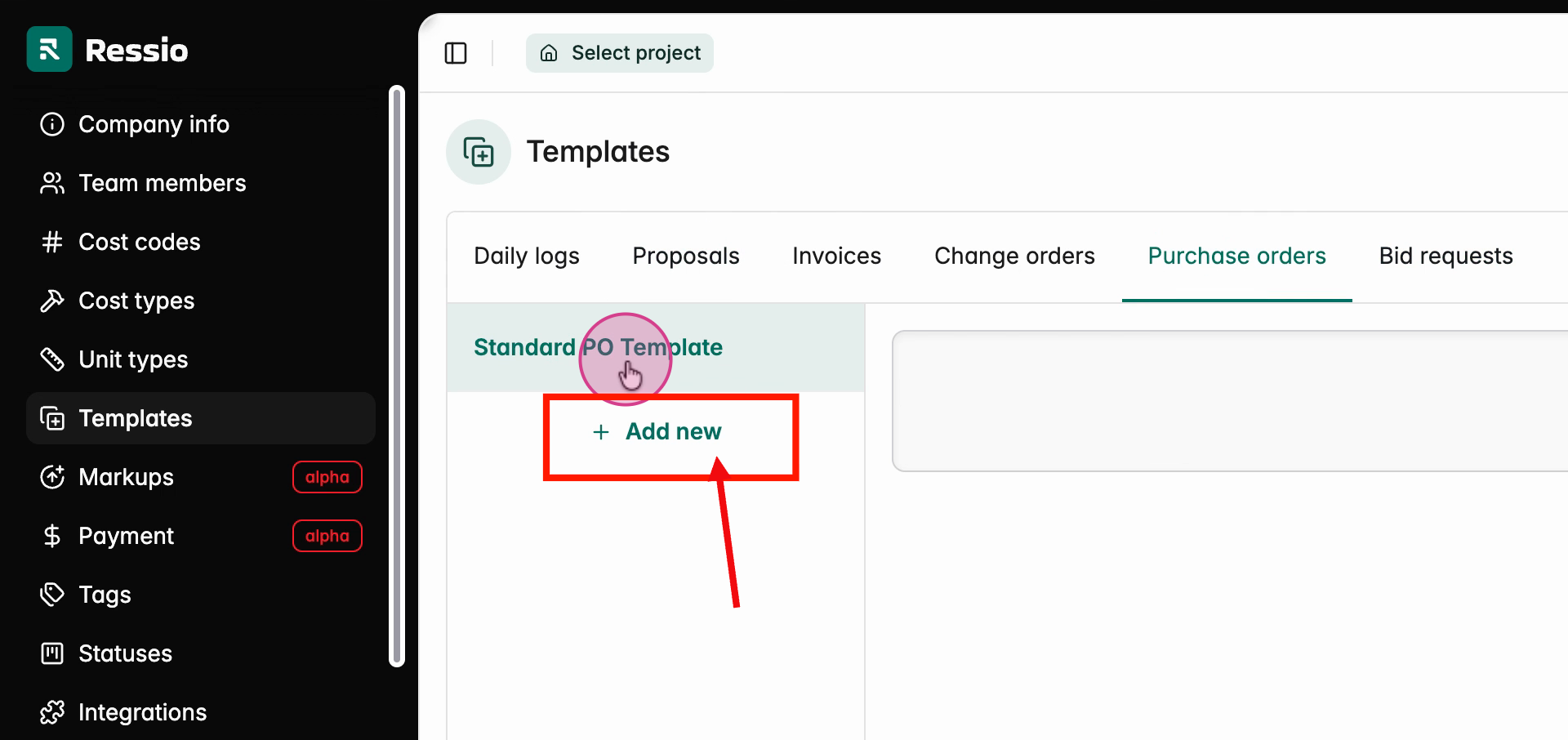
Steps:
-
Select the template type (e.g., Purchase Orders)
-
Click '+ Add new'
-
Enter a name for your template
-
Fill in the relevant fields (examples below)
-
Save your template
Editing a Template
✍️ You can edit any template at any time.
Depending on the document type, you may be able to configure:
-
Terms and Conditions
-
Descriptions
-
Messages (e.g., to vendors)
-
Signature settings
-
Visibility toggles (show/hide fields)
-
Data rows and columns
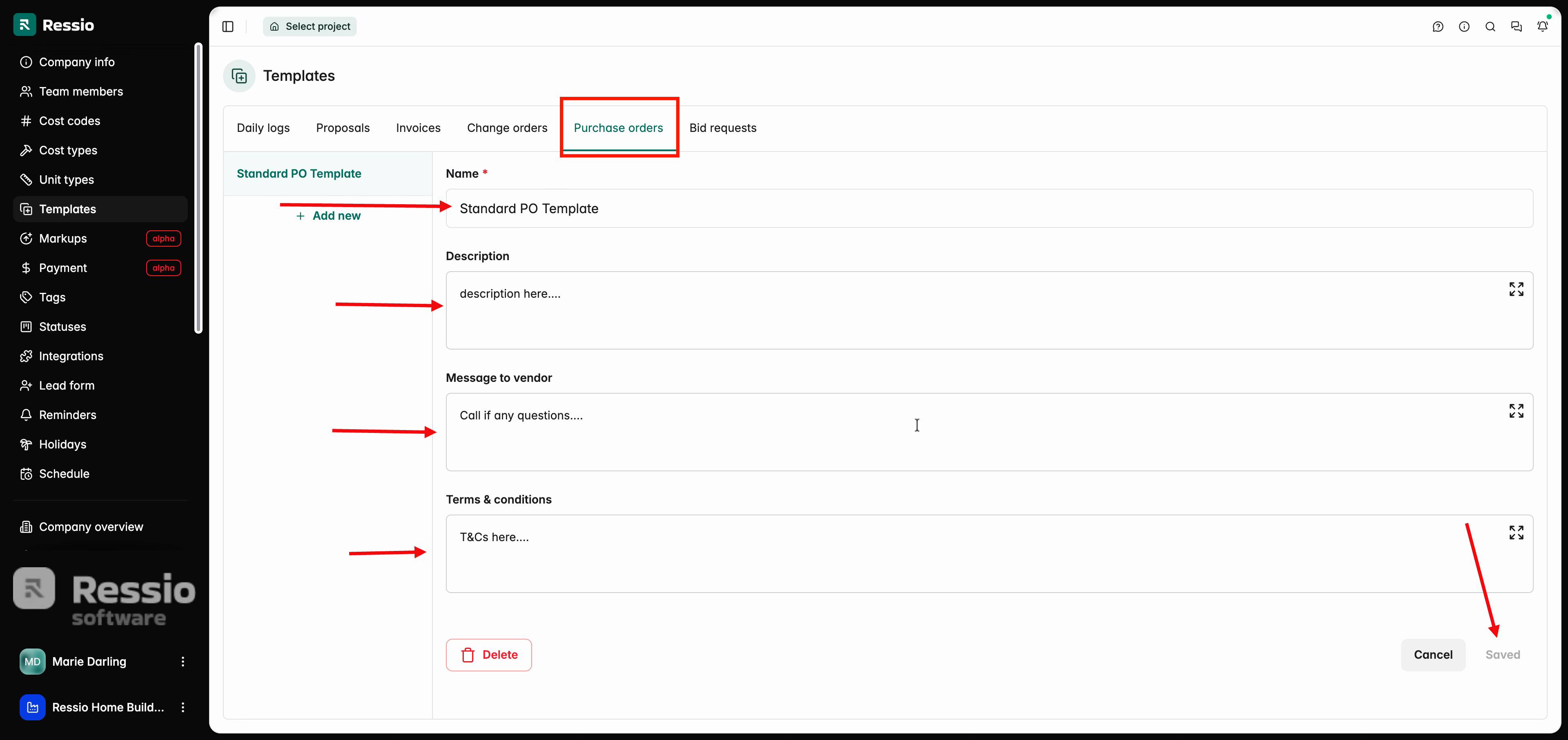
After editing, always hit 'Save'.
Applying a Template
Once a template is created, you can apply it to a document.
Steps:
-
Open the document (Invoice, PO, Change Order, etc.)
-
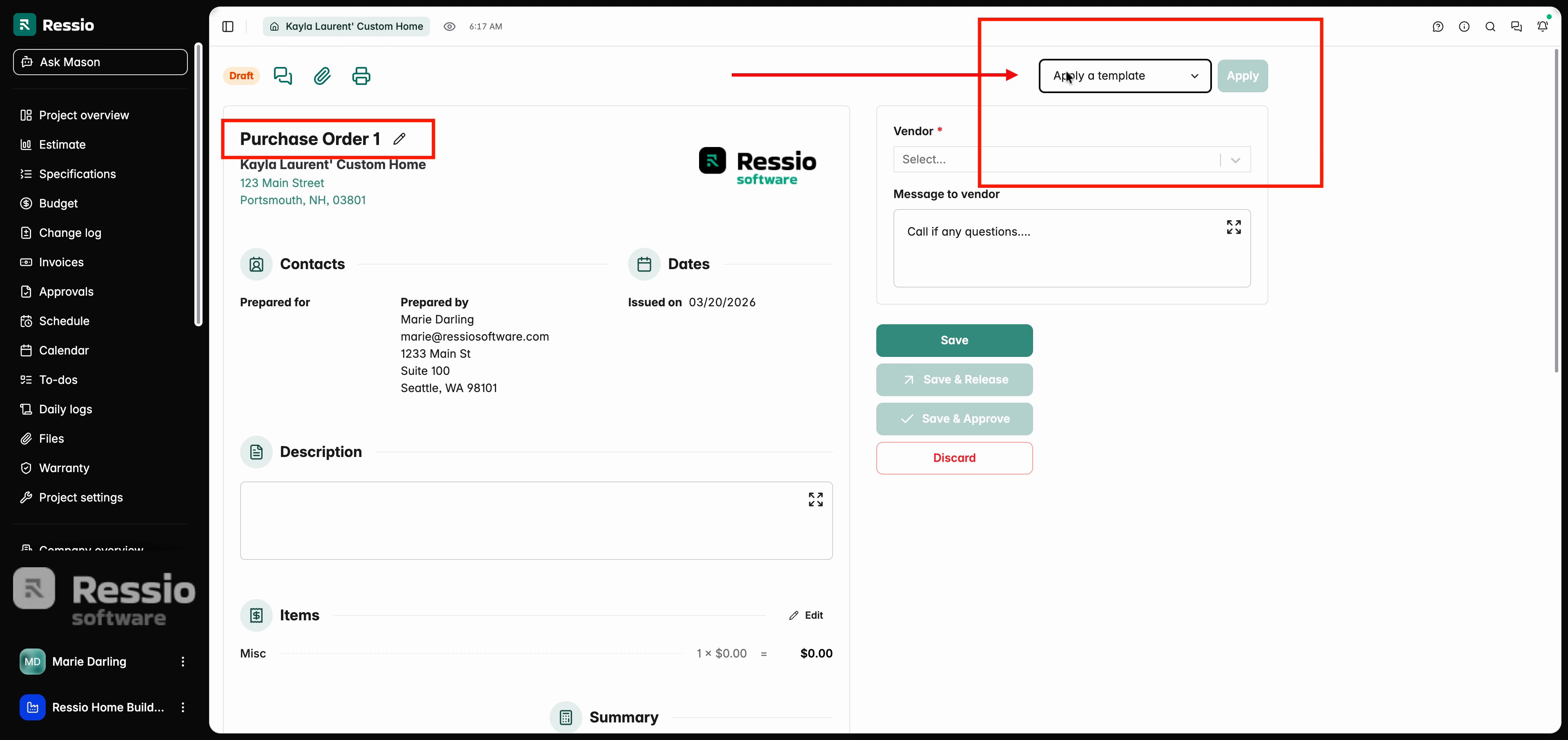
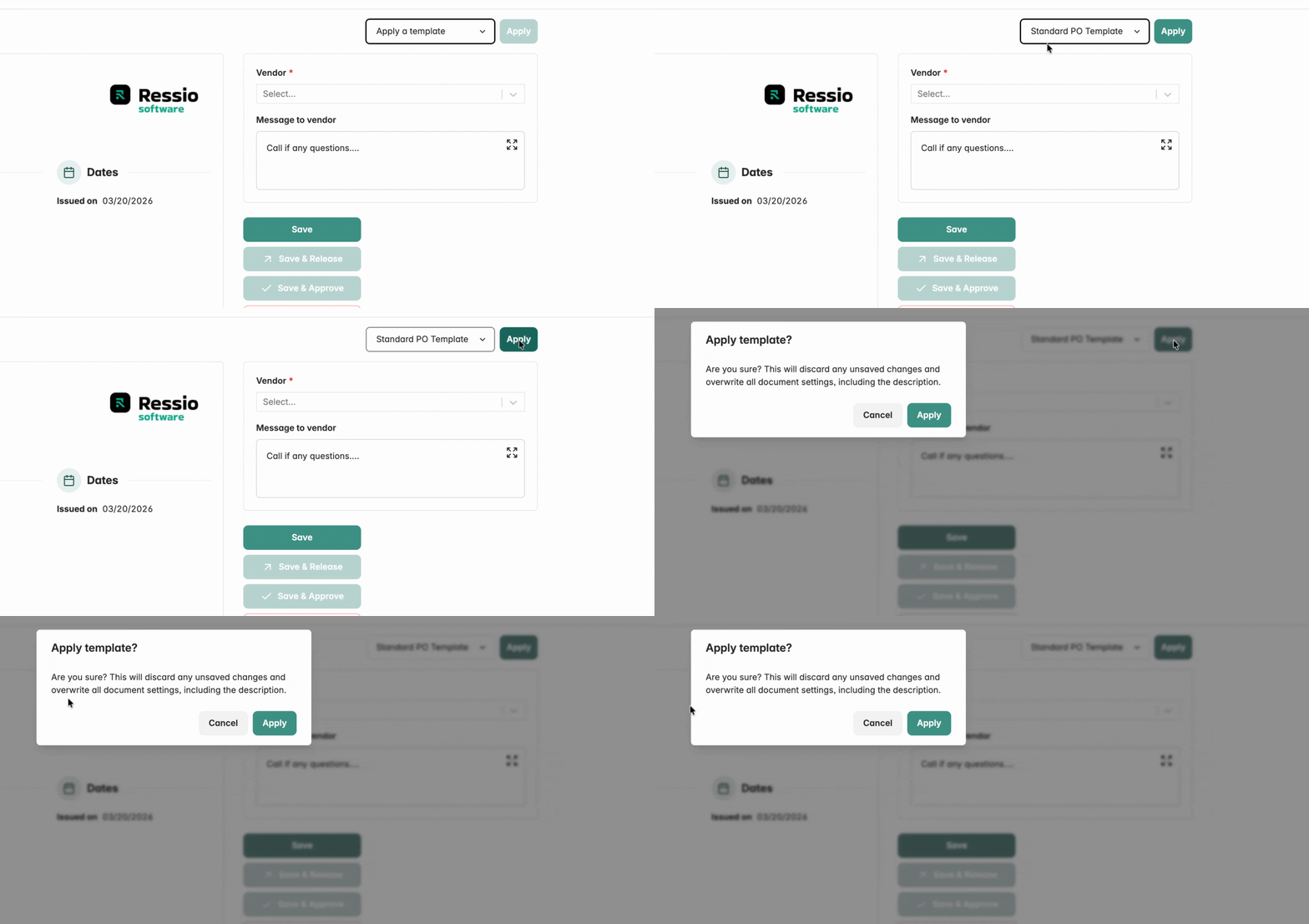
In the top right hand corner find the drop down menu, "Apply a template".
-
Choose your template
-
Hit 'Apply'
-
Confirm the prompt
⚠️ Applying a template will overwrite existing content, including unsaved changes.
Template Examples
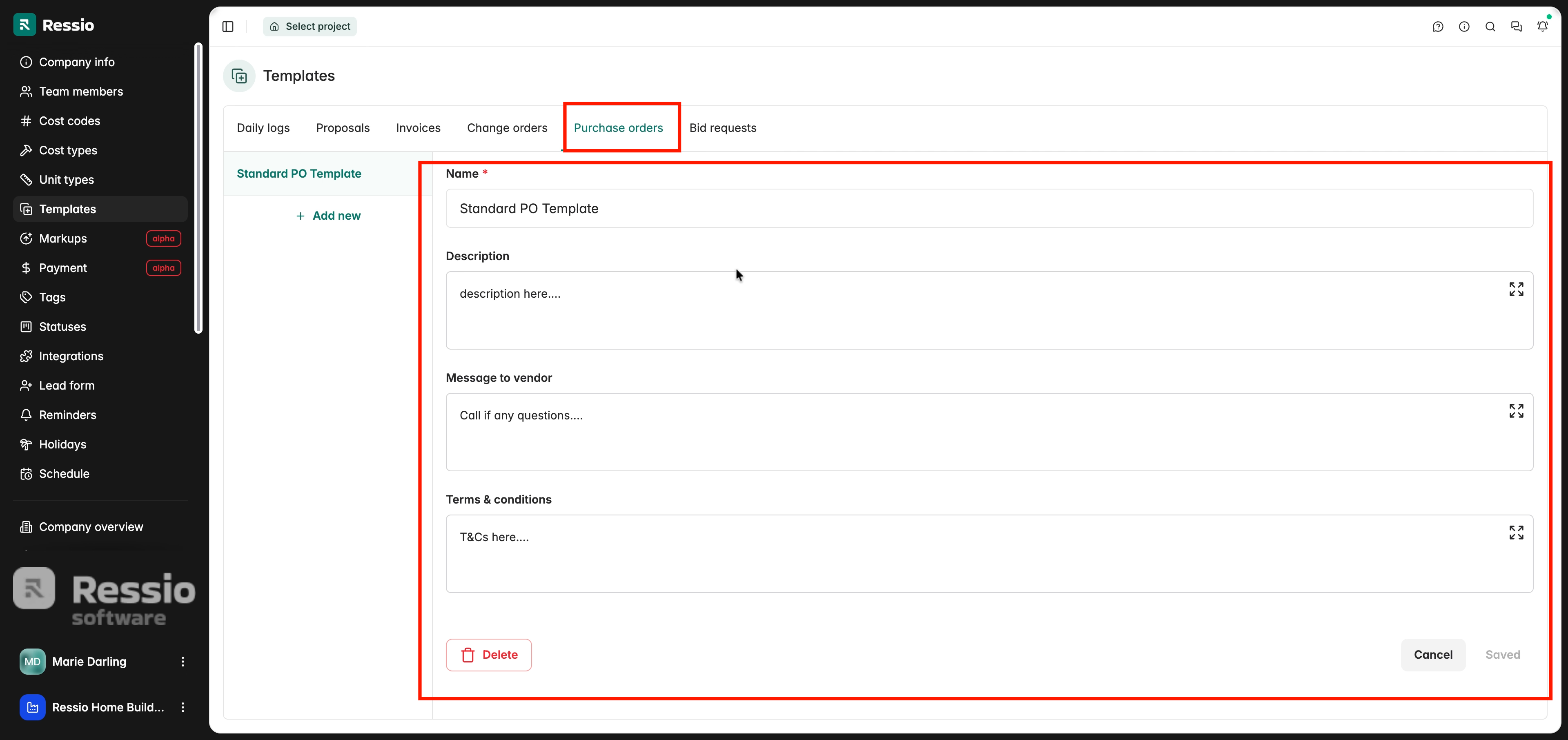
Purchase Orders
-
Description
-
Message to vendor
-
Terms & conditions
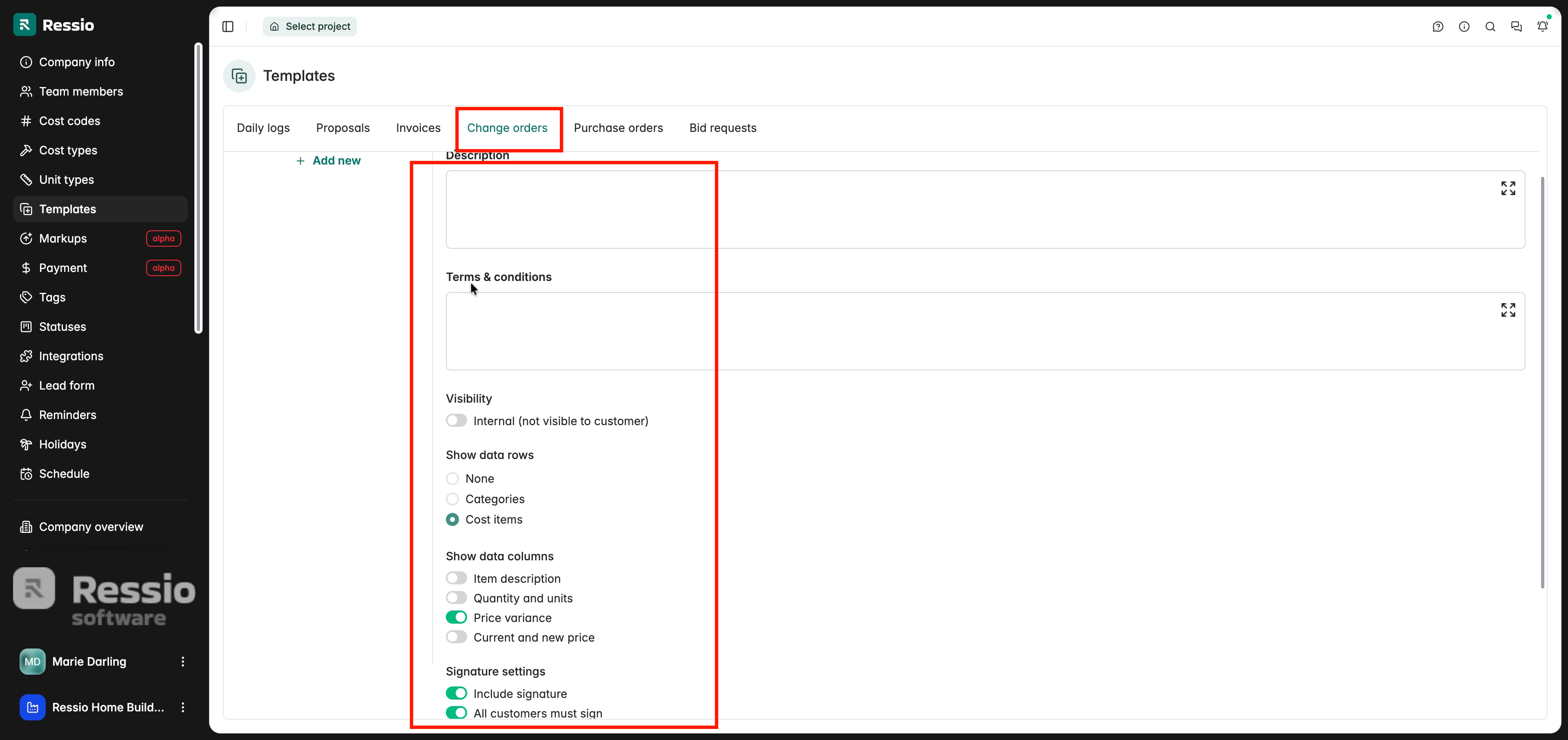
Change Orders
-
Description
-
Terms & conditions
-
Visibility
-
Show data columns
-
Signature Settings
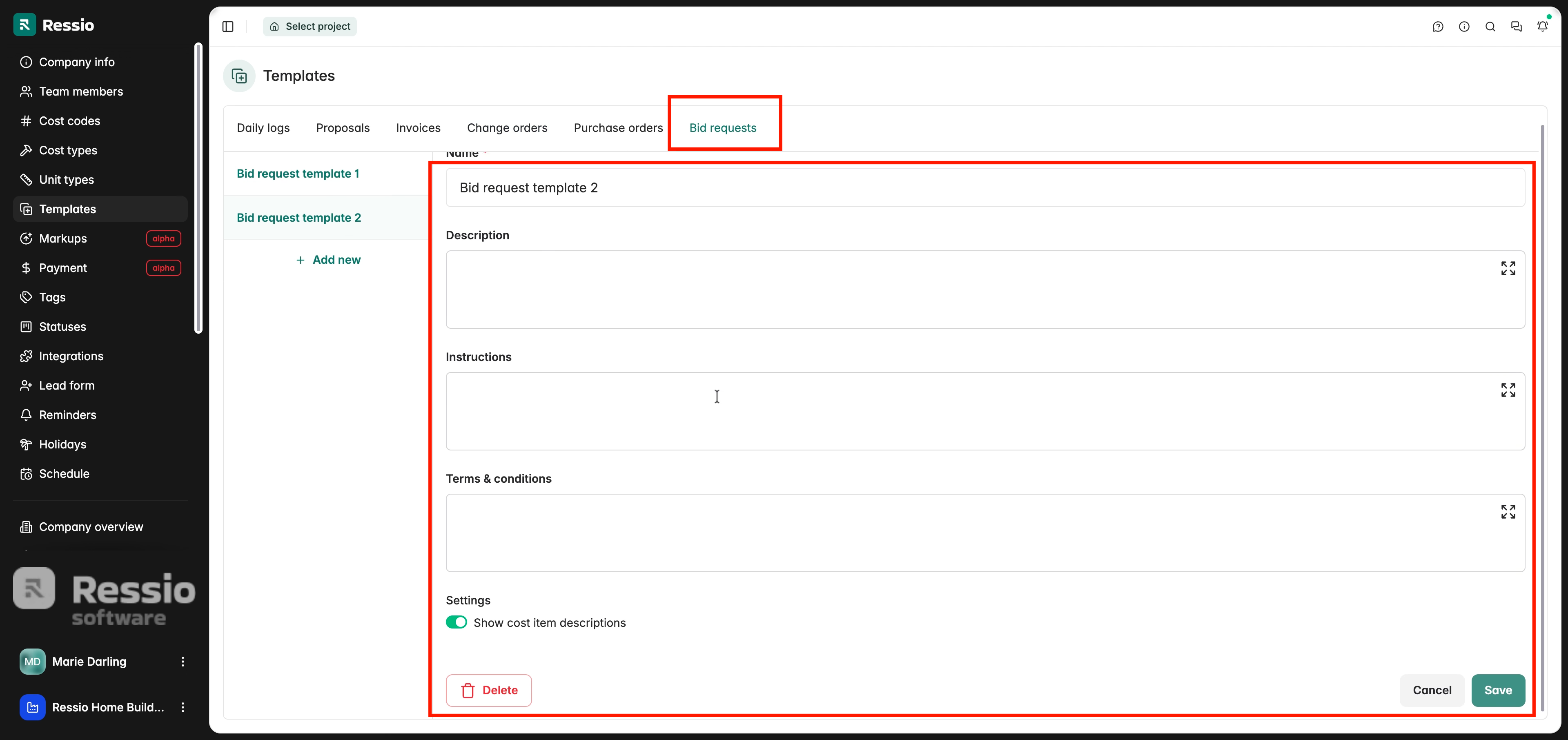
Bid Requests
-
Name
-
Description
-
Instructions
-
Terms & conditions
-
Settings
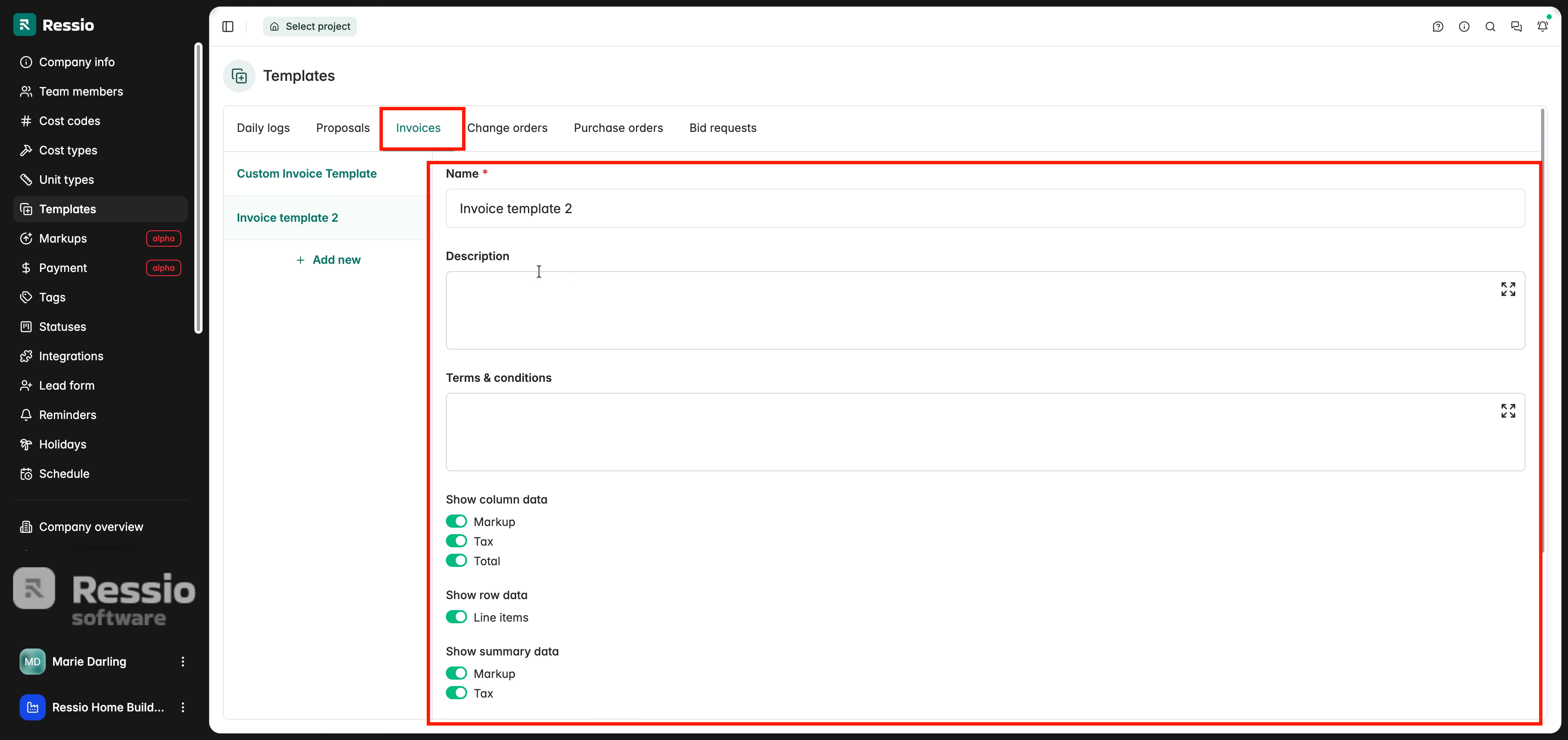
Invoices
-
Name
-
Description
-
Terms & conditions
-
Show column data
-
Show row data
-
Show summary data
-
Show document sections
🎗️ Revisit templates anytime to update or add new ones to match project changes.
If you have any questions or need further assistance, contact our support team at support@ressiosoftware.com. We're here to help!