.png?width=75&height=75&name=Untitled%20design%20(22).png)
As an admin, you may be responsible for managing payroll for your business.
👀 Review employee time entries.
📝 Fix errors and oversights.
💾 Upload time data into a payroll service provider.
Table of Contents
For help entering time as an employee, visit Using the Time clock
For Quickbooks Online integration, visit Integrating Time Clock with Quickbooks Online
Navigation and Layout
We recommend using a computer to manage payroll, although this same functionality is available on the mobile app.
Time clock is located in the left menu bar in the Company Overview.
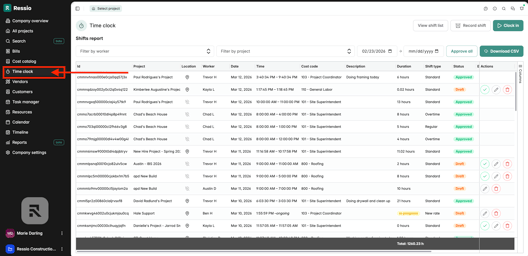
Layout: The Time clock page displays time data in a spreadsheet format.
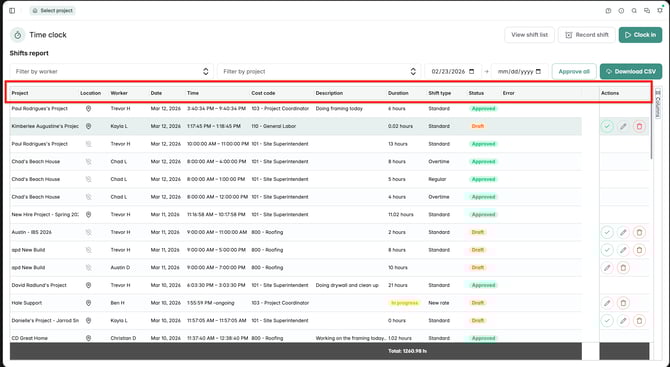
Data Fields: Time Clock fields include:
Project: Project or Customer associated with labor hours.
Location: Employee may share location on clock in/out. A dark pin indicates location was shared (click pin to open map). A gray pin indicates location was not shared.
Worker: Team member name
Date: Date worked
Time: Time worked
Cost Code: Accounting code associated with labor costs for budget tracking.
Description: Employee notes on labor activities or shift irregularities.
Duration: Hours worked in decimal format (e.g. 7.75 = 7 hours, 45 minutes).
Shift Type: Shift types come from the Billable Rates set on the team member in Company Settings.
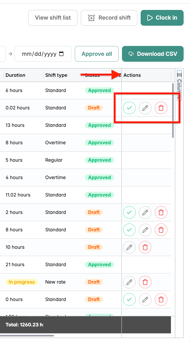
Actions: Edit, Approve or Delete
"Total Hours" can be seen at the bottom of the table.

Optional Data Fields: If team member Billable Rates and/or QuickBooks Online integration have been enabled.
Status (Draft/Approved): Whether a time entry has been pushed to the budget/Quickbooks.
Actions: Approve (sends labor actuals to the budget and/or time data to QuickBooks).
Column Picker
You have the ability to change what columns you view in the time clock table. If you click on the 'Columns' tab on the far right hand side, a drawer will pop out where you can check on and off columns. At the top of the list, you can also search for certain columns.
-1.png?width=256&height=419&name=download%20(8)-1.png)
Billable Rate and Shift Total Columns
Locate the new columns on the Time Clock page. These columns are hidden by default and only visible to users with the contractor admin role.
-1.png?width=273&height=396&name=download%20(9)-1.png)
The Billable rate is the value $ and the Shift total = Duration x Billable rate, rounded to two decimal places.
.png?width=607&height=355&name=download%20(11).png)
When the billable rate and/or shift total columns are enabled, downloading CSVs from the Time Clock page will include these columns in your export. The export reflects the columns you’ve enabled, only billable rate, only shift total, or both.
Managing Time Clock Settings
You can control which cost codes employees can use to record shifts, configure whether employees can edit their own time entries, and enable Team Members and Field users to record shifts for others
Customizing labor codes
By default, employees can only select cost codes that are included in the Estimate of the project they are clocking into. This ensures time entries are recorded against the correct project costs.
You can modify this setting under Company Settings - Cost Codes by clicking into cells in the column Show in Time Clock.
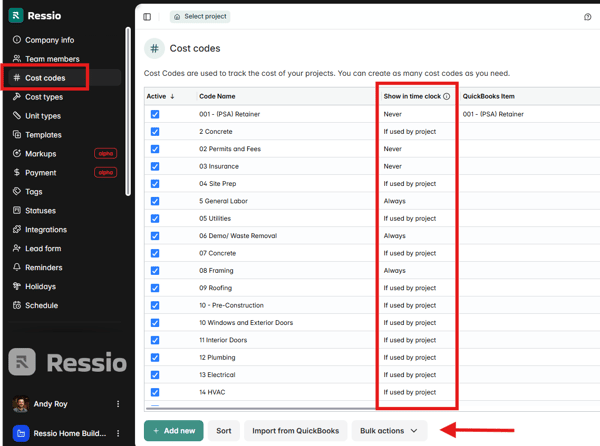
Cost codes can be set to:
- If used in Project (default): Only codes in the project's estimate can be used to clock in/out.
- Always: Code will always appear when clocking in/out.
- Never: Code will never appear when clocking in/out.
💡 Tip: To update multiple cost codes at once, select Bulk Actions at the bottom.
When to Use each Setting: We recommend turning material and other non-labor codes to NEVER, company-wide and general labor codes to ALWAYS, and anything else to IF USED BY PROJECT.
Editing Time (Employees)
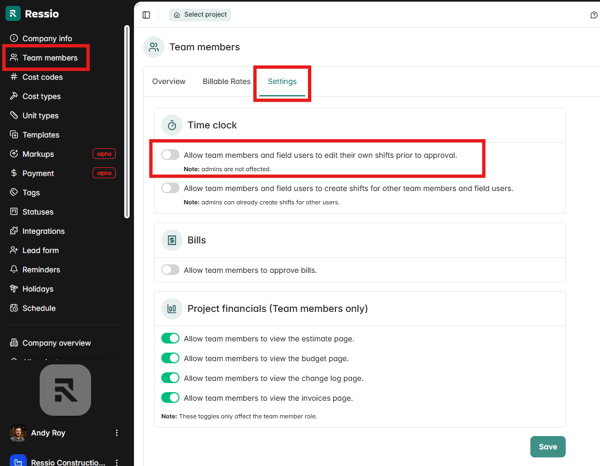
By default, Team Members and Field users CANNOT edit their own time entries. They will need to ask an Admin user to adjust for any mistakes made when recording time.
If you prefer your employees to fix their time entries themselves, go to Company Settings - Time Clock and choose the Settings tab.
Toggle on the setting Allow team members and field users to edit their own shifts prior to approval.
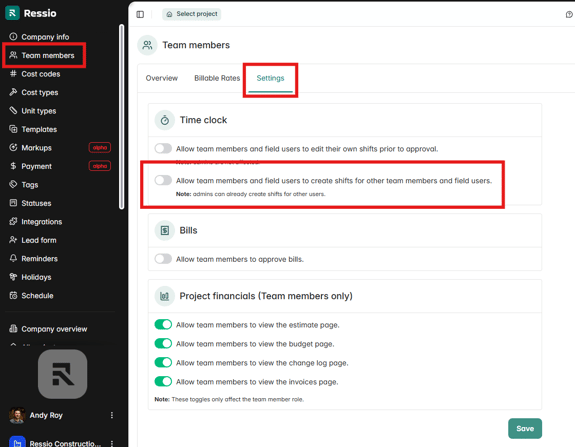
Allow All Users to Record Shifts for Others
By default, only Admin users can record time entries for other users. However, if you would like anyone on your team to be able to enter shifts for others, toggle on the setting below.
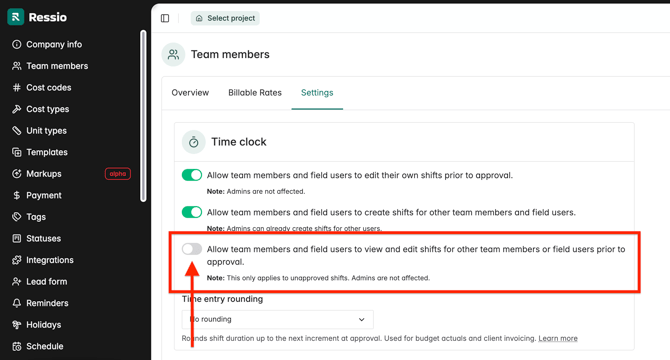
Allow All Users to View and Edit Shifts
Allow team members and field users to view and edit shifts for other team members or field users prior to approval. This toggle will be greyed out unless "Allow team members and field users to create shifts for other team members and field users." is enabled.
❗Note: This only applies to unapproved shifts. Admins are not affected.
About this feature:
-
Admins see all team member shifts, including drafts. This allows tracking and oversight before approval.
-
Admins can confirm which shifts are still in draft status.
.png?width=670&height=138&name=download%20(20).png)
-
Field users cannot see any shifts before permissions are set.
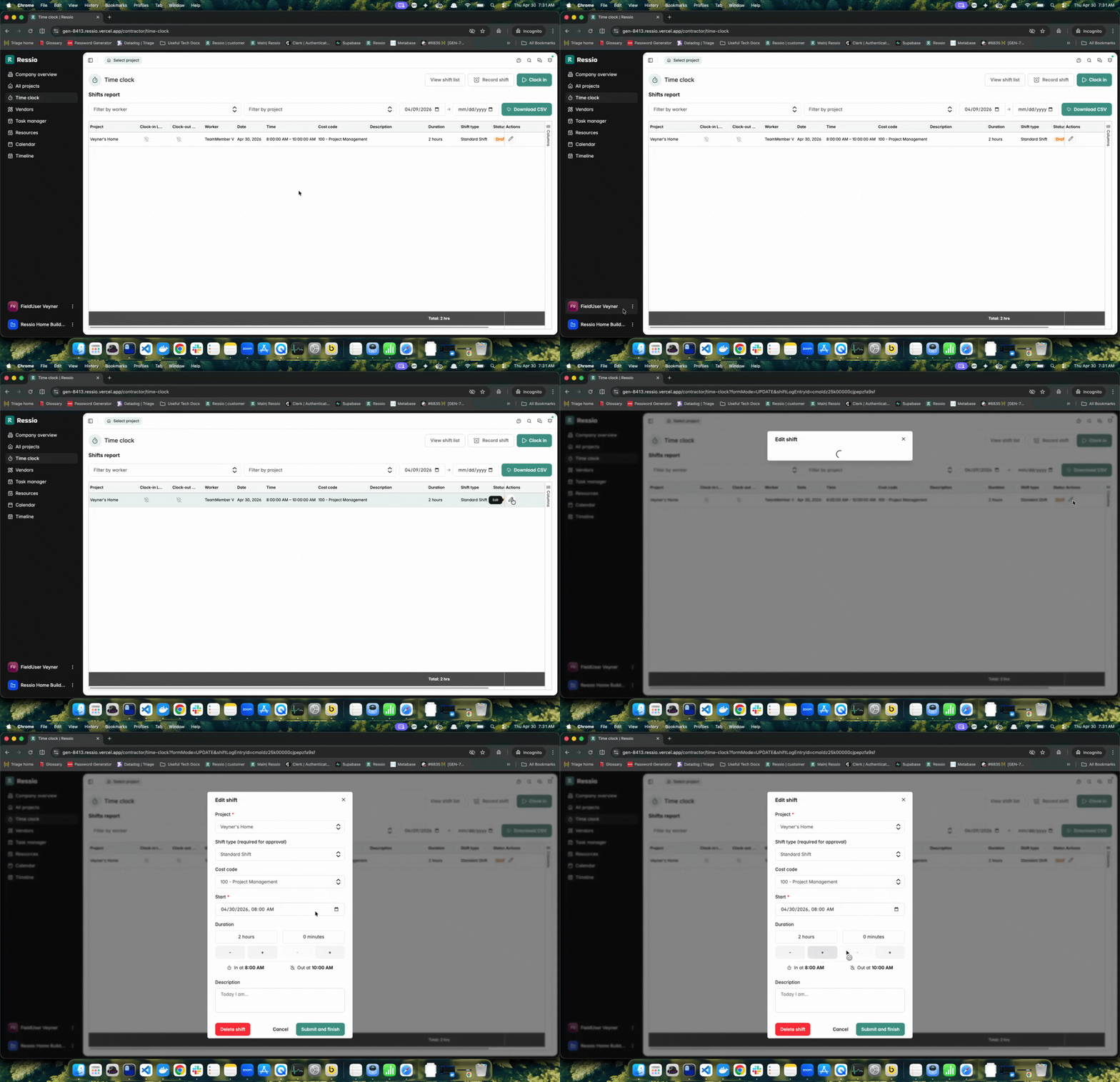
Once the toggle is enabled, the team member / field user will see a pencil icon ✏️. When they click on the icon, they will be able to edit that shift. Field user view below:
Time Entry Rounding
Underneath Time Clock, there is a section titled "Time entry rounding". It rounds shift duration up to the next increment at approval. Used for budget actuals and client invoicing.
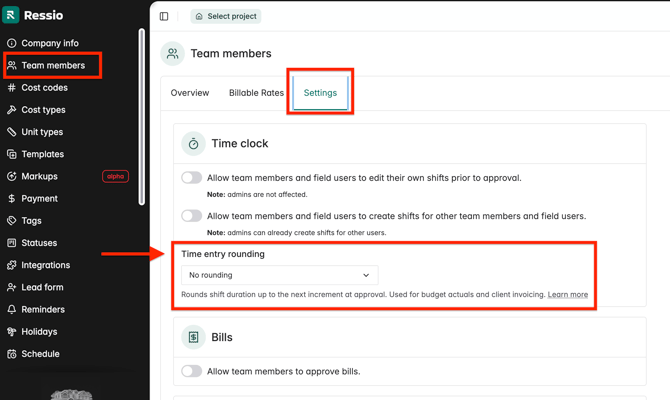
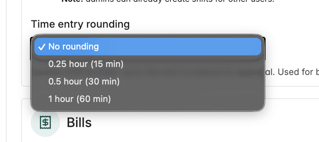
As default is it set to "No rounding". You can also round to:
- 0.25 hour (15 minute)
- 0.5 hour (30 minute)
- 1 hour (60 minute)
Filtering time entry data
Depending on your payroll needs, you may be required to filter time clock data in different ways.
Time clock can be filtered by: Date Range │ Employee (Worker) │ Project
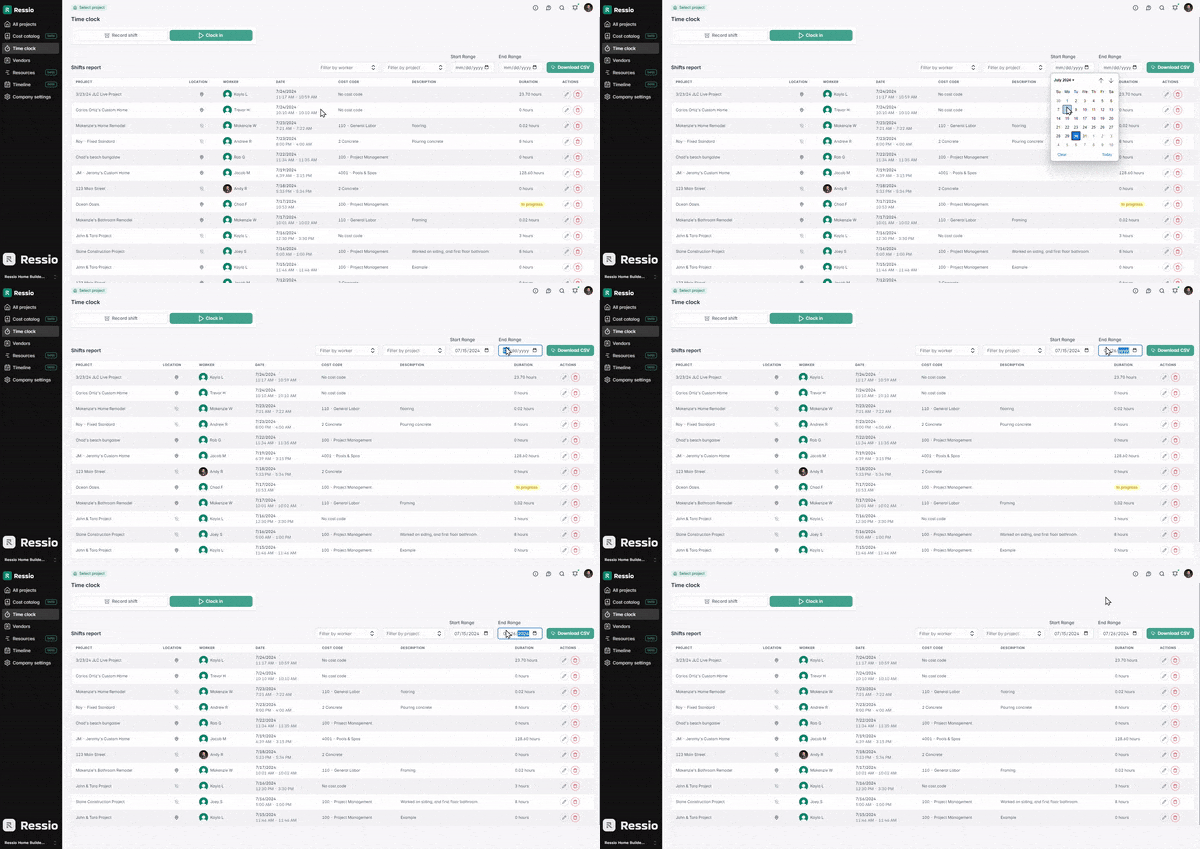
How to Filter by Date Range
Filtering by pay period is a common filter.
Find Start Range and End Range in the upper right. Select dates by typing, or by selecting the calendar icon. 📅
How to Filter by Worker and Project
Your payroll system may require individual data imports for each employee. Alternatively, reporting on labor hours may require filtering by project.
Use the dropdown menus near the top to filter by Worker or Project.
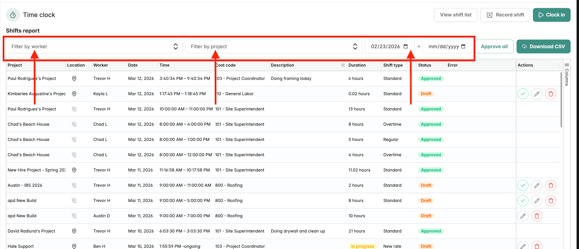
TIP: You can select multiple workers and projects.
Modifying time entries
Time entries may need to be edited, added or deleted for accurate payroll. You can bulk approve using the 'Approve all' button next to the date range.
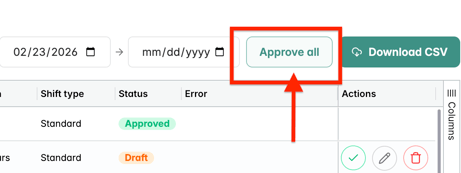
A window will pop up listing any pending shifts that can be approved and if there are any shifts that are missing cost codes or the worker, they will be highlighted in red and have an error. 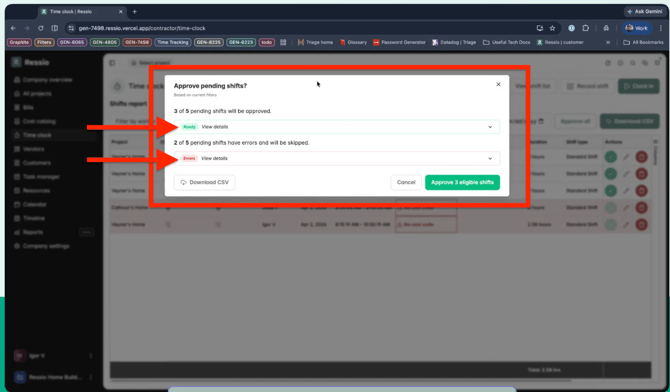
Common corrections:
Clock in/out time: Incorrect times.
Cost Code: Incorrect or blank cost code.
Editing time entries
There is a dedicated column for 'Actions' on the right hand side. You can edit ✏️, delete 🗑️ approve ✅.
Select the Pencil Icon ✏️ to the right of the time entry.
Make changes, then select Submit and finish
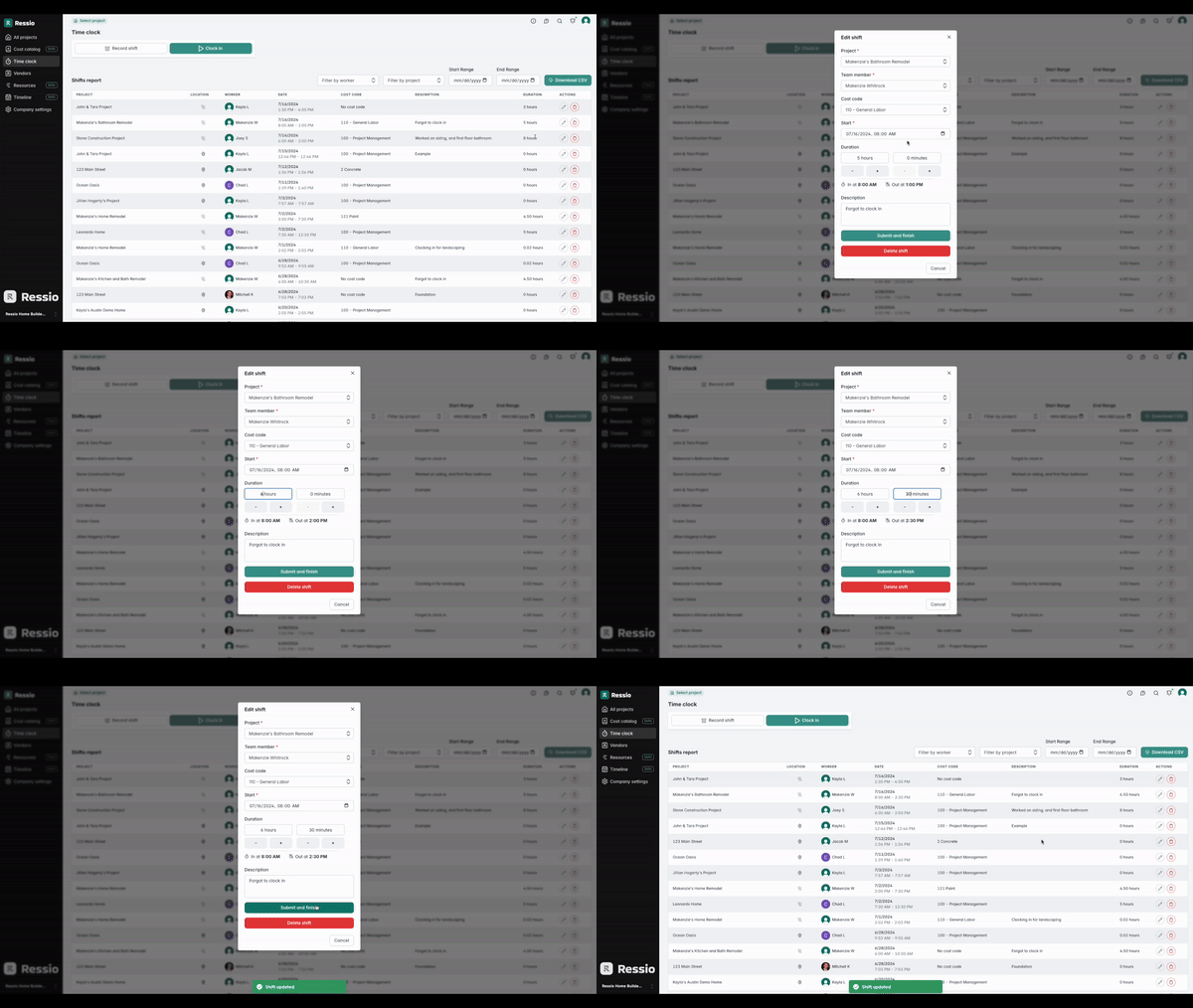
Adding Time entries
Adding a new time entry may be required if an employee forgets to clock in, or as a way to handle overtime or vacation hours.
Select ⏰ Record Shift in the top left to create an entry.
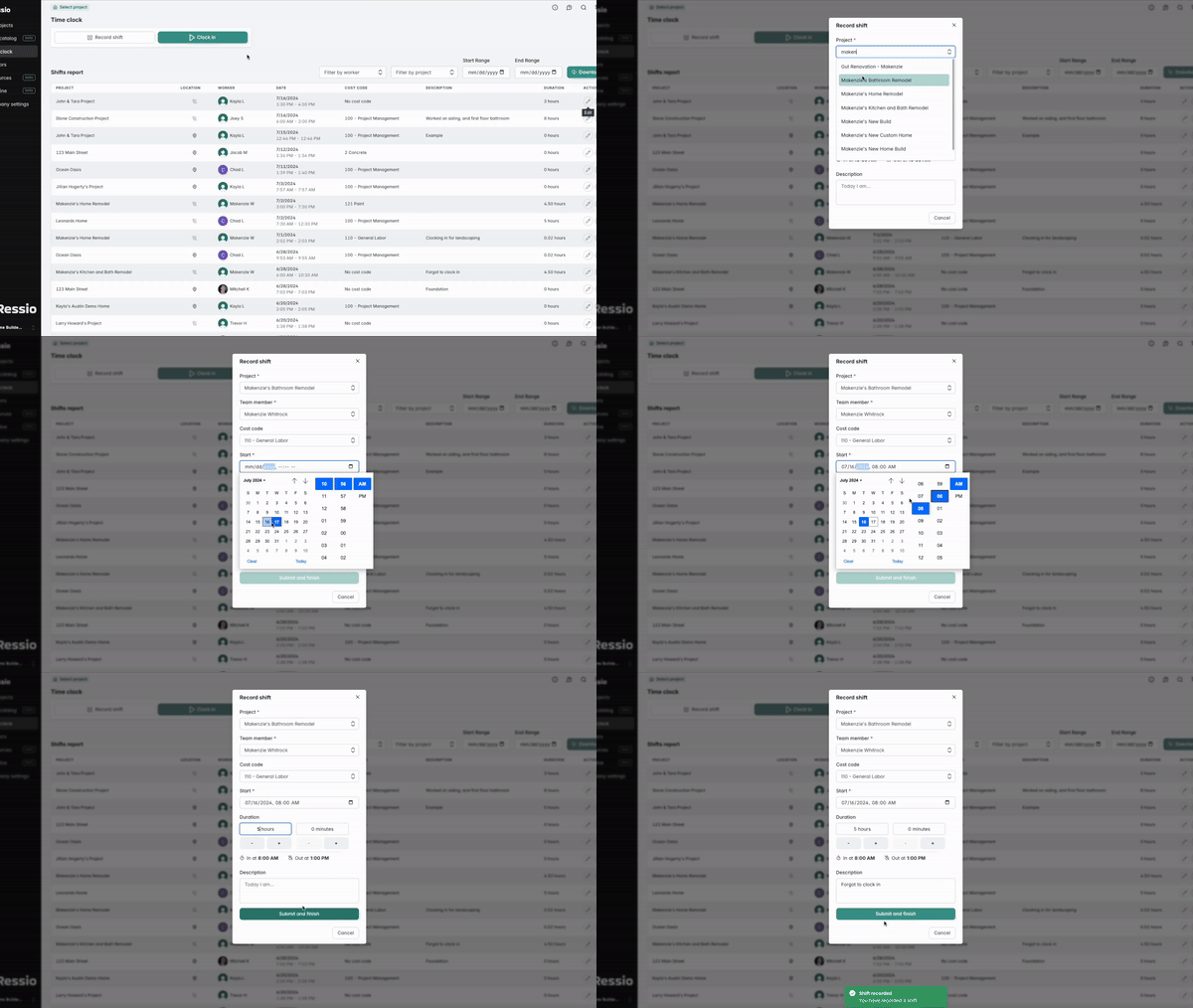
Required fields: Project, Team Member, and Start.
If Burden Rates/QB Online integration are enabled: Shift type, Cost Code.
Deleting time entries
Select the red Trash icon next to the relevant time entry
Select Confirm and delete
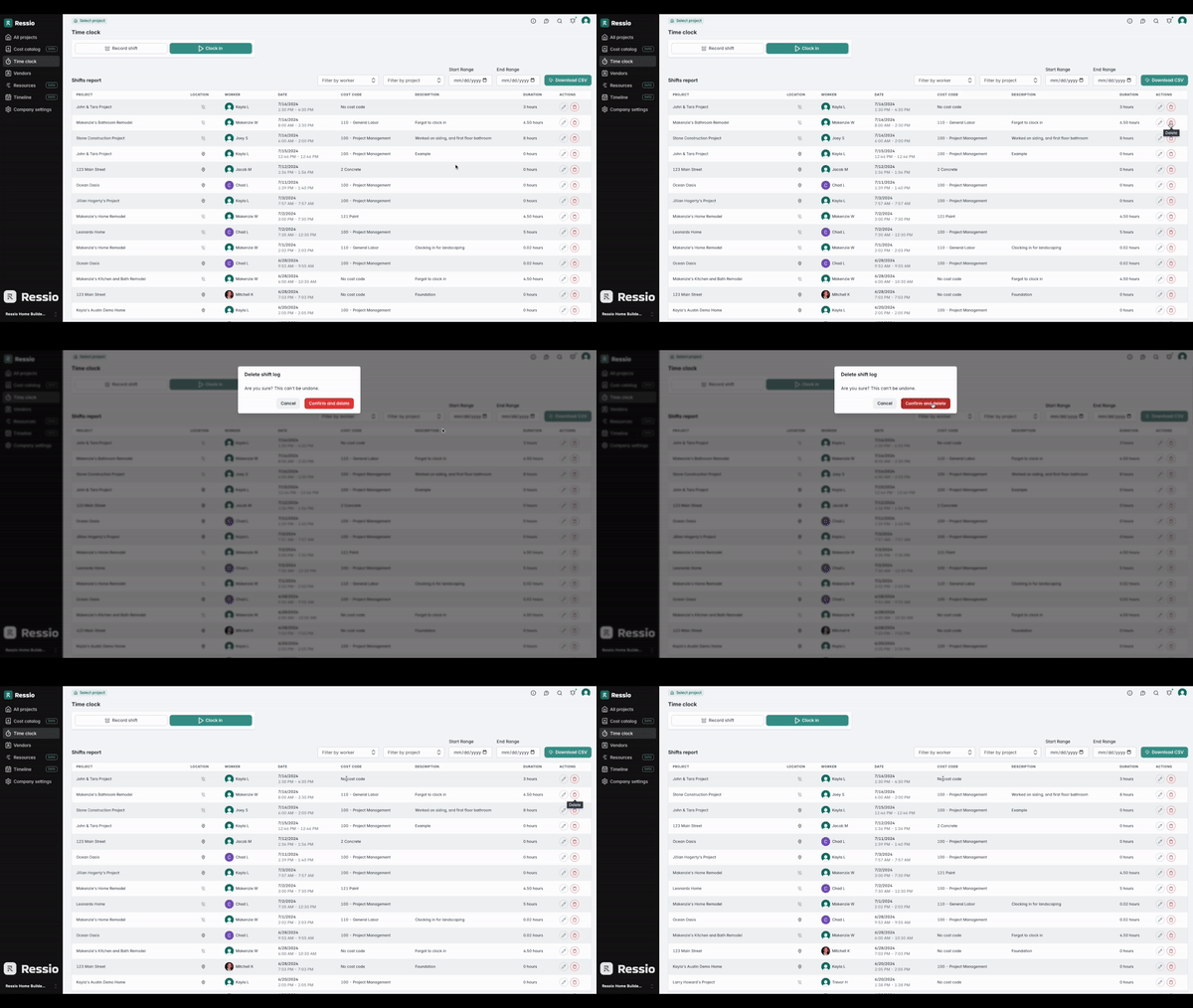
⚠️Deleted entries CANNOT be retrieved. Proceed with caution. ⚠️
Shift Switcher
Quickly transition from one shift to another without manual time entry or multiple confirmation steps. The new Switch Shift button enhances efficiency when moving between shifts:
-
When clocked into a current shift, a new Switch Shift button appears
-
Select Switch Shift to automatically pre-fill the details for a new shift.
-1.png?width=670&height=392&name=download%20(1)-1.png)
When the switch shifts for pops up, the worker will have to fill out the:
- Project
- Shift type (required for approval)
- Cost code (admin)
- Start time
After fields have been filled out, hit the "Switch shift" button at the bottom of the form.
-1.png?width=456&height=267&name=download%20(2)-1.png)
⚠️ This process logs you out of the existing shift and immediately clocks you into the new one.
Exporting time clock data
Time clock data can be exported as a .CSV file to import into your payroll software provider.
If you are using Quickbooks Online for payroll, consider integrating the Time clock to instantly push time entries.
Select Download CSV. A file shift-log will download to your device.
-1.png?width=670&height=344&name=download%20(3)-1.png)
For information about setting team member burden rates and tracking labor actuals, visit Tracking labor actuals in the budget.
If you have any questions or need further assistance, contact our support team at support@ressiosoftware.com. We're here to help!