.png?width=75&height=75&name=Untitled%20design%20(22).png)
🕘 Ressio provides an easy way to log your time worked, either by clocking in/out on the job site, or by recording entire shifts at your convenience.🕔
Table of Contents
- Finding the time clock
- Clocking In/Out
- Recording Shifts
- Editing and Deleting Shifts
- Switching Shifts
Finding the Time Clock
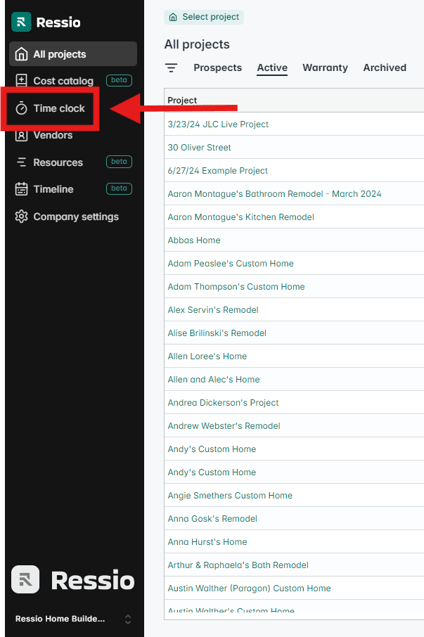
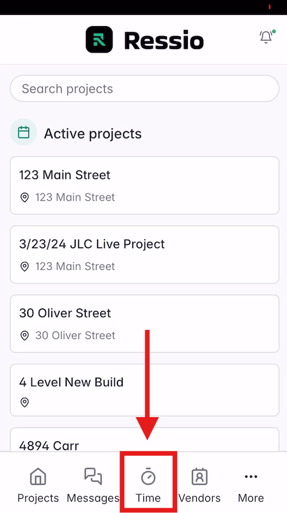
The Time Clock can be used on the website, as well as on mobile.
| Web Browser | Mobile / Tablet |
 |
 |
Clocking In/Out
We recommend using the MOBILE app if you are required to clock in when arriving on-site, and to clock out when leaving.
Select the green Clock In button and complete the form.
Select Clock In at the bottom.
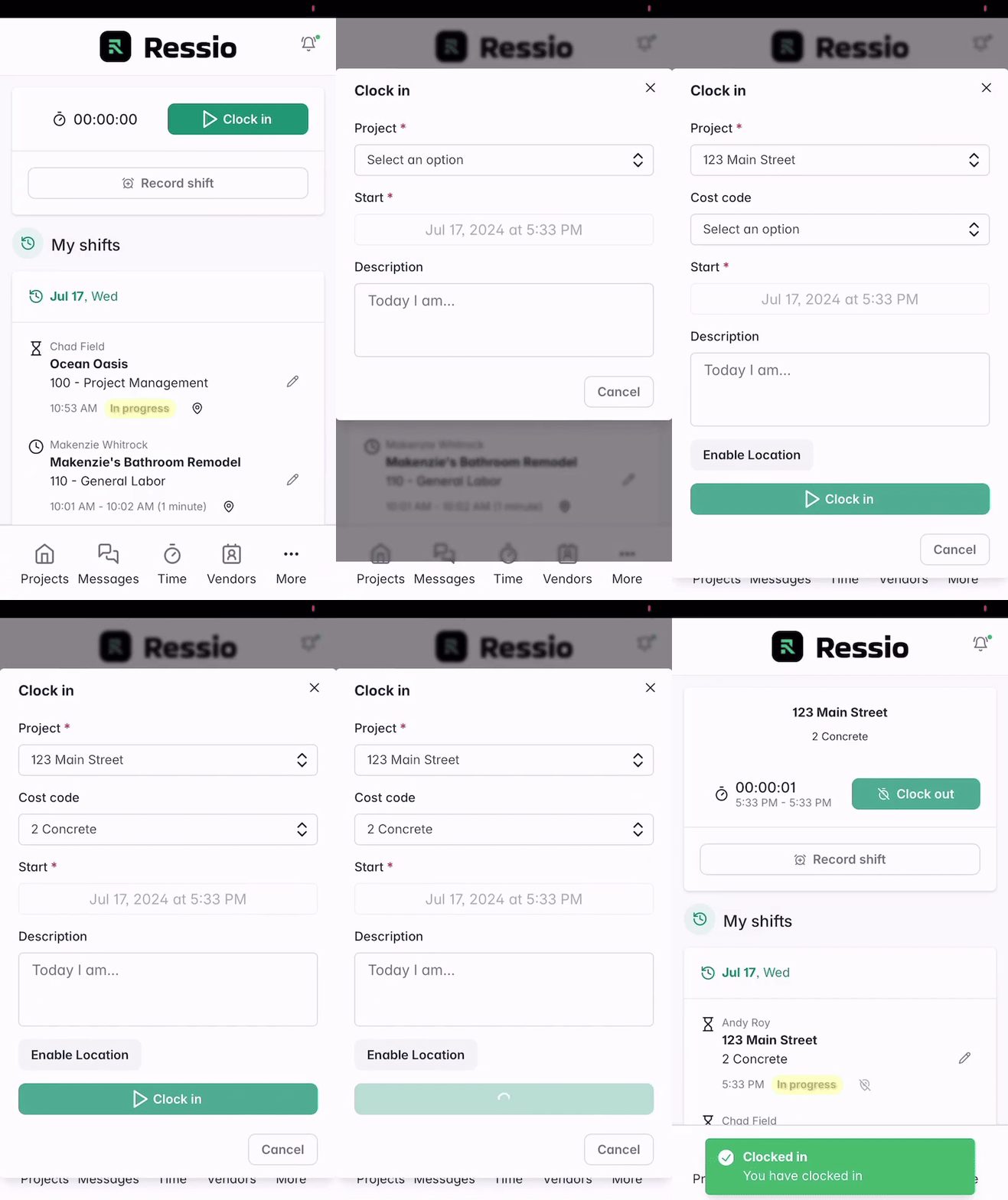
Clock In Form:
Project (required): Select the project you are working on from the dropdown menu.
Cost Code: Costs codes are important for accounting purposes. We recommend picking which code you think is most relevant to your job that day. It can be edited before payroll.
Description: Describe what you are working on or note shift irregularities.
Enable Location: If enabled, Time Clock can geolocate you when clocking in and clocking out ONLY. ⚠️ It does not track you during your shift. ⚠️
Optional Clock In field:
Shift Type: If this field is enabled, choose your shift type. Options typically include Standard, Overtime, PTO.
Clock out in the same way
Select Clock Out → Submit and Finish
✏️ Switching Projects or Cost codes? Clock Out and back in again.
Recording shifts
Time clock also allows you to manually record time. This action can be done at any time, usually at the end of your shift or the week.
From computer
Select Record shift and fill out the form.
Select Submit and finish at the bottom.
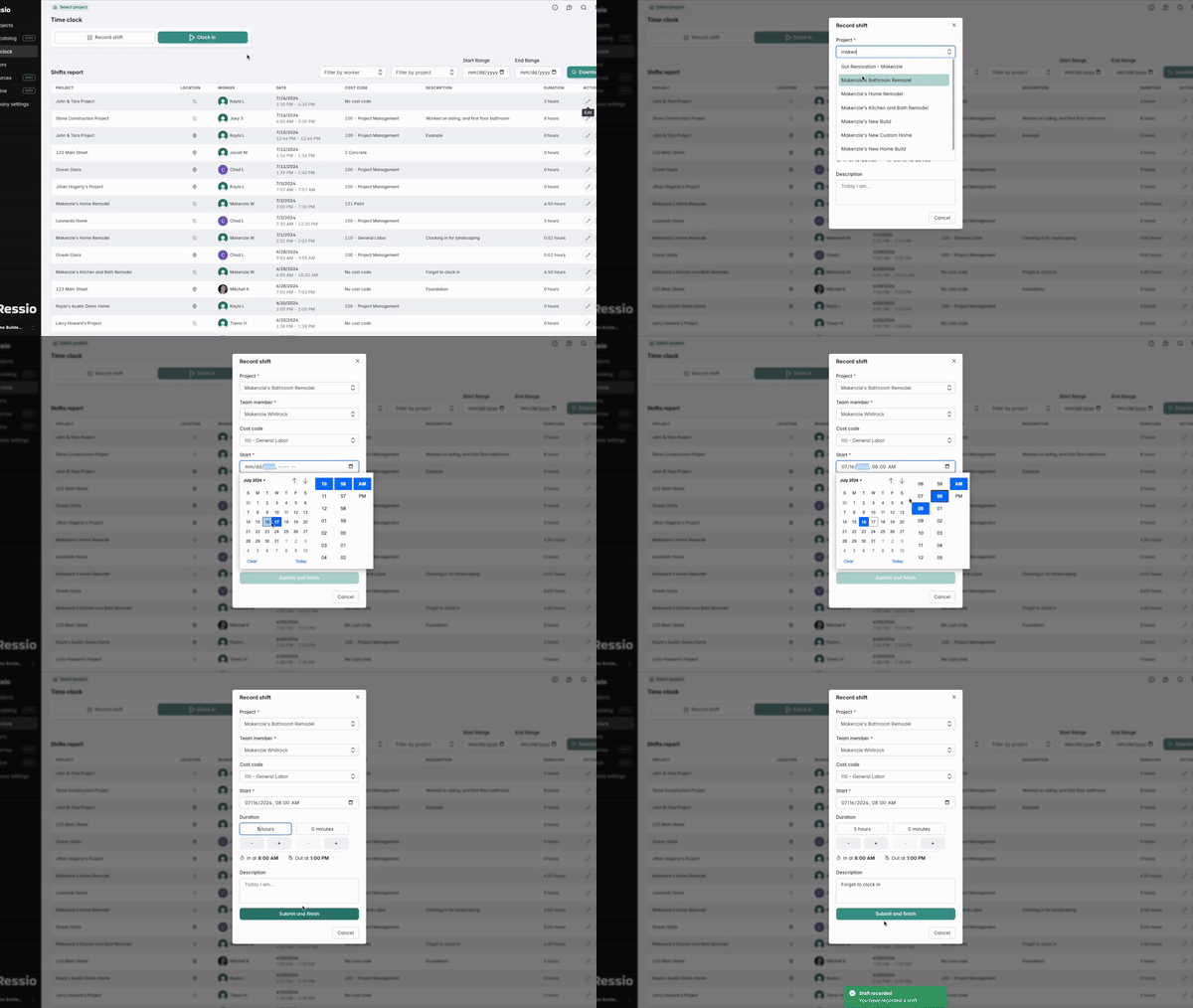
From mobile
Select Record shift and fill out the form.
Select Submit and finish at the bottom.
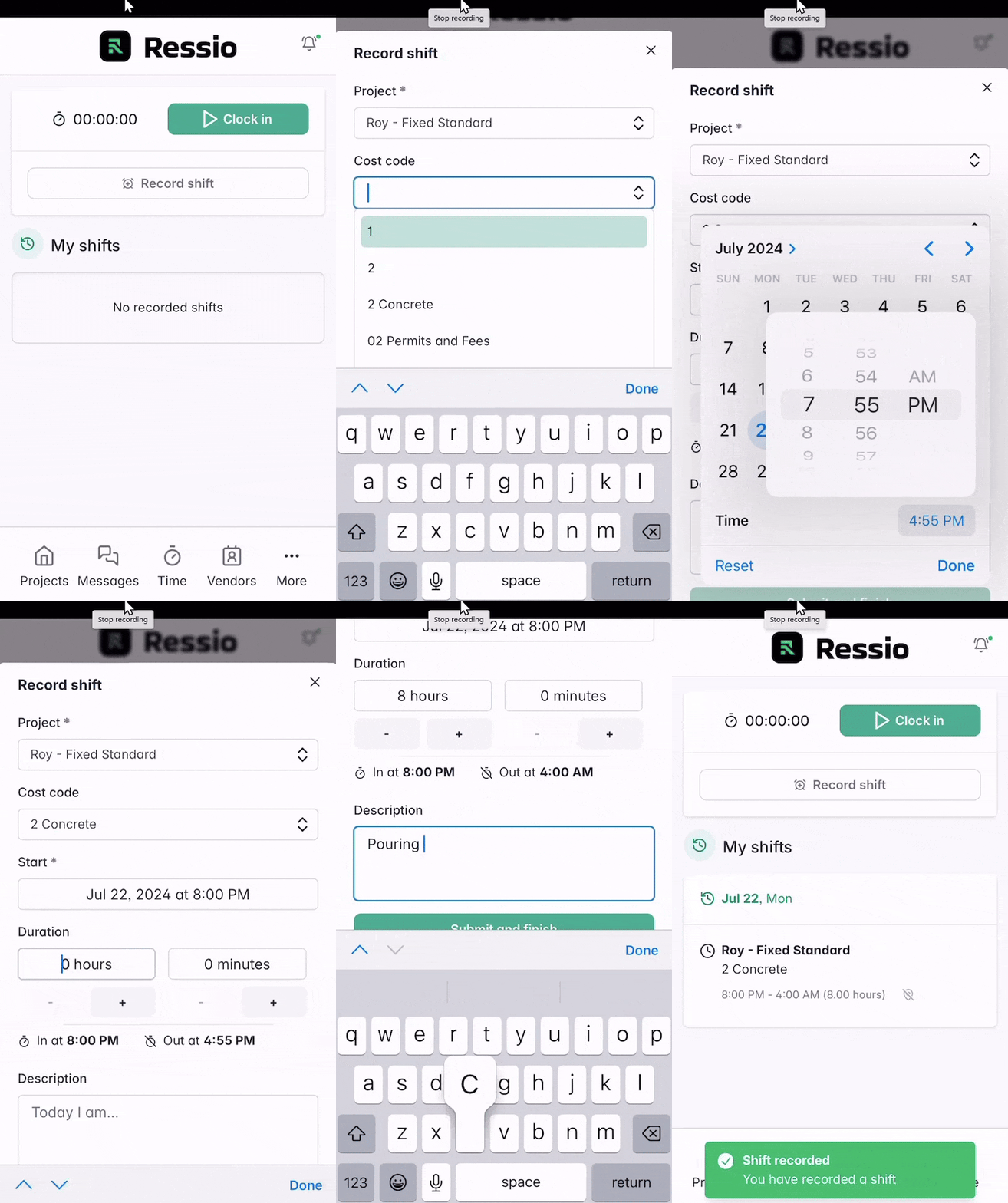
Record shift form:
Project (required): Select the project you are working on from the dropdown menu.
Cost Code: Costs codes are important for accounting purposes. We recommend picking which code you think is most relevant to your job that day. It can be edited before payroll.
Start (required): Select DAY and START TIME.
Duration (required): Select HOURS and MINUTES. Tap in MINUTES to enter custom time.
Description: Describe what you are working on or note shift irregularities.
Optional Clock In field:
Shift Type: If this field is enabled, choose your shift type. Options typically include Standard, Overtime, PTO.
Edit and Delete Shifts
Your Admin may have enabled time editing.
🎗️ You can only edit if it has been approved.
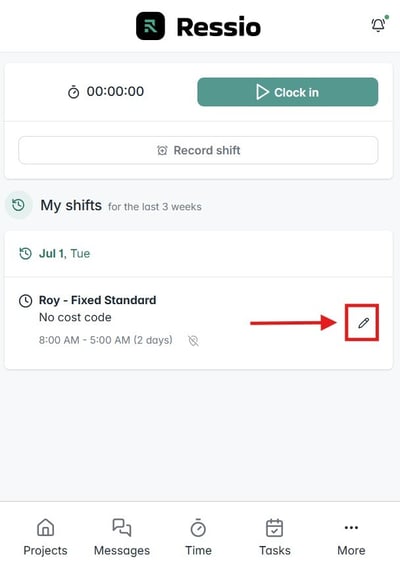
Deleting shifts: Select DELETE at the bottom of the edit window to delete a shift.
Editing for other team members and field users
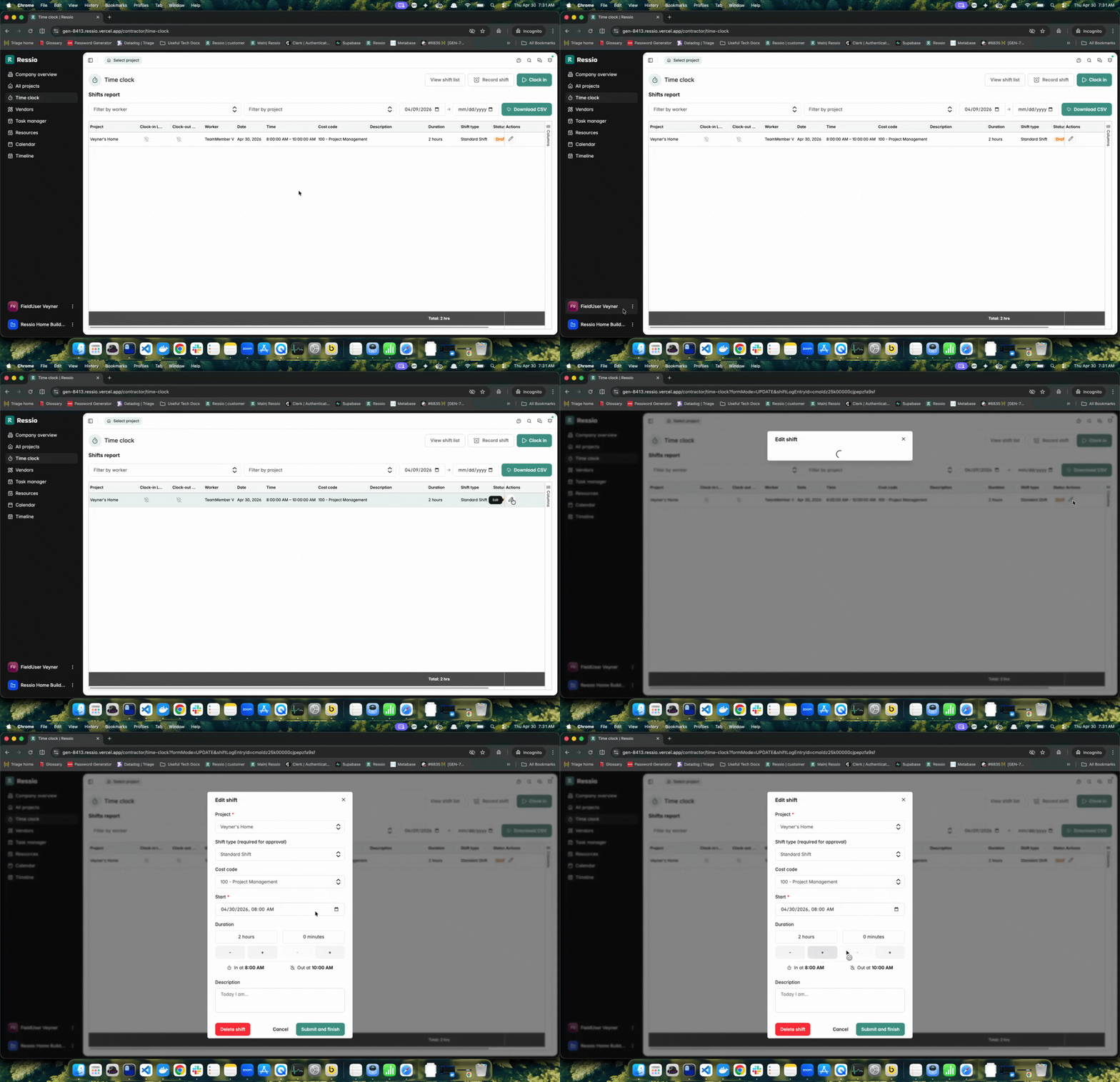
If it you have been enabled to edit shifts for others, you will see a pencil icon under actions on the time clock table.
-
Navigate to the Time Clock tab.
-
Click the pencil icon under Actions.
- Edit shift and hit Submit and finish.
.png?width=670&height=203&name=download%20(21).png)
Switching Shifts
The new Switch Shift feature enhances efficiency when moving between shifts:
-
When clocked into a current shift, a new Switch Shift button appears
-1.png?width=394&height=160&name=download%20(5)-1.png)
-
Select Switch Shift to automatically pre-fill the details for a new shift.
-1.png?width=670&height=392&name=download%20(2)-1.png)
Review the form, making sure the shift type and project name are correct. Hit the "Switch shift" button on the bottom to switch to the new shift.
⚠️ This process logs you out of the existing shift and immediately clocks you into the new one.
If you have any questions or need further assistance, contact our support team at support@ressiosoftware.com. We're here to help!