.png?width=75&height=75&name=Untitled%20design%20(22).png)
Ressio now supports partial payments and multiple payments on client invoices. This allows you to record payments as they come in, without needing to wait for the full invoice amount to be paid all at once.
Whether a client pays in installments, makes an overpayment, or completes payment in multiple steps, Ressio automatically updates the invoice status and remaining balance for you.
Key Benefits:
-
Accept partial payments on client invoices with ease
-
Record multiple payments until an invoice is fully paid
-
Automatically track remaining balances
-
Clearly see which invoices are partially paid vs fully paid
-
Improve cash flow visibility without manual tracking
Table of Contents
- Navigation and Layout Overview
- Record Partial Payments
- Recording Multiple Payments in an Invoice
- Overpayment Notifications
- Tracking Partially Paid Invoices
Navigation & Layout Overview
Navigate to the project where you invoice is located. Find the 'Invoices' tab and choose the invoice from your list or hit the "New Invoice" button to create a new invoice.
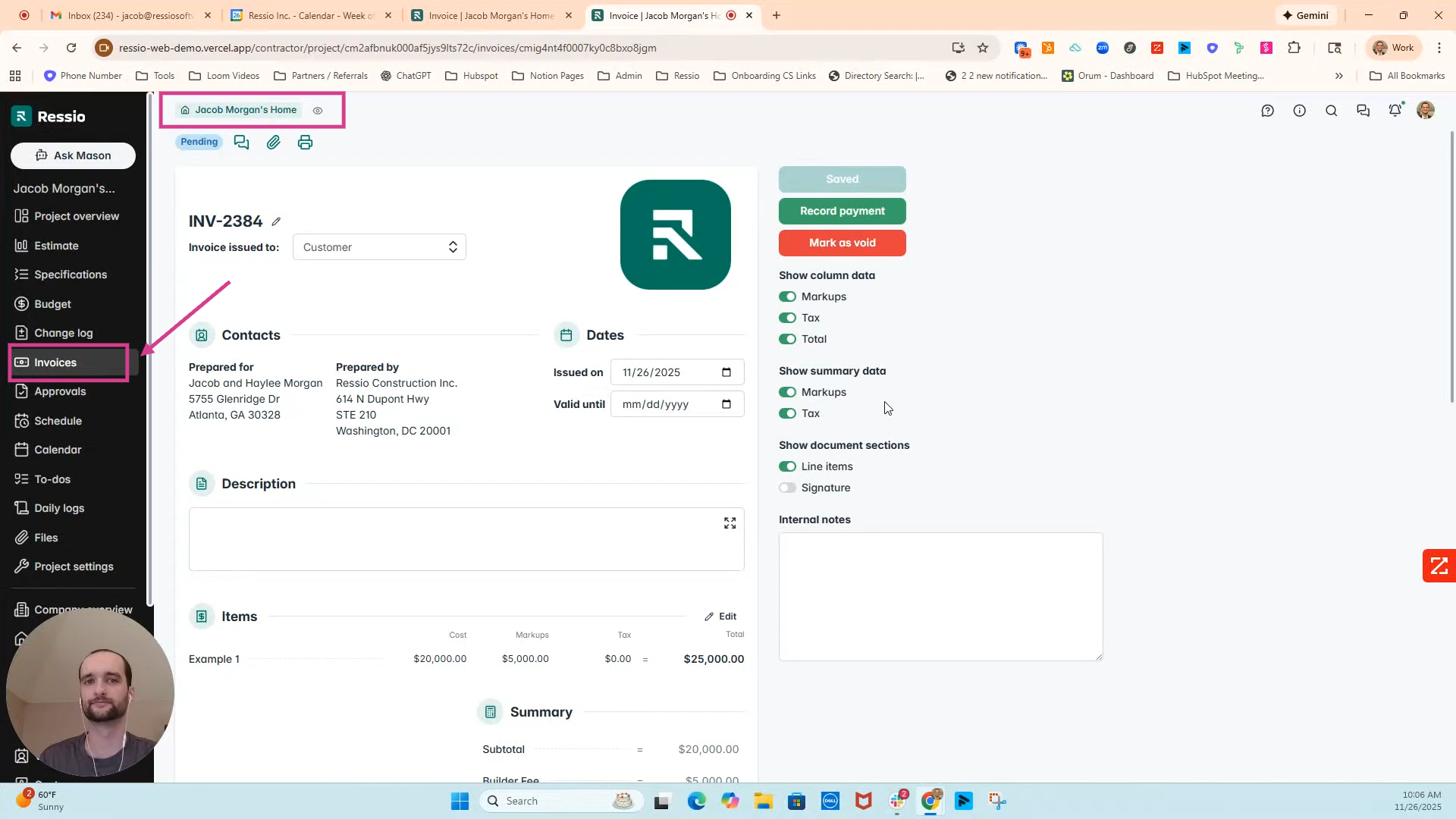
🔍 The invoice screen shows breakdowns for total due and payment history. To learn more about creating invoices, read Invoices Overview.
Record Partial Payments
To record a partial payment on a client invoice:
-
Open the invoice from your Invoices page
-
Click Record Payment
-
The payment amount will automatically default to the remaining balance
-
Enter a lower amount if the client is making a partial payment
-
Confirm the payment date and payment source
-
Save the payment
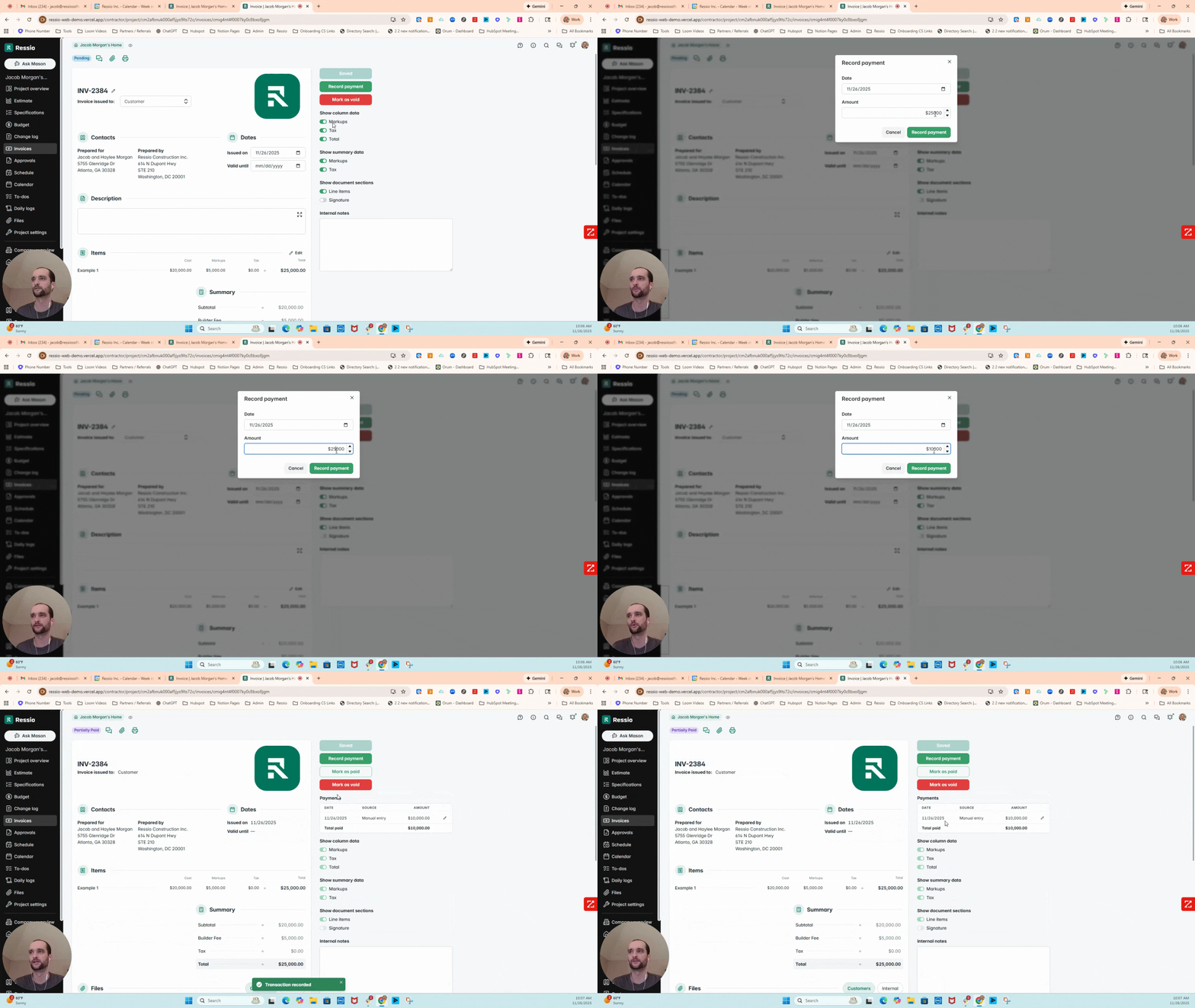
Once saved, the invoice status will update to Partially Paid, and the remaining balance will be adjusted automatically.
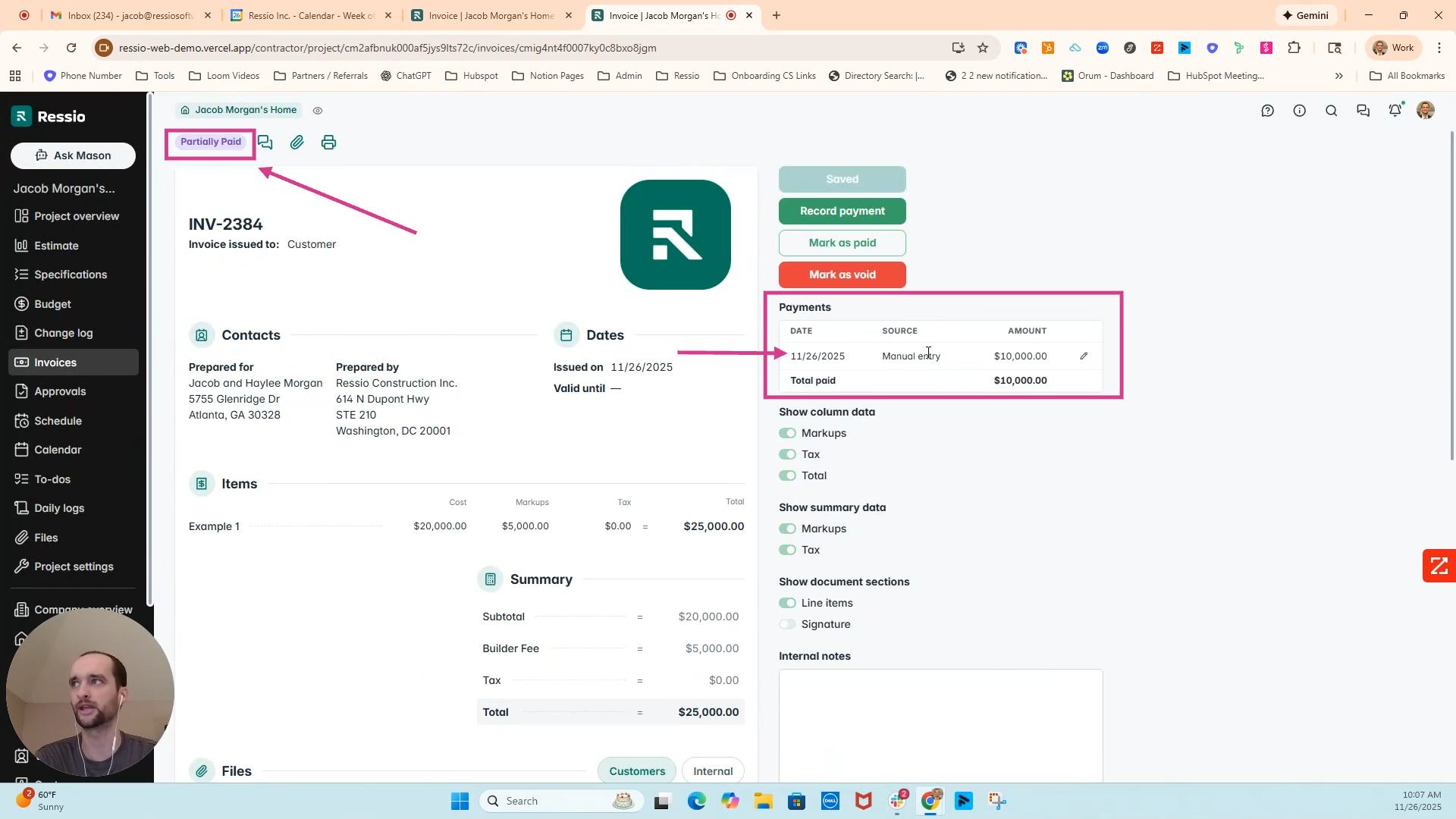
Recording Multiple Payments on an Invoice
You can continue recording payments on the same invoice until it is fully paid.
-
Open a Partially Paid invoice
-
Click Record Payment again
-
The amount will default to the remaining balance
-
Save the payment
After the final payment is recorded, the invoice status will update to Paid in Full.
📌 Make as many partial payments as needed; Ressio tracks and updates balances automatically.
Overpayment Notifications
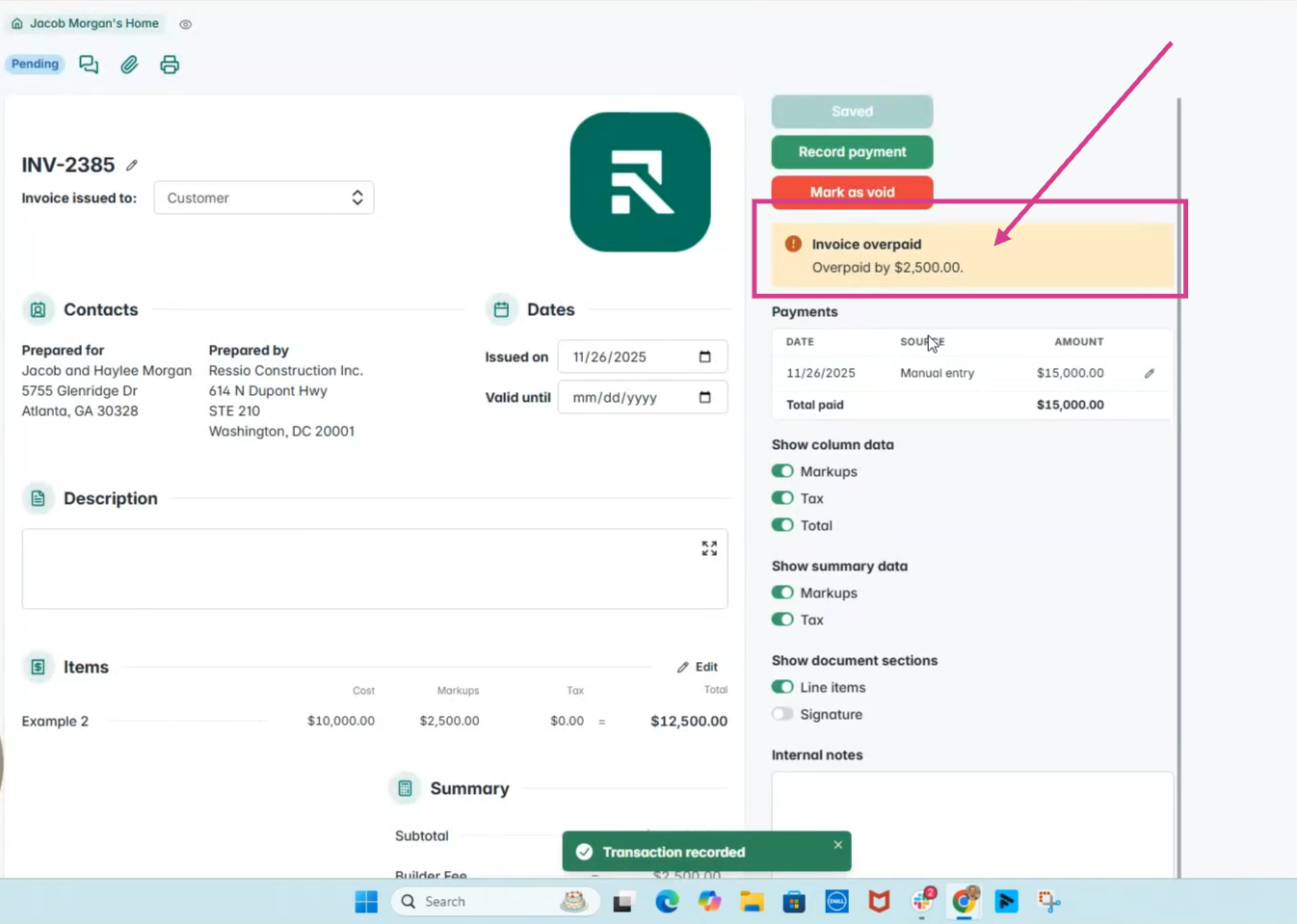
When entering an amount greater than the invoice total:
-
Ressio displays an alert showing how much you are over the invoice amount.
-
Adjust the payment to match or partially cover the invoice to avoid overpayments.
Tracking Partially Paid Invoices
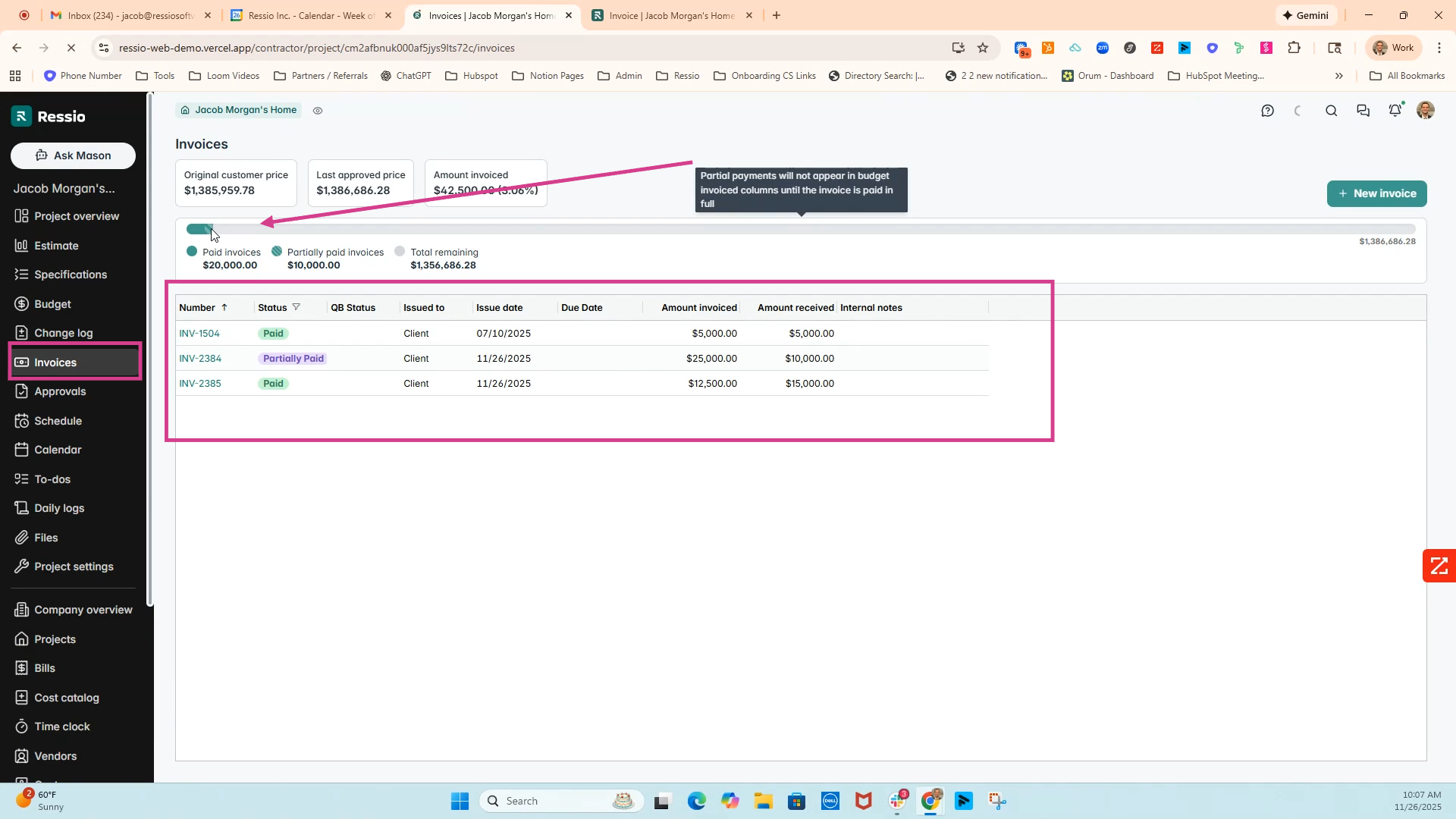
On the Invoices page, you can easily identify payment status at a glance:
-
Striped progress bars indicate partially paid invoices
-
Visual indicators show:
-
Paid Invoices
-
Partially paid invoices
-
Total remaining
-
-
Summary totals display:
-
Original customer price
-
Last approved price
-
Amount invoiced
-
This makes it easy to monitor cash flow and follow up on outstanding payments.
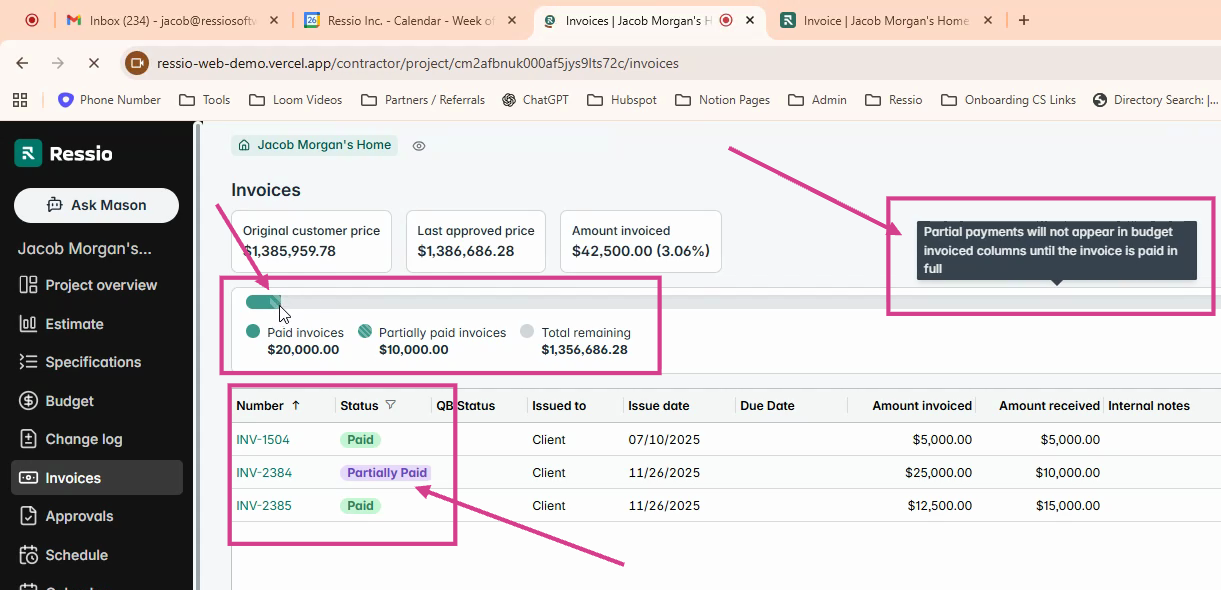
⚠️ Partial payments will not appear in budget invoiced columns until the invoice is paid in full.
If you have any questions or need further assistance, contact our support team at support@ressiosoftware.com. We're here to help!