.png?width=75&height=75&name=Untitled%20design%20(22).png)
This gives you more control over your workflow by allowing bills to go through an approval process in Ressio before being sent to QuickBooks.
Key Benefits:
🧾 Create and manage bills directly in Ressio
✅ Run bills through an internal approval workflow
🔄 Automatically sync approved bills to QuickBooks
📊 Keep your project budget and accounting aligned
📌 Track bill status (Draft → Approved → Paid)
Table of Contents
Before You Start
To push bills to QuickBooks, make sure the following are connected:
- ✅ QuickBooks account is connected
- ✅ Cost Codes are mapped to QuickBooks Products & Services
- ✅ Projects are linked to QuickBooks Customers/Projects
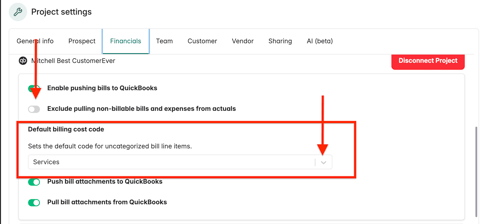
- ✅ Set a default billing Cost code in Project Settings - Financials
🎓 For more information about the Quickbooks integration, read QuickBooks Integration Overview.
Enable Bill Sync
Go to Project Settings-->Financial Tab-->Scroll down to "Connect to Quickbooks" section.
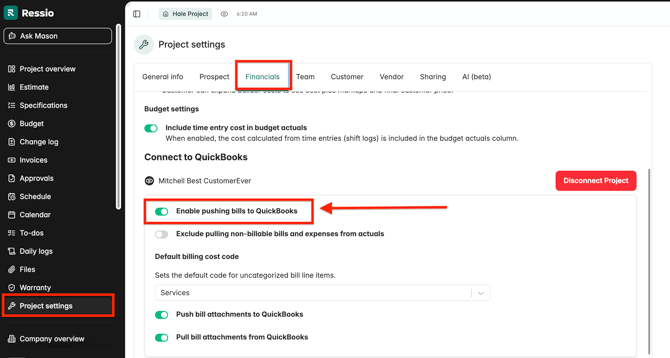
✏️ Ressio only pushes unpaid bills to QuickBooks, and they must be marked as paid in QuickBooks.
Connect Vendors to QuickBooks
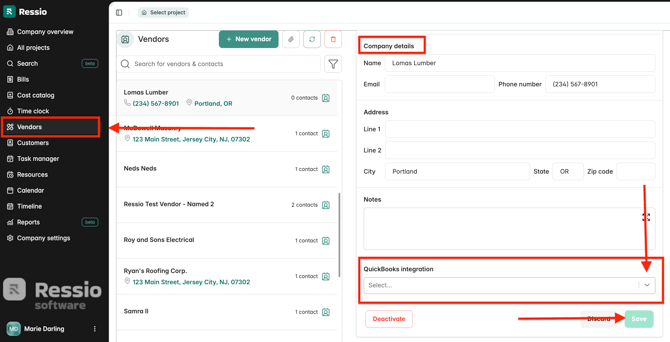
Before creating bills, vendors must be linked to Quickbooks vendors.
-
In Company Overview, navigate to you the Vendors tab.
-
Select you vendor and click 'Edit details'.
-
Scroll to QuickBooks Integration
- Using the drop down menu, Match the vendor to the correct QuickBooks vendor
-
Save
Creating a Bill
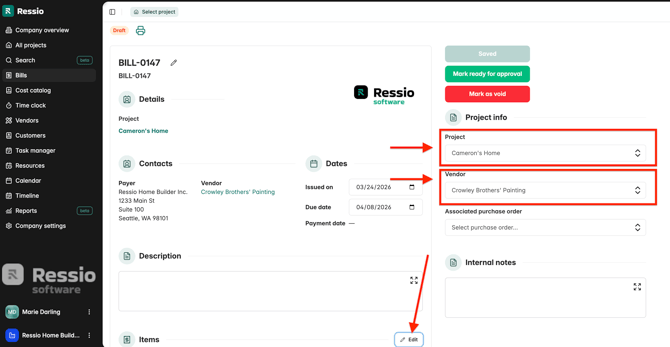
Ensure the Project, Vendor and Cost Code are connected to Quickbooks before approving the bill.
Attaching Files
Pushing a Bill to Quickbooks
To push a bill to Quickbooks, approve the Bill.
🔄 For more information about bill statuses, read Bills Overview - Approval process
⚠️ Important: Once a bill is approved, it cannot be edited in Ressio. Changes must be made in Quickbooks
Disabling Bill push (Temporarily)
If you wish to add a bill to the budget, but not sync to Quickbooks, follow the steps below:
-
In Project Settings, turn off Enable Pushing Bills to QuickBooks
-
Approve the bill
-
Reenable the setting afterward
Syncing Paid Status
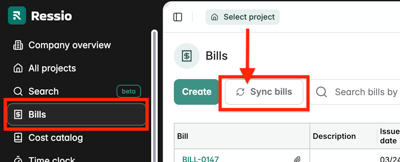
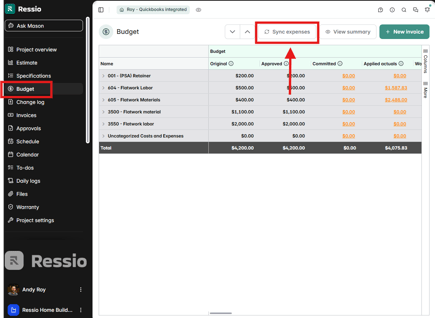
Ressio automatically syncs paid statuses overnight. To force refresh bill status:
-
Go to Bills → Sync Bills
-
Or go to the Project Budget → Sync Expenses
Handling Receipts (Already Paid)
If the bill is a receipt, mark the bill as paid as soon as it syncs in Quickbooks.
Pushing and Pulling File Attachments
You can attach files to the bill in both Ressio and Quickbooks. It's fairly common to attach invoices that need to be paid so you have a record of them.
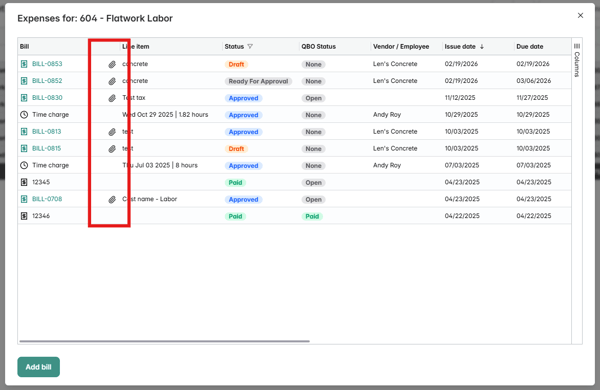
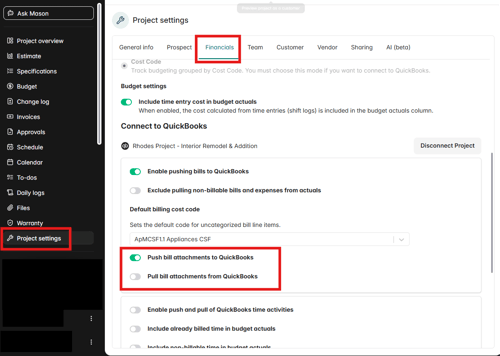
🎓 To learn more about pushing and pulling bill attachments in Quickbooks and Ressio, read more here.
Additional Settings
- Bills marked non-billable in QuickBooks will not sync into Ressio
If you have any questions or need further assistance, contact our support team at support@ressiosoftware.com. We're here to help!