.png?width=75&height=75&name=Untitled%20design%20(22).png)
Discover how to efficiently manage your projects, tasks, schedules, and communication on the go with the Ressio progressive web app. This guide covers navigation, daily workflows, and key features that keep your teams organized—all from your mobile device.
Benefits of Using the Ressio Mobile App:
- Access project data anytime, anywhere—no installation needed.
- Stay updated on project activities through the activity feed.
- Upload and access files instantly from the field.
- Keep projects on track with built-in scheduling, messaging, and to-do management.
- Collaborate, view vendor contacts, and manage budgets from one place.
Table of Contents
1. Installing and Opening the Mobile App
5. More Section & Vendor Management
6. Navigating Inside a Project
7. Working with Files, Specs, Logs, and Schedules
Installing and Opening the Mobile App
Ressio uses a progressive web app (PWA) model.
-
Save the app to your mobile device home screen directly from your browser
-
Tap the Ressio icon to launch the app anytime
-
No traditional app store installation required
🎓If you have not installed the app to your phone, please read 'Can I save Ressio as an App?' for step-by-step guide on how to save the app to your mobile device.
[back-to-top]
Navigation & Layout
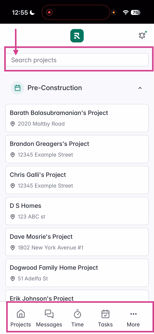
After launching, you'll arrive at the main Projects page where you can see all active projects. Navigation occurs through tabs at the bottom and a top navigation bar within specific projects.
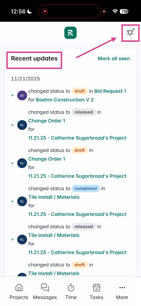
In the top right hand corner there is the bell icon 🔔 . Tap the icon and:
-
View updates from any project
-
Review recent changes and alerts
-
Mark all notifications as Seen once reviewed
Great for staying updated without opening each project individually.
Messages & Communication
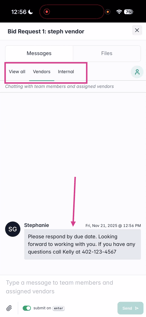
Select the Messages tab at the bottom to view messages across all projects. Unread messages display a green bar and dot; read messages turn gray for easy tracking.

Time Clock & Task Manager
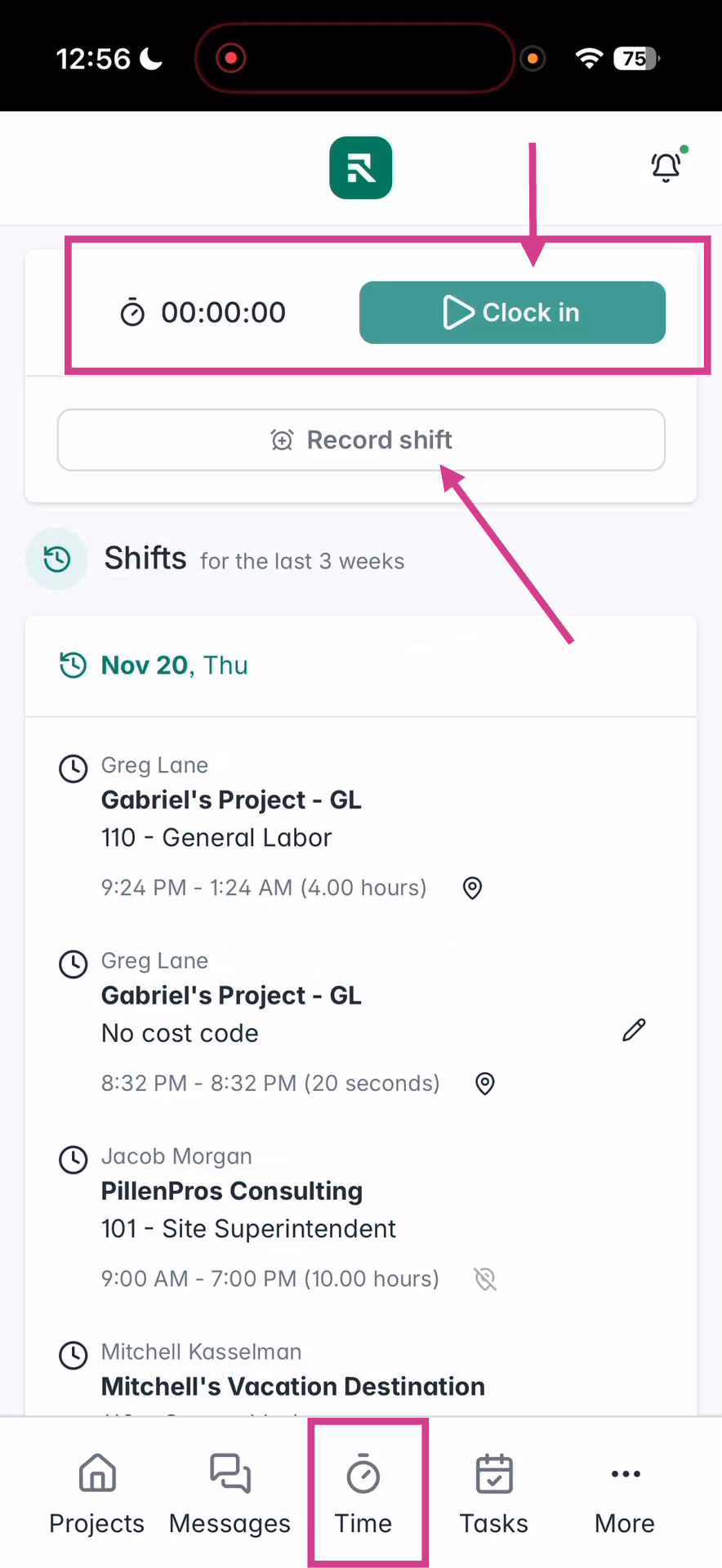
Use the Time Clock tab to:
-
Clock in and out in real time
-
Record past shifts if needed
-
Keep accurate jobsite time entries from the field
-
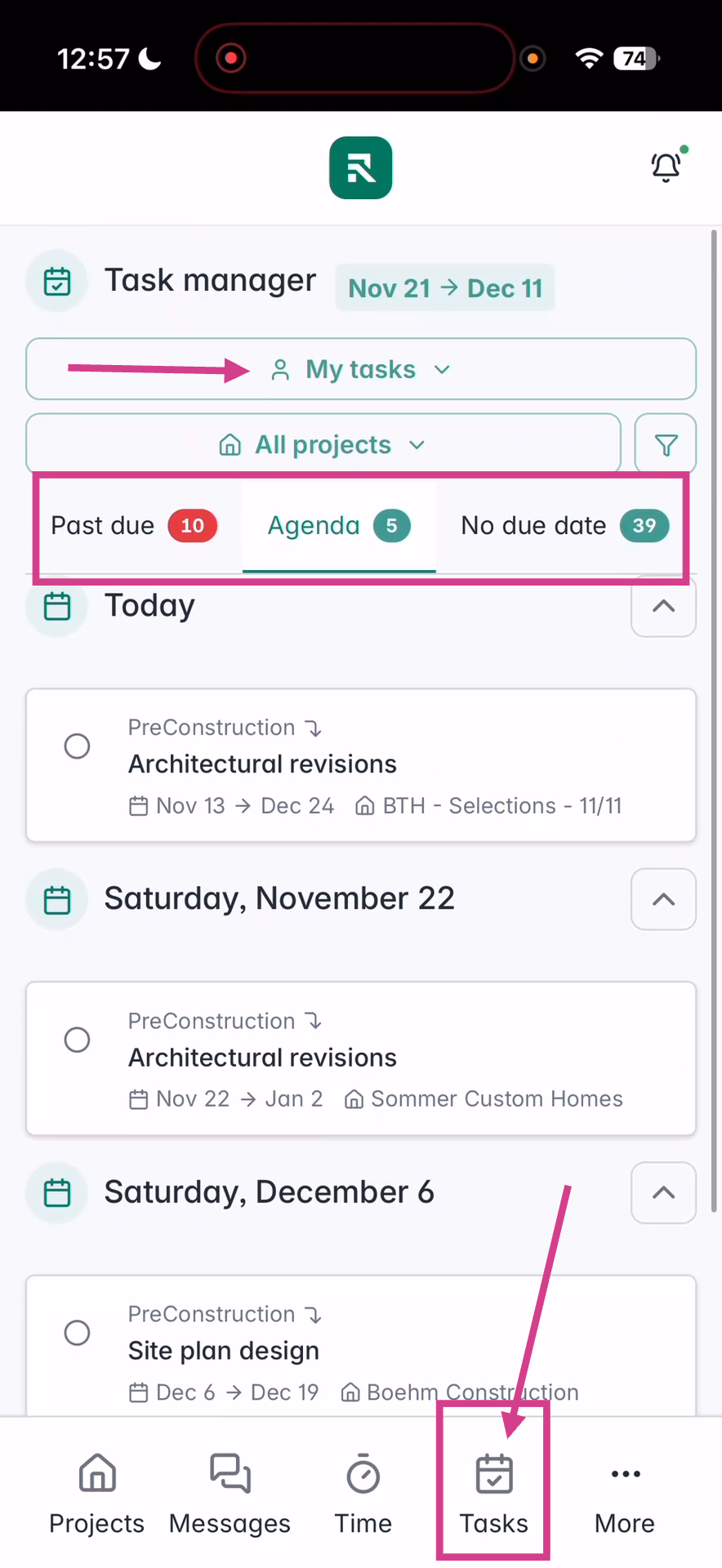
The Task Manager tab allows you to:
-
See all past-due tasks across your projects
-
View today's schedule and upcoming work
-
Load future weeks for advanced planning
-
Filter tasks and mark items In Progress or Completed
You'll also find a list of tasks without due dates, ensuring nothing slips through the cracks.
-
More Section & Vendor Management
The More menu provides:
-
All vendor contact details (your mobile rolodex)
-
Quick ability to search vendors
-
Option to switch to desktop view (recommended for tablets)
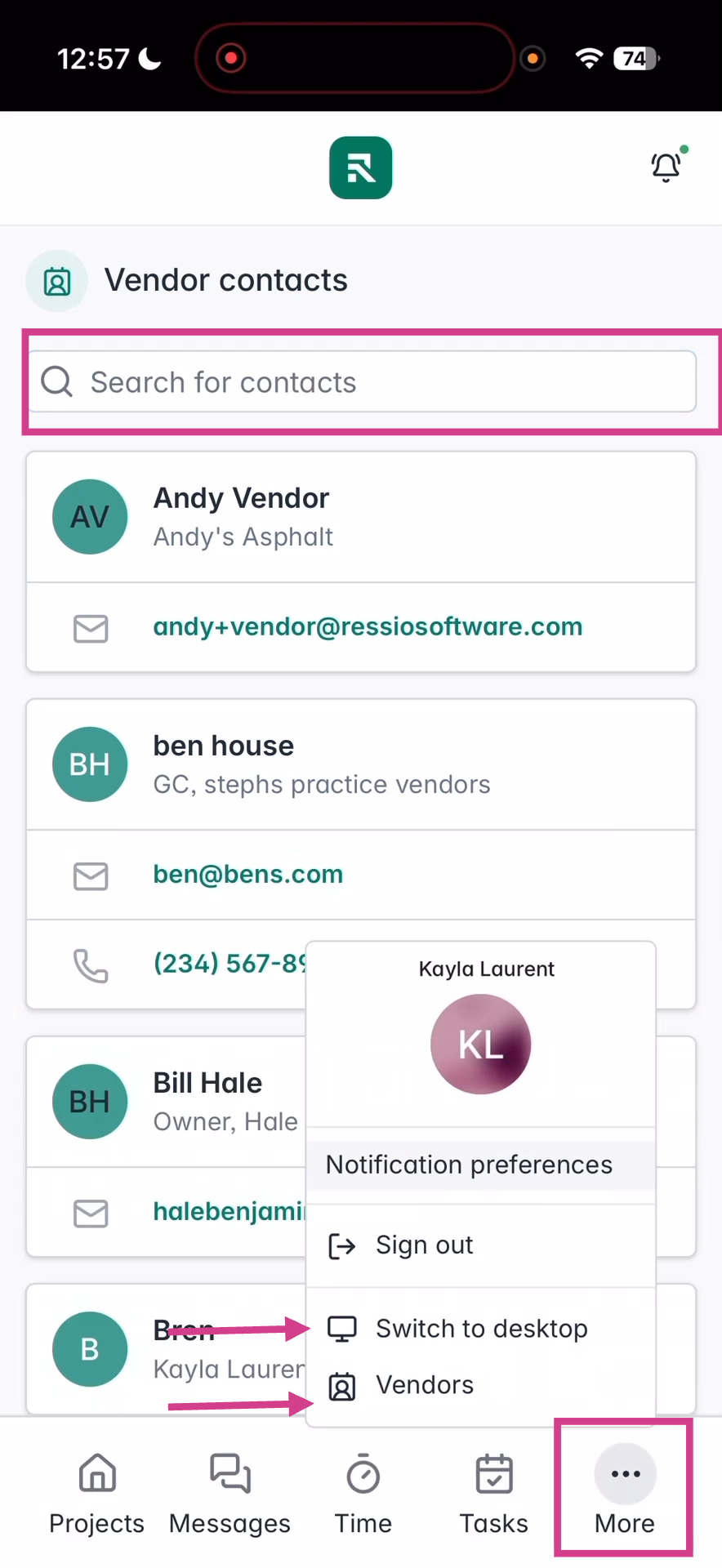
💡For desktop view, recommended for larger devices like a tablet.
Navigating Inside a Project
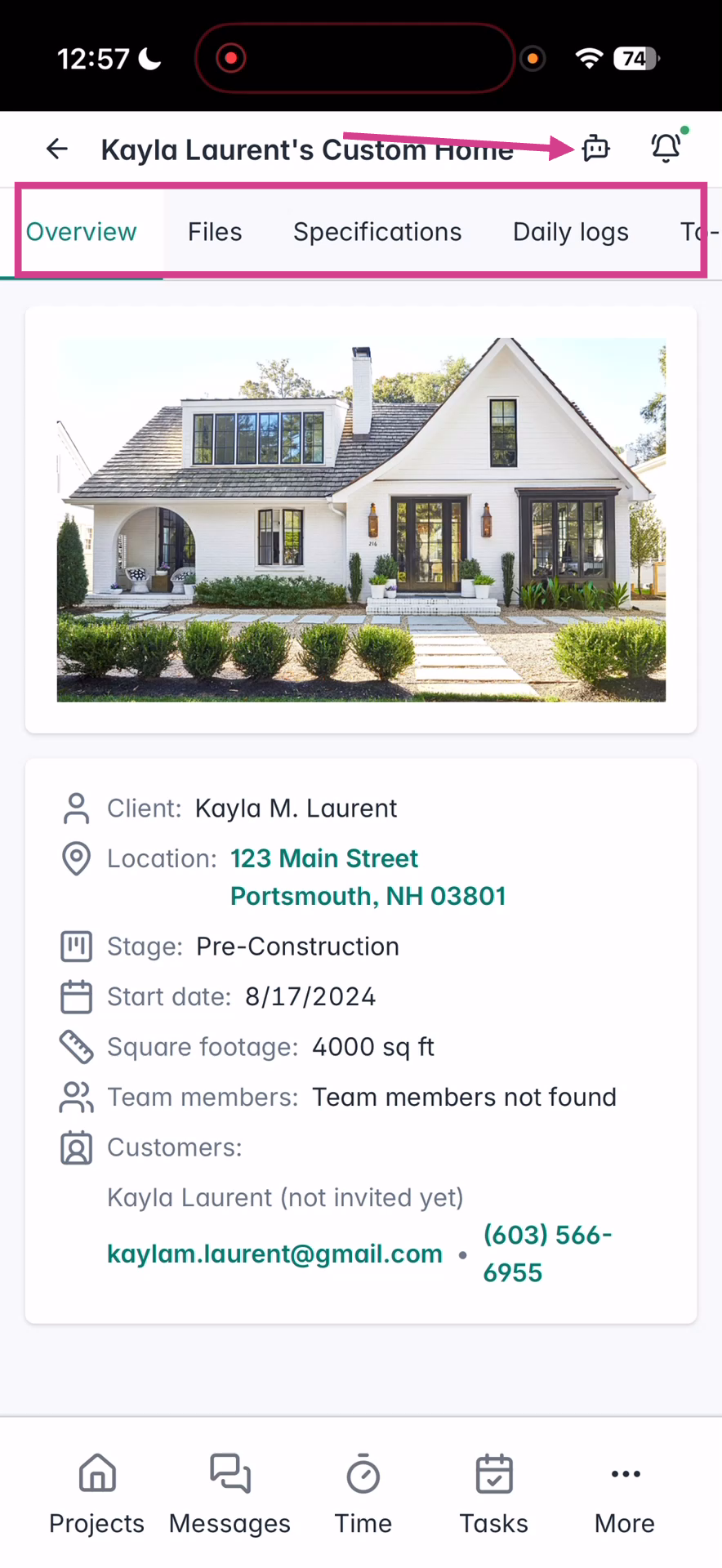
Select a project to enter its Project Workspace. Here you'll find:
-
Navigation across the top of the screen
-
An AI Robot icon for Mason, your AI project assistant
-
Ask questions
-
Generate to-do lists
-
Automate repetitive tasks
-

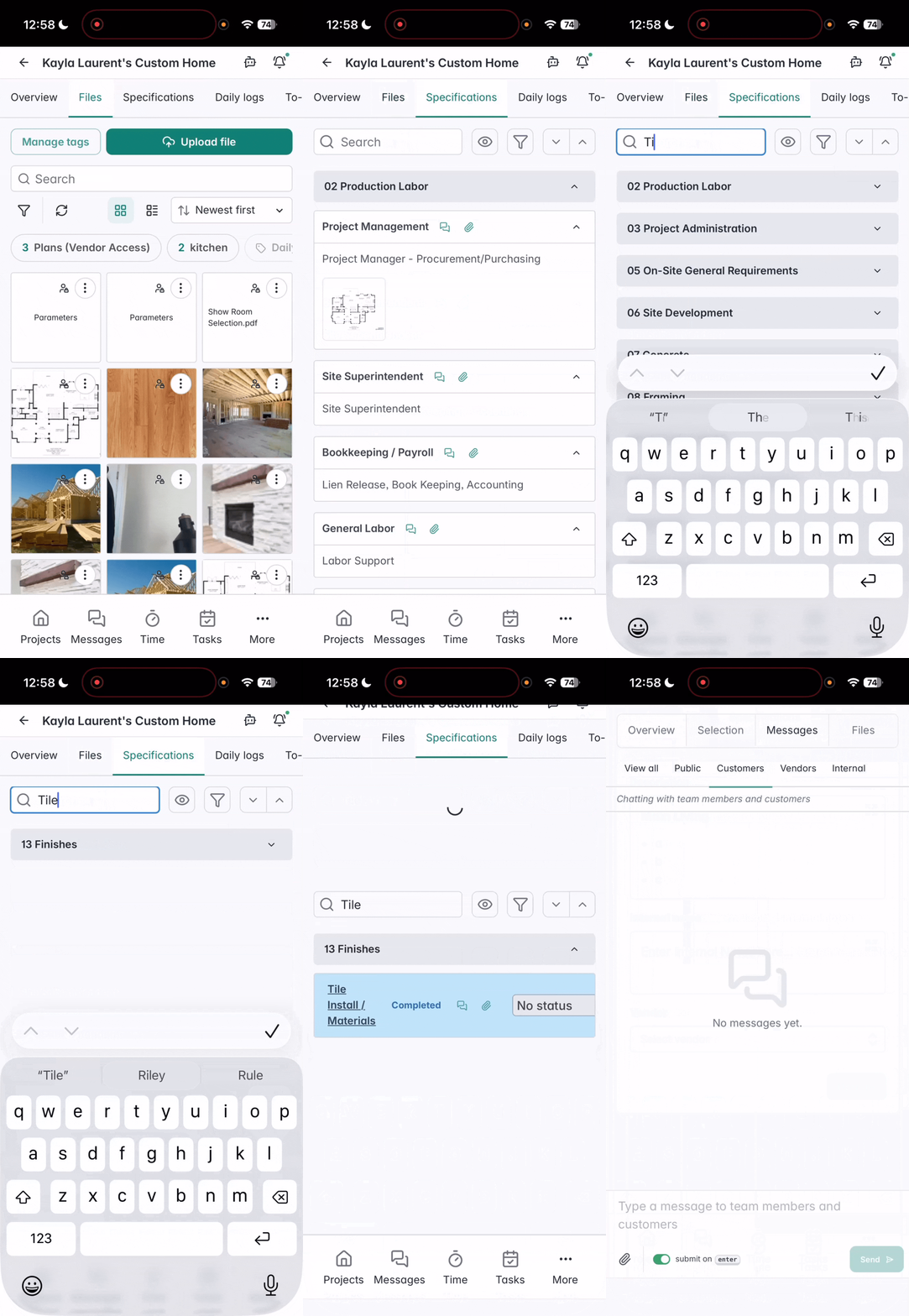
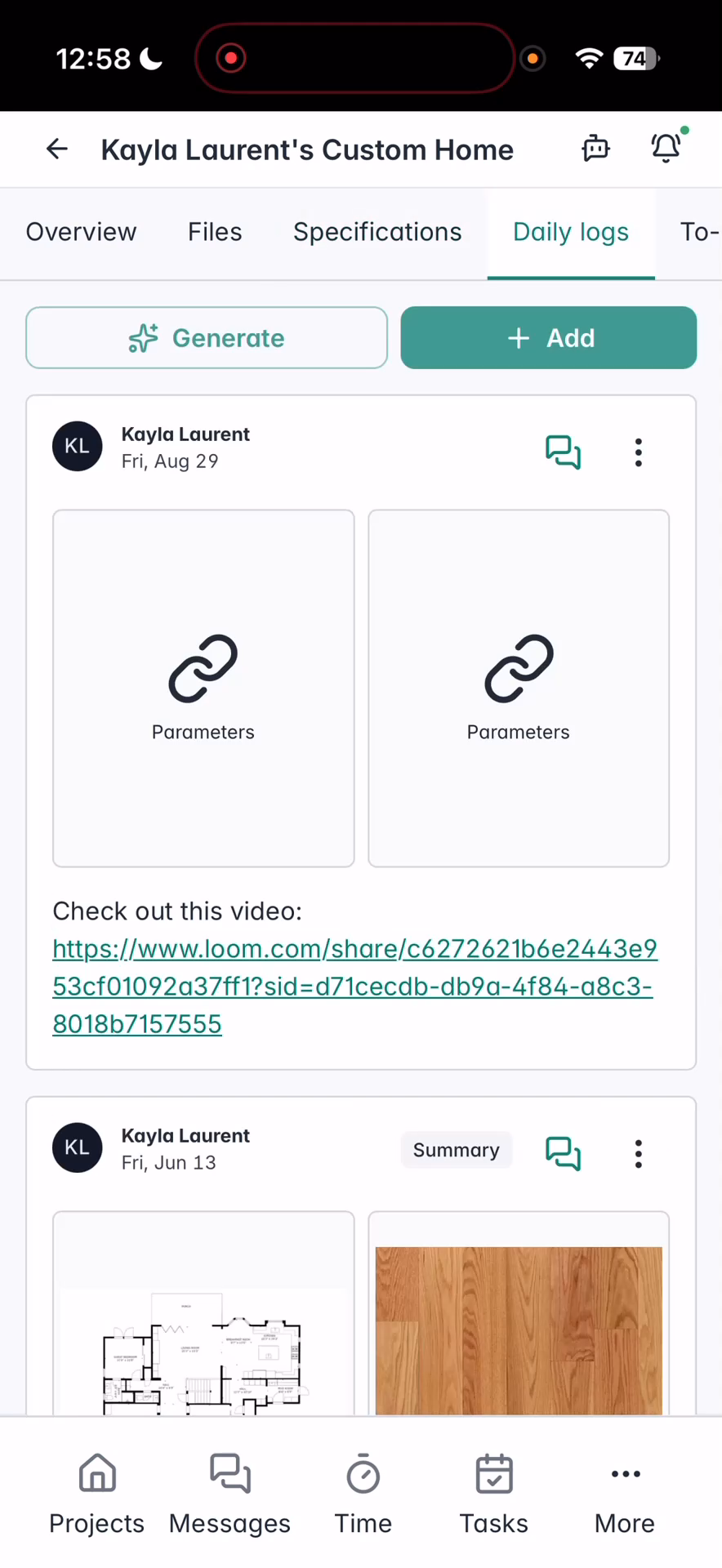
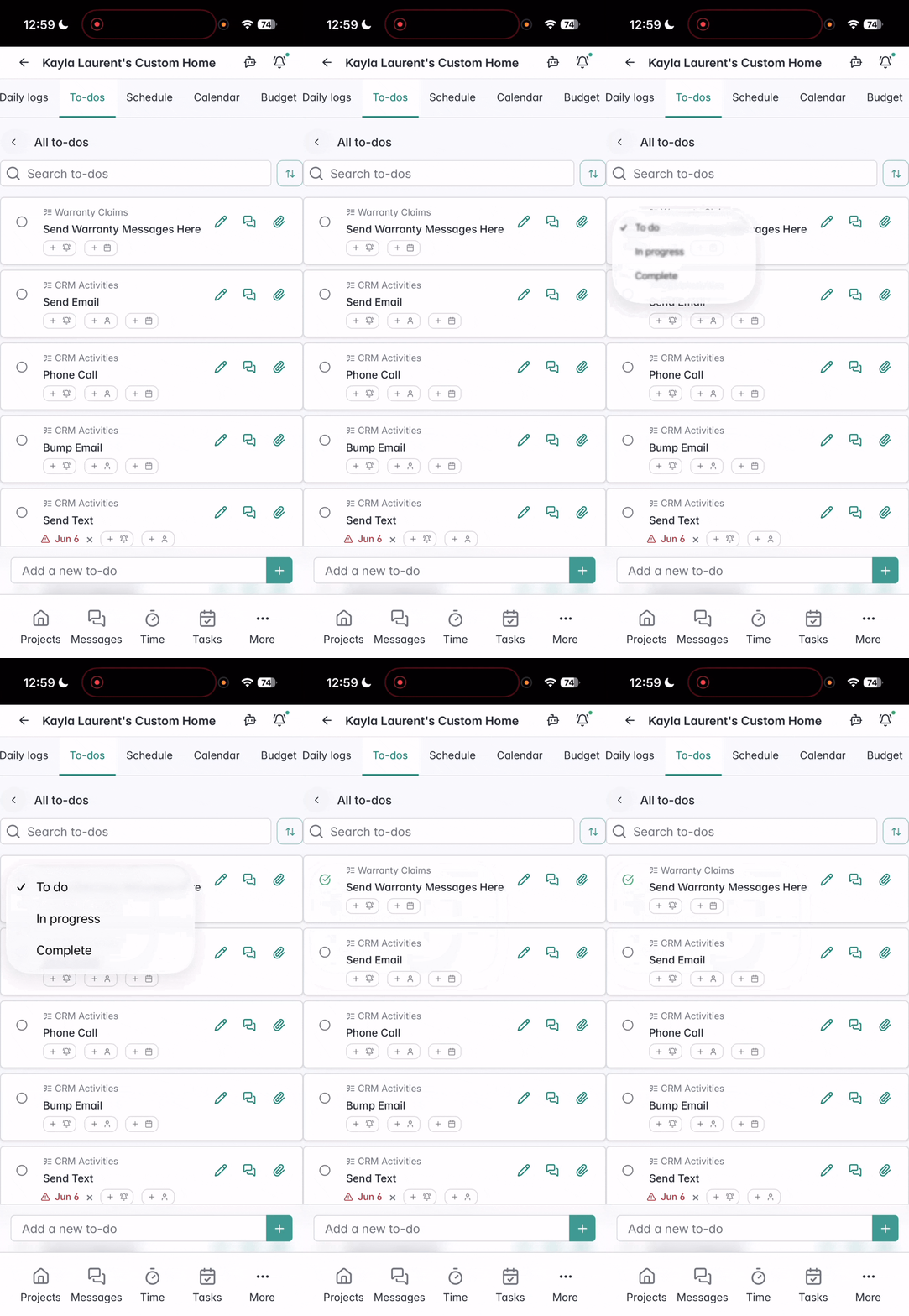
Working with Files, Specs, Logs, and Schedules
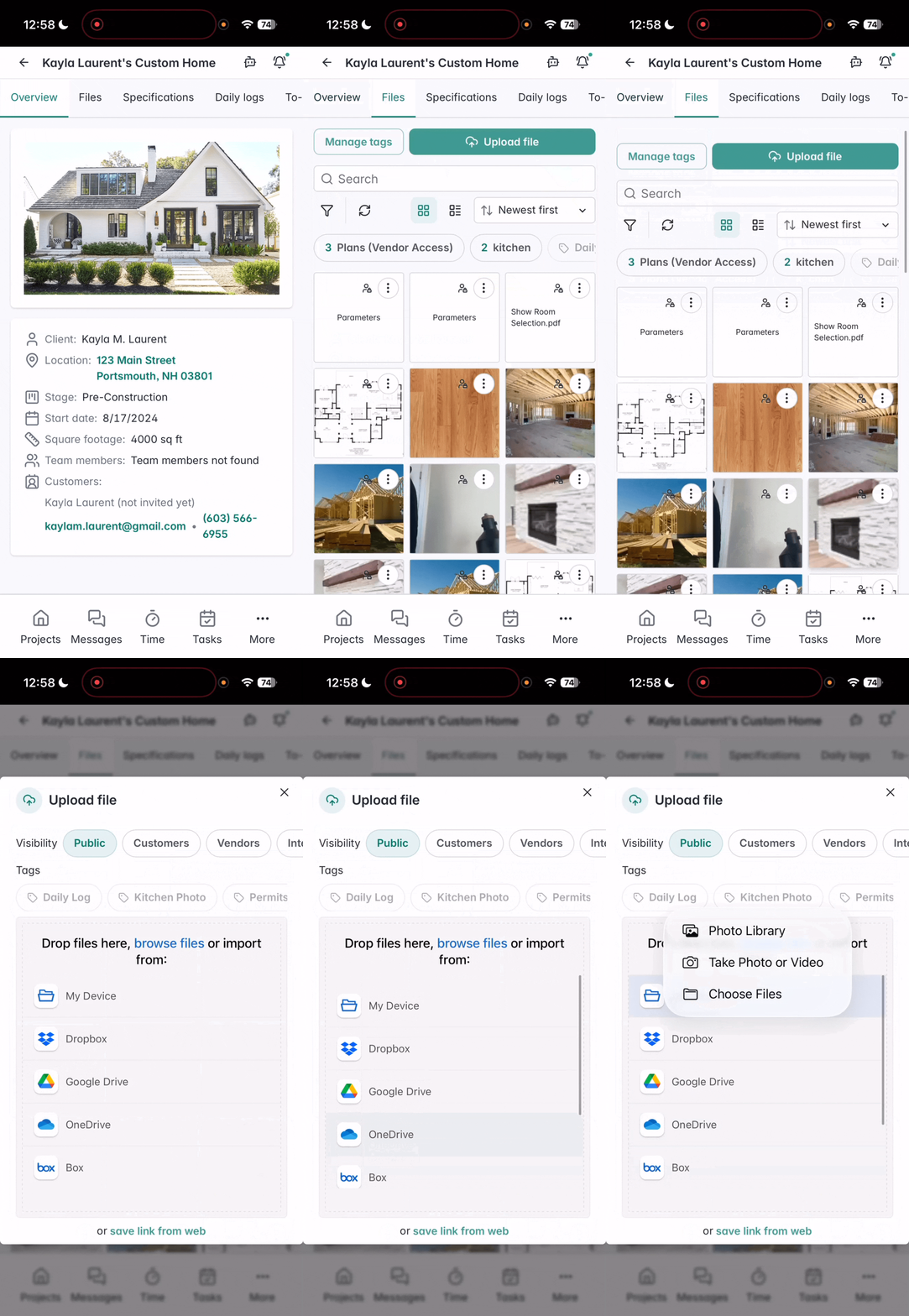
Inside a project, you can:
-
Upload documents or images directly from your phone
-
Allow camera access for live photo uploads
-
View the live scope of work generated from your estimate
-
Search specifications, message team members, attach files, or add notes
-
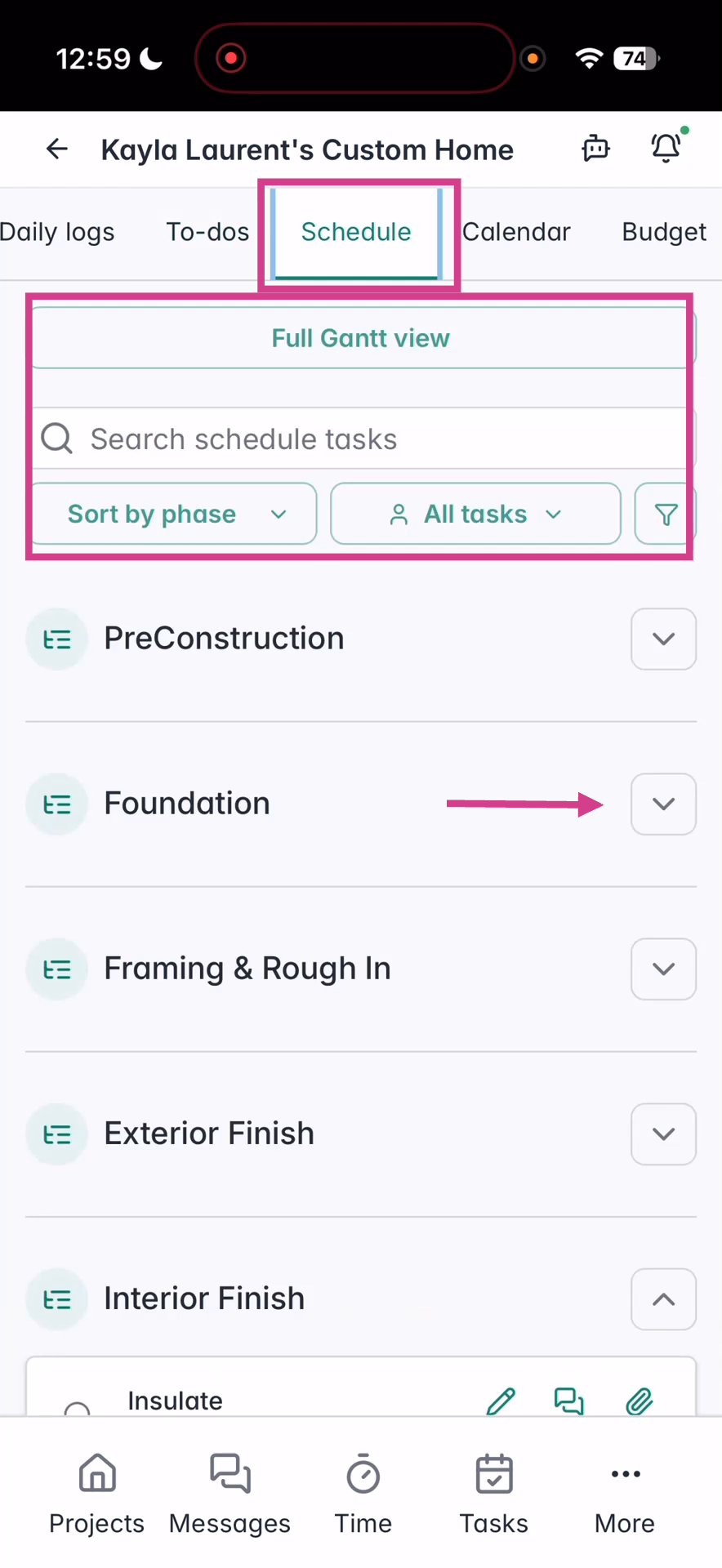
View schedules in list view on mobile
-
Expand tasks under each phase
-
Optional Gantt view (best on larger screens)
-
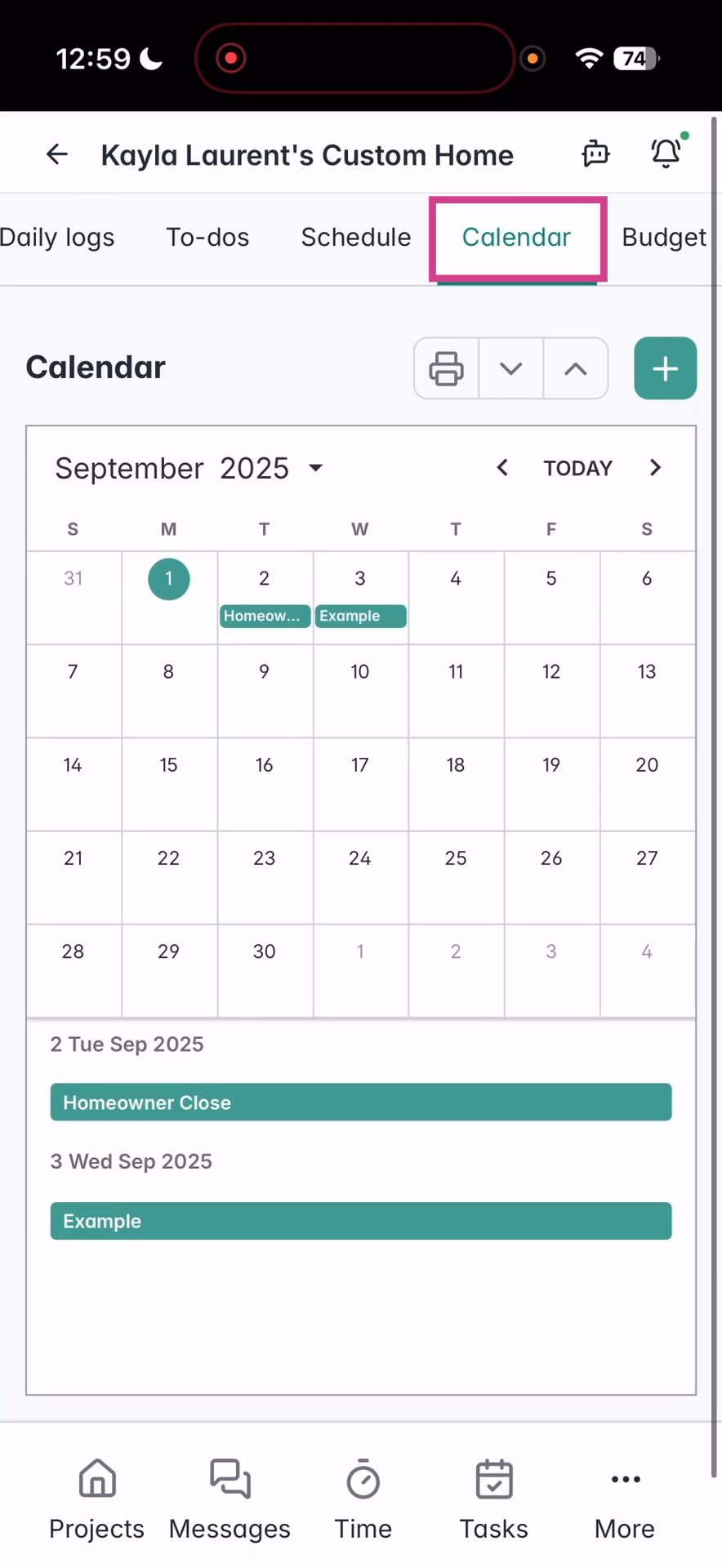
Calendar View for visual scheduling
Budgets and Reporting
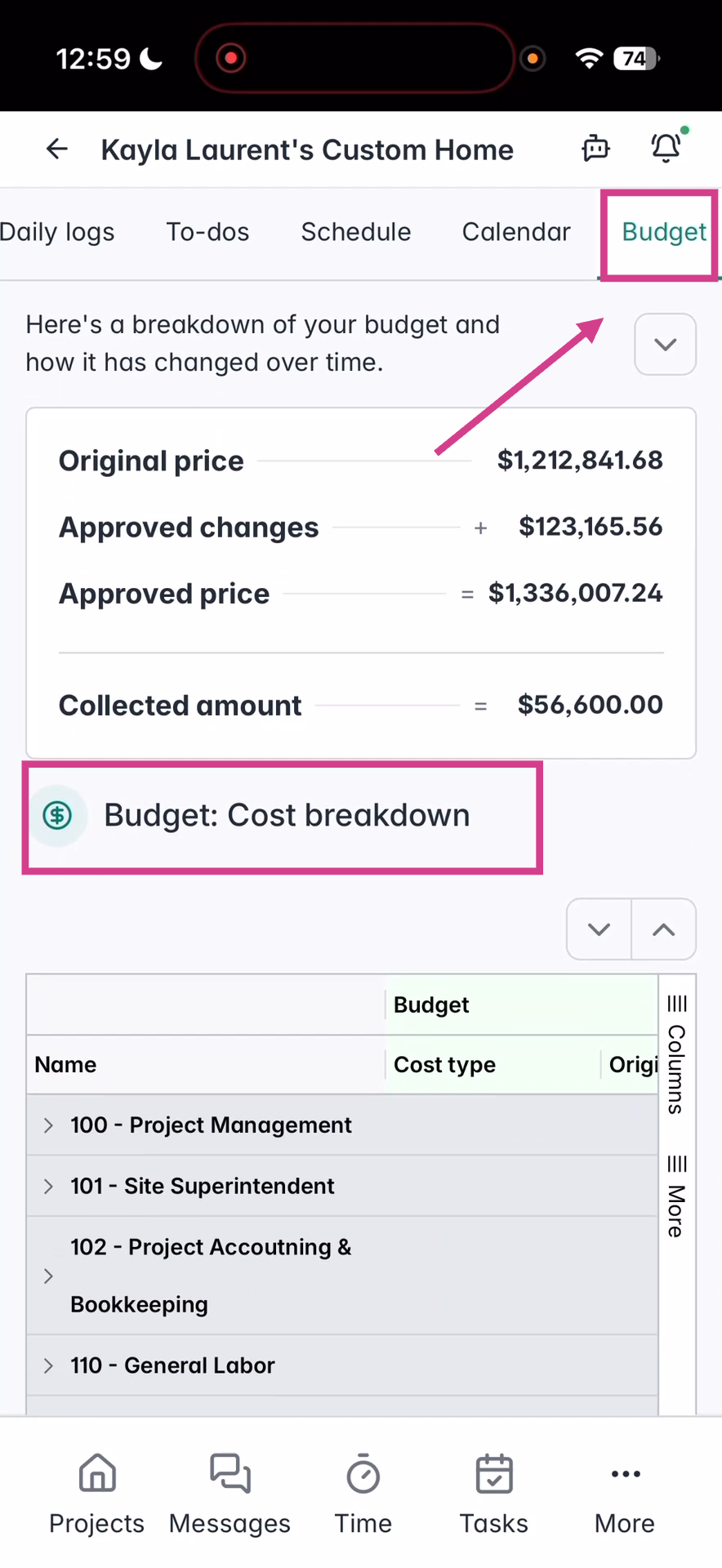
Admins and team members with permission will see a Budget Tab:
-
High-level project cost overview at the top
-
Expandable detailed budget breakdowns below
-
Full cost review recommended on larger devices like tablets
💡 Tips for Best Use
-
Use the Gantt and Budget views on a tablet for easier navigation
-
Take advantage of Mason, your AI assistant, to automate field tasks
-
Post logs and upload files directly from the jobsite for real-time updates
If you have any questions or need further assistance, contact our support team at support@ressiosoftware.com. We're here to help!