.png?width=75&height=75&name=Untitled%20design%20(22).png)
Getting Started
What is a selection?
A selection is a decision item tied to a cost item in your estimate. It lets you present your client with a set of choices (like flooring options or appliance packages) and collect their approval directly in Ressio. Once a choice is approved, the budget updates automatically.
What is the difference between a choice group and a selection choice?
A choice group is a way to organize your choices into categories within a single selection. For example, if you have a flooring selection, you might create choice groups for the Kitchen, Master Bedroom, and Living Room. A selection choice is the individual item inside a group that the client will pick from, like a specific tile or hardwood option.
Can I change the selection type after I create it?
The Selection type preset is chosen when you create the selection and isn’t re-selected later. After creation, you customize the selection by editing choice groups and choices.
Can I reorder selection choices?
Yes. Selection choices can be reordered within a choice group. Click and drag the choice to the position you want.
Adding Choices
What are my options for adding a choice?
There are three ways to add a choice to a selection:
- Add a choice manually by clicking the "+ Add a choice" button and entering the details yourself.
- Insert from the Cost Catalog by clicking the "🔍 Insert from catalog" button to search and pull in an item you have already saved.
- Add a choice from a URL by clicking the "🔗Add from URL" button and pasting a product page link from a vendor or retailer website.
What is the "Add choice from URL" feature?
It is a tool that lets you paste a product page URL from a vendor or retailer website. Ressio scans the page and pulls in the product name, description, model number, images, and pricing so you do not have to enter it all manually.
Where do I find the "Add from URL" button?
Inside a choice group on any open selection, look for the button next to "🔍 Insert from catalog" and "+ Add another choice."
What information does Ressio pull from the URL?
Ressio attempts to pull the product name, description (including model number and part number), unit cost, quantity, product images, and the source URL. What comes through depends on how the retailer's website is set up.
What if pricing does not come through from the URL?
Pricing is the most common field that does not transfer automatically because many retailer websites do not share it with outside tools. You can type the cost in manually in the choice editor before saving.
Does the URL import work with any website?
It works with most standard product pages. Some large retailers may restrict access. If you get limited results, enter the details manually or try a different site. Make sure you are on a specific product page, not a category or search results page.
The choice was created but the editor did not open. What do I do?
This can happen occasionally. Your choice was still created successfully. Look for the green "Choice added" confirmation, then find the new choice in the list and click on it to open and edit it.
Can I add multiple cost details to one choice?
Yes. When editing a choice, click the "+ Add cost detail" button to include multiple line items under a single choice.
Releasing and Approving
Specifications is also referred to as "Specs". On the client portal, in the navigation panel, Specifications is labeled "Specs" but when you open the page it will say Specifications. 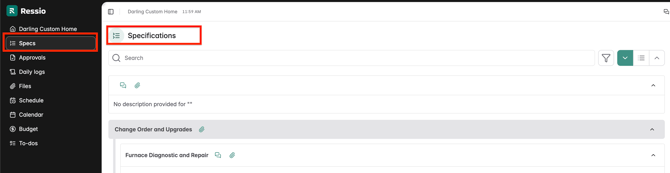
What does releasing a selection do?
Releasing sends the selection to your client so they can review the choices and make a decision. Your client will receive a notification that their input is needed. The selection status changes from Draft to Released.
Note: Your client needs to be invited to the Ressio platform before they can receive a notification. See the Adding Clients to a Project guide.
Can I approve a selection without sending it to my client?
Yes. If your client has already given you their decision in person or by phone, you can click "Approve" instead of "Release." You can add a note to document the decision. All approvals, whether made by the client or by you on their behalf, are visible to both parties.
What does my client see when a selection is released?
Your client gets a notification and can review the selection in their portal. In Approvals, released items are shown as "Released (pending approval)" until a decision is submitted. After approval, clients and vendors see only the approved choice on Specifications.
Can my client see selections before I release them?
It depends on your Project settings. Under the Customer tab, scroll down to "Approvals" and turn on "View draft selections". This allows the customer view draft selections in the approvals screen (and in linked schedule selection items). In Approvals, that Draft section is draft selections only (not other draft approval item types).
Specifications visibility is controlled separately by Specs settings (for example Hide Specs / Plan Hub specs sharing), not by the Approvals draft toggle.
Can I share the selection allowance amount with my client before releasing?
Yes, on customer Approvals. To enable this, go to Project Settings->Customer tab and turn on "View draft selections". This toggle does not control whether Specs is visible.
After Approval
What happens to my budget when a selection is approved?
Once a choice is approved, the budget updates to reflect the approved cost. You can view this in the Budget page. The change is also captured in the Change Log.
My client approved a selection but wants to change their mind. What do I do?
You will need to unrelease the selection, then add or update the choice, and re-release it for approval. Unreleasing removes the current approved state but keeps a record of all previous activity in the Change Log, so your paper trail is preserved.
Can I edit a selection after it has been released or approved?
You cannot make changes to a released or approved selection directly. You need to unrelease it first, make your edits, then release it again for a new approval.
Does a selection have a due date?
Yes. You can set a due date when creating or editing a selection. The due date is visible to both you and your client and can be used to keep selections moving on schedule. Due dates do not automatically unrelease a selection when they pass.
Display and Pricing
What is Display Mode?
Display Mode controls how pricing is shown to your client on selection choices. There are two options:
- Full amount shows the complete cost of each choice and the allowance.
- Price difference shows only how much more or less each choice costs compared to the base allowance. This is useful when you want clients to focus on upgrade or downgrade costs rather than total figures.
Choosing Price Difference limits you to Single choice only or Single choice with optional add-ons selection types.
What is an allowance?
An allowance is the budgeted amount for a selection item. It represents what you have set aside for the client's decision. When a client chooses an option that costs more than the allowance, the difference impacts the budget. When they choose something less, it works in the opposite direction.
Can I show the customer price for the allowance on a Cost Plus project?
Yes. Go to Project Settings->Financials tab, scroll down and find "Display customer price on selections" and toggle that on. This setting is only available on Cost Plus projects and shows clients a before and after comparison along with the impact on their overall project price.
🎓 To learn how to create and manage selections, read Creating and Releasing Selections.
If you still have unanswered questions or need further assistance, please don't hesitate to reach out to our dedicated support team at support@ressiosoftware.com. We're here to help!