.png?width=75&height=75&name=Untitled%20design%20(22).png)
Begin improving shift tracking accuracy and employee flexibility by integrating breaks and pauses into your team’s workflow. These two news features appear both on your desktop and mobile device.
Time Clock now supports two ways to track break time during a shift:
-
30 min break for a standard timed break
-
Pause for an open-ended break
✅ Break time is automatically tracked and deducted from worked time.
Benefits of Shift Breaks and Pause Features
-
Enables unlimited, trackable breaks during shifts
-
Improves time tracking accuracy for payroll and reporting
-
Ensures validation to avoid overlap and errors
-
Allows only admins to edit breaks for data integrity
-
Displays clear on-break status to prevent confusion
Table of Contents
Navigation & Layout Changes - Desktop
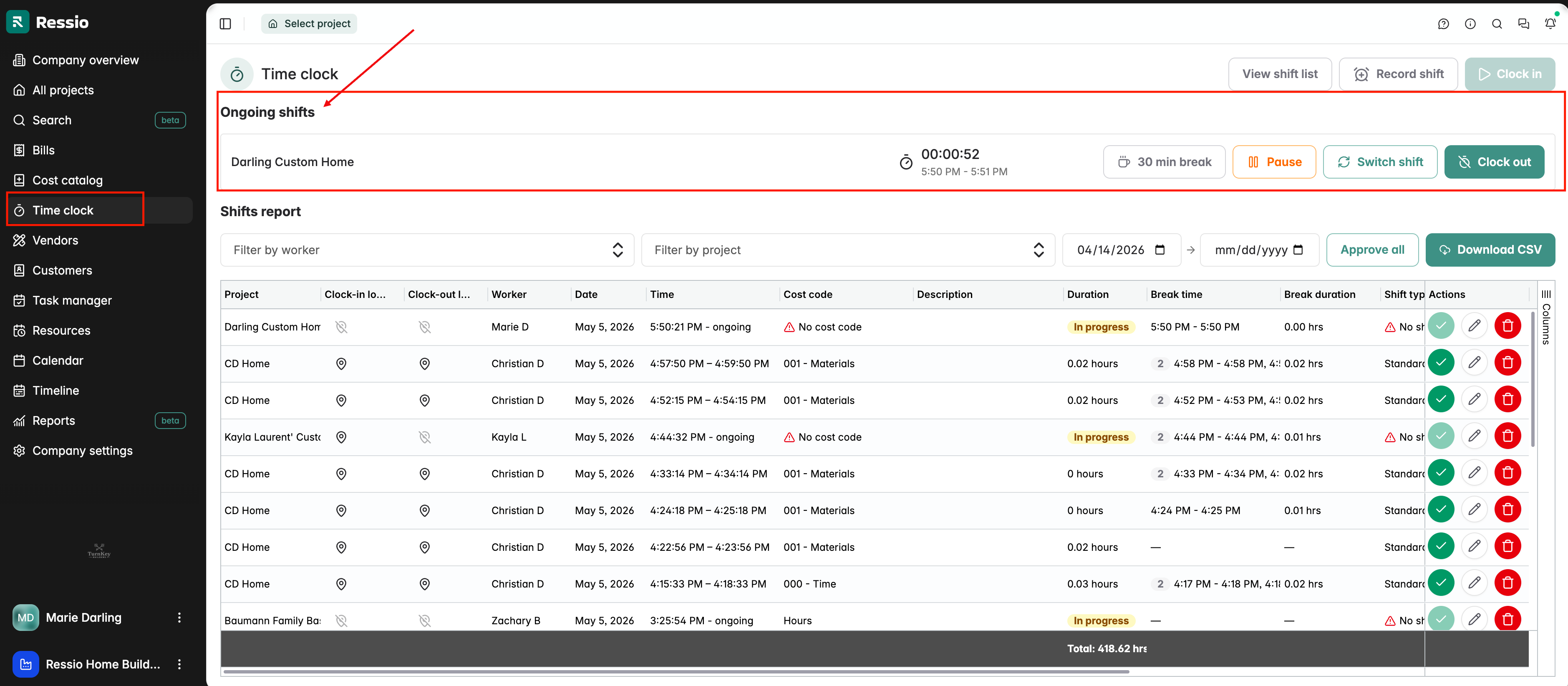
Time Clock tab can be found under Company Overview.
The Time Clock page now includes a dedicated section for shift breaks. Breaks appear as part of a new interface update, visible when recording or managing a shift. There will be a section above "Shift report" titled "Ongoing shifts".
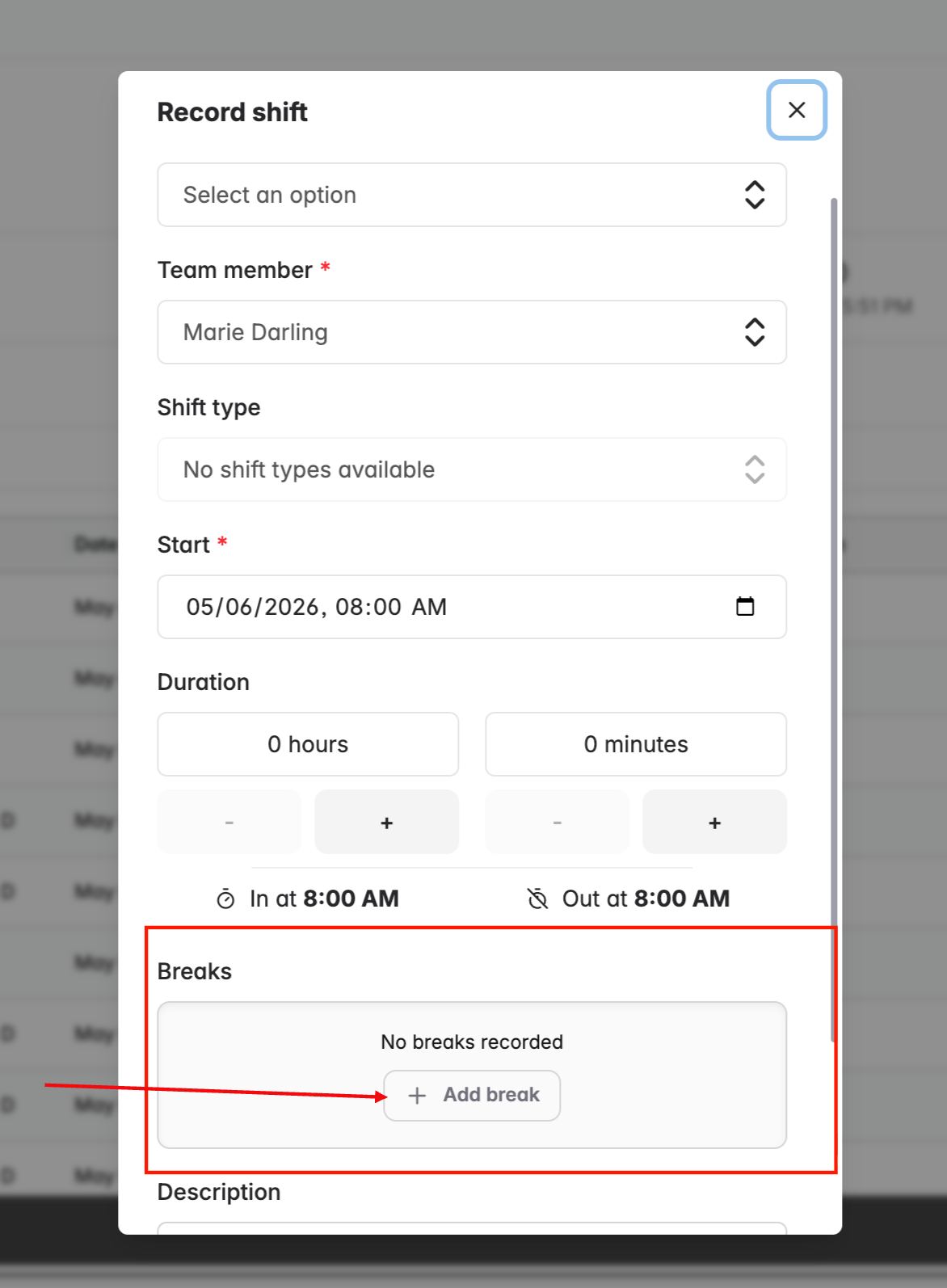
When recording a shift, Team Members, Field Users and Admins can register or add any number of breaks when recording a shift.
To add a break in a recorded shift do the following:
-
Hit Record shift.
-
Fill in the required information.
-
Scroll down to "Breaks" and hit the "+ Add break" button.
-
There are restrictions in place for breaks.
⚠️ What to know
-
Only one break can be active at a time.
-
Team members can’t start overlapping breaks.
-
Breaks must stay within shift time.
-
If someone clocks out or switches shifts, active break time is closed with the shift.
-
Only admins can edit or adjust existing break times for accuracy and auditing.
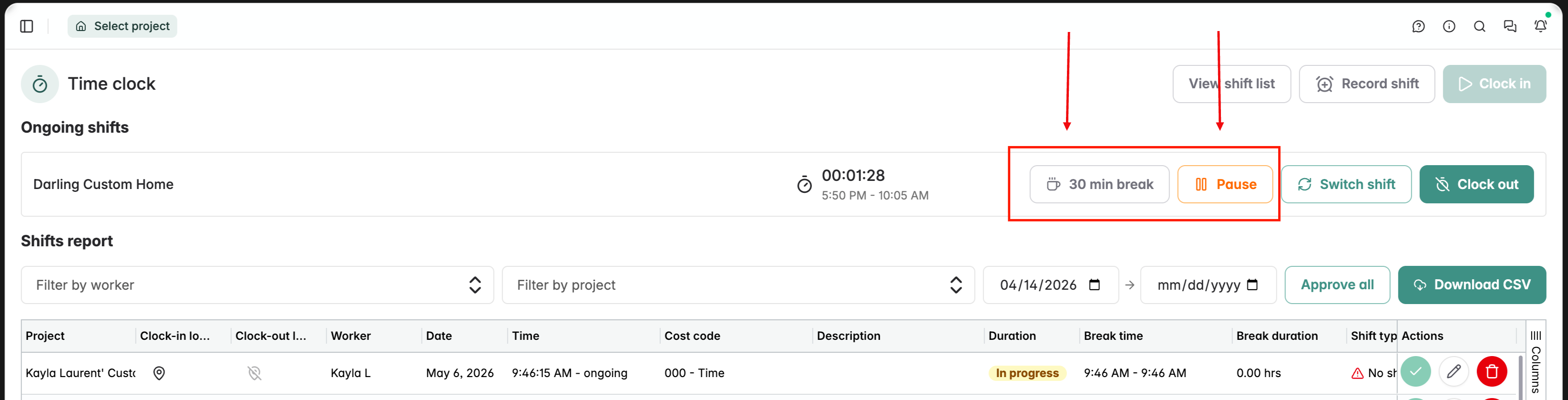
If you are already clocked in and need to take break, there is now the option to choose either:
-
"30 min break" to start a timed 30-minute break
-
"Pause" to start an open-ended break
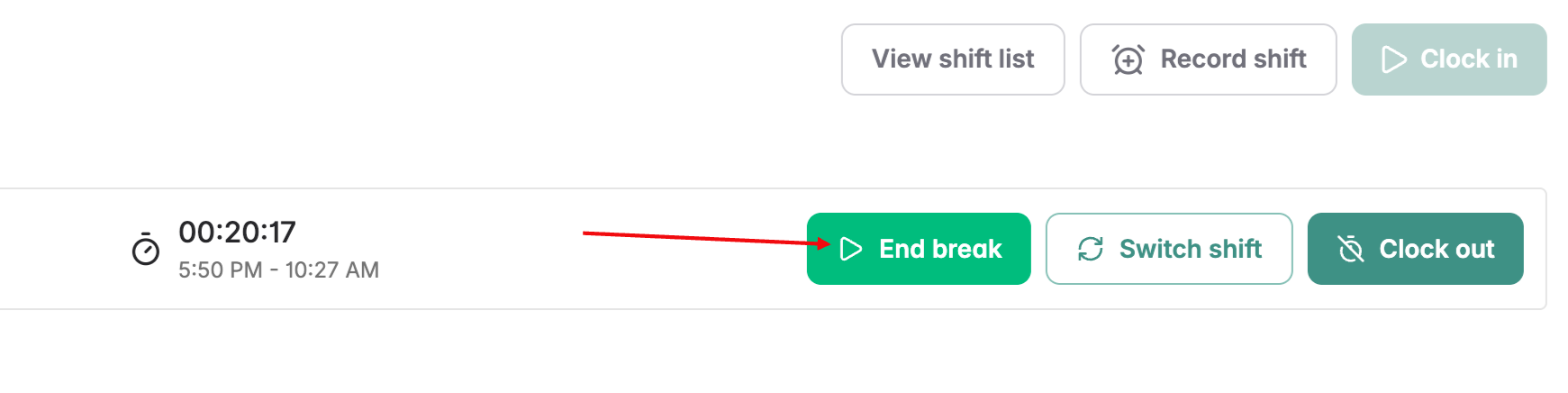
If you have paused the shift or are in a 30 minutes break, hit "End shift" to end the shift.
💡 Navigating away from the Time Clock will keep your break status visible as a reminder. There will be a banner at the top any page. If you decide to end your break early or before your 30 minutes are up, hit the "End break early" button on the banner.

⚠️ After 30 minutes, Ressio automatically clocks you back in.
Using Shift Pause & Breaks on Mobile
-
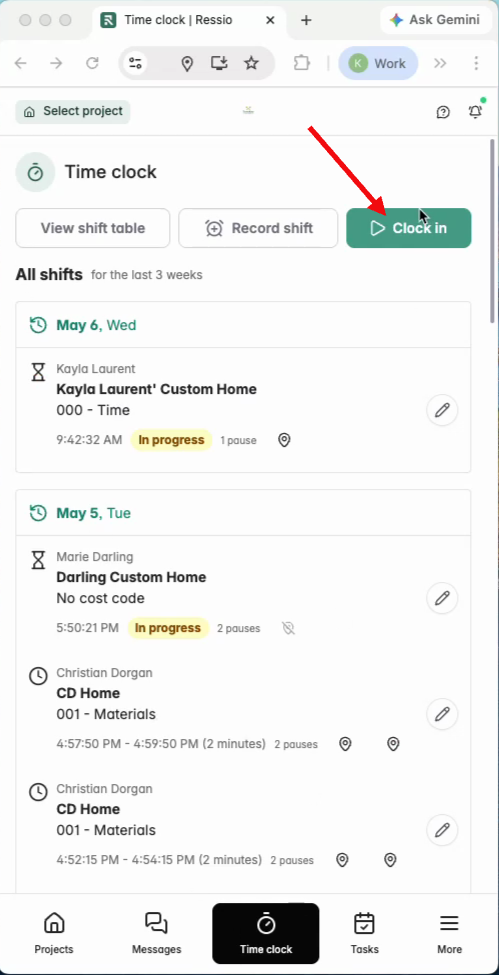
On mobile, navigate to your time clock and clock in as usual.
-
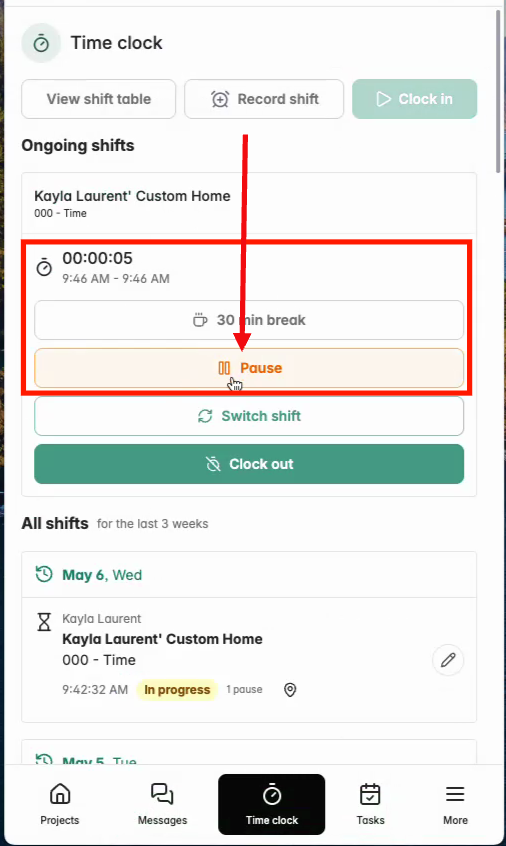
The same orange pause button is available at the top of the screen.
-
Pausing and ending breaks on mobile mirrors the desktop experience, just condensed for smaller screens.
-
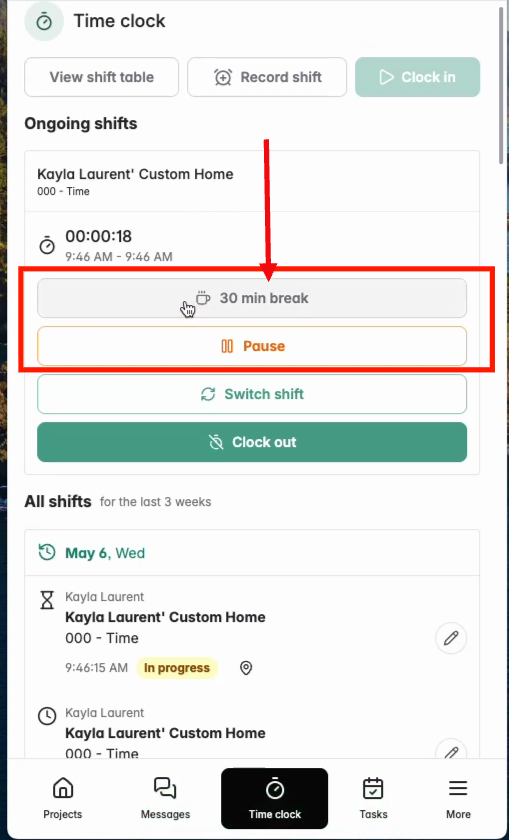
The 30-minute break feature appears on mobile as well.
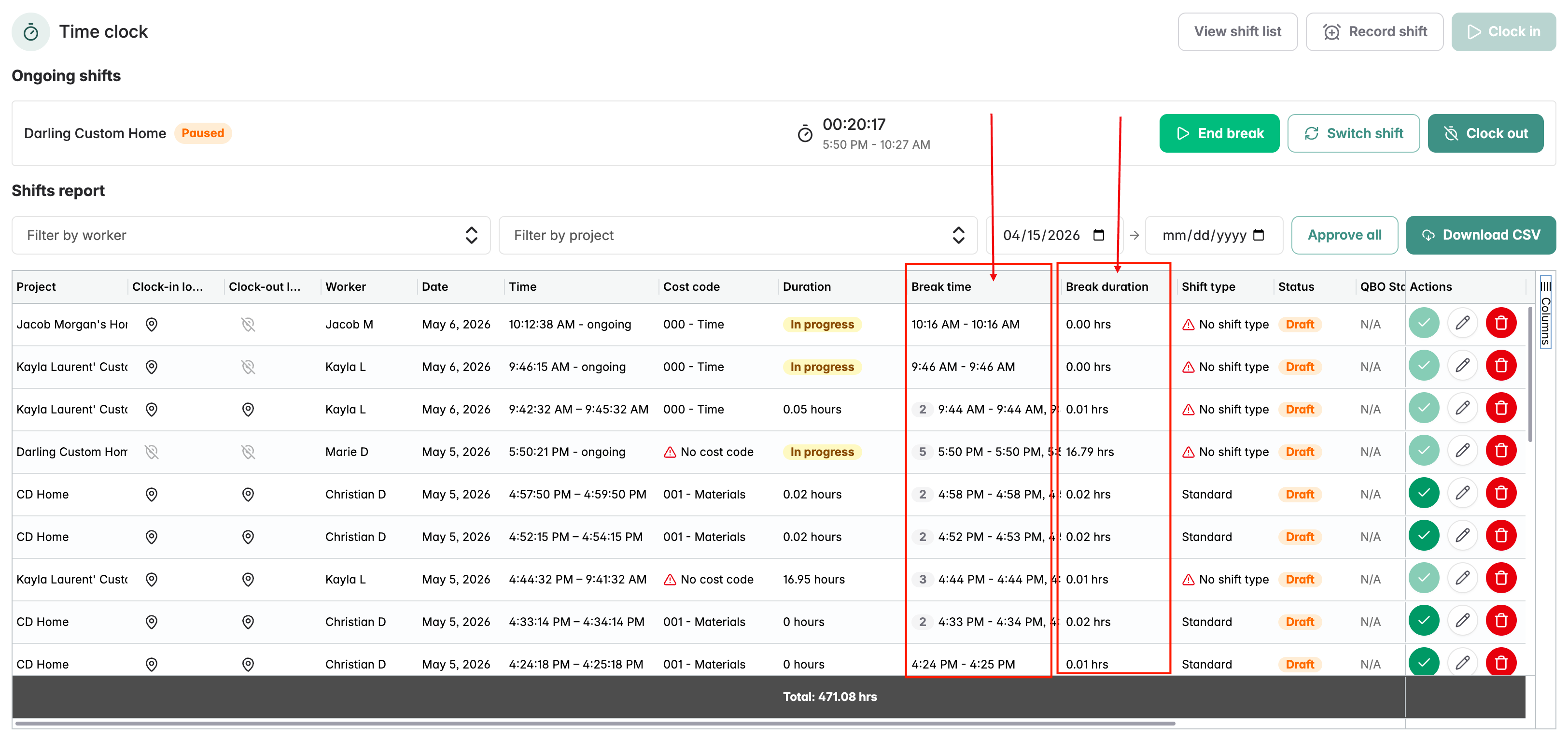
Two new columns now appear in the time grid and CSV exports, displaying exact break times and total break duration for each shift. The shift duration now automatically accounts for all breaks, clock in/out time minus total breaks.
How this affects timesheets and reporting:
-
Breaks appear in shift logs under Break time and Break duration.
-
CSV exports include break columns
-
Worked time and downstream totals (including billing/reporting calculations) automatically subtract break time.
-
This update appears both in the dashboard and in exported data for QBO and CSV files.
If you have any questions or need further assistance, contact our support team at support@ressiosoftware.com. We're here to help